[Beginner’s Guide #3] How to Read Storage Specs: SSD vs HDD and Recommended Capacity for Gaming & Work

When buying a computer, many people check the storage drive right after the CPU and memory. Specification sheets often list terms like “512GB SSD,” “1TB HDD,” or “NVMe,” but many buyers focus only on capacity without understanding what those labels actually mean.
Storage is where your programs and files live permanently, and it also has a direct impact on boot times and loading speeds. Too little capacity becomes inconvenient quickly; too much for your needs simply wastes money. This guide explains what storage does, the differences between types, recommended SSD capacities by use case, and what beginners should watch out for.
1. What Does Storage Actually Do?
Think of storage as the computer’s warehouse.
It permanently stores the operating system, programs, documents, photos, videos, and other data. While RAM is temporary working space, storage keeps everything even when the power is turned off.
Storage matters for more than just holding files. The type of drive you use affects boot speed, program launch times, and how quickly files open. That’s why it’s worth checking both the type and the capacity when comparing systems.
2. SSD vs Hard Disk Drive (HDD)
Current computers mainly use two types of storage: SSD and hard disk drive (HDD).
- SSD: A semiconductor-based drive. It is fast, quiet, and relatively resistant to physical shock. In modern PCs, it is the standard place to install the operating system and main programs.
- Hard Disk Drive (HDD): A mechanical drive that spins platters to read and write data. It is usually cheaper per gigabyte, so it is often used for large-capacity storage. However, it is slower than an SSD, can make noise, and is more vulnerable to physical shock.
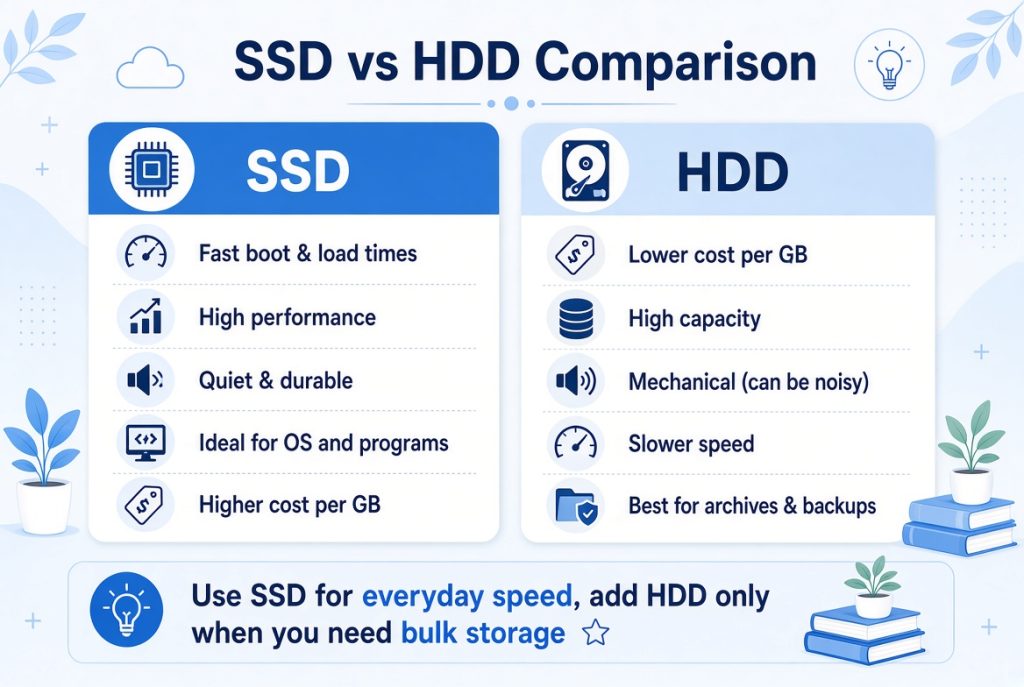
The difference is easy to feel in everyday use. A system with an SSD boots and launches programs quickly, while an HDD-only system often feels sluggish overall.
For this reason, the current standard is clear: Keep the operating system and frequently used programs on an SSD. HDDs are mainly useful for bulk storage that does not need high speed.
3. NVMe SSD vs Regular SSD
You may have seen the term “NVMe” on specification sheets. It refers to a connection method and performance characteristic of SSDs.
In simple terms, NVMe SSDs are often capable of faster data transfer than regular SSDs. Many recent systems now include NVMe SSDs as standard.
For beginners, however, the first thing to check is not “Is it NVMe?” but “Does it have an SSD at all?” The difference between an HDD-only system and one with any SSD is usually much more noticeable than the difference between a regular SSD and an NVMe SSD.
4. Recommended SSD Capacity by Use Case
As with other components, the right storage depends on how you use the computer.
| Use Case | Recommended Setup | Notes |
|---|---|---|
| Documents, web browsing, video watching | 256GB – 512GB SSD | Enough for basic use. Choose 512GB if you store many files |
| General office work + multitasking | 512GB SSD | Comfortable for programs and documents |
| Gaming | 512GB – 1TB SSD | Modern games are large; 512GB can fill up quickly |
| Video editing, design, photo work | 1TB SSD or more | Both capacity and speed matter for large project files |
| Large file storage | SSD + extra storage | Keep frequently used data on SSD; use additional space for archives |
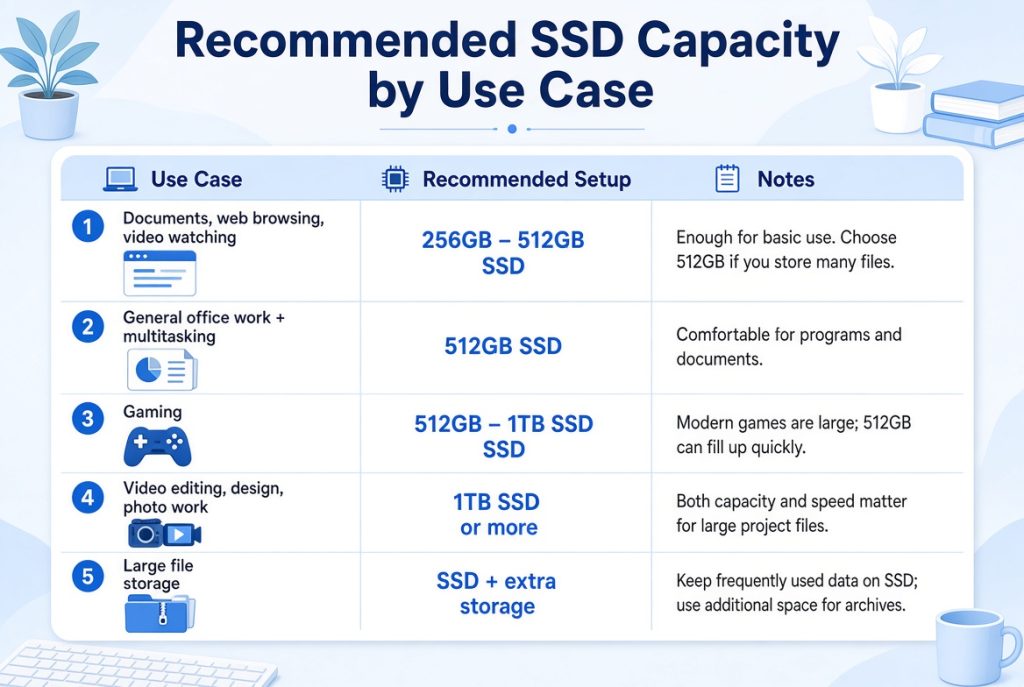
For gaming, a single modern title can take tens of gigabytes to over 100GB. After accounting for the operating system and basic programs, 512GB can run out surprisingly fast. On the other hand, if you mainly do documents and web browsing, there is no need to start with 1TB or more.
Storage is not a “bigger is always better” decision. Base your choice on the amount of data you will actually install and keep.
5. When an SSD Alone Is Enough vs When You Need Extra Storage
Not every user needs a complex setup.
SSD alone is usually enough when:
- You mainly do documents, browsing, and video watching
- You install only a modest number of programs
- You do not keep large photo or video libraries on the computer
Extra storage is useful when:
- You install many games
- You work with video editing files or large datasets
- You back up photos and videos directly on the PC
In these cases, start with a fast SSD for the operating system and active files, then add extra storage as needed. Not every file needs to live on the fastest drive.
6. Common Mistakes Beginners Make
- Looking only at total capacity: Thinking “1TB must be good” can be misleading if most of that space is a slow hard drive. Check the type of storage first, not just the total size.
- Having the operating system on a hard drive: This configuration often makes the whole system feel slow. Whenever possible, choose a setup where the OS and main programs are on an SSD.
- Choosing too little capacity at the start: Gamers and users who handle video files can fill 512GB faster than expected. Conversely, heavy capacity is unnecessary (and wasteful) for pure document work.
- Ignoring balance with other components: Even a large, fast storage drive cannot compensate for a weak CPU, insufficient RAM, or an inadequate graphics card. Overall system balance still matters.
7. What to Watch for When Buying Pre-Built PCs
Storage is often listed briefly on specification sheets, so important details are easy to miss.
Watch for configurations like these:
- Total capacity looks large, but the actual SSD portion is small
- The listing simply says “SSD included” without clear capacity
- A high proportion of hard-drive space that reduces everyday speed
Storage is one of the components where shortages become noticeable quickly. Especially for gaming, video, or large-file work, the initial choice matters.
When reading a specification sheet, do not look only at total capacity. Always check how much SSD capacity is included.
8. Recommended Order for Choosing Storage
- Decide what you will mainly use the computer for.
- Confirm that the operating system and main programs will be on an SSD.
- Choose an SSD capacity that matches your use case.
- Consider extra storage if you need large-capacity archives.
- Check overall balance with the other components.
Final Takeaways
Storage is both the place where your data lives and a major factor in how fast the computer feels day to day. Larger capacity is not automatically better, and too little capacity becomes inconvenient quickly.
The right setup depends on whether you mainly do document work, play games, or handle video editing and design. Start by defining your use case, then check both the presence of an SSD and its capacity.
With these simple guidelines, you can avoid unnecessary spending while also preventing capacity shortages and slow performance. A computer does not become great because one part is excellent — balanced components matched to your needs matter more.
Next Article: Read the next part of the series: [Beginner’s Guide #4] How to Read Graphics Card Specs: GPU Comparison and Selection Guidelines for Gaming & Work
Previous Article: [Beginner’s Guide #2] How to Read RAM Specs: Why Capacity Alone Isn’t Enough and Recommended Guidelines by Use Case
