[Beginner’s Guide #6] How to Read Motherboard Specs: Choosing the Right Foundation for Your PC

When building or buying a PC, many beginners focus heavily on the CPU and graphics card, treating the motherboard as an afterthought or simply picking the cheapest option available.
However, the motherboard acts as the central command post and highway system of your computer. Every key component — CPU, RAM, graphics card, storage, and power supply — physically connects to it and communicates through its pathways. Choosing an incompatible or underpowered motherboard can leave you unable to install your chosen parts or prevent high-performance components from running at their full potential.
This guide breaks down what you need to know about motherboard specifications, socket types, chipsets, and form factors in plain language for beginners.
1. What Does a Motherboard Actually Do?
Think of the motherboard as the city’s road network and foundation.
- Connects All Components: Provides the physical slots and electronic pathways that allow the CPU, RAM, graphics card, and storage drives to communicate instantly.
- Distributes Power: Receives electricity from the power supply and safely regulates voltage for sensitive parts, especially the CPU.
- Determines Expansion Capacity: Controls how many USB ports, extra SSD slots, RAM slots, and wireless features (Wi-Fi/Bluetooth) your PC can have.
2. The First Rule: Check CPU Socket Compatibility
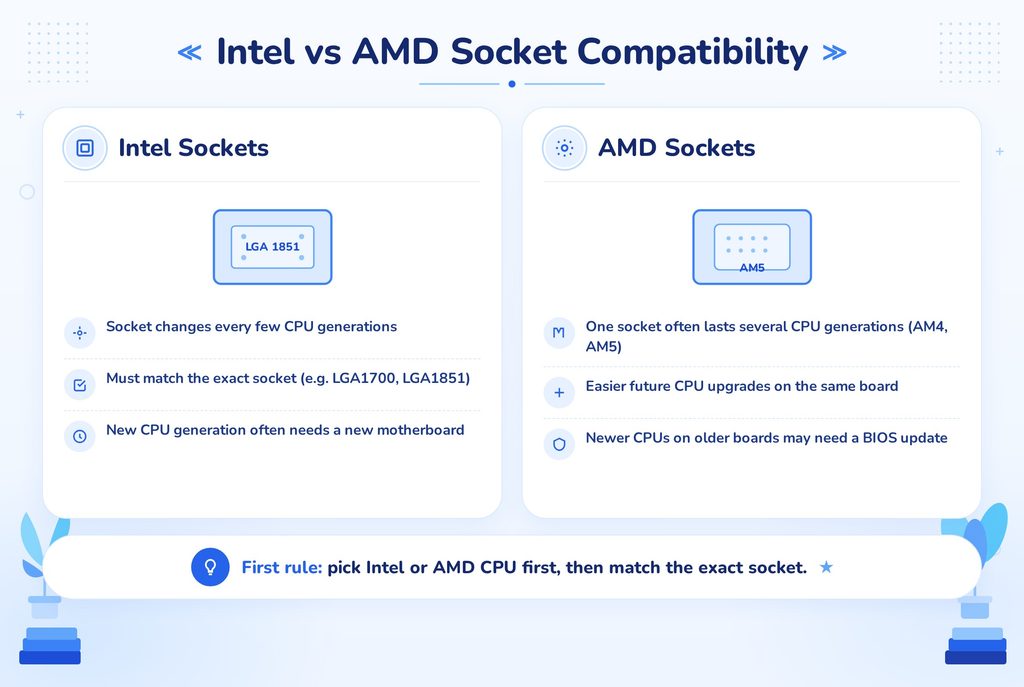
A motherboard dictates which CPU brand and generation you can use. Intel CPUs only fit into Intel-compatible motherboards, and AMD CPUs only fit into AMD-compatible motherboards.
- Intel Sockets: Intel changes its physical socket design every few generations (e.g., LGA1700, LGA1851). You must verify that the exact socket number on the motherboard matches the generation of your Intel CPU.
- AMD Sockets: AMD tends to support a single socket platform across multiple generations (e.g., AM4, AM5), making future CPU upgrades easier. Even if the physical socket fits, newer CPUs on older motherboards may require a BIOS update to work properly.
3. Understanding Motherboard Tiers (Chipsets)
The letters and numbers in a motherboard’s name (such as B650 or Z790) indicate its chipset. The chipset determines the feature level, expansion options, and power delivery quality.
| Tier | Intel Examples | AMD Examples | Main Features & Target Use Case |
|---|---|---|---|
| Entry-Level | H-series | A-series | Basic features, fewer slots, no overclocking. Best for office and light budget builds. |
| Mainstream | B-series | B-series | Most Recommended ⭐: Excellent balance of price, features, and power delivery for general users and gamers. |
| High-End / Flagship | Z-series | X-series | Full overclocking support, premium power delivery, and maximum expansion for enthusiasts. |
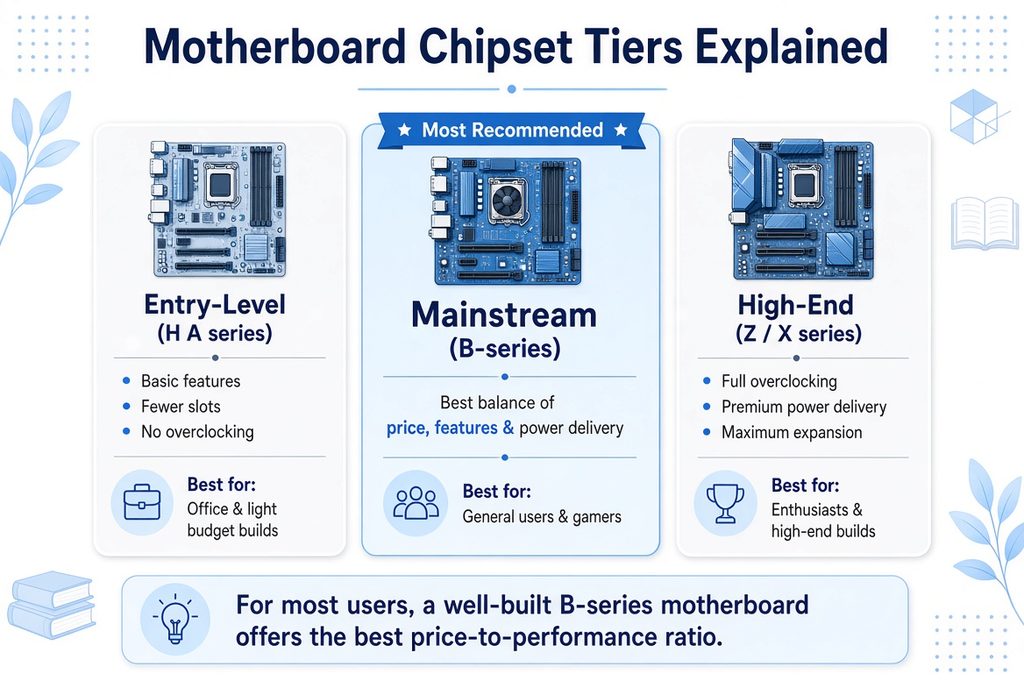
Note: For the vast majority of users, a well-built B-series motherboard offers the best price-to-performance ratio.
4. Form Factor: Choosing the Right Physical Size
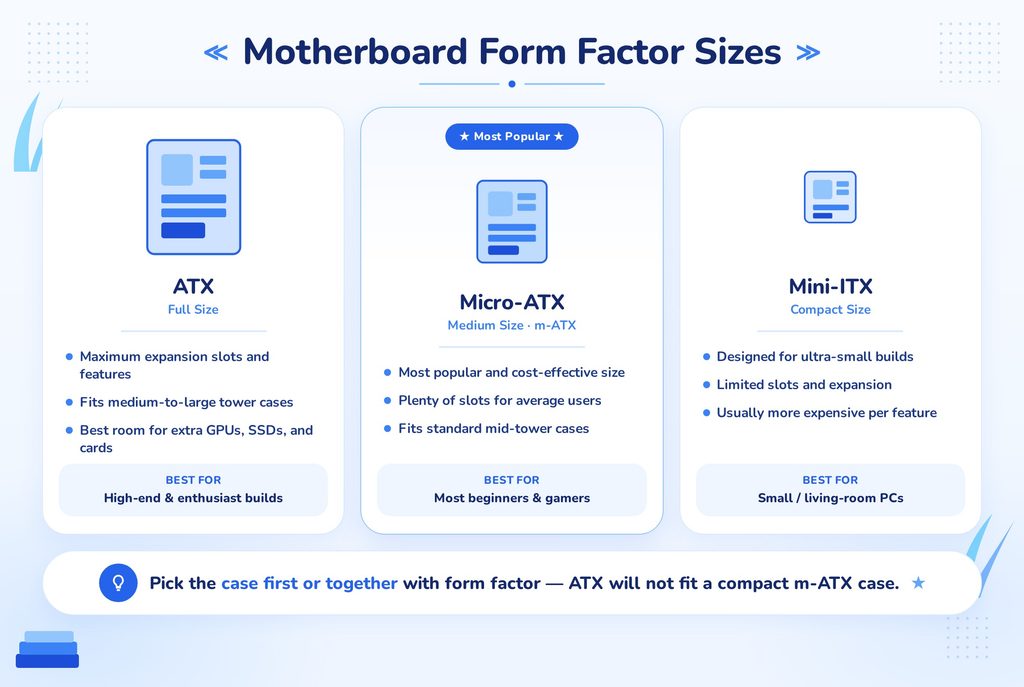
Motherboards come in standard physical sizes that determine how large your PC case needs to be.
- ATX (Full Size): Maximum expansion slots and features. Fits medium-to-large tower cases.
- Micro-ATX / m-ATX (Medium Size): The most popular and cost-effective size. Plenty of slots for average users and fits standard mid-tower cases.
- Mini-ITX (Compact Size): Designed for ultra-small builds. Limited slots and usually more expensive due to compact engineering.
5. Important Extra Features to Look For
- Power Delivery (VRM) and Heatsinks: If you plan to use a high-tier CPU (Core i7/i9 or Ryzen 7/9), choose a motherboard with solid VRM power phases and heatsinks. A weak VRM can overheat and force the CPU to slow down.
- RAM Slots: A board with 4 RAM slots offers much better future upgrade flexibility than one with only 2 slots. Also confirm DDR4 vs. DDR5 compatibility.
- M.2 SSD Slots: Look for at least two M.2 slots so you can easily add a second high-speed SSD later.
- Built-In Wi-Fi & Bluetooth: Check the model name. If it includes “Wi-Fi” or “AX,” the board has built-in wireless networking and Bluetooth.
6. Common Mistakes Beginners Make
- Pairing a high-end CPU with a bottom-tier motherboard: Installing a powerful CPU on a cheap entry-level board can overheat the power delivery and reduce performance.
- Ignoring physical clearance: Buying a full-size ATX motherboard and trying to fit it into a compact Micro-ATX case.
- Forgetting future upgrades: Choosing a board with only 2 RAM slots or a single M.2 slot, leaving little room to expand later.
7. Recommended Order for Choosing a Motherboard
- Finalize your CPU selection (Intel or AMD) first.
- Aim for a B-series chipset as your baseline for the best balance of price and features.
- Check for at least 4 RAM slots and 2 M.2 SSD slots.
- Decide if you need built-in Wi-Fi and Bluetooth.
- Choose a PC case that matches the motherboard’s form factor (m-ATX or ATX).
Final Takeaways
A motherboard does not directly boost frame rates in games, but it determines the overall stability, longevity, and upgradeability of your entire system.
You rarely need to spend extra on top-tier Z or X series boards. For almost 80% of users, a well-built B-series motherboard provides a rock-solid foundation that will support your system reliably for years to come.
Next Article: Read the next part of the series: [Beginner’s Guide #7] How to Choose the Right Mac Specs: Why Your First Decision Is Final
Previous Article: [Beginner’s Guide #5] How to Read Power Supply & Cooler Specs: Choosing the Right PSU and Cooling for Your PC
