[Beginner’s Guide #5] How to Read Power Supply & Cooler Specs: Choosing the Right PSU and Cooling for Your PC

When building or buying a PC, many beginners pour most of their budget into flashy components like the CPU and graphics card. In contrast, the power supply (PSU) and cooler are often treated as afterthoughts.
However, a PC cannot run reliably without a solid foundation. The power supply acts as the heart that pumps stable electricity to every part, while the cooler acts as the cooling system that keeps components from overheating. Choosing poor-quality or underpowered options for these two parts can lead to sudden crashes, system throttling, or even hardware damage.
This guide breaks down what you need to know about power supplies and coolers in plain language so you can build a stable, durable system without overspending.
1. Power Supply (PSU): The Heart of Your PC
The Power Supply Unit (PSU) converts electricity from your wall outlet into stable DC power for your computer’s components. If the power supply fails or delivers unstable voltage, the entire system becomes unstable.
Key Factors When Choosing a Power Supply
- Wattage (Capacity): Shows the total amount of power the PSU can deliver.
- 500W – 600W: Ideal for office PCs and basic setups with integrated graphics or entry-level graphics cards.
- 650W – 750W: The sweet spot for standard gaming PCs with mid-range graphics cards (e.g., RTX 4060 / 4070).
- 850W or higher: Required for high-end gaming and heavy workstation PCs (e.g., RTX 4080 / 4090).
- Tip: Always leave 150–200W of headroom above your estimated system power draw. This extra capacity reduces stress on the PSU, improves efficiency, and gives you room for future upgrades.
- 80 PLUS Certification (Efficiency): Indicates how efficiently the PSU converts power. Higher efficiency means less wasted energy and less heat.
- Tiers: Standard → Bronze → Silver → Gold → Platinum → Titanium
- For most users, 80 PLUS Bronze or Gold offers the best balance of reliability and price.
- Modularity: Refers to how cables are attached.
- Non-Modular: All cables are permanently attached (budget-friendly, but harder to manage).
- Fully-Modular: All cables are detachable, so you only install what you need for a cleaner build.
2. PC Cooler: The Cooling System
As the CPU and graphics card process complex tasks, they generate intense heat. A cooler dissipates this heat to prevent performance throttling (where the system slows itself down to avoid damage) and sudden shutdowns.
Air Cooling vs. Liquid Cooling
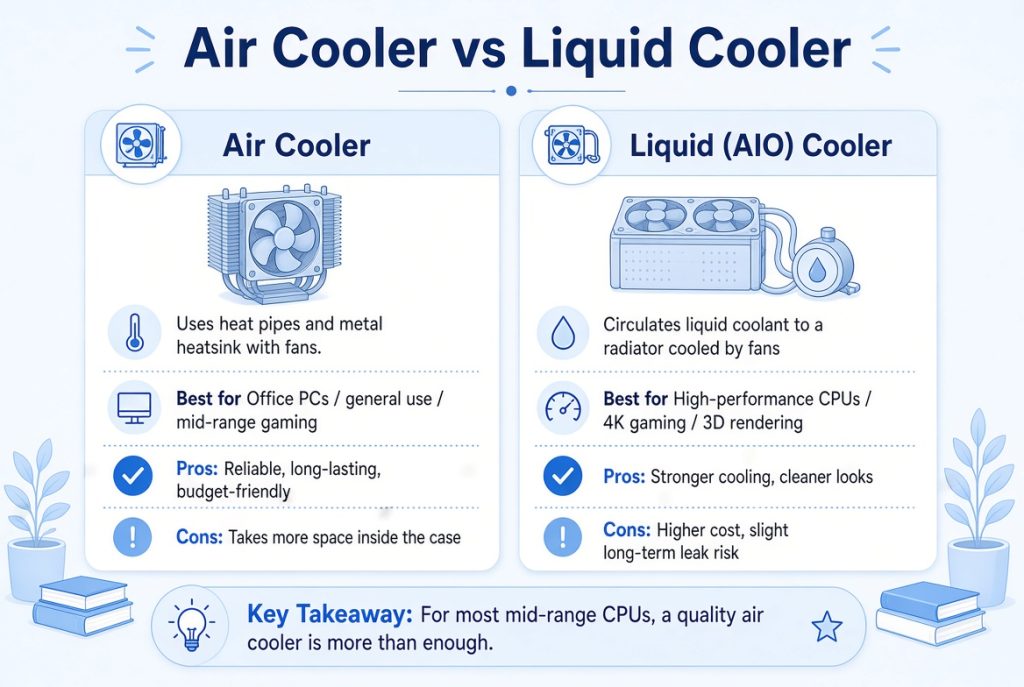
Note: For most mid-range CPUs (such as Intel Core i5 or AMD Ryzen 5), a quality single- or dual-tower air cooler is more than enough to keep temperatures low and noise down.
3. Recommended Combinations by Use Case
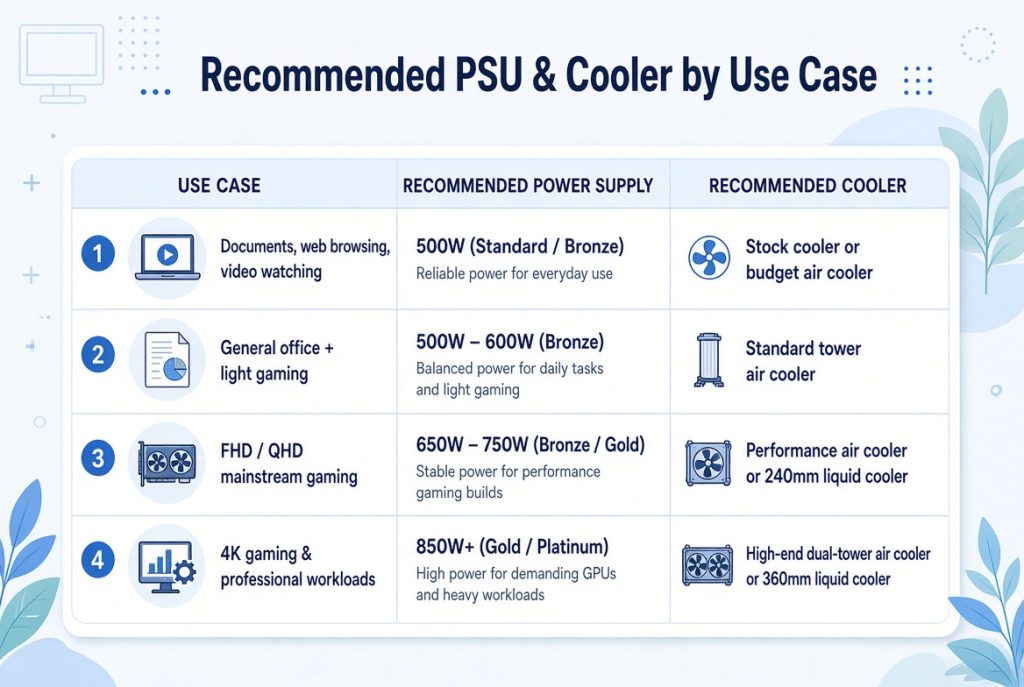
4. Common Mistakes Beginners Make
- Buying a cheap, unbranded power supply: Choosing an ultra-cheap, no-name PSU to save a little money can risk damaging your motherboard or graphics card during a power surge.
- Overkill cooling for entry-level CPUs: Installing an expensive 360mm liquid cooler on a low-power CPU is a waste of budget that could be better spent on a stronger graphics card or more RAM.
- Ignoring case clearance: Buying a large air cooler or thick liquid radiator without checking whether it physically fits inside your chosen PC case.
5. What to Check on Pre-Built PC Specs
- Exact PSU brand and wattage: Sellers often write vague phrases like “High-Performance Power Included.” Always ask for the exact model and 80 PLUS rating.
- Cooler type: Confirm whether the CPU comes with a basic stock cooler or an upgraded aftermarket cooler, especially if you plan to play demanding games.
6. Recommended Order for Choosing Power & Cooling
- Select your CPU and graphics card first.
- Estimate the total system power draw and choose a power supply with 150–200W of headroom.
- Choose a cooler (air or liquid) that matches your CPU’s heat output.
- Verify that both the power supply and cooler physically fit inside your chosen PC case.
Final Takeaways
A computer’s overall stability and lifespan depend heavily on its heart and cooling system. Skimping on the power supply or cooler just to buy a slightly faster graphics card often leads to loud fan noise, system crashes, or hardware failure later.
Stick to reliable brands, choose an 80 PLUS Bronze or Gold power supply with enough wattage headroom, and pair your CPU with an appropriate air or liquid cooler. Building on a stable foundation ensures your PC runs smoothly for years to come.
Next Article: Read the next part of the series: [Beginner’s Guide #6] How to Read Motherboard Specs: Choosing the Right Foundation for Your PC
Previous Article: [Beginner’s Guide #4] How to Read Graphics Card Specs: GPU Comparison and Selection Guidelines for Gaming & Work
