[Beginner’s Guide #2] How to Read RAM Specs: Why Capacity Alone Isn’t Enough and Recommended Guidelines by Use Case

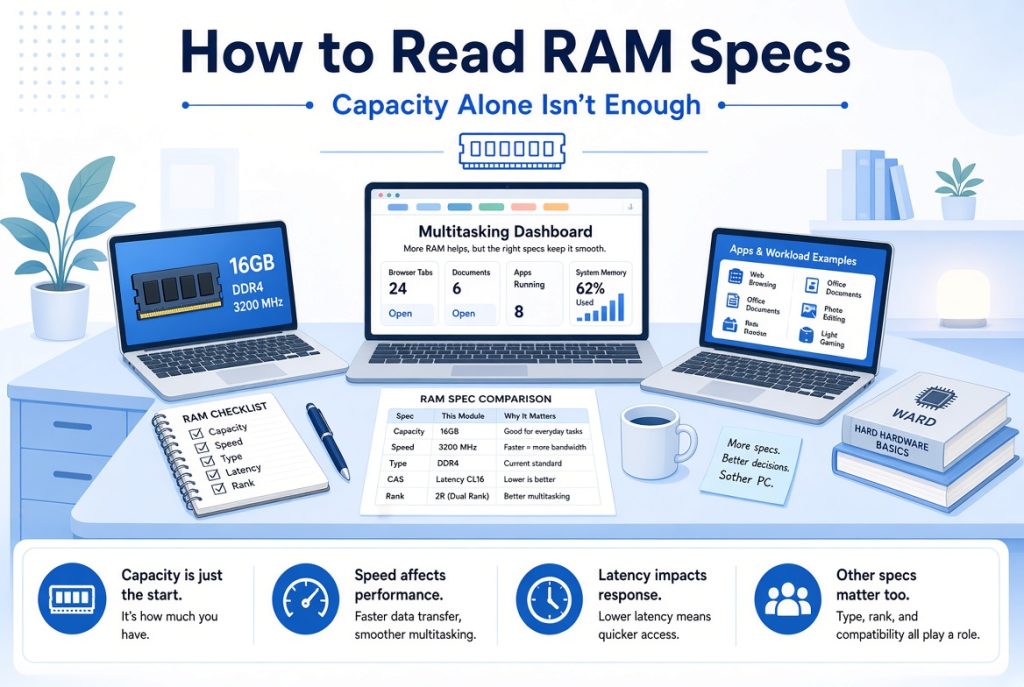
When you check a PC specification sheet, RAM (memory) is usually the second item you notice after the CPU. Numbers like “16GB,” “32GB,” “DDR4,” or “DDR5” appear frequently, yet many people don’t fully understand them and simply pick the larger capacity.
RAM directly affects how fast your computer feels in real use. Too little slows everything down; too much for your needs just wastes money. This guide explains what RAM does, how much you actually need for different tasks, and what beginners should watch out for.
1. What Does RAM Actually Do?
Think of RAM as the computer’s workbench.
When the CPU (the brain) works, it places the necessary data and programs on this workbench. A larger workbench lets you spread out multiple tasks at once. A small one forces you to clear space before starting the next job.
- Enough RAM: Multiple windows and programs run smoothly together.
- Too little RAM: Switching programs becomes slow, the system may freeze, or the computer starts using the storage drive as temporary space — which makes everything lag.
Data in RAM disappears when the power is turned off. That’s why it’s called temporary working space. Permanent storage of photos, documents, and programs is handled by the SSD or HDD.
Many people assume “more RAM is always better.” In reality, matching the capacity to your actual use is far more important.
2. Recommended RAM Capacity by Use Case
The first step is deciding what you mainly use the computer for. Different tasks need different amounts.
| Use Case | Recommended Capacity | Notes |
|---|---|---|
| Documents, web browsing, video watching | 8GB – 16GB | Fine for basic use. Choose 16GB if you keep many tabs open |
| General office work + multitasking | 16GB | Currently the most balanced and recommended amount |
| Gaming | 16GB – 32GB | 16GB is enough for most games; 32GB if streaming or running other programs |
| Video editing, design, photo retouching | 32GB or more | 32GB+ recommended for 4K editing or heavy creative work |
| Streaming + demanding multitasking | 32GB or more | Needed when gaming and streaming at the same time |
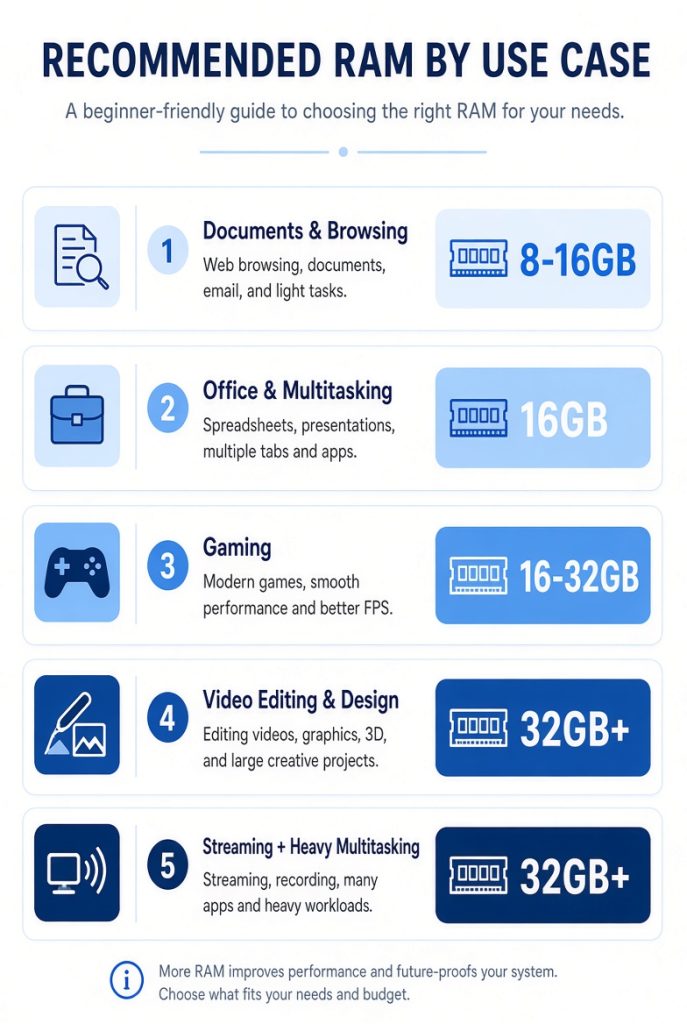
Capacity is not a “bigger is always better” decision. Matching it to your real needs matters most.
3. Other Useful Concepts Beyond Capacity
Once capacity is decided, a few extra points help.
- DDR4 vs DDR5: These indicate the technology generation. DDR5 is newer, but it is not automatically much faster in everyday use. It must be supported by your motherboard and CPU, and with the same capacity, the real-world difference is often small. Compatibility with the rest of the system is more important.
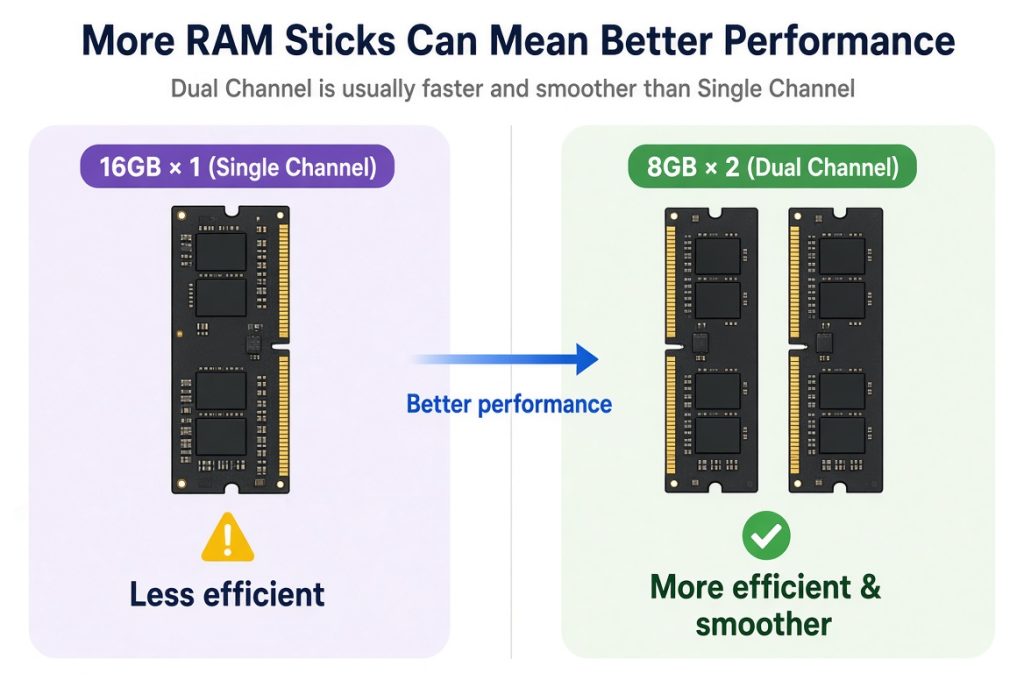
- Dual-Channel Configuration: Two modules are usually more efficient than one. For example, 16GB is better as 8GB × 2 than as a single 16GB stick. Think of it as having two workbenches instead of one — tasks flow more smoothly.
- Speed (MHz numbers): Numbers like 3200MHz or 5600MHz show how fast the RAM runs. Higher numbers are theoretically faster, but for most users, the difference is much smaller than the impact of capacity. There’s no need to obsess over speed at the start.
4. Common Mistakes Beginners Make
- Focusing only on capacity: Thinking “32GB must be better” can lead to overspending when 16GB would have been enough. The opposite also happens — choosing 8GB for video editing and then suffering slow performance.
- Installing only one module: A single 16GB stick is usually less efficient than two 8GB sticks in a dual-channel setup.
- Ignoring future upgrades: Instead of buying excessive capacity from the start, choose what you need now and add more later. Just check how many RAM slots the motherboard has beforehand.
- Neglecting balance with other components: Loading up on RAM while the CPU or storage is weak won’t deliver good overall performance. A computer is a system of parts working together.
5. What to Watch for When Buying Pre-Built PCs
RAM is one of the least visible components. Sellers can use lower capacity or slower modules without most buyers noticing.
It’s common to see systems that highlight a stylish case and a high-tier CPU while equipping only the minimum amount of RAM. Always check the RAM section on the specification sheet and confirm the capacity matches your intended use.
Even when a spec sheet lists “16GB,” it might actually be a single 16GB stick instead of a faster dual-channel setup (8GB × 2). Whenever possible, look at the detailed configuration.
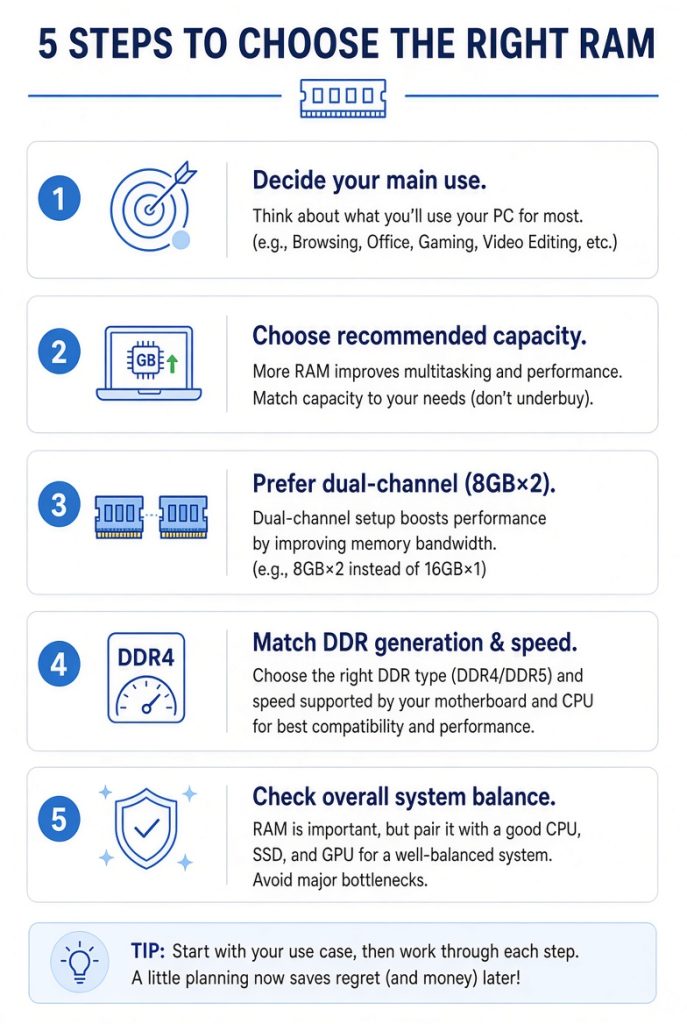
6. Recommended Order for Choosing RAM
- Clearly decide what you will mainly use the computer for.
- Use the recommended capacity for that purpose as your baseline.
- Prefer dual-channel setups (e.g., 8GB × 2) when possible.
- Match the DDR generation and speed to what the motherboard and CPU support.
- Check overall balance with the other components.
Final Takeaways
Approaching RAM with a simple “bigger is better” mindset easily leads to unnecessary spending. Choosing too little creates a bottleneck that slows the entire system.
The right amount depends on whether you mainly do document work, play games, or handle video editing and design. Define your use case first, then choose the capacity that fits it.
With just these guidelines, you can avoid both overspending on RAM and suffering from insufficient performance. A computer doesn’t become great because one part is excellent — balanced components matched to your needs matter more.
Next Article: Read the next part of the series: [Beginner’s Guide #3] How to Read Storage Specs: SSD vs HDD and Recommended Capacity for Gaming & Work
Previous Article: [Beginner’s Guide #1] How to Read CPU Specs: From Brand Names to Model Numbers Without Getting Fooled
