[Beginner’s Guide #1] How to Read CPU Specs: From Brand Names to Model Numbers Without Getting Fooled

When you open a PC specification sheet, the first component you usually see is the CPU. It’s the “brain” of the computer and the most important part — yet it’s also the one that confuses beginners the most because of all the technical terms and numbers.
This guide shows you how to read CPU specs clearly: from manufacturer differences to what the numbers actually mean. The goal is to help you avoid exaggerated claims and inventory-clearance tricks.
1. Manufacturer Lineups: Old vs. Current
Only two companies make PC CPUs worldwide: Intel and AMD. Understanding their past and present lineups at a high level makes reading specs much easier.
① Older Lineups That Are Now Obsolete (Avoid These)
These were popular years ago but are now too slow for modern software and browsing.
- Older Intel: Pentium, Celeron, Core 2 Duo
- Older AMD: Athlon, A-series (APU), FX series
Warning: Some online stores and retailers still sell these under labels like “budget office/study PC under $100–150.” No matter how cheap they are, these parts are outdated. Even a few browser tabs can cause lag, and newer programs often won’t run properly. You’ll end up wasting money.
② Current Mainstream Lineups
Both companies now use the same tier numbers: 3, 5, 7, and 9.
| Tier | Intel | AMD | Best For |
|---|---|---|---|
| Entry-level | Core i3 / Ultra 3 | Ryzen 3 | Basic documents, web browsing, video watching |
| Mid-range | Core i5 / Ultra 5 | Ryzen 5 | Office work, multitasking, most games |
| High-performance | Core i7 / Ultra 7 | Ryzen 7 | Demanding games, video editing, 3D work |
| Flagship | Core i9 / Ultra 9 | Ryzen 9 | Professional rendering, heavy workloads |
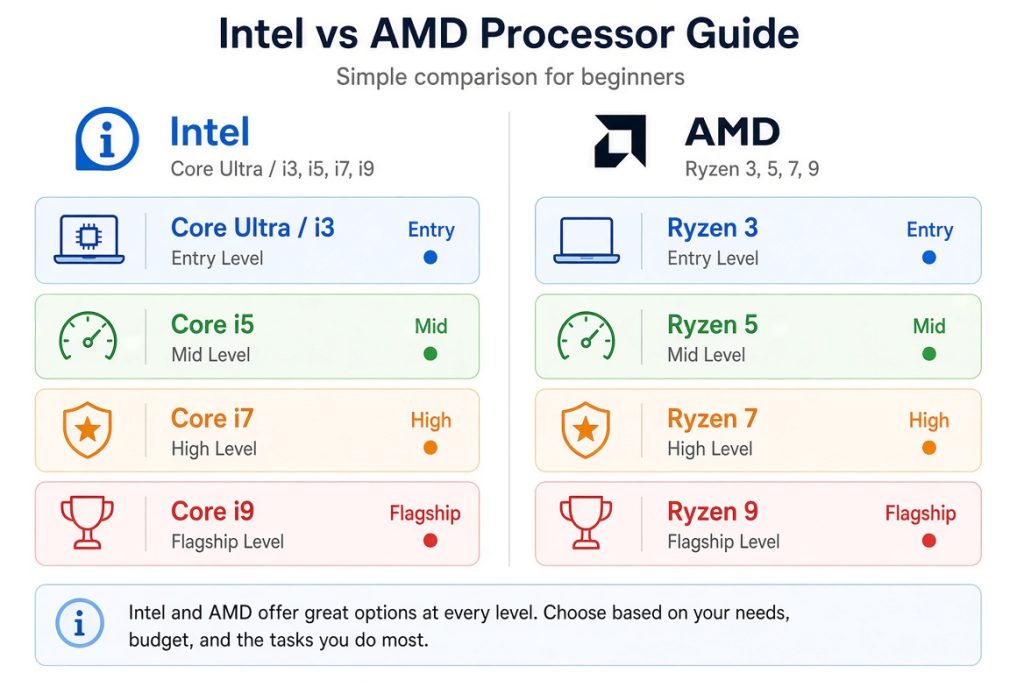
Note: Intel is gradually replacing the older “Core i” series with “Core Ultra.” The name has changed, but the tier system (3 / 5 / 7 / 9) works the same way.
2. What the Numbers Actually Mean
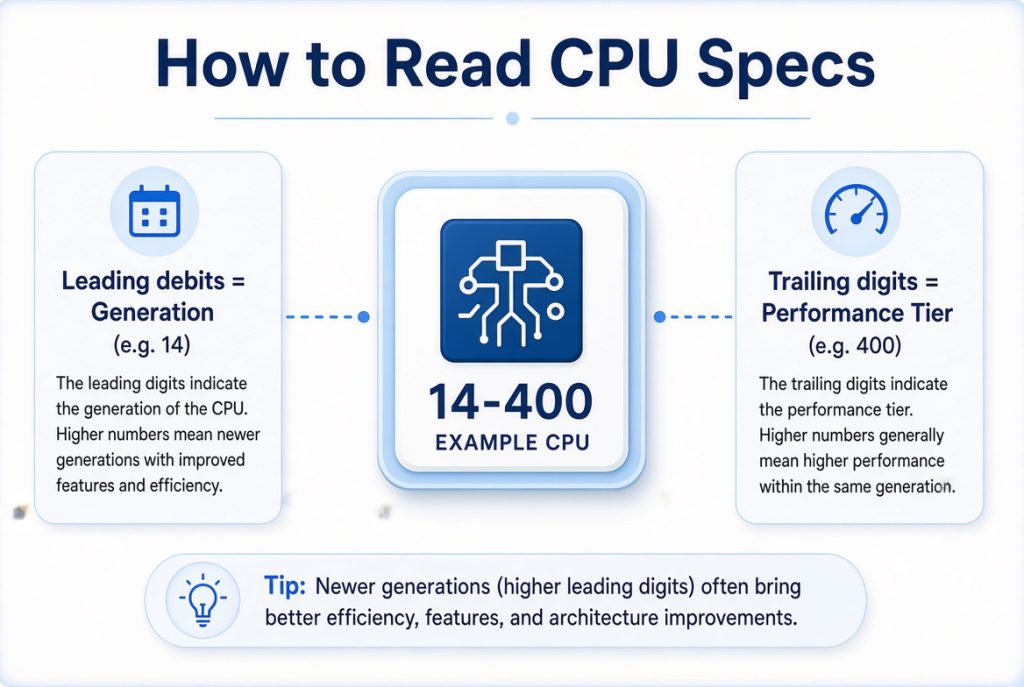
The numbers after the name (e.g., 14400, 7600) should be read in two parts: the leading digits (generation) and the trailing digits (performance tier).
① Leading Digits = Technology Generation
These show when the technology was released.
- Intel (Core i series)
- 12th gen (e.g., 12400) → 2021–2022
- 13th gen (e.g., 13400) → 2022–2023
- 14th gen (e.g., 14400) → 2023–2024
- AMD (Ryzen series)
- 5000 series (e.g., 5600) → 2020–2021
- 7000 series (e.g., 7600) → 2022–2023
- 9000 series (e.g., 9600) → 2024 and later
Important: A lower generation does not mean the CPU is used. A 12th-gen or 5000-series CPU on a spec sheet is almost always brand-new and factory-sealed. It’s simply an older design — like the difference between a 2022 and a 2024 car model.
② Trailing Digits = Performance Tier
Numbers like 400, 600, or 700 indicate core count and speed.
- Core count: How many “workers” are inside the CPU. More cores help with multitasking.
- Speed: How fast each worker can finish tasks.
Higher numbers usually mean more cores and higher speeds. Within the same generation, an i5-14600 is a higher tier than an i5-14400.
Real Example: Why Looking Only at the Tier Can Backfire
Suppose you want a gaming PC and see an i7-7700 and an i5-11400.
Many people think “i7 must be better.” In reality, the opposite is often true:
- The i7-7700 is a 7th-generation chip from 2017 — high tier, but old technology.
- The i5-11400 is only an i5, but it uses much newer 11th-generation technology and usually performs better in games.
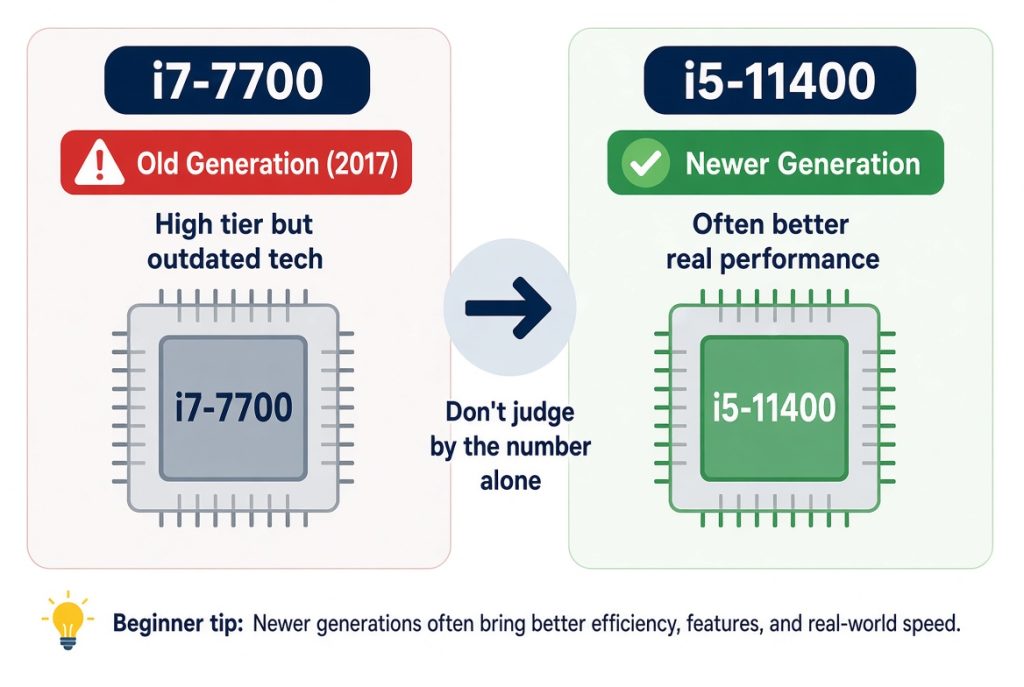
Choosing based only on the “i7” label can mean paying more for outdated hardware. For gaming, always check the generation (the leading digits) together with the tier.
3. The Most Common Trap: The Letter at the End
Ignoring the final letter can leave you with a system that doesn’t work or doesn’t match your needs.
- Intel “F” (e.g., i5-12400F): No integrated graphics. You must buy a separate discrete graphics card, or the monitor will stay black.
- Laptop letters:
- U (Low-power): Performance is deliberately reduced for longer battery life (office use).
- H (High-performance): Uses more power but delivers stronger performance for gaming and creative work.
If you buy a “cheapest i7 gaming laptop” and it has a “U” at the end, games will stutter. This is a classic inventory-clearance trick.
4. Common Sales Tactics
Some sellers target buyers with limited knowledge by building systems that look impressive on the outside but are weak inside. They highlight flashy RGB cases or high-sounding CPU names while pairing them with lower-spec parts that actually matter for performance.
This helps the seller’s margins, but it often leaves the buyer with disappointing performance or extra costs later. Always look at the full configuration and whether it matches your real needs — not just the case or a single tier number.
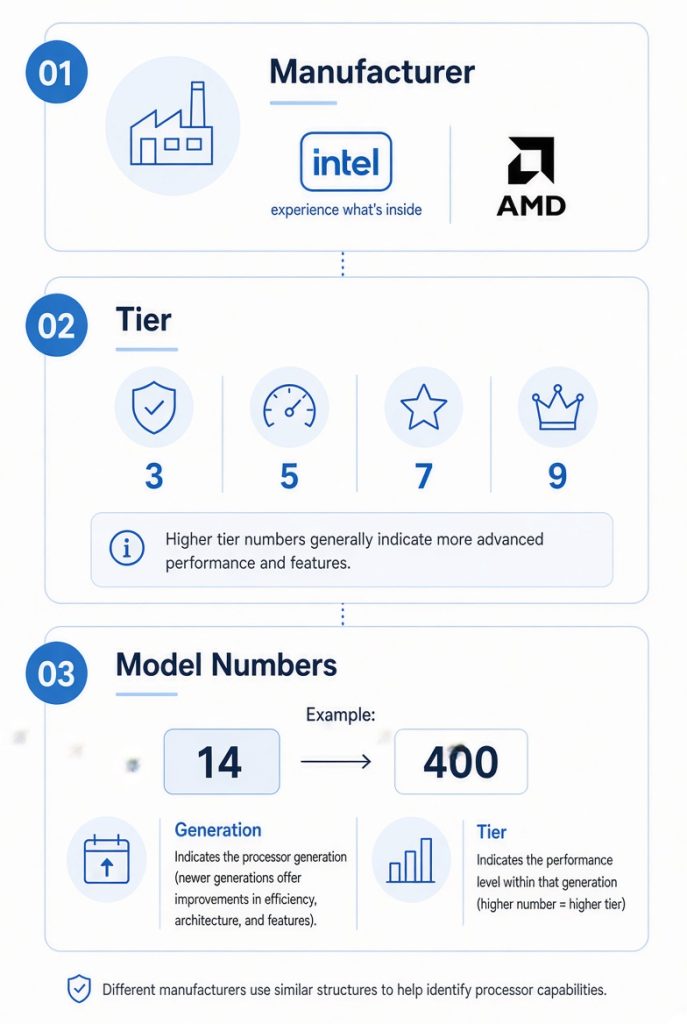
5. A Simple 3-Step Way to Read Any CPU Spec
When you see a specification sheet, follow this order:
- Manufacturer: Intel or AMD?
- Tier: 3, 5, 7, or 9? (For most everyday use, a 5 is enough.)
- Model numbers: Leading digits = generation, trailing digits = core count and speed tier.
Final Takeaways
You don’t need to memorize every technical term.
- Avoid outdated brands like Pentium and Celeron.
- Choose a current tier (3 / 5 / 7 / 9) that matches your needs.
- A lower generation does not mean “used” — it usually means a brand-new, older-design CPU that is more affordable.
- Look at the full system and your actual use case, not just one number.
Keep these simple rules in mind and you’ll be far less likely to get stuck with obsolete parts or flashy but underpowered builds.
Next Article: Read the next part of the series: [Beginner’s Guide #2] How to Read RAM Specs: Why Capacity Alone Isn’t Enough
