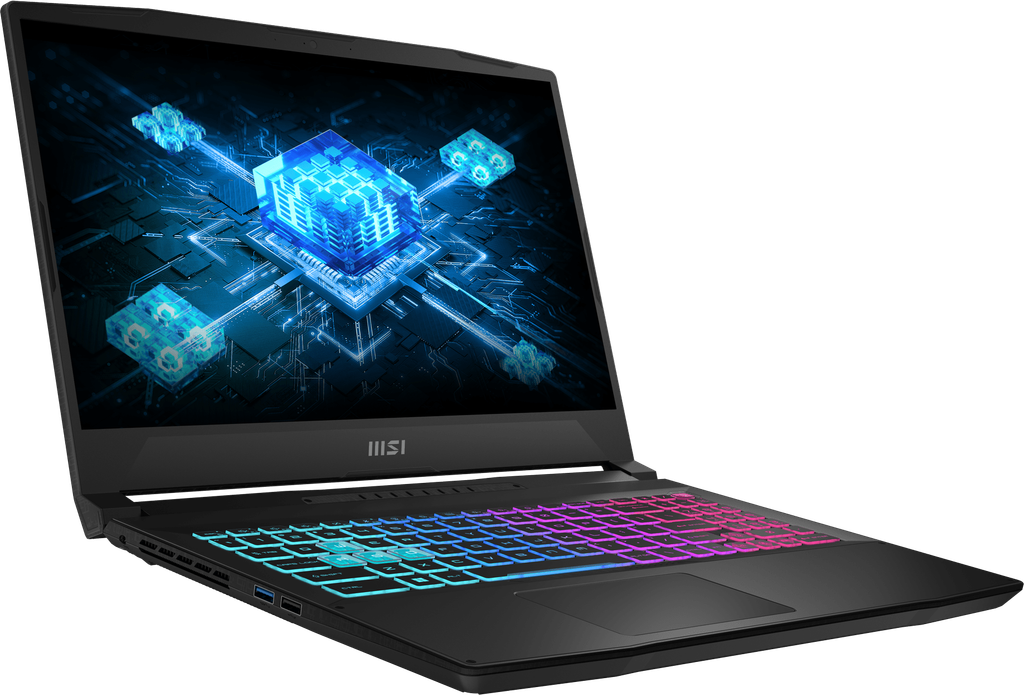
Image Source: MSI Official
Who Is It For?
The Katana 15 places a 15.6-inch gaming chassis on a desk for evening sessions of competitive titles or multi-stream video work while the 240 W brick stays plugged in. People who edit short 4K clips at home after work or run local game servers alongside browser tabs fit the fixed desk pattern this series supports. Students who keep the machine on a dorm desk for class notes by day and switch to the discrete GPU for night matches also match the daily flow.
The 2.4 kg body and separate brick make repeated bag carries across a campus or between rooms less practical than a pure desk setup. Two SO-DIMM slots allow memory capacity to change later, yet the single M.2 bay locks storage expansion to replacement only. The 75 Wh pack keeps light browser or document work going for several hours away from the wall, but any sustained GPU load ends that window quickly. If this form factor or power doesn’t quite fit your daily work, exploring other lineup categories would be a better path.
1. Fixed Power Brick and Single M.2 Limit
240 W brick and limited USB-C charging
The series ships with a dedicated 240 W adapter that must stay connected for full GPU output. USB-C Power Delivery reaches only 100 W under limited conditions and cannot sustain the same combined CPU-GPU power. On a desk this means one extra cable always present; any attempt to run high-load games or renders from a portable charger alone drops the discrete graphics to a restricted state. Check the sales listing for the exact adapter wattage included with the chosen SKU.
Two SO-DIMM slots versus one M.2 bay
Memory uses two accessible SO-DIMM sockets that accept DDR5 modules up to a combined 96 GB. Storage is limited to a single M.2 2280 NVMe slot, so adding capacity requires removing the existing drive rather than installing a second one. After purchase the owner can raise RAM for larger project files or more browser tabs, but game libraries or video archives grow only by swapping the original SSD. Confirm on the product page whether the listed configuration already fills both memory slots and the single drive bay.
15.6-inch panel options stay fixed
Screen choices are locked at purchase: either a 1920×1080 144 Hz IPS panel or a 2560×1440 165 Hz IPS panel. Neither version tilts beyond the hinge range or detaches. Color coverage and brightness remain those of the selected panel for the life of the machine. Anyone who needs a higher-resolution external monitor must rely on the HDMI 2.1 or USB-C DisplayPort output. Verify the exact resolution and refresh rate printed on the sales page before ordering.
These physical limits keep the machine tied to a power outlet and a single internal drive for the duration of ownership.
2. Desk Depth, Bottom Intake, and Daily Carry Weight
25.5 mm thickness on a small table
The chassis measures 359 × 262 × 25.5 mm. On a narrow café table or folding desk the rear vents and the 240 W brick leave little free surface for a mouse. The 15.6-inch lid requires clear depth in front of the keyboard so the screen can open fully without hitting a wall or monitor stand. Daily placement therefore favors a dedicated desk surface rather than shared or temporary ones.
Bottom and rear intake under load
Air enters through the underside and exits at the rear hinge and side vents. Soft bedding, a thick laptop sleeve, or a closed bag blocks the intake and raises internal temperatures within minutes of GPU activity. On a hard desk the fans ramp under sustained load and become audible in a quiet room; they stay quieter during light browser or document use. The plastic underside also transfers heat to the surface beneath it during long sessions.
2.4 kg plus brick for any move
The notebook alone weighs 2.4 kg. Adding the 240 W adapter and cable pushes the total well past 3 kg. A short walk between rooms is manageable; repeated daily transit in a backpack across a campus or commute adds noticeable mass and requires a sleeve large enough for the 15.6-inch lid. The 75 Wh battery covers several hours of mixed office work but empties far sooner once the discrete GPU engages, so any mobile session still needs the brick nearby for serious tasks.
3. Performance by Use Case
Mid-range configurations pair an Intel Core i7-14650HX with an RTX 5050, 5060 or 5070 Laptop GPU at up to 115 W TGP. All heavy GPU work assumes the 240 W adapter is connected; battery mode restricts the discrete graphics sharply.
| Use Case | Software | Rating | Reason |
|---|---|---|---|
| 1080p competitive gaming | Valorant, CS2, Fortnite | Sufficient | Full TGP keeps high frame rates while plugged in |
| 1440p AAA gaming | Cyberpunk, modern titles with DLSS | Adequate | 115 W limit and 8 GB VRAM sustain playable settings with upscaling |
| Multi-stream 4K editing | Premiere, DaVinci Resolve | Adequate | Timeline playback holds when powered; battery drains rapidly |
| Coding and browser multitasking | VS Code, Chrome, Docker | Sufficient | Dual-channel RAM and CPU cores handle concurrent loads |
| Battery-only heavy gaming or export | Any GPU-intensive title or render | Not enough | Discrete GPU power collapses and runtime shrinks to a short window |
Lower GPU options or 16 GB RAM configurations reduce the margin on the middle three rows.
4. Official Specs (with plain explanations)
| Category | Specification | Notes |
|---|---|---|
| Display | 15.6″ FHD 144 Hz or QHD 165 Hz IPS | Fixed at purchase; matte finish |
| Processor | Up to Intel Core i9-14900HX | Soldered; generation varies by SKU |
| Graphics | RTX 5050 / 5060 / 5070 Laptop GPU | Up to 115 W TGP with Dynamic Boost |
| Memory | 2× SO-DIMM DDR5-5600, max 96 GB | Removable sticks |
| Storage | 1× M.2 NVMe PCIe Gen4 | Single bay only |
| Battery | 75 Wh 4-cell | User-replaceable |
| Adapter | 240 W | Separate brick required for full power |
| Weight | 2.4 kg | With battery |
| Ports | 3× USB-A 3.2 Gen2, 1× USB-C 3.2 Gen2 (DP + PD), HDMI 2.1, Ethernet | Side-mounted |
This series is sold with different CPUs, memory, and storage depending on the release year and generation. Please match the specifications on your current seller page with the official information above.
Source: MSI Official Product Page
The single M.2 slot and 240 W brick listed above directly determine later upgrade paths and desk cable layout.
5. Main Variations in This Series
GPU choice between RTX 5050, 5060 and 5070 changes the sustained frame rate and export speed once the machine is plugged in. Screen selection between FHD 144 Hz and QHD 165 Hz alters pixel density and color volume for the life of the unit. Starting RAM of 16 GB versus 32 GB affects how many browser tabs or project layers remain open before swapping begins. CPU options from i5-HX to i9-HX alter multi-core rendering and compile times. Each of these choices is fixed after purchase except for the two SO-DIMM modules that can still be swapped.
6. What to Check on the Sales Page
Confirm the exact hardware listed for the SKU you are considering, because the same series name covers multiple generations and graphics levels.
- CPU Generation: Check whether you are getting the 14th-generation HX processors.
- GPU model and listed TGP so the 115 W ceiling is clear.
- Whether both SO-DIMM slots are already filled and the single M.2 bay capacity.
- Exact screen resolution and refresh rate (FHD 144 Hz or QHD 165 Hz).
- Included adapter wattage and battery rating of 75 Wh.
Matching these five items against the official sheet prevents receiving a lower-power or older configuration under the same series name.
7. Disclaimer & Buying Advice
This buying guide for the Katana 15 is based on official manufacturer specifications and recurring real-world user experiences. It is completely independent, not sponsored, and does not guarantee specific performance for every unit. Hardware configurations such as the processor, memory, and storage can differ by generation and region, so please double-check the exact specifications listed on your seller’s page before purchasing.
8. Beginner Guide
The single M.2 bay and mandatory 240 W brick define the daily limits of this series more than any other factor. [Start Here] walks through how those constraints interact with common work and play patterns before any purchase decision.