Image Source: Lenovo Official
Who Is It For?
The ThinkStation P3 is used by engineers and architects who require a stable machine for 2D and 3D design software. It fits the needs of financial analysts who process large datasets and benefit from the stability of ECC memory. It also serves as a workstation for medical professionals or educators who need a compact computer that can be mounted behind a screen. The variety of sizes makes it a choice for those who need professional-grade hardware but have different amounts of available desk space. The ISV certifications ensure that the system is compatible with specialized industry software.
If this form factor or power doesn’t quite fit your daily work, exploring other lineup categories would be a better path.
1. Check Before You Buy
Chassis Size and Internal Expansion
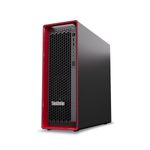
The ThinkStation P3 is available in Tower, Ultra, and Tiny versions. The Tower model provides the most space for adding hardware after purchase. It contains multiple PCIe slots for extra cards and several bays for 3.5-inch hard drives. The Ultra model is significantly smaller and uses a specialized internal layout that limits the size of the graphics card. The Tiny model is the smallest and does not have space for internal 3.5-inch hard drives or large graphics cards. Choosing the Tiny or Ultra model results in a fixed physical limit for future hardware additions. The Tower model occupies more desk space but allows for the most changes over time.
ECC Memory and System Stability
Some configurations of the ThinkStation P3 support ECC (Error Correcting Code) memory. This is a specific type of RAM that detects and fixes data errors that occur during processing. In standard computers, these errors can cause the system to freeze or restart. ECC memory is used in environments where the computer must remain active for long periods without a reboot. To use this feature, both the processor and the memory modules must support ECC. If a unit is purchased with non-ECC memory, it functions like a standard desktop. Verifying the memory type on the sales page is necessary for those who require high system uptime.
Power Supply and Graphics Card Limits
The power supply unit (PSU) in the ThinkStation P3 is matched to the internal components. The Tower model features internal power supplies ranging from 500W to 1100W. The Ultra and Tiny models use external power bricks, similar to those used by laptops. The wattage of the power supply determines which graphics cards can be installed. A 170W power brick in a Tiny model cannot support a high-performance graphics card. If a user intends to upgrade the graphics card later, the wattage of the existing power supply must be checked. The power supply in the Tiny and Ultra models is a separate external unit that occupies space on the floor or desk.
ISV Certification and Software Compatibility
The ThinkStation P3 is an ISV (Independent Software Vendor) certified workstation. This means the hardware has been tested by professional software companies to ensure it runs specific applications without errors. This includes software for 3D modeling, architectural design, and financial analysis. While standard desktops can run these programs, the P3 is tested for stability under heavy workloads. This certification is a characteristic of the professional drivers used by the NVIDIA RTX and T-series graphics cards. Integrated Intel graphics do not carry the same level of professional software certification.
Thermal Management and Fan Noise
The cooling system in the ThinkStation P3 varies by chassis size. The Tower model uses large fans that move a high volume of air at lower speeds. The Tiny and Ultra models use smaller fans that must spin faster to move heat out of the compact space. During basic tasks like web browsing, all models remain quiet. When the processor or graphics card is under a heavy load, the fans increase their speed. The Tiny model produces a higher-pitched air-rushing sound compared to the Tower model. The heat is exhausted through the rear and side vents, and the chassis will feel warm to the touch during intensive processing.
2. How It Fits a Real Desk Setup
Tiny and Ultra Placement Options
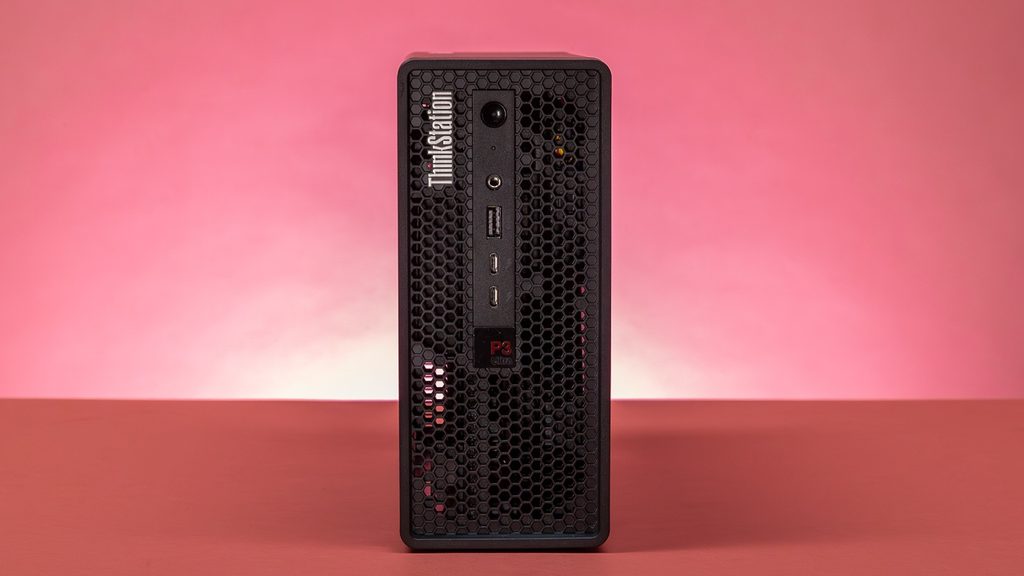
The Tiny model occupies a very small footprint and can be placed horizontally or vertically using a stand. It is also compatible with VESA mounts, allowing it to be attached to the back of a monitor or under a desk surface. This setup removes the computer from the desk entirely, leaving only the monitor and peripherals visible. The Ultra model is larger than the Tiny but still fits easily on a small shelf or beside a monitor. Both models use external power adapters, so space must be allocated for the power brick and its cables. The small size of these units makes them a choice for crowded workspaces or medical carts.
Tower Footprint and Cable Management
The Tower model stands approximately 37 cm tall and 17 cm wide. It is designed to sit on a desk or on the floor. The front panel includes several USB ports and an optional SD card reader for quick access to data. The rear of the tower houses the permanent connections for monitors, keyboards, and wired internet. Because the Tower can hold multiple graphics cards and drives, the number of cables at the rear can be significant. The chassis includes a security lock slot to prevent the side panel from being opened or the entire unit from being moved. The black finish and mesh front are designed for professional environments.
Port Accessibility and Connectivity
The physical ports are distributed between the front and the rear of the chassis. The front ports are intended for temporary connections like thumb drives or headsets. The rear ports are for permanent peripherals. The Tiny model has a limited number of ports due to its size, but it often includes a “Flex IO” port that can be configured with an extra HDMI, DisplayPort, or Ethernet connection. The Tower model includes more USB-A and DisplayPort connections as standard. All models include an RJ45 Ethernet port for a stable wired internet connection, which is often required in office networks.
Multi-Monitor Integration
The ThinkStation P3 supports multiple monitors through the DisplayPort and HDMI connections on the rear. The number of supported screens depends on the graphics card. Professional NVIDIA cards in the Tower and Ultra models can drive four or more high-resolution monitors simultaneously. The Tiny model can support multiple screens using the integrated graphics and the optional Flex IO port. When connecting multiple monitors, the total resolution and refresh rate are limited by the graphics hardware. Using the DisplayPort connections is the standard method for connecting professional-grade monitors to this series.
Noise Profile and Environment
In a quiet office, the ThinkStation P3 is audible but does not produce high-pitched mechanical sounds during standard use. The Tower model is the quietest under load because its larger fans do not need to spin as fast as those in the Tiny model. The chassis is constructed from steel, which helps dampen vibrations from internal hard drives. If the computer is placed on a desk, the sound of the fans is more noticeable than if it is placed on the floor. The cooling vents must remain unobstructed to ensure the fans can draw in cool air and exhaust warm air effectively.
3. Performance by Use Case
The performance of the ThinkStation P3 is determined by the chassis size and the specific processor and graphics card configuration.
| Use Case | Software | Rating | Reason |
| 2D/3D CAD | AutoCAD, SolidWorks | Sufficient | Professional GPUs and ISV drivers ensure stability |
| Data Analysis | Excel, SQL, Python | Sufficient | High RAM capacity and ECC support prevent errors |
| Office Productivity | Word, Outlook, Chrome | Sufficient | Hardware exceeds requirements for fast response |
| 4K Video Playback | YouTube, Media Player | Sufficient | Integrated or dedicated graphics handle 4K easily |
| High-End 3D Rendering | Blender, V-Ray | Adequate | Tower model is sufficient; Tiny model has thermal limits |
The ratings above reflect the capabilities of the hardware when running professional software. Performance in specific applications will depend on the complexity of the project and the amount of memory available to the system.
4. Official Specs (with plain explanations)
| Category | Specification | Notes |
| CPU | Intel Core i3 / i5 / i7 / i9 (13th/14th Gen) | Standard desktop processors, supports vPro management |
| Graphics | Integrated Intel or NVIDIA RTX / T-Series | Professional GPUs, varies by chassis size |
| Memory | Up to 128GB DDR5 (ECC or non-ECC) | Error-correcting memory options, four slots in Tower |
| Storage | M.2 NVMe SSD and 3.5-inch SATA HDD | Multiple internal drive bays and slots |
| Form Factor | Tower, Ultra (3.9L), Tiny (1L) | Three distinct physical sizes available |
| Power | 170W to 1100W (Internal or External) | Wattage depends on the size and GPU |
| Connectivity | Wi-Fi 6E, Bluetooth 5.1, 1GbE / 2.5GbE | Wired and wireless networking standards |
| Ports | USB-C, USB-A, DisplayPort, HDMI | Physical connections for data and monitors |
This series is sold with different CPUs, memory, and storage depending on the release year and generation. Please match the specifications on your current seller page with the official information above.
Source: Lenovo Official Product Page
The technical specifications of the ThinkStation P3 define its capabilities as a professional computing system. These components are housed in three different chassis sizes, which determines the internal expansion limits and the cooling capacity. Understanding these parts is necessary to identify the capabilities of a specific unit found on a retail website.
5. Main Variations in This Series
The ThinkStation P3 series is divided into three physical formats, which changes the hardware limits and the power supply type.
- The Tower model is a standard desktop size that allows for full-height graphics cards and multiple internal hard drives.
- The Ultra model is a 3.9-liter compact chassis that uses mobile-style components and small-form-factor graphics cards.
- The Tiny model is a 1-liter chassis, approximately the size of a book, which uses an external power brick and limited expansion.
- Processor options range from the Intel Core i3 to the i9, with some configurations supporting ECC (Error Correcting Code) memory to prevent system crashes.
- Graphics options vary by size, with the Tower supporting high-power NVIDIA RTX cards and the Tiny limited to entry-level professional GPUs.
6. What to Check on the Sales Page
When viewing a ThinkStation P3 listing, the specific chassis size and the processor generation are the most important details to verify. Sellers often list different hardware configurations under the same series name.
- Form Factor: Confirm if the model is the Tower, Ultra, or Tiny version.
- CPU Generation: Check whether you are getting the 13th Gen or 14th Gen Intel Core processors.
- Memory Type: Verify if the RAM is ECC or non-ECC based on your stability needs.
- Graphics Card: Check the specific NVIDIA model (e.g., T1000, A2000, or RTX 4000) and its memory.
- Power Supply: Confirm the wattage of the internal PSU or external power brick.
The specifications on a retail page can sometimes be generalized. Matching the manufacturer’s part number with the official datasheet is the most accurate way to confirm the internal hardware.
7. Disclaimer & Buying Advice
This buying guide for the ThinkStation P3 is based on official manufacturer specifications and recurring real-world user experiences. It is completely independent, not sponsored, and does not guarantee specific performance for every unit. Hardware configurations such as the processor, memory, and storage can differ by generation and region, so please double-check the exact specifications listed on your seller’s page before purchasing.
8. Beginner Guide
If you are new to choosing computer hardware and want to understand the basics of these components, you can [Start Here] to learn more about how to read specifications.