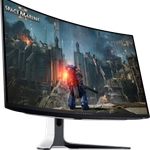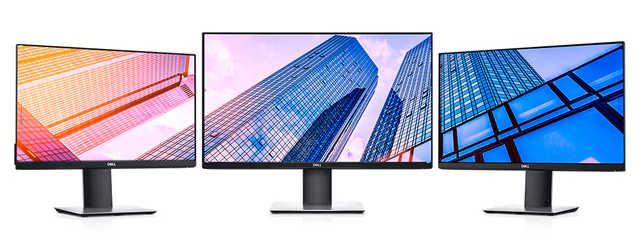
Image Source: Dell Official
Who Is It For?
The Dell S Series fits home users and students who require a monitor for general tasks like web browsing, streaming video, and casual gaming. Because many S Series models feature built-in speakers and a more decorative silver or white finish, they suit living rooms or home offices where the monitor is visible to others. The S Series also includes “S-G” models, which fit gamers who need higher refresh rates—how many times the image updates each second—without the high cost of dedicated eSports displays.
The Dell P Series fits professional office environments and users who spend eight or more hours a day at a desk. This series suits those who require a fully adjustable stand that can tilt, swivel, and change height to prevent neck strain. Because P Series monitors often include a built-in USB hub (multiple ports to connect a mouse or keyboard), they fit users who want to reduce the number of cables running to their computer.
However, neither series fits professional colorists or high-end HDR (High Dynamic Range) content creators, as they lack the extreme color accuracy and peak brightness found in the more expensive UltraSharp (U) series. The P Series does not fit competitive gamers, as most models are physically limited to a 60Hz or 75Hz refresh rate, which can cause motion blur in fast-paced games. If these form factors or performance limits don’t quite fit your daily work, exploring other lineup categories would be a better path.
1. How This Line Is Grouped
Dell organizes these monitors into distinct tiers based on their intended environment and the features included in the box. Understanding the prefix and suffix in the model name is the primary way to distinguish between a budget model and a high-performance model.
| Tier | Series Name | Primary Environment | Key Characteristics |
| Essential Consumer | SE Series | Budget Home Office | Basic stands, limited ports, lower price. |
| Standard Consumer | S Series | Home / Lifestyle | Better aesthetics, speakers, varied resolutions. |
| Gaming Consumer | S-G / S-HG | Casual Gaming | Higher refresh rates (144Hz+), faster response. |
| Professional | P Series | Corporate / Office | Ergonomic stands, USB hubs, matte screens. |
The S and SE Series (Consumer)
The S Series is Dell’s “lifestyle” line. These monitors are designed to look good on a desk, often featuring a textured back and a slim profile. The “SE” models are the budget-friendly versions within this line; they often use a “tilt-only” stand, meaning the screen cannot be raised or lowered. Standard S models (like the S2721DS) typically offer better panel quality and more connectivity options. The S-G models (like the S2722DGM) are curved or flat gaming monitors that prioritize speed over office features.
The P Series (Professional)
The “P” in P Series stands for Professional. These monitors are built for productivity. Every P Series monitor comes with a “ComfortView Plus” screen, which is a hardware-level feature that reduces blue light emissions without turning the screen yellow. This fits users who experience eye fatigue during long workdays. The P Series is also where Dell introduces “USB-C Hub” models (indicated by a “C” in the name, like P2422HE), which allow a laptop to be charged and send video to the monitor through a single cable.
2. Check Before You Buy
Stand Adjustability Constraints
A common point of confusion for first-time buyers is the difference in stand functionality. Most P Series monitors include a stand that can move up and down by 150mm, tilt forward and back, and pivot 90 degrees into a vertical (portrait) orientation. In contrast, many S and SE Series models have a fixed-height stand. If the monitor is too low for the user’s eye level, they will need to buy a separate monitor arm or a riser stand. Checking the “Stand Features” on the sales page is a physical requirement to ensure the monitor fits the user’s height.
Refresh Rate and Motion Clarity
The P Series is almost exclusively limited to 60Hz or 75Hz. Refresh rate (Hz) is how many times the screen updates the image per second. A 60Hz monitor is sufficient for typing and watching movies, but it can feel “choppy” when moving a mouse cursor quickly or playing fast games. The S Series offers more variety, with some models reaching 100Hz, 144Hz, or 165Hz. Users who are sensitive to motion blur or who play games in their spare time will find the S Series gaming models more fluid than any P Series model.
USB-C Power Delivery Limits
Dell offers USB-C connectivity in both the S and P series, but the “Power Delivery” (PD) wattage differs. Power Delivery is the ability of the monitor to charge a connected laptop. Some S Series models (like the S2722QC) provide 65W of power, which is enough for a 13-inch laptop. However, some P Series hub models provide up to 90W. If a user has a powerful 16-inch workstation laptop, a 65W S-series monitor may not charge the battery fast enough during heavy use, causing the laptop battery to drain even while plugged in.
Panel Type: IPS vs. VA
Both series use two different types of screen technology: IPS (In-Plane Switching) and VA (Vertical Alignment). IPS panels are known for wide viewing angles, meaning the colors don’t change when you look at the screen from the side. VA panels are known for high contrast, meaning blacks look darker, but the colors can “shift” if you aren’t looking directly at the center. Many curved S-series monitors use VA panels, while almost all P-series monitors use IPS. Users who do collaborative work where others look at their screen should prioritize IPS.
3. How It Fits a Real Desk Setup
Base Shape and Desk Space
The P Series monitors use a large, rectangular flat base. On a desk with a depth of 60 cm (24 inches), this base occupies a significant amount of space but provides a flat surface where a user can place a phone, a notepad, or a docking station. The S Series often uses a smaller, more stylized base (sometimes a “V” shape or a small square). While the S-series base leaves more room for a mousepad, it is often less stable if the desk is bumped.
Cable Management and Routing
The P Series stand includes a circular or rectangular hole in the vertical riser. This allows the power and video cables to be routed through the stand and hidden behind the monitor. This fits a professional environment where a “clean desk” is required. The S Series often lacks this integrated routing or uses a simple clip on the back of the stand, which is less effective at hiding multiple cables.
VESA Mounting Compatibility
VESA is the standard screw pattern (usually 100mm x 100mm) used to attach a monitor to a wall mount or a desk arm. Almost all P Series monitors are VESA-compatible and feature a “Quick Release” button that allows the stand to be removed without tools. Some budget SE models do not have VESA holes at all, meaning they can never be used with a monitor arm. If a user plans to use a dual-monitor arm, they must verify the VESA support on the specific S-series model they are considering.
Screen Coating and Reflections
P Series monitors use a heavy “anti-glare” matte coating. This coating scatters light, which fits offices with bright overhead fluorescent lights or windows. S Series monitors often use a “light anti-glare” or semi-glossy coating. While this makes colors look slightly more vibrant and “pop,” it also makes reflections of lamps or windows more visible. On a desk placed directly opposite a window, the P Series will be easier to read.
4. Sizes and Models in This Line
Dell offers these series in the most common desktop sizes, ranging from compact 22-inch models to large 32-inch displays.
| Size | Common Resolution | Series | Notes |
| 22″ / 24″ | 1920 x 1080 (FHD) | S / P | Standard for basic office work and small desks. |
| 27″ | 1920 x 1080 (FHD) | S / P | Large text; pixels may be visible if sitting close. |
| 27″ | 2560 x 1440 (QHD) | S / P | The “sweet spot” for 27-inch sharpness. |
| 27″ / 32″ | 3840 x 2160 (4K) | S / P | Extremely sharp; fits high-resolution video and data. |
| 34″ | 3440 x 1440 (WQHD) | S / P | Ultrawide; replaces two smaller monitors. |
The 24-inch FHD (Full High Definition) models are the most common for corporate “hot-desking” setups. At this size, the 1080p resolution is sharp enough for most users. However, at 27 inches, a 1080p resolution can look “pixelated” (where you can see the individual dots) if the user sits closer than 60 cm to the screen.
The 27-inch QHD (Quad High Definition) models are highly sought after for home offices. They provide 77% more screen space than a 1080p monitor, allowing two windows to be placed side-by-side comfortably. The S2721DS and P2723D are common examples of this configuration.
The 32-inch and 34-inch models are for users who need maximum screen real estate. The 34-inch “Ultrawide” models (like the P3424WE) have a 21:9 aspect ratio, which is wider than a standard TV. This fits users who work with long spreadsheets or video timelines. These larger models are heavy and require a sturdy desk that can support 7-10 kg (15-22 lbs) of weight.
5. Performance by Use Case
The performance of a monitor is determined by how well it handles specific software and tasks.
| Use Case | Software / Task | Rating | Reason |
| General Office | Word, Outlook, Teams | Sufficient | Both series offer clear text and flicker-free screens. |
| Data Analysis | Excel, SQL, Tableau | Sufficient | P Series USB hubs and QHD/4K resolutions fit large datasets. |
| Casual Gaming | Minecraft, Sims, Indie | Sufficient | S Series (especially S-G) handles motion better than P Series. |
| Competitive Gaming | Valorant, CS2, Apex | Adequate | S-G models are okay, but P Series is too slow (60Hz). |
| Photo Editing | Photoshop, Lightroom | Adequate | Good colors, but lacks the wide gamut of the U Series. |
| Video Streaming | YouTube, Netflix | Sufficient | S Series often includes speakers and better contrast (VA). |
The “Sufficient” rating for office work is due to Dell’s “ComfortView” technology. This reduces the amount of blue light, which is a physical wavelength of light that can disrupt sleep patterns and cause eye strain during long sessions.
6. Official Specs (with plain explanations)
| Category | Specification | Notes |
| Panel Type | IPS or VA | IPS = better angles; VA = deeper blacks. |
| Resolution | FHD, QHD, or 4K | Total number of pixels; higher = sharper image. |
| Brightness | 250 – 350 nits | Nits = unit of brightness; 300 is standard for offices. |
| Refresh Rate | 60Hz to 165Hz | How many times the image updates per second. |
| Response Time | 1ms to 8ms (GtG) | Time for a pixel to change color; lower is better. |
| Color Support | 99% sRGB (Typical) | The percentage of standard web colors the screen shows. |
| Connectivity | HDMI, DP, USB-C | HDMI/DP are for video; USB-C can also provide power. |
This line is sold with different tier names, sizes, refresh rates, and panels depending on the exact model and region. Please match the specifications on your current seller page with the official information above.
Source: Dell Official Product Page
The “GtG” (Gray to Gray) response time is a measure of how quickly a pixel can change. A response time of 8ms is fine for office work, but for gaming, a response time of 1ms to 4ms is preferred to prevent “ghosting” (a blurry trail behind moving objects).
7. Main Variations in This Line
The most significant variation in the P Series is the “Hub” vs. “Non-Hub” models. A model like the P2723D is a standard monitor with HDMI and DisplayPort. A model like the P2723QE is a “Hub” monitor that includes an Ethernet port (RJ45) and USB-C. This allows the monitor to act as a docking station for a laptop.
In the S Series, the variation is often between “Flat” and “Curved” screens. Curved models (indicated by a “C” in the name, like S3221QS) are designed to keep the edges of a large screen at the same distance from the user’s eyes. This is a physical design choice that fits immersive gaming or movie watching but can make straight lines in architectural drawings look slightly bent.
Another variation is the inclusion of integrated speakers. Most S Series monitors (except the SE and S-G models) include two 3W or 5W speakers. These are sufficient for system sounds and video calls but lack the bass required for high-quality music. P Series monitors almost never include built-in speakers, though they often have a mounting slot for a Dell “Soundbar” (an optional accessory that clips to the bottom of the stand).
8. What to Check on the Sales Page
- Line / Tier / Size: Check whether you are getting the S, SE, or P model, as the stand and port features vary wildly between them.
- Stand Adjustability: Confirm if the stand is “Height Adjustable” or “Tilt Only.” This is the most common regret for S-series buyers.
- USB-C Power Delivery: If you plan to charge a laptop, check if the wattage (e.g., 65W or 90W) matches your laptop’s requirements.
- Panel Type: Verify if the screen is IPS or VA. If you need wide viewing angles for a shared office, choose IPS.
- Refresh Rate: Ensure the Hz matches your needs. If the page says “60Hz,” it is not a gaming-focused monitor.
9. Disclaimer & Buying Advice
This buying guide for the Dell S Series and P Series is based on official manufacturer specifications and recurring real-world user experiences. It is completely independent, not sponsored, and does not guarantee specific performance for every unit. Tier name, screen size, refresh rate, panel type, and ports can differ by model and region, so please double-check the exact specifications listed on your seller’s page before purchasing.
10. Beginner Guide
If you are new to monitor terms like refresh rate (Hz), panel type (IPS/VA), and resolution (FHD/QHD/4K), read the basics in our [Start Here]. Understanding these fundamentals will help you decide whether the home-focused S Series or the work-focused P Series fits your specific desk setup.