A computer often fails for simple reasons. Many problems look serious at first, but they start from heat, full storage, old software, or loose cables. This guide lists common errors, what to check on the software side and the hardware side, and how to clean a PC so it lasts longer.
You do not need advanced skills. Work through the checks in order. Stop if you see liquid damage, burning smells, or sparks, and take the device to a repair shop.
1. Common problems and what they usually mean
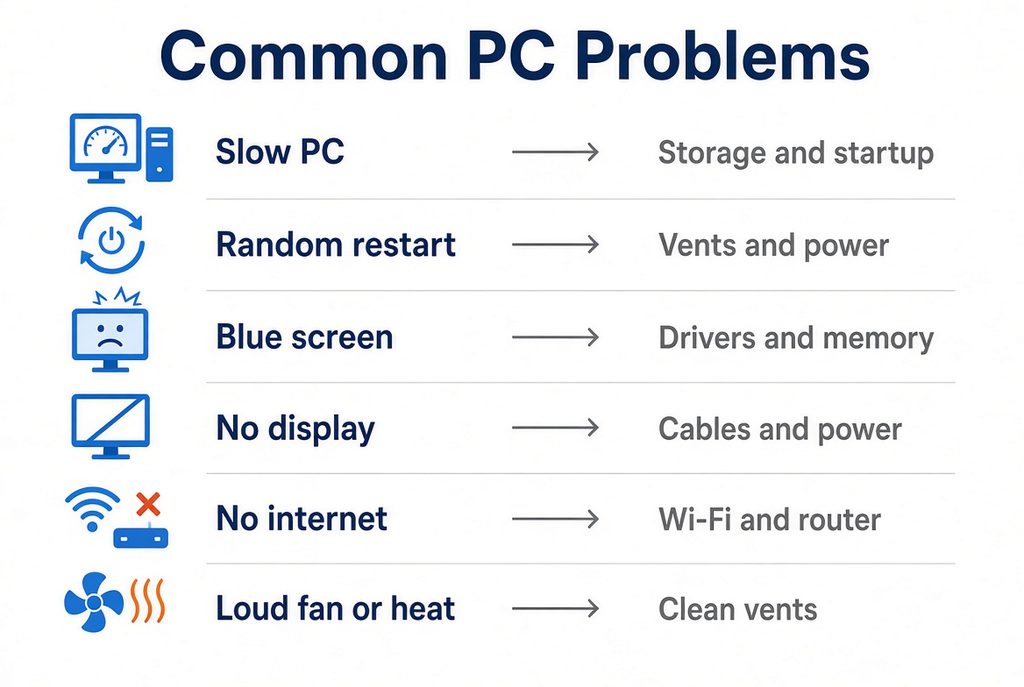
| What you see | Common meaning | First place to look |
|---|---|---|
| Slow response, long waits | Storage almost full, too many startup apps, low memory, or high heat | Storage, startup apps, vents |
| Random restart or shutdown | Overheating, unstable power, or driver conflict | Vents, power adapter, Event Viewer |
| Blue screen (Windows) | Driver, memory, storage, or system file issue | Recent installs, memory, disk check |
| Black screen, no image | Display cable, brightness, GPU, or power | Cable, external monitor, power LED |
| No internet | Wi-Fi off, wrong password, router, or adapter driver | Airplane mode, router reboot |
| App freezes or crashes | App bug, low memory, or corrupted files | Update app, free RAM/storage |
| USB device not detected | Port power, cable, or driver | Other port, other cable |
| Loud fan noise | Dust, high load, or background tasks | Vents, Task Manager |
| Battery drains fast | Background apps, old battery, high brightness | Battery settings, brightness |
| “Disk is full” / cannot save | Storage capacity reached | Delete large files, empty recycle bin |
2. Software checks (do these first)
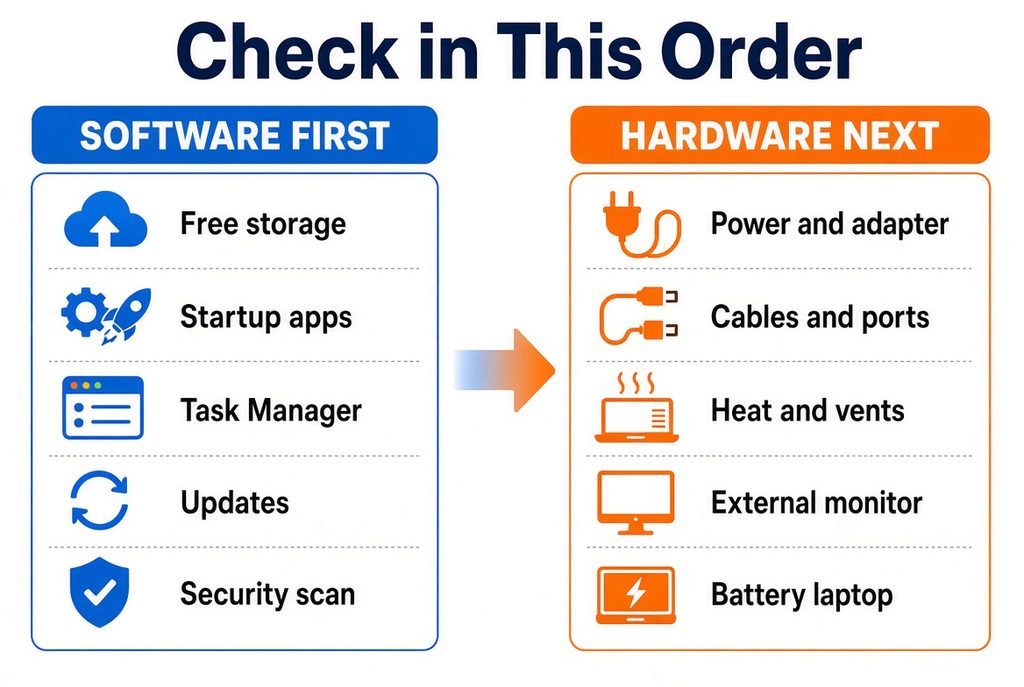
Software fixes are safer and solve many cases without opening the case.
2-1. Storage space
- Open storage settings and check free space.
- Aim for at least 15–20% free on the system drive.
- Empty Recycle Bin / Trash.
- Remove large installers, old downloads, and duplicate videos.
- On Windows: Settings → System → Storage.
- On Mac: Apple menu → System Settings → General → Storage.
2-2. Startup programs
Too many apps opening at login slows the PC every day.
- Windows: Task Manager → Startup apps → disable what you do not need daily.
- Mac: System Settings → General → Login Items.
2-3. Task Manager / Activity Monitor
When the PC feels slow:
- Check CPU, memory, and disk usage.
- If one app stays near 100% for a long time, close it and reopen.
- Note the app name; update or reinstall that app later.
2-4. Updates
- Install system updates (Windows Update / macOS Software Update).
- Update the web browser and the apps you use daily.
- Avoid random “driver booster” tools from unknown sites.
2-5. Malware and unwanted software
- Run the built-in security tool (Windows Security / Mac built-in protections).
- Uninstall apps you do not remember installing.
- Browser: remove unknown extensions.
2-6. Simple system repairs (Windows examples)
- Restart once after updates.
- Run disk check if the drive reports errors.
- Use “Reset this PC” only as a last software step, after backup.
2-7. Backup before big changes
Copy important photos and documents to an external drive or cloud storage before resetting or replacing parts.
3. Hardware checks
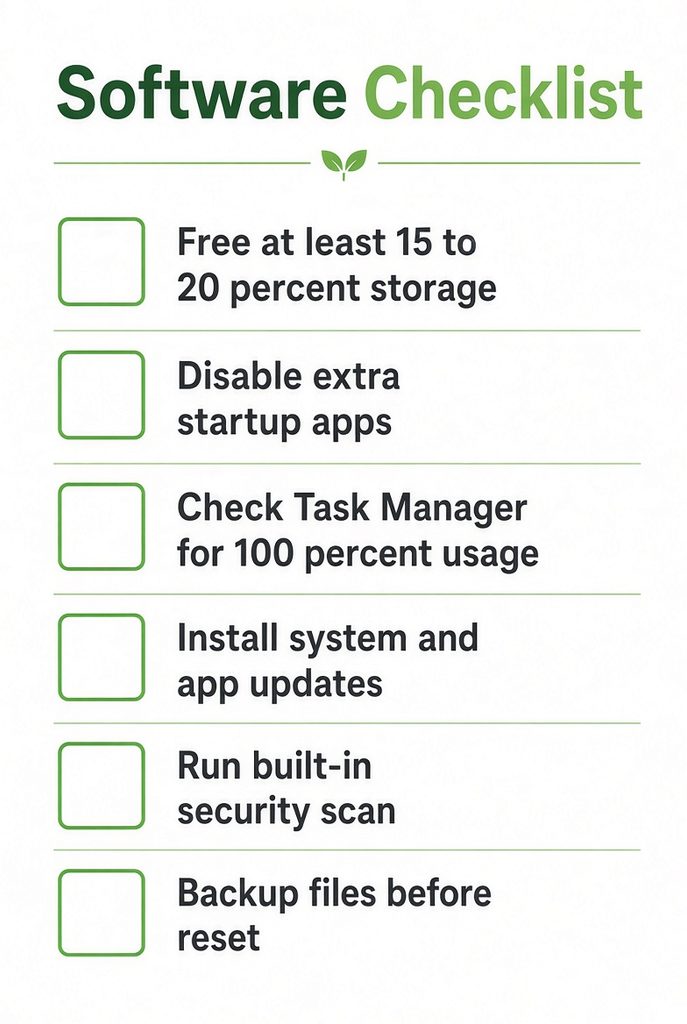
If software checks do not help, move to physical items.
3-1. Power
- Confirm the outlet works with another device.
- For laptops: test with the original adapter if possible.
- Check the cable for bends, cuts, or a loose plug.
- Try another wall outlet.
3-2. Cables and ports
- Reseat HDMI/USB-C/USB cables.
- Try a different port.
- For no display: connect an external monitor if you have one.
- Image on external monitor only → laptop panel or cable path issue.
- No image anywhere → power/board/GPU-side issue is more likely.
3-3. Heat and airflow
- Feel the air from the vents after 10–15 minutes of use.
- If the case is very hot and the fan is always loud, cleaning dust is the next step.
- Use a hard flat desk. Soft beds and blankets block intake vents.
3-4. Memory and storage signs
- Frequent crashes when many tabs are open → memory pressure.
- Long freezes when opening files → storage may be full, failing, or very slow.
- Clicking sounds from an old hard disk → back up at once; drives can fail suddenly.
3-5. Battery (laptops)
- Check battery health in system settings if available.
- Calibrate expectations: old batteries hold less charge.
- Avoid leaving a gaming laptop under heavy load on the bed for long periods.
3-6. When to stop and seek repair
- Burning smell, smoke, or liquid spill
- Visible broken ports
- Laptop will not power on after adapter and outlet checks
- Data is critical and the drive is making unusual noises
4. Cleaning for longer life
Dust raises temperature. Higher temperature shortens component life and triggers slowdowns.
4-1. What you need
- Soft microfiber cloth
- Isopropyl alcohol 90%+ (small amount, for exterior only)
- Compressed air can (short bursts)
- Optional: soft brush
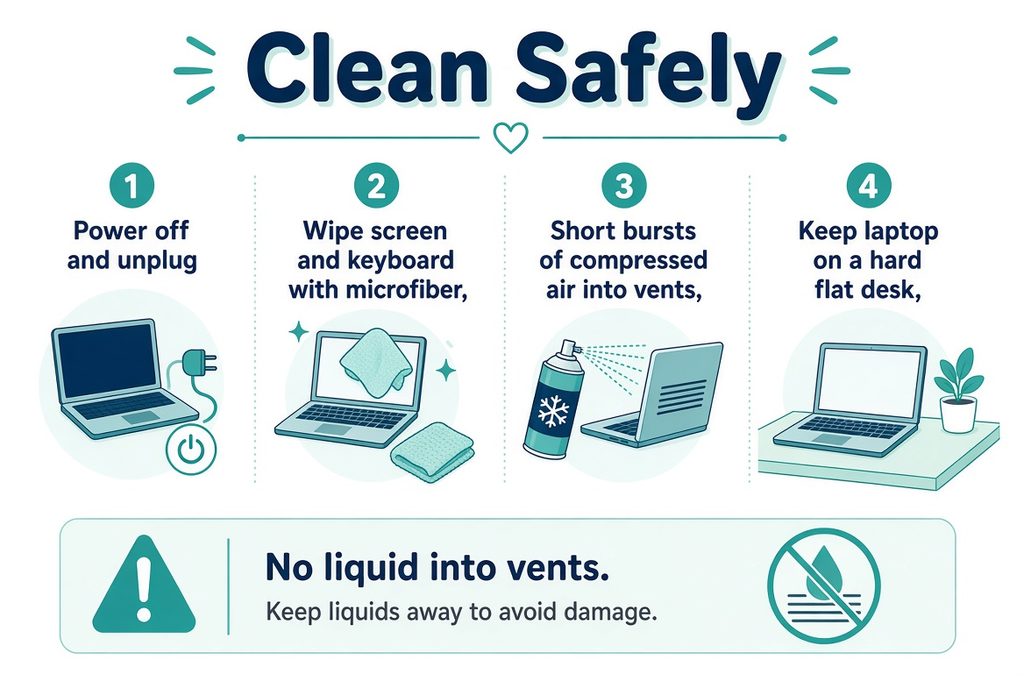
Do not pour liquid into vents. Do not use a household vacuum on open circuits (static risk).
4-2. Outside (safe for beginners)
- Shut down and unplug.
- Wipe the screen with a dry or slightly damp microfiber cloth.
- Wipe the keyboard and palm rest.
- Wipe ports gently; remove lint with a dry cotton swab if needed.
4-3. Vents and fans
- Power off and unplug.
- Hold the can upright.
- Short bursts into intake and exhaust vents from the outside.
- Let dust fall out; do not push thick dust deeper if you can avoid it.
For desktop PCs: open the side panel only if you are comfortable. Support fan blades lightly with a finger so they do not spin freely from air pressure.
4-4. How often
| Environment | Outside wipe | Vent air dusting |
|---|---|---|
| Clean home office | Every 1–2 weeks | Every 3–6 months |
| Dusty room / floor placement | Weekly | Every 1–3 months |
| Pet hair nearby | Weekly | Every 1–2 months |
4-5. Habits that help more than deep cleaning
- Keep the laptop on a hard surface.
- Leave space behind desktop towers for exhaust.
- Do not block side vents with books or walls.
- Close heavy apps when you finish editing or gaming.
- Keep some free storage space year-round.
5. Quick path when something goes wrong
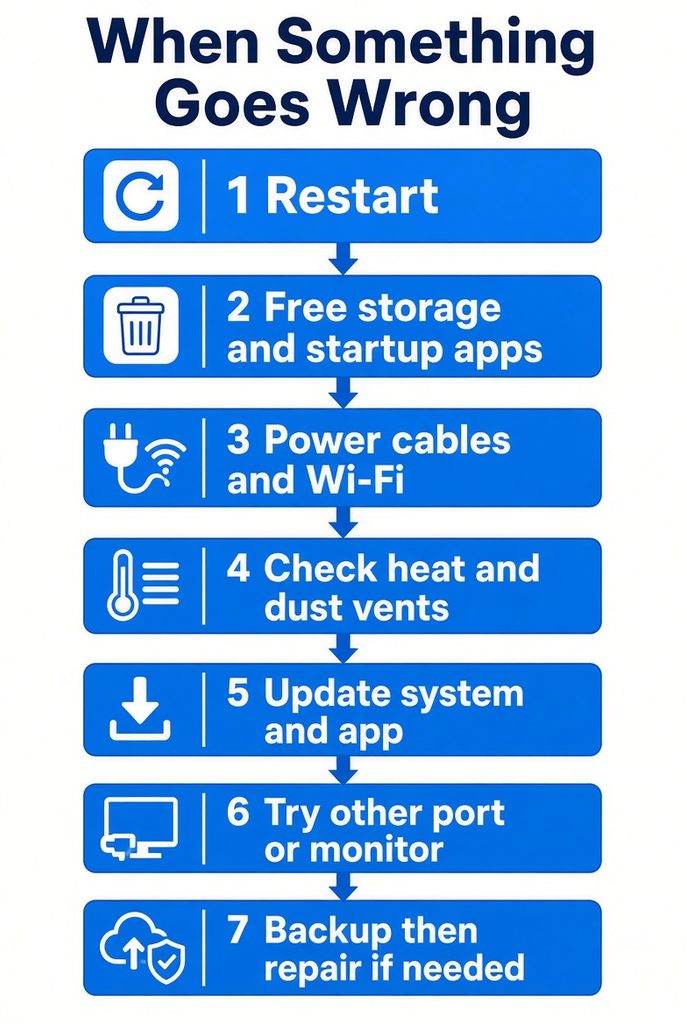
Follow this order:
- Restart once.
- Free storage and disable extra startup apps.
- Check cables, power, and Wi-Fi basics.
- Feel for heat and clear vent dust from the outside.
- Update system and the problem app.
- Test another port / monitor / adapter if display or charge fails.
- Backup, then consider repair or professional cleaning if problems remain.
6. Beginner checklist (print-friendly)
Monthly
- Free space above ~15–20%
- Restart after big updates
- Remove unused startup apps
- Wipe screen and keyboard
Every few months
- Compressed air on vents
- Check power cable condition
- Confirm important files are backed up
When errors appear
- Write down the exact message or timing
- Software checks first, hardware second
- No liquid into the machine
7. Short takeaway
Most beginner PC problems come from full storage, startup overload, heat and dust, or loose power/display cables.
Check software first, then power and airflow, then clean vents on a schedule.
That routine prevents many failures and keeps a computer usable for more years.
Previous Article: [Beginner’s Guide #10] Monitor Specs Made Simple: Refresh Rate, Response Time, and Panels