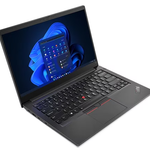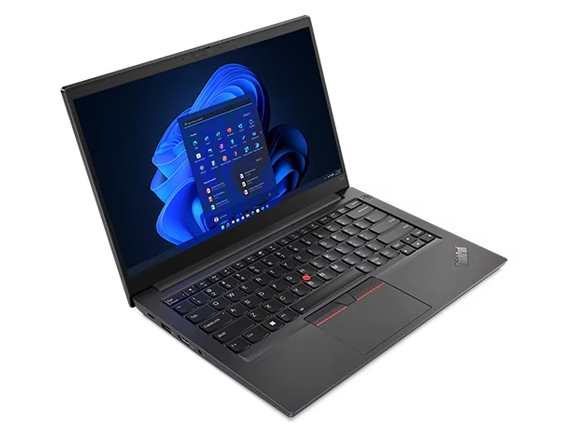
Image Source: Lenovo Official
Who Is It For?
The ThinkPad T14 is for individuals who require a reliable, no-nonsense computer for professional or academic work. It is a common choice for office employees, software developers, and students who need a machine that can survive being carried in a bag every day. The hardware is optimized for multitasking across web browsers, communication tools like Slack or Teams, and office suites. It is built for longevity and repairability rather than for entertainment or high-end creative arts. If this form factor or power doesn’t quite fit your daily work, exploring other lineup categories would be a better path.
1. Check Before You Buy
The ThinkPad T14 is a laptop designed for consistent daily use in professional and educational settings. It occupies a middle ground in the ThinkPad lineup, offering more durability and port selection than the E or L series, while being more affordable than the premium X1 Carbon. Because this series has existed through several generations, the internal configuration—especially the memory and the screen—can vary significantly between a model released two years ago and one released today.
Memory Configuration and Future Upgrades
The way memory is installed in the ThinkPad T14 is a critical point for long-term use. In many versions, such as the Gen 3 and Gen 4, a portion of the memory is soldered directly to the motherboard. This means if you purchase a unit with 8GB soldered, you can only add one more stick of memory to the single available slot. If that soldered memory fails, the entire motherboard usually requires replacement. However, the Gen 5 Intel version has returned to using two standard slots, which allows both sticks of memory to be replaced or upgraded. Checking the specific “Gen” number and the memory layout on the sales page is necessary to understand if the laptop can be upgraded in the future.
Thermal Behavior and Fan Noise
The cooling system in the T14 consists of a single fan and heat pipes that move heat away from the processor. During standard tasks like writing documents, attending video calls, or browsing the web with a few tabs open, the fan typically remains off or spins at a speed that is difficult to hear in a normal room. When the processor is pushed with heavy data calculations or video exports, the fan exhausts air through the right side of the chassis. This can result in a warm sensation on the right hand if using an external mouse close to the laptop. The AMD versions of the T14 often generate less heat during moderate tasks compared to the Intel versions, which can lead to less frequent fan activation.
Chassis Materials and Durability
The T14 is tested against MIL-STD 810H standards, which involve checks for resistance to humidity, vibration, and temperature shocks. The exterior has a matte, slightly rubberized texture that provides a secure grip when carrying the device. However, this surface is known to show oil from fingerprints over time. The hinges allow the screen to lay completely flat at 180 degrees, which prevents accidental damage if the screen is pushed back too far. While the chassis is sturdy, the plastic versions have slightly more flex in the keyboard area than the magnesium or carbon fiber versions.
Performance Limits and Graphics
The integrated graphics system in the T14 is designed for displaying high-resolution video and handling multiple monitors. It is not a gaming laptop or a 3D workstation. While it can handle basic photo editing and short 1080p video clips, it will struggle with complex 3D rendering or modern high-end video games. Attempting to run such software will cause the system temperature to rise quickly and the frame rate to drop. For users whose work involves heavy graphical processing, the integrated hardware in the T14 series will not be enough.
2. How It Fits a Real Desk Setup
The ThinkPad T14 is sized to fit comfortably on standard office desks, airplane tray tables, and small coffee shop surfaces. Its 14-inch frame is often considered the “standard” size for professional portability, as it provides enough screen space for side-by-side windows without the bulk of a 15 or 16-inch machine.
The Daily Commute and Portability
With a weight starting around 1.3 kg, the T14 fits into most standard backpacks and messenger bags designed for 13 or 14-inch laptops. The power adapter uses a USB-C connection, which means the same charger can often be used for a phone or tablet, reducing the number of cables needed in a bag. The chassis is thin enough to slide into a crowded bag but thick enough to feel substantial. Because the ports are reinforced, frequent plugging and unplugging of the charging cable does not easily loosen the internal connectors.
Desk Connectivity and Port Layout
One of the primary advantages of the T14 is the inclusion of a full-sized RJ45 Ethernet port. This allows for a stable, wired internet connection in offices or hotels without the need for an external dongle. The HDMI port is also full-sized, making it easy to connect to projectors or external monitors. On a desk, the two USB-C ports (which support Thunderbolt 4 on Intel models) allow for a single-cable docking solution. A user can connect one cable to the laptop to provide power, drive two external monitors, and connect a keyboard and mouse. This keeps the desk surface clear of multiple wires.
The Typing and Navigation Experience
The keyboard is a central feature of the T14 experience. The keys have a concave shape and 1.5mm of travel, which provides a tactile feel that many find helpful for long typing sessions. The keyboard is also spill-resistant, featuring a drainage system that helps protect the internal electronics from small amounts of liquid. In the center of the keyboard sits the red TrackPoint, which allows for mouse movement without moving the hands away from the typing position. The trackpad below is made of Mylar and supports multi-touch gestures, though it is smaller than those found on consumer-focused laptops to make room for the physical buttons used with the TrackPoint.
Visual and Audio Environment
The 16:10 aspect ratio of the screen provides more vertical space than older 16:9 screens, which is useful for reading long documents or viewing more rows in a spreadsheet. The speakers are located above the keyboard and fire upward toward the user. While they are clear for voices during video calls, they lack the deep bass required for a high-quality music experience. The webcam includes a physical privacy shutter, a sliding piece of plastic that blocks the lens when not in use, providing a visual confirmation that the camera cannot see the user.
3. Performance by Use Case
The following ratings are based on a standard configuration with an Intel Core i5/i7 or AMD Ryzen 5/7 and 16GB of RAM.
| Use Case | Software | Rating | Reason |
| Office Work | Word, Excel, PowerPoint | Sufficient | Handles large documents and multitasking easily |
| Web Browsing | Chrome, Edge (30+ tabs) | Sufficient | High RAM capacity supports many open tabs |
| Video Calls | Zoom, Microsoft Teams | Sufficient | Upward-firing speakers and clear mic for calls |
| Photo Editing | Adobe Photoshop | Adequate | Good for basic edits; high-res files may slow down |
| Video Editing | 1080p basic cuts | Adequate | Possible for simple projects; 4K rendering is slow |
| 3D Gaming | AAA Titles (Cyberpunk 2077) | Not enough | Integrated graphics cannot maintain playable speeds |
| Professional 3D | Blender, AutoCAD 3D | Not enough | Lack of dedicated GPU limits complex 3D work |
The ratings above assume the laptop is used on a flat surface to allow for proper airflow. Using the laptop for tasks rated as “Not enough” will lead to high fan noise and potential thermal throttling.
4. Official Specs (with plain explanations)
| Category | Specification | Notes |
| CPU | Intel Core / AMD Ryzen (U or P series) | Efficiency-focused processors, performance varies by generation |
| Graphics | Integrated Intel Iris Xe / Arc or AMD Radeon | Built into the processor, uses system memory |
| Memory | 8GB to 64GB (Soldered or SODIMM) | Configuration depends on the specific generation and model |
| Storage | 256GB to 2TB M.2 NVMe SSD | Single replaceable internal storage drive |
| Display | 14-inch 16:10 (FHD+ to OLED) | Taller screen ratio, matte and glossy options available |
| Weight | Starting at 1.21 kg to 1.48 kg | Varies based on battery size and chassis materials |
| Battery | 39.3Wh, 52.5Wh, or 58Wh | Internal battery, capacity chosen at time of purchase |
| Ports | Thunderbolt 4, USB-A, HDMI, RJ45, Jack | Includes a full-sized Ethernet port for wired internet |
This series is sold with different CPUs, memory, and storage depending on the release year and generation. Please match the specifications on your current seller page with the official information above.
Source: Lenovo Official Product Page
The specifications listed above represent the standard boundaries of the ThinkPad T14 series. As a 14-inch business laptop, the T14 is designed to balance internal hardware capabilities with a frame that is light enough for daily transport. The following sections explain how these technical details translate into the physical experience of using the device in various environments.
5. Main Variations in This Series
- Processor Architecture: The series is available with either Intel Core or AMD Ryzen processors. Intel models often include Thunderbolt 4 support, while AMD models are frequently noted for their integrated graphics performance and power efficiency.
- Memory Slot Design: In generations 1 through 4, many models feature one soldered memory chip and one open slot for expansion. The Gen 5 (Intel) models have moved toward two replaceable slots, allowing for easier repairs and upgrades.
- Chassis Materials: Depending on the specific sub-model, the lid and base may be constructed from carbon fiber, magnesium alloy, or recycled plastic. These materials affect the total weight and the tactile feel of the laptop.
- Display Brightness and Panels: Screen options range from 300-nit panels to 400-nit low-power panels and high-resolution OLED displays. The 400-nit low-power option is designed to extend battery life while remaining visible in bright offices.
6. What to Check on the Sales Page
When looking at a ThinkPad T14 listing, the generation and the specific screen brightness are the two most important factors that change the value of the machine.
- CPU Generation: Check whether you are getting the 12th Gen, 13th Gen, or the newer Core Ultra processors.
- Memory Configuration: Verify if the RAM is “soldered” or if there is an “open SODIMM slot” for future upgrades.
- Screen Brightness (Nits): Look for the brightness rating. A 250-nit or 300-nit screen may be difficult to use near a window; a 400-nit panel is generally preferred for varied lighting.
- Battery Capacity: Check if the unit has the 39.3Wh or the 52.5Wh battery. The smaller battery is lighter but provides less time away from a charger.
- Keyboard Backlight: Not all T14 models include a backlit keyboard. Confirm this feature if you often work in dark environments.
The specifications on the sales page are the final authority on what is inside the box. Always double-check the RAM and storage totals, as these are frequently customized by sellers.
7. Disclaimer & Buying Advice
This buying guide for the ThinkPad T14 Series is based on official manufacturer specifications and recurring real-world user experiences. It is completely independent, not sponsored, and does not guarantee specific performance for every unit. Hardware configurations such as the processor, memory, and storage can differ by generation and region, so please double-check the exact specifications listed on your seller’s page before purchasing.
8. Beginner Guide
If you are setting up your first mobile office machine and want to understand how display choices and physical durability influence day-to-day work, check out our [Start Here] page to read our basic configuration guides.