Image Source: Lenovo Official
Who Is It For?
The ThinkPad E16 is for users who prioritize screen size and a full keyboard over extreme portability. It fits well for office workers, students, and home users who handle large spreadsheets, write long reports, or manage multiple windows simultaneously. It is a functional tool for those who need the reliability of the ThinkPad brand and the convenience of a numeric keypad without the higher cost of the premium T or P series. If this form factor or power doesn’t quite fit your daily work, exploring other lineup categories would be a better path.
1. Check Before You Buy
The ThinkPad E16 is a laptop designed for productivity tasks that benefit from a large screen and a dedicated numeric keypad. It represents the entry point into the ThinkPad lineup for the 16-inch form factor, sitting below the T16 and P16 series. Because it is a larger device, the internal layout allows for certain expansion options that are not found in smaller laptops, but it also introduces specific physical constraints regarding portability and desk space.
Screen Ratio and Vertical Space
The transition to a 16:10 aspect ratio means the screen is taller than older 16:9 widescreen laptops. This extra vertical space allows for more rows in a spreadsheet or more text in a document to be visible at once. For users who spend hours reading or coding, this reduces the frequency of scrolling. However, the 16-inch size makes the laptop wider than standard bags. The matte coating on the screen helps reduce reflections from overhead office lights, but the standard 300-nit brightness level may not be enough for use in direct sunlight or very bright outdoor environments.
Keyboard Layout and Typing Position
The inclusion of a full numeric keypad on the right side of the keyboard is a primary feature of the E16. This is useful for data entry, accounting, and mathematical work. However, the presence of the numpad shifts the main typing area—the letter keys and the trackpad—to the left of the laptop’s center line. A user who is accustomed to a centered keyboard will find that their hands and wrists are positioned slightly to the left. The keys themselves have a tactile feel with a standard travel distance, and the keyboard is designed to resist small amounts of liquid spills.
Internal Expansion and Dual Storage
Unlike many slim laptops that only have one storage slot, the ThinkPad E16 features two M.2 SSD slots. This allows for the addition of a second storage drive without removing the original one that contains the operating system. The memory configuration is also hybrid, with one portion of the RAM soldered to the motherboard and one open slot available for a single memory stick. This means that while the memory can be increased, it cannot be fully replaced if the soldered portion fails. Checking the specific generation is necessary, as some newer versions use different sizes for the second SSD slot (such as the shorter 2242 size versus the standard 2280 size).
Thermal Management and Build Materials
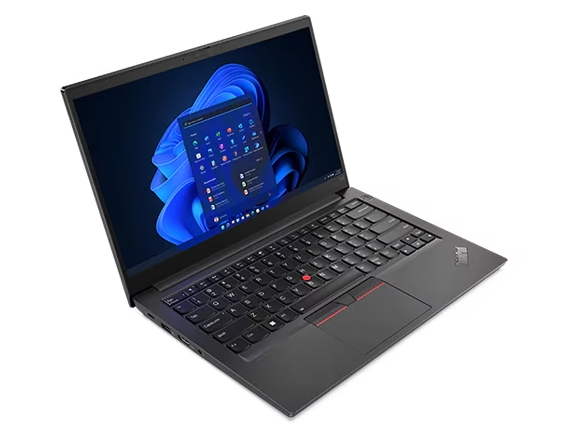
The cooling system uses a fan and heat pipes to exhaust air through the right side or the rear of the chassis. During standard office work, the fan remains at a low speed and is generally quiet. Under a heavy processing load, the fan noise becomes a steady hum. The build quality involves a mix of materials; the aluminum top cover provides a more rigid feel and better protection for the screen, while the plastic bottom helps keep the overall weight lower. The surface is finished in a matte black that is resistant to some fingerprints but will show oil marks over time with frequent handling.
2. How It Fits a Real Desk Setup
The ThinkPad E16 requires a significant amount of space on a desk. Its width and depth mean it may not fit comfortably on small coffee shop tables or narrow airplane tray tables. On a standard office desk, it provides a large enough display that some users may find they do not need an external monitor for basic multitasking. The height of the screen when the laptop is open is also greater than that of 14-inch models, which can lead to a more natural neck angle if the laptop is placed on a flat surface.
Port Placement and Cable Management
The ports are distributed along the sides of the laptop. The USB-C ports, which are used for both charging and data, are located on the left side. This means the power cable will always extend from the left. The inclusion of a full-sized HDMI port and an Ethernet (RJ45) port allows for easy connection to projectors and wired networks without the need for external adapters. Because the Ethernet port is located on the side, a thick network cable may stick out and occupy space where a user might want to place an external mouse. The right side typically houses a USB-A port, which is convenient for a wireless mouse receiver or a thumb drive.
Portability and Daily Carrying
At nearly 1.8 kg to 1.9 kg, the E16 is heavy enough that it is noticeable when carried in a backpack for long periods. It is designed for users who move between a few fixed locations—such as from a home office to a company desk—rather than for those who work while standing or traveling constantly. The power adapter is a standard USB-C brick; the 65W version is relatively compact, but it still adds to the total weight in a bag. The chassis is sturdy enough to be picked up by one corner without significant flexing, but the large size means it is best handled with two hands.
Interaction and Navigation
The trackpad is made of Mylar, a type of plastic that is smooth but does not have the same cold, glass-like feel of premium models. It is larger than the trackpads on older 15-inch ThinkPads, providing more room for multi-finger gestures. The red TrackPoint nub remains in the center of the keyboard, allowing for mouse control without moving the hands from the typing position. This is particularly useful in tight spaces where there is no room for an external mouse. The webcam at the top of the screen includes a physical privacy shutter, which is a sliding plastic tab that blocks the lens when the camera is not in use.
3. Performance by Use Case
The following ratings are based on a mid-range configuration with an Intel Core i5 or AMD Ryzen 5 and 16GB of RAM.
| Use Case | Software | Rating | Reason |
| Office Work | Excel, Word, Outlook | Sufficient | Large screen and numpad are ideal for data tasks |
| Web Browsing | Chrome, Edge (20+ tabs) | Sufficient | Handles many tabs and background apps easily |
| Video Calls | Zoom, Microsoft Teams | Sufficient | Clear webcam and stable wired Ethernet connection |
| Photo Editing | Photoshop, Lightroom | Adequate | Sufficient for basic edits; screen color varies by panel |
| Video Editing | 1080p basic cuts | Adequate | Possible for simple projects; 4K rendering is slow |
| 3D Gaming | Modern AAA Games | Not enough | Integrated graphics cannot maintain playable speeds |
| Professional 3D | CAD, Blender Rendering | Not enough | Lack of dedicated GPU limits complex 3D work |
The ratings above assume the laptop is used on a flat surface to allow for proper airflow. Using the laptop for tasks rated as “Not enough” will lead to high fan noise and potential thermal throttling.
4. Official Specs (with plain explanations)
| Category | Specification | Notes |
| CPU | Intel Core i3/i5/i7 or AMD Ryzen 3/5/7 | Modern processors, performance depends on generation and series |
| Graphics | Intel UHD/Iris Xe/Arc or AMD Radeon | Integrated into CPU, uses shared system memory |
| Memory | Up to 48GB or 64GB DDR4/DDR5 | One soldered chip, one replaceable expansion slot |
| Storage | Up to 2x M.2 NVMe SSD | Dual internal slots for storage expansion |
| Display | 16-inch 16:10 (1920×1200 to 2560×1600) | Taller screen ratio, matte anti-glare coating |
| Weight | Starting at 1.77 kg (3.90 lbs) | Varies by battery size and chassis materials |
| Battery | 47Wh or 57Wh | Internal battery, supports rapid charging with specific adapters |
| Ports | USB-C, USB-A, HDMI 2.1, RJ45, Audio Jack | Includes full-sized Ethernet and modern video outputs |
This series is sold with different CPUs, memory, and storage depending on the release year and generation. Please match the specifications on your current seller page with the official information above.
Source: Lenovo Official Product Page
The specifications listed above define the physical and technical boundaries of the ThinkPad E16. As a 16-inch laptop, it occupies a larger footprint than traditional 14-inch or 15-inch models, primarily to accommodate a taller screen and a full-sized keyboard. The following sections explain how these technical details translate into the physical experience of using the device in a daily work or study environment.
5. Main Variations in This Series
- Processor Architecture: The series is available with either Intel Core or AMD Ryzen processors. Intel models typically feature Thunderbolt 4 support in newer generations, while AMD models often utilize different integrated graphics architectures.
- Chassis Material Options: Some configurations feature an aluminum top cover with a plastic bottom, while others are constructed entirely of plastic. This choice affects the total weight and the rigidity of the lid.
- Display Resolution and Brightness: Screen options range from a standard 300-nit WUXGA panel to a higher-resolution 400-nit WQXGA panel. The higher-resolution option provides more pixels for detailed work and often includes better color accuracy.
- Battery Capacity: Units are equipped with either a 47Wh or a 57Wh battery. The larger battery adds a small amount of weight but provides more energy for use away from a power outlet.
6. What to Check on the Sales Page
When reviewing a ThinkPad E16 listing, the specific screen and battery options are the most important factors that change the daily experience.
- CPU Generation: Check whether you are getting the 13th Gen, 14th Gen, or the newer Core Ultra processors.
- Screen Resolution and Nits: Verify if the screen is the 300-nit WUXGA or the 400-nit WQXGA. The 400-nit version is better for bright rooms.
- Memory Configuration: Confirm how much RAM is soldered and how much is in the slot. A 16GB (8+8) setup is common.
- Battery Size: Check if the unit has the 47Wh or the 57Wh battery. The 57Wh battery is preferred for longer use away from a desk.
- Keyboard Backlight: Not all E16 models include a backlit keyboard. Confirm this feature if you work in low-light conditions.
The specifications on the sales page are the final authority on what is inside the box. Always double-check the RAM and storage totals, as these are frequently customized by sellers.
7. Disclaimer & Buying Advice
This buying guide for the ThinkPad E16 Series is based on official manufacturer specifications and recurring real-world user experiences. It is completely independent, not sponsored, and does not guarantee specific performance for every unit. Hardware configurations such as the processor, memory, and storage can differ by generation and region, so please double-check the exact specifications listed on your seller’s page before purchasing.
8. Beginner Guide
If you are building a home office workflow for the first time and want to explore essential computer dimensions, check out our [Start Here] page to read our foundational setup guides. journey.