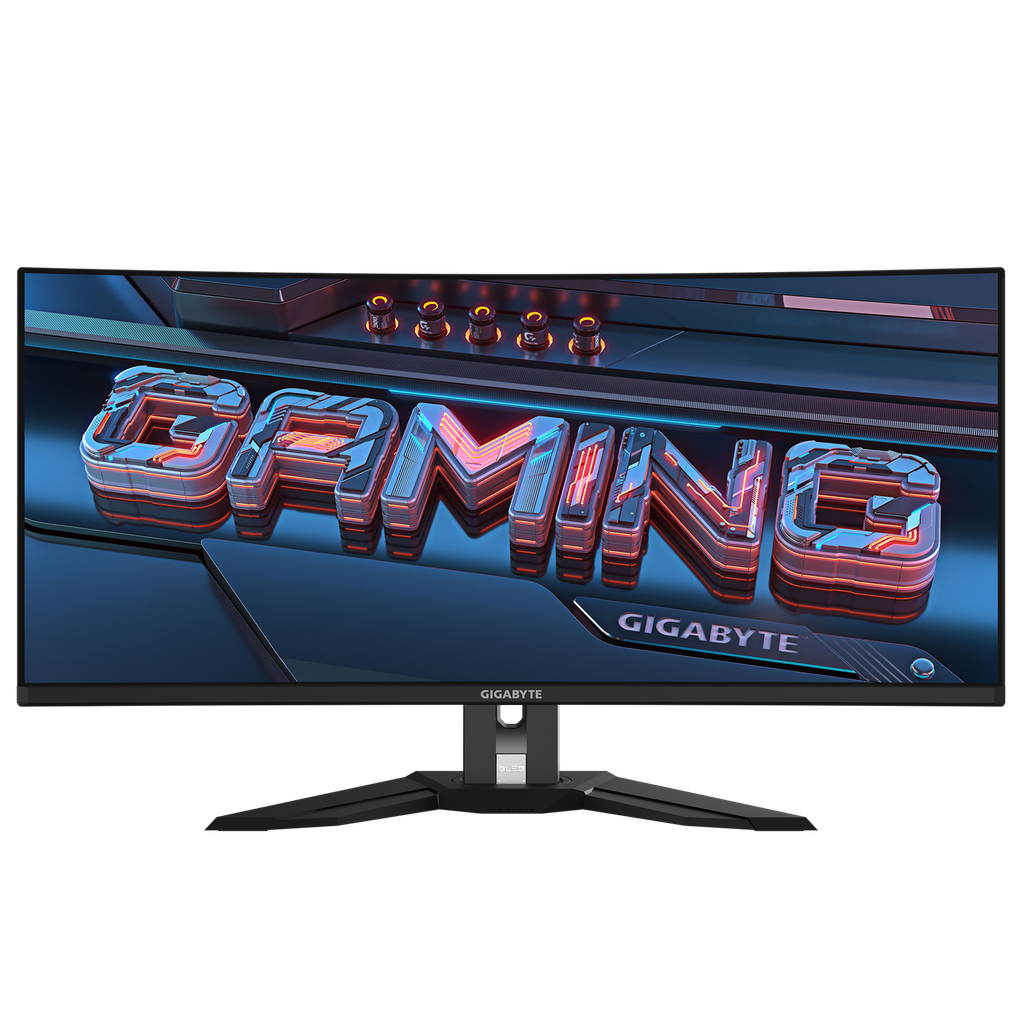
Image Source: Gigabyte Official
Who Is It For?
The Gigabyte M Series fits users who operate two different computers at the same desk, such as a gaming desktop and a work laptop. Because this series features a built-in KVM switch—a hardware component that allows one keyboard and mouse to control two separate devices—it suits those who want to switch between systems with a single physical button. The series also fits gamers who require high-resolution 4K gaming at 144Hz without the extreme price premium of flagship enthusiast brands.
However, this series does not fit users who need high-wattage charging for their laptops through a single cable. The USB-C ports on most M Series models provide between 15W and 18W of power, which is physically insufficient to charge a modern laptop while it is in use. It is also not for users with very shallow desks, as the wide V-shaped stands occupy significant depth. The original M27Q model does not fit those who perform heavy text-based work, such as coding or long-form writing, due to a non-standard subpixel layout that can affect text clarity. If this form factor or the specific KVM functionality doesn’t quite fit your daily work, exploring other lineup categories would be a better path.
1. How This Line Is Grouped
Gigabyte organizes the M Series as their mainstream “productivity-gaming” hybrid line. It sits above the G Series (which lacks KVM and USB-C) and below the AORUS premium line (which features more aggressive designs and higher-end materials). The M Series is primarily grouped by resolution and screen size.
| Tier | Typical Names | Rough Position |
| Entry High-Speed | M27F, M27F A | 27-inch, 1080p resolution, high refresh rate. |
| Mid-Range QHD | M27Q, M27Q-P, M32Q | 27-32 inch, 1440p resolution, the core of the line. |
| High-Resolution 4K | M28U, M32U, M32UC | 28-32 inch, 4K resolution, HDMI 2.1 for consoles. |
| Ultrawide | M34WQ | 34-inch, 21:9 aspect ratio, flat IPS panel. |
Entry High-Speed Group
The M27F models represent the starting point of the series. These monitors use 1080p (Full HD) resolution, which is the standard for basic gaming and office work. While the resolution is lower, they maintain the signature KVM feature and high refresh rates—how many times the image updates each second—typically reaching 144Hz or 165Hz. These models are physically flat and use IPS (In-Plane Switching) panels, which are known for consistent colors and wide viewing angles.
Mid-Range QHD Group
The QHD models, such as the M27Q and M32Q, offer 1440p resolution. This provides 77% more screen space than 1080p, allowing for more windows to be open simultaneously. This group is the most popular for PC gamers because it balances sharpness with performance. The “Super Speed IPS” (SS IPS) panels used here are designed to reduce response time—the time it takes for a pixel to change color—minimizing the blur seen behind fast-moving objects in games.
High-Resolution 4K Group
The M28U and M32U are the high-end models of the M Series. They feature 4K resolution (3840 x 2160) and HDMI 2.1 ports. HDMI 2.1 is a physical connection standard required for modern gaming consoles like the PlayStation 5 and Xbox Series X to run at 4K and 120Hz. These models are physically larger and require a powerful graphics card to operate at their full potential. The M32UC is a variation that uses a curved VA (Vertical Alignment) panel instead of a flat IPS panel, offering deeper blacks but narrower viewing angles.
Ultrawide Group
The M34WQ is a specialized model with a 21:9 aspect ratio. It is physically wider than a standard widescreen monitor, providing extra horizontal space that fits video editing timelines and immersive simulation games. Unlike many ultrawide monitors that are curved, the M34WQ is flat. This fits users who perform architectural or design work where a curved screen might make straight lines appear distorted.
2. Check Before You Buy
The KVM Switch and Power Delivery Limits
The KVM switch is the primary selling point of the M Series, but it has a physical limitation regarding power. While the USB-C port can receive a video signal and data for your mouse and keyboard, it only provides 15W to 18W of Power Delivery (PD). Power Delivery is the ability of the monitor to charge a connected device. A standard office laptop usually requires 60W to 90W to stay charged. Consequently, a laptop connected to an M Series monitor will still drain its battery during use, requiring the user to plug in the laptop’s original power brick separately.
Subpixel Layout and Text Clarity (BGR vs. RGB)
The original M27Q model uses a BGR (Blue, Green, Red) subpixel layout instead of the standard RGB (Red, Green, Blue) layout used by Windows and most other monitors. Because the subpixels are in a different physical order, text can appear slightly blurry or have “fringing” (faint colored shadows around letters). While this can be partially corrected using software tools like ClearType in Windows, it is a physical characteristic of the panel that some users find distracting for heavy reading or coding. Newer models like the M27Q-P (Pro) and the 4K models use the standard RGB layout.
HDMI 2.1 Bandwidth on 4K Models
The M28U and M32U feature HDMI 2.1 ports, but they are limited to a bandwidth of 24Gbps. The full HDMI 2.1 standard allows for up to 48Gbps. Because of this 24Gbps limit, the monitor uses “Display Stream Compression” (DSC) to achieve 4K at 120Hz on consoles. While this is visually lossless—meaning the human eye cannot see the compression—it is a technical constraint that differs from flagship monitors that offer the full 48Gbps bandwidth.
Coil Whine and Internal Power Supplies
Some units in the M Series exhibit “coil whine,” which is a high-pitched buzzing sound caused by electromagnetic coils vibrating inside the monitor’s power supply. Because the M Series typically uses an internal power board rather than an external “brick” (the black box on the power cord), any noise generated is closer to the screen and the user’s ears. This noise is more common when the monitor is set to high brightness or high refresh rates.
3. How It Fits a Real Desk Setup
Stand Depth and Footprint
Gigabyte M Series monitors use a wide, V-shaped stand. On a desk with a depth of 60 cm (24 inches), the legs of the stand can extend forward by 20 cm to 25 cm. This occupies a significant amount of the center desk area, which can interfere with the placement of a large mousepad or a keyboard. The stand provides height and tilt adjustments, but most models in this line do not allow the screen to “swivel” (turn left and right) or “pivot” (rotate to a vertical position).
Port Access and the KVM Button
The ports on the M Series are located on the back, facing downwards. This makes them difficult to see without tilting the monitor or using a mirror. The KVM button is a dedicated physical button located on the back-right side of the monitor, separate from the menu joystick. A user needs enough clearance on the right side of the monitor to reach behind the screen and press this button comfortably. If the monitor is placed in a tight corner or flush against a wall, accessing the KVM button becomes physically difficult.
VESA Mounting and the Rear Bulge
For users who prefer a monitor arm, the M Series supports the VESA 100×100 standard (the standard screw pattern for a monitor arm). The mounting area is located on a flat section of the back. However, the bottom half of the monitor’s rear chassis bulges outward to house the internal power supply and speakers. When using a monitor arm, this bulge can limit how close the monitor can be pushed against a wall, especially if the arm’s joints are bulky.
Cable Management and Included Wires
Gigabyte typically includes an HDMI cable and a DisplayPort cable in the box, but they do not always include the USB-C cable required for the KVM functionality. To use the KVM switch with a laptop, the user must provide a “Full-Featured” USB-C cable that supports both DisplayPort Alt Mode (video) and Data. A standard phone charging cable will not work. The stand includes a simple circular hole for routing cables, which helps keep the desk organized but can become crowded if the user connects multiple USB devices to the monitor’s hub.
4. Sizes and Models in This Line
The M Series covers the most common desktop sizes, with each size paired with a resolution that maintains a functional pixel density—how many pixels are packed into an inch of the screen.
| Size | Common Resolution | Aspect Ratio | Notes |
| 27″ | 1920 x 1080 (FHD) | 16:9 | M27F; pixels are visible if sitting very close. |
| 27″ | 2560 x 1440 (QHD) | 16:9 | M27Q; the standard for 1440p gaming. |
| 28″ | 3840 x 2160 (4K) | 16:9 | M28U; very high sharpness; fits small desks. |
| 32″ | 3840 x 2160 (4K) | 16:9 | M32U; large workspace; fits 4K perfectly. |
| 32″ | 3840 x 2160 (4K) | 16:9 | M32UC; curved VA panel for higher contrast. |
| 34″ | 3440 x 1440 (UWQHD) | 21:9 | M34WQ; flat ultrawide for productivity. |
The 27-inch M27Q is the core model of the line. At 1440p, it provides a sharp image where individual pixels are difficult to see at a normal viewing distance of 60 cm. The M27Q-P (Pro) is a revised version that uses an RGB subpixel layout, fixing the text clarity issues of the original BGR model.
The 28-inch M28U and 32-inch M32U are the 4K flagships. The M28U has a higher pixel density, making images look extremely “crisp,” while the M32U provides more physical screen real estate, which is better for viewing large spreadsheets or complex video timelines. Both feature 144Hz refresh rates, which is the standard for high-end gaming.
The 34-inch M34WQ is an “Ultrawide” monitor. It is 81 cm (32 inches) wide. On a standard desk, this monitor provides the same horizontal space as two smaller monitors but without the plastic border (bezel) in the middle. Because it is a flat IPS panel, it is a physical fit for users who find curved screens disorienting for office work.
5. Performance by Use Case
The performance of the Gigabyte M Series is defined by its “Super Speed” IPS panels and its hybrid connectivity.
| Use Case | Software / Task | Rating | Reason |
| Multi-Device Work | PC + Laptop Switching | Sufficient | Built-in KVM switch handles two systems easily. |
| Competitive Gaming | Valorant, CS2, Apex | Sufficient | 144Hz-170Hz and low input lag provide fast response. |
| Console Gaming | PS5, Xbox Series X | Sufficient | HDMI 2.1 (on 4K models) supports 4K 120Hz. |
| Office Productivity | Excel, Word, Coding | Adequate | Good space, but BGR layout on M27Q affects text. |
| Video Editing | Premiere Pro, Resolve | Sufficient | 90%+ DCI-P3 color coverage and Ultrawide options. |
| Photo Editing | Photoshop, Lightroom | Adequate | Good colors, but lacks professional-grade calibration. |
The “Sufficient” rating for multi-device work is due to the KVM switch’s ability to share USB peripherals. This means a user can plug their mouse and keyboard into the monitor’s USB ports, and those devices will automatically follow the video signal when switching between the desktop and the laptop.
6. Official Specs (with plain explanations)
| Category | Specification | Notes |
| Panel Type | IPS or SS IPS | Known for wide viewing angles and color accuracy. |
| Refresh Rate | 144Hz to 170Hz | How many times the image updates each second. |
| Response Time | 1ms to 2ms (GtG) | Time for a pixel to change color; lower is better. |
| Brightness | 350 to 400 nits | Nits = unit of brightness; 350 is standard for indoors. |
| Color Gamut | 90% – 95% DCI-P3 | The range of colors the monitor can physically show. |
| Connectivity | HDMI 2.0/2.1, DP 1.4, USB-C | USB-C supports video and KVM data. |
| Power Delivery | 15W to 18W | The amount of power sent to a laptop (very low). |
This line is sold with different tier names, sizes, refresh rates, and panels depending on the exact model and region. Please match the specifications on your current seller page with the official information above.
Source: Gigabyte Official Product Page
The “GtG” (Gray to Gray) response time is a measure of how quickly a pixel can shift. A 1ms GtG rating on an SS IPS panel means that fast-moving objects will have very little “ghosting” or trailing blur behind them, which is a physical requirement for clear motion in games.
7. Main Variations in This Line
The most important variation in the M Series is the subpixel layout. The original M27Q is BGR, while the M27Q-P (Pro) and M27Q X (240Hz version) are RGB. A buyer who prioritizes text clarity for work should verify the specific model suffix to ensure they are getting an RGB panel.
Another variation is the panel curvature. Most M Series monitors are flat IPS panels. However, the M32UC is a curved VA panel. VA panels offer a much higher contrast ratio (typically 3000:1) compared to IPS (1000:1), meaning blacks look much darker in a dark room. However, VA panels can exhibit “black smearing,” where dark objects leave a trail during fast movement.
The “Arm Edition” (indicated by “AE” in some regions) is a variation where the monitor does not come with a traditional desk stand. Instead, it includes a heavy-duty C-clamp monitor arm in the box. This is a physical fit for users who want to save desk space and require maximum adjustability.
8. What to Check on the Sales Page
- Line / Tier / Size: Check whether you are getting the M Series model, not the G Series, as the G Series lacks the KVM switch and USB-C port.
- Subpixel Layout: For the 27-inch 1440p model, verify if it is the M27Q (BGR) or the M27Q-P (RGB) if text clarity is a priority.
- HDMI Version: For 4K 120Hz gaming on consoles, ensure the model is the M28U or M32U, which feature HDMI 2.1.
- USB-C Cable Inclusion: Check if a USB-C cable is included in the box; if not, a “Full-Featured” 10Gbps USB-C cable must be purchased separately for KVM use.
- Power Delivery Wattage: Confirm the PD wattage (usually 15W-18W) to understand that it will not charge a laptop at full speed.
9. Disclaimer & Buying Advice
This buying guide for the Gigabyte M Series is based on official manufacturer specifications and recurring real-world user experiences. It is completely independent, not sponsored, and does not guarantee specific performance for every unit. Tier name, screen size, refresh rate, panel type, and ports can differ by model and region, so please double-check the exact specifications listed on your seller’s page before purchasing.
10. Beginner Guide
If you are new to monitor terms like refresh rate (Hz), panel type (IPS/VA), and resolution (1080p/1440p/4K), read the basics in our [Start Here]. Understanding how a KVM switch and USB-C connectivity interact with your laptop and desktop will help you determine if the hybrid Gigabyte M Series fits your specific needs.