Image Source: Dell Official
Who Is It For?
The Dell XPS Desktop is for individuals who need a stationary computer for productivity, content creation, or moderate gaming without the complexity of building a system from scratch. It fits into a home office or a professional environment where a clean, understated appearance is preferred over the bright lights of a gaming PC. The hardware is capable of handling high-resolution photo editing and multi-track audio production. It is not for those who want to frequently swap internal parts or for those who require a silent machine under heavy workloads.
“If this form factor or power doesn’t quite fit your daily work, exploring other lineup categories would be a better path.”
1. Check Before You Buy
The Dell XPS Desktop is a tower-style computer designed for home and office environments where a permanent desk setup is available. Unlike custom-built computers that use standardized parts, this series utilizes a proprietary design for the motherboard and the power supply. This means that if these specific parts fail outside of the warranty period, they cannot be replaced with standard off-the-shelf components from a local electronics store. The physical shape of the motherboard is customized to fit the specific screw holes and port alignments of the XPS chassis.
Cooling Systems and Thermal Behavior
The internal temperature of the XPS Desktop is managed by either air or liquid cooling. The standard air cooler is a small heatsink with a fan that pulls air from the front of the case and pushes it toward the rear. In configurations with high-core-count processors like the i7 or i9, this air cooler operates at high speeds, which increases the volume of the fan noise. The liquid cooling option uses a pump and a radiator to move heat away from the processor more efficiently. This results in lower operating temperatures for the CPU, but the system still relies on case fans to move air over the graphics card and motherboard components.
Expansion and Internal Space
The chassis is a 27.1-liter mid-tower, which is smaller than many dedicated gaming towers. This compact size limits the physical length of graphics cards that can be installed as future upgrades. While there are two slots for memory, they are often both occupied from the factory, meaning an upgrade requires removing the existing sticks. There is space for one M.2 NVMe drive on the motherboard and two 3.5-inch SATA bays for traditional hard drives. However, the cables and mounting brackets for these extra drives are not always included if the computer was purchased with only one drive.
Power Supply Constraints
The power supply unit (PSU) in the XPS Desktop uses a proprietary 12-pin or 10-pin connector for the motherboard instead of the industry-standard 24-pin connector. The physical dimensions of the PSU are also unique to this chassis. If a user decides to install a more powerful graphics card later, the existing power supply might not have the necessary wattage or the correct power cables. Upgrading the power supply requires purchasing a specific Dell-branded unit designed for this series, as standard ATX power supplies will not fit inside the case or connect to the motherboard.
Connectivity and Port Placement
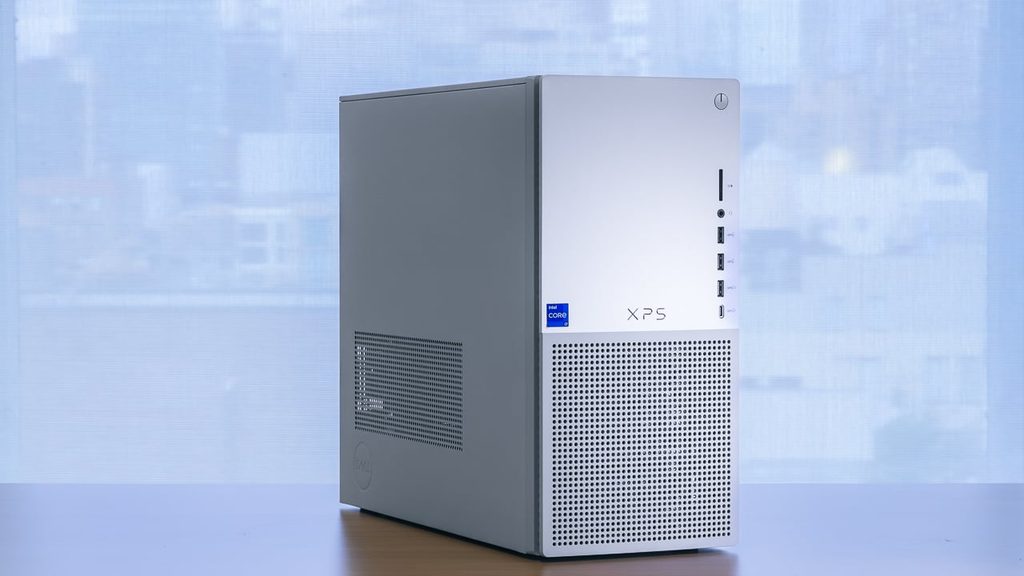
The front panel of the XPS Desktop includes three USB-A ports, one USB-C port, a headphone jack, and a full-size SD card reader. This placement allows for the connection of cameras and portable drives without reaching behind the machine. The rear of the machine contains the remaining USB ports and the video outputs. If the computer is configured with a dedicated graphics card, the video outputs on the motherboard are typically disabled, and the monitor must be plugged into the horizontal ports located lower on the back of the tower.
2. How It Fits a Real Desk Setup
Desktop Placement and Front Panel Ports
The Dell XPS Desktop is designed to sit either on top of a desk or on a dedicated shelf underneath. The front of the machine is made of plastic with a mesh pattern that allows air to enter the system. Because the air intake is located at the front, placing the tower inside a closed cabinet or a tight corner will restrict airflow and cause the internal fans to spin faster and louder. The side panel is solid metal and does not have a window, which hides the internal cables and green or blue circuit boards from view.
When placed on a desk, the tower occupies a rectangular space of 173 mm by 426.9 mm. The power button is located at the top right of the front panel, making it easy to reach if the tower is placed on the floor. The front-facing SD card reader is a physical slot that accepts cards from digital cameras, which eliminates the need for an external dongle. However, the front USB-C port does not support video output or high-speed charging for laptops; it is intended for data transfer and small device charging.
Noise Level and Internal Cable Routing
The noise level of the XPS Desktop is low during basic tasks like web browsing or document editing. In these scenarios, the fans spin at a minimum speed that is barely audible in a typical room. When the processor or graphics card is under a heavy load, such as during video export or 3D rendering, the fans ramp up. The sound is a consistent hum of moving air. If the tower is placed on the floor, this noise is less noticeable than if it is placed at ear level on the desk.
Cable management is handled internally by Dell, but the space inside the case is crowded. The power cables for the graphics card and motherboard are routed to minimize obstruction to the airflow. If a user adds a second hard drive, they will need to navigate around the existing power and data cables. The rear of the case has a standard layout, but the proximity of the USB ports means that wide USB thumb drives might block adjacent ports.
3. Performance by Use Case
The following ratings are based on a middle-tier configuration featuring an Intel Core i7 processor, 16GB of RAM, and an NVIDIA RTX 4060 graphics card.
| Use Case | Software | Rating | Reason |
| Office Productivity | Excel, Outlook, Slack | Sufficient | High-speed CPU and SSD handle large files and multitasking. |
| Photo Editing | Adobe Lightroom, Photoshop | Sufficient | Dedicated GPU and SD card reader support fast workflows. |
| Video Editing | Premiere Pro, DaVinci Resolve | Sufficient | 14th Gen Intel chips provide hardware acceleration for video. |
| 3D Modeling | AutoCAD, Blender | Adequate | Sufficient for modeling, but thermal limits affect long renders. |
| Gaming | AAA Titles at 1440p | Adequate | RTX 40-series cards provide stable frame rates at high settings. |
| Future Upgrading | Hardware Replacements | Not enough | Proprietary motherboard and PSU limit long-term part changes. |
The performance of the XPS Desktop is consistent, but the air-cooled models will reach their thermal limits faster than the liquid-cooled models. This results in a slight reduction in processing speed during tasks that take several hours to complete.
4. Official Specs (with plain explanations)
| Category | Specification | Notes |
| CPU | Intel Core i5-13400 to i9-14900K | 13th and 14th Gen Intel processors |
| Graphics | Intel UHD to NVIDIA RTX 4090 | Integrated or dedicated GPU options available |
| Memory | Up to 64GB DDR5 4800MHz/5600MHz | Two physical slots, user-replaceable modules |
| Storage | Up to 4TB M.2 PCIe NVMe + 2TB HDD | One M.2 slot and two SATA slots |
| Cooling | Standard Air or Advanced Liquid | Proprietary cooling solutions based on CPU choice |
| Power Supply | 460W, 750W, or 1000W | Proprietary shape and internal connectors |
| Dimensions | 372.9 mm x 173 mm x 426.9 mm | Mid-tower size, approximately 27.1 liters |
| Ports | USB-C, USB-A, SD Card, DisplayPort | Front and rear physical connection points |
This series is sold with different CPUs, memory, and storage depending on the release year and generation. Please match the specifications on your current seller page with the official information above.
Source: Dell Official Product Page
The specifications listed above represent the internal and external hardware that defines the XPS Desktop. These components determine how the computer processes data, how it stays cool during long periods of use, and how many external devices can be connected at once.
5. Main Variations in This Series
- The processor options include both the 13th and 14th generation Intel Core series, ranging from the 10-core i5 to the 24-core i9.
- Graphics configurations vary from integrated Intel chips for basic office work to high-wattage NVIDIA RTX 40-series cards for 3D tasks.
- Cooling systems are divided into two types: a standard air cooler with a vertical fan or a liquid cooling loop with a radiator attached to the rear.
- The power supply unit is selected by the manufacturer to match the graphics card, with 460W for entry models and 1000W for high-end models.
- Internal storage can be configured with a single solid-state drive or a combination of a fast drive for the operating system and a mechanical hard drive for bulk data.
6. What to Check on the Sales Page
When viewing a listing for the XPS Desktop, the specific internal components can change the experience significantly. The cooling method and the power supply wattage are the most important details that are often hidden in the fine print.
- CPU Generation: Check whether you are getting the 13th or 14th Gen Intel Core processors.
- Cooling Type: Confirm if the listing specifies “Liquid Cooled” or “Air Cooled,” especially for i7 and i9 models.
- Power Supply Wattage: Verify if the PSU is 460W, 750W, or 1000W to ensure it supports future GPU changes.
- Graphics Card Model: Check the specific NVIDIA RTX model number (e.g., 4060 vs 4070) as this determines gaming performance.
- Included Storage: Ensure the primary drive is an “SSD” or “NVMe” rather than just a mechanical “HDD.”
7. Disclaimer & Buying Advice
This buying guide for the Dell XPS Desktop is based on official manufacturer specifications and recurring real-world user experiences. It is completely independent, not sponsored, and does not guarantee specific performance for every unit. Hardware configurations such as the processor, memory, and storage can differ by generation and region, so please double-check the exact specifications listed on your seller’s page before purchasing.
8. Beginner Guide
If you are looking for more information on how to choose the right computer for your specific needs, you can [Start Here] to read our introductory guides.