
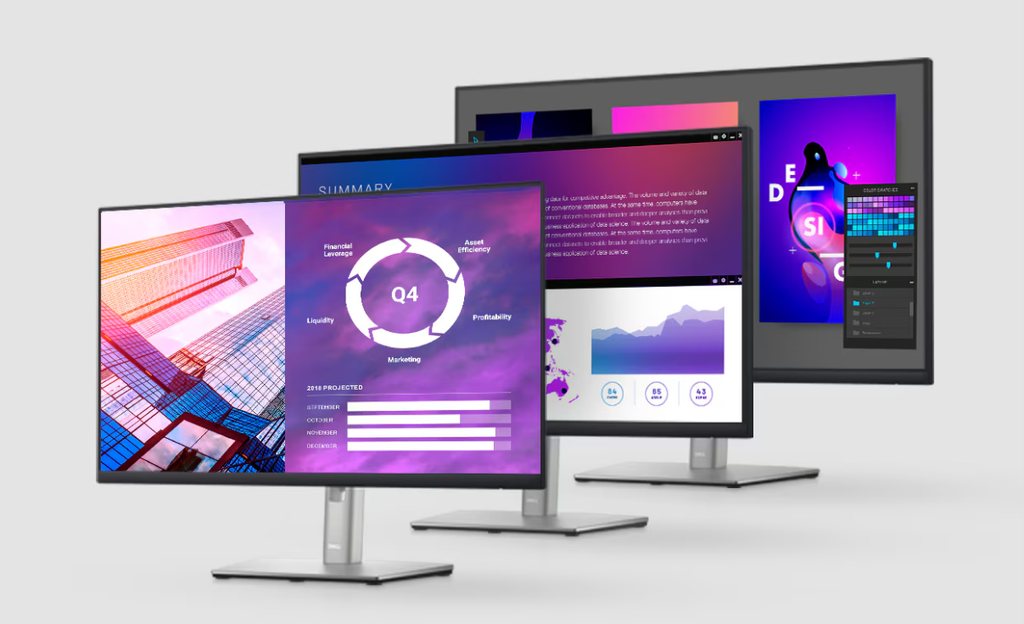
Image Source: Dell Official
Who Is It For?
The Dell UltraSharp series fits users who require high color accuracy and a simplified cable environment for professional productivity. This series suits office workers, software developers, and graphic designers who spend long hours looking at text and static images. Because many models include a built-in USB-C hub with high-wattage power delivery, they fit laptop users who want to connect video, data, and charging through a single cable. The factory-calibrated panels fit those who need colors to look consistent across multiple screens without performing manual adjustments.
However, this series does not fit competitive gamers who require ultra-high refresh rates—how many times the image updates each second—as most UltraSharp models are limited to 60Hz or 120Hz. It is not for users on a strict budget, as the price includes premium features like specialized stands and advanced port selections that are absent in the cheaper P or S series. The UltraSharp line does not fit those seeking “true” HDR (High Dynamic Range) for cinematic mastering, as most models lack the local dimming zones required for deep black levels in high-contrast video. If this form factor or the professional feature set doesn’t quite fit your daily work, exploring other lineup categories would be a better path.
1. How This Line Is Grouped
Dell organizes the UltraSharp line into several sub-categories based on screen shape, resolution, and integrated communication tools. The model names typically start with “U” followed by the screen size and the release year.
| Tier | Typical Names | Rough Position |
| Standard Professional | U2424H, U2724D | 24-27 inch, 1080p to 1440p, high color accuracy. |
| 4K / High Resolution | U2723QE, U3223QE | 27-32 inch, 4K resolution, IPS Black technology. |
| Ultrawide / Curved | U3423WE, U4025QW | 34-40 inch, 21:9 or 21:10 aspect ratio, curved glass. |
| Video Conferencing | U2424HE, U3223VZ | Integrated webcams, microphones, and speakers. |
| Large Format / Specialty | U4323QE, U4924DW | 43-49 inch, multi-client viewing or super-ultrawide. |
The Standard Professional models are the baseline for the series. They focus on 100% sRGB color coverage, which is the standard color space for web content. These models often feature “Daisy Chaining” via DisplayPort-out, allowing one monitor to be connected to another rather than both needing a direct connection to the computer.
The 4K and High-Resolution models introduce “IPS Black” technology. This is a physical improvement to the panel that allows it to block more light when displaying black, resulting in a 2000:1 contrast ratio—double that of standard IPS monitors. These models are frequently used by data analysts and photographers who need both sharpness and deep blacks.
The Ultrawide and Curved models provide a wider field of view. The “W” in the model name stands for Wide. These monitors replace dual-monitor setups by providing one continuous screen surface. The U4025QW, for example, uses a 5K2K resolution, which provides the vertical height of a 4K monitor with extra horizontal space for side-by-side windows.
2. Check Before You Buy
Refresh Rate Limitations (60Hz vs. 120Hz)
Historically, UltraSharp monitors were limited to 60Hz. In recent years, Dell has updated specific models (like the U2424H and U2724D) to 120Hz. A 120Hz refresh rate makes the movement of the mouse cursor and the scrolling of text look twice as smooth as 60Hz. However, many 4K and Ultrawide models in the line remain at 60Hz. Users who are accustomed to high-refresh-rate smartphones or gaming laptops will notice a physical difference in smoothness between these models.
USB-C Power Delivery Wattage
UltraSharp “Hub” monitors (often ending in “E” or “HE”) can charge a laptop through the USB-C cable. However, the wattage varies by model. Some provide 65W, which is sufficient for a 13-inch laptop, while others provide 90W or 140W. If a user connects a powerful 16-inch workstation laptop to a 65W monitor, the laptop may display a “slow charger” warning or the battery may drain during heavy processing tasks. Checking the “Power Delivery” spec is a requirement for single-cable setups.
MST (Multi-Stream Transport) and macOS
UltraSharp monitors are known for “Daisy Chaining,” which uses MST technology to send a video signal from one monitor to the next. While this works natively on Windows PCs with DisplayPort or Thunderbolt, macOS does not support MST for daisy-chaining multiple independent displays. A Mac user connecting to an UltraSharp monitor via DisplayPort-out will see the same image mirrored on both screens rather than two separate desktops. Mac users should look for “Thunderbolt” specific models (like the U2724DE) to achieve multi-monitor setups through a single connection.
IPS Black and Viewing Angles
While IPS Black improves contrast, it can sometimes exhibit “IPS Glow,” which is a faint light visible in the corners of the screen when viewing dark content in a dark room. This is a physical characteristic of the panel technology. While IPS Black reduces this compared to standard IPS, it is not as dark as an OLED or VA panel. Users who work in pitch-black environments may still see a slight gray glow in the corners of the screen.
3. How It Fits a Real Desk Setup
The Flat Rectangular Stand Base
UltraSharp monitors use a flat, compact rectangular base. On a desk with a depth of 60 cm (24 inches), this base allows the user to place a keyboard or a laptop dock directly in front of or even partially on the stand. This is a more space-efficient design than the “V-shaped” legs found on gaming monitors. The stand also includes a vertical slot for cable routing, keeping the power and video wires tucked behind the riser.
KVM Switch and Multi-PC Control
Many UltraSharp monitors include a built-in KVM (Keyboard, Video, Mouse) switch. This internal circuitry allows a user to connect two different computers (e.g., a desktop PC and a laptop) to the same monitor and use one set of keyboard and mouse to control both. When the user switches the video input on the monitor, the USB signals for the keyboard and mouse automatically switch to the other computer. This fits a desk setup where a user needs to toggle between a work laptop and a personal desktop without swapping cables.
VESA Mounting and Quick Release
The UltraSharp series uses the VESA 100x100mm standard for mounting on arms. Dell includes a “Quick Release” button on the back of the monitor, allowing the stand to be removed instantly without tools. Because UltraSharp monitors often have very thin bezels (the border around the screen) on all four sides, they are a physical fit for “side-by-side” dual-monitor arms, as the gap between the two screens is minimized.
Ambient Light Sensor and ComfortView Plus
Newer UltraSharp models include a light sensor on the top edge. This sensor detects the brightness of the room and automatically adjusts the screen’s backlight to match. This fits a desk setup near a window where the light changes throughout the day. Additionally, “ComfortView Plus” is a hardware-level low blue light filter. Unlike software filters that turn the screen yellow, this hardware solution shifts the blue light spectrum to a less straining wavelength while maintaining color accuracy.
4. Sizes and Models in This Line
The UltraSharp line covers a wide range of sizes, each paired with a resolution that maintains a high pixel density—how many pixels are packed into an inch of the screen.
| Size | Common Resolution | Aspect Ratio | Notes |
| 24″ | 1920 x 1080 (FHD) | 16:9 | Standard office size; 120Hz available on newer models. |
| 27″ | 2560 x 1440 (QHD) | 16:9 | High sharpness; fits two windows side-by-side. |
| 27″ / 32″ | 3840 x 2160 (4K) | 16:9 | Extremely high detail; often features IPS Black. |
| 34″ / 38″ | 3440 x 1440+ | 21:9 / 21:10 | Curved ultrawide; replaces dual 24-inch monitors. |
| 40″ | 5120 x 2160 (5K2K) | 21:10 | High-resolution ultrawide for creative professionals. |
| 49″ | 5120 x 1440 (DQHD) | 32:9 | Super-ultrawide; equivalent to two 27-inch QHD screens. |
The 24-inch and 27-inch models are the most common for general professional use. A 27-inch QHD monitor (like the U2724D) is often considered the “sweet spot” because it provides enough space for complex software without requiring the user to increase the size of text and icons (scaling).
The 32-inch 4K models (like the U3223QE) are for users who need maximum detail. At this size, 4K resolution allows for viewing large spreadsheets or high-resolution photos with extreme clarity. These models are physically large and require a desk with at least 70 cm of depth to be viewed comfortably.
The 49-inch “Super-Ultrawide” (U4924DW) is a specialized model. It has a 32:9 aspect ratio, which is the same as placing two 27-inch monitors side-by-side but without the plastic border in the middle. This monitor is very heavy and requires a wide desk (at least 120 cm) and a sturdy stand or arm.
5. Performance by Use Case
The performance of an UltraSharp monitor is defined by its color consistency and its ability to act as a connectivity hub.
| Use Case | Software / Task | Rating | Reason |
| Software Development | VS Code, Docker, Jira | Sufficient | 120Hz (on new models) and sharp text reduce eye strain. |
| Graphic Design | Photoshop, Illustrator | Sufficient | 100% sRGB and 98% P3 coverage with low Delta E. |
| Financial Analysis | Excel, Bloomberg, SQL | Sufficient | High resolution and Ultrawide options fit large datasets. |
| Video Editing | Premiere Pro, Resolve | Adequate | Good color, but 60Hz and lack of local dimming limit HDR. |
| Competitive Gaming | Valorant, CS2 | Not enough | 60-120Hz and 5ms+ response time cause motion blur. |
| Video Calls | Zoom, Teams, Webex | Sufficient | Models with “VA” or “VZ” suffixes include high-end cams. |
The “Sufficient” rating for design work is due to the “Delta E < 2” factory calibration. Delta E is a measure of color error; a value below 2 means the difference between the intended color and the displayed color is invisible to the human eye.
6. Official Specs (with plain explanations)
| Category | Specification | Notes |
| Panel Type | IPS or IPS Black | IPS = wide angles; IPS Black = better contrast. |
| Color Gamut | 100% sRGB, 98% DCI-P3 | The range of colors the monitor can physically show. |
| Refresh Rate | 60Hz or 120Hz | How many times the image updates per second. |
| Response Time | 5ms to 8ms (GtG) | Time for a pixel to change color; standard for office. |
| Brightness | 300 to 450 nits | Nits = unit of brightness; 350 is standard for offices. |
| Connectivity | USB-C, DP, HDMI, RJ45 | RJ45 = Ethernet port for wired internet via USB-C. |
| Power Delivery | 15W to 140W | The amount of power the monitor can send to a laptop. |
This line is sold with different tier names, sizes, refresh rates, and panels depending on the exact model and region. Please match the specifications on your current seller page with the official information above.
Source: Dell Official Product Page
The inclusion of an RJ45 (Ethernet) port is a key feature of the “Hub” models. When a laptop is connected via USB-C, it receives a stable wired internet connection through the monitor, which is often faster and more reliable than Wi-Fi.
7. Main Variations in This Line
The most significant variation is the “Hub” vs. “Non-Hub” models. A model like the U2724D is a standard monitor with DisplayPort and HDMI. A model like the U2724DE is the “Hub” version, which adds a Thunderbolt 4 port, an Ethernet port, and more USB-A ports.
Another variation is the “Video Conferencing” series. These models (like the U3223VZ) feature a built-in 4K webcam, noise-canceling microphones, and dedicated buttons for Microsoft Teams. This physical integration eliminates the need for a separate webcam and speakers on the desk.
The “IPS Black” variation is found in models ending in “QE” or “WE” (like the U3223QE). These models use the newer panel technology that provides deeper blacks. Older models or the high-speed 120Hz models (like the U2724D) use standard IPS panels, which have a 1000:1 contrast ratio instead of 2000:1.
8. What to Check on the Sales Page
- Line / Tier / Size: Check whether you are getting the UltraSharp “U” model, not a Dell “P” (Professional) or “S” (Standard) model, as the panel quality and port selection are different.
- Model Year: Look at the last two digits of the model number (e.g., U2724D). “24” means it is a 2024 model. Older models may lack 120Hz or IPS Black.
- USB-C Power Delivery: Verify the wattage (e.g., 90W) to ensure it can charge your specific laptop model.
- Refresh Rate: Confirm if the model is 60Hz or 120Hz, especially if you are sensitive to motion smoothness.
- Port Selection: Check for “Thunderbolt 4” if you are a Mac user, or “DisplayPort-out” if you plan to daisy-chain two monitors.
9. Disclaimer & Buying Advice
This buying guide for the Dell UltraSharp Series is based on official manufacturer specifications and recurring real-world user experiences. It is completely independent, not sponsored, and does not guarantee specific performance for every unit. Tier name, screen size, refresh rate, panel type, and ports can differ by model and region, so please double-check the exact specifications listed on your seller’s page before purchasing.
10. Beginner Guide
If you are new to monitor terms like refresh rate (Hz), panel type (IPS), and resolution (QHD/4K), read the basics in our [Start Here]. Understanding how these technical specs interact with your laptop or desktop will help you determine if the premium UltraSharp series fits your specific professional needs.


[…] Dell UltraSharp U3224KB — Premium 6K office display with IPS Black panel […]