Image Source: Dell Official
Who Is It For?
The Alienware m18 is used by individuals who require the performance of a desktop computer in a format that can be moved between locations. It fits the needs of students and professionals in technical fields like engineering or 3D animation who run demanding software and benefit from the large 18-inch display. It also serves as a primary computer for gamers who prioritize high frame rates and a large screen over portability. The extensive internal storage and memory expansion options make it a choice for those who manage large project files and want a machine that can be adjusted as their hardware needs increase over several years.
If this form factor or power doesn’t quite fit your daily work, exploring other lineup categories would be a better path.
1. Check Before You Buy
Physical Mass and Portability Reality
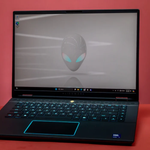
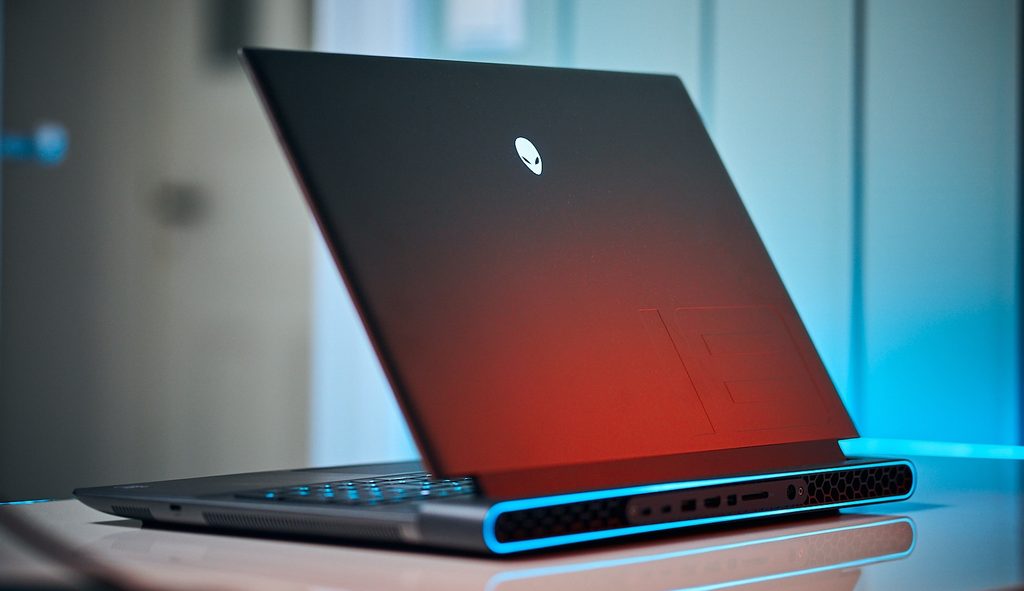
The Alienware m18 is a large-format laptop with a weight of approximately 4.04 kg. This weight does not include the 330W power adapter, which is also large and adds significant mass to a carrying bag. The 18-inch screen results in a chassis that is deeper and wider than standard 15-inch or 17-inch laptops. This depth is increased by the rear “shelf” design which houses the cooling vents and ports. Carrying this device requires a specialized backpack designed for 18-inch laptops. The physical size makes it difficult to use on small surfaces like airplane trays or compact cafe tables. The weight requires a sturdy desk surface and is not intended for frequent use on a lap.
Thermal Management and Fan Noise
The cooling system in the Alienware m18 utilizes four internal fans and a vapor chamber to move heat away from the high-wattage CPU and GPU. The system uses a specialized thermal interface material known as Element 31 on both the processor and graphics chip. During basic tasks like web browsing or document editing, the fans operate at a low speed. When the system is under a heavy load, such as during 3D rendering or modern gaming, the fans increase their rotation speed significantly. This results in a steady, high-volume air-rushing sound. The heat is exhausted through the rear and side vents. The area above the keyboard and the rear shelf will feel hot to the touch during these periods of high activity.
Display Resolution and Refresh Rates
The 18-inch display uses a 16:10 aspect ratio, providing more vertical space than traditional 16:9 screens. The QHD+ resolution (2560 x 1600) provides a sharp image for the screen size, while the 165Hz or 240Hz refresh rate ensures smooth motion. The FHD+ (1920 x 1200) option with a 480Hz refresh rate is designed for competitive scenarios where motion clarity is the priority over image sharpness. The screen features a matte anti-glare coating to reduce reflections from overhead lights. The brightness level is typically 300 nits, which is sufficient for indoor environments but may appear dim in very brightly lit rooms or near large windows.
Memory and Storage Expansion
The Alienware m18 features two physical SO-DIMM slots for DDR5 memory. This allows the RAM to be replaced or increased after purchase, up to a maximum of 64GB. The storage expansion is a specific characteristic of this series. The R1 model contains two full-size M.2 2280 slots and two smaller M.2 2230 slots, allowing for a total of four internal drives. The R2 model typically features two M.2 2280 slots. Accessing these slots requires removing the bottom panel, which is held in place by several screws. This internal accessibility allows the hardware to be adjusted as storage requirements grow over time.
Battery Life and Power Requirements
The 97Wh battery is the largest capacity allowed for air travel, but the high-power components consume this energy quickly. When the laptop is not connected to a wall outlet, the system automatically reduces the power to the graphics card and lowers the screen brightness to save energy. Full performance for 3D tasks is only available when the 330W power adapter is connected. Using the laptop on battery for basic office tasks results in different runtimes depending on the screen refresh rate and the lighting settings. The large power draw means the battery is intended as a backup for moving between outlets rather than for long-duration mobile use.
2. How It Fits a Real Desk Setup
Footprint and Cable Management
The Alienware m18 occupies a desk space of approximately 41 cm by 32 cm. A significant portion of the ports are located on the rear of the chassis, including the power input, HDMI 2.1, and Mini-DisplayPort. This design allows permanent cables for power and external monitors to be routed behind the laptop, keeping the sides of the desk clear for mouse movement. The sides of the laptop contain USB-A and USB-C ports for temporary connections like thumb drives or wired headsets. The rear-heavy port layout is a factor for users who keep their laptop connected to a fixed setup at a desk.
Keyboard and Input Experience
The keyboard includes a full numeric keypad and dedicated macro keys on the right side. This shifts the main typing area slightly to the left of the center. The optional CherryMX mechanical switches provide a tactile click and a 1.8mm travel distance, which is different from the softer feel of standard membrane keys. The AlienFX RGB lighting allows for individual key color customization through the Alienware Command Center software. The touchpad is centered under the spacebar and features a glass surface for smooth multi-finger gestures. Because the chassis is thick, the front edge of the laptop sits higher off the desk, which may affect wrist position during long sessions.
External Monitor and Peripheral Support
The HDMI 2.1 and Thunderbolt 4 ports allow for the connection of multiple high-resolution external monitors. The Thunderbolt 4 port is connected directly to the dedicated graphics card, which is necessary for using G-Sync on compatible external displays. The inclusion of a full-size SD card reader on the side allows for direct file transfers from cameras. The RJ45 Ethernet port provides a stable wired connection for online tasks, which is often preferred over Wi-Fi in a fixed desk environment. The system includes multiple USB-A ports, providing enough physical connections for a keyboard, mouse, and other standard peripherals without the need for an external USB hub.
Audio and Webcam Integration
The speakers are located on the bottom-front corners of the chassis and fire downwards and outwards. The sound quality is influenced by the desk surface; a hard surface reflects the sound toward the user, while a soft surface will dampen the audio. The webcam is located at the top of the screen and features a 1080p resolution, providing a clear image for video conferencing. It includes infrared (IR) sensors for Windows Hello facial recognition, allowing the user to sign in by looking at the camera. The dual-array microphones are designed to capture voice while filtering out background noise during calls.
3. Performance by Use Case
The performance of the Alienware m18 is determined by the specific CPU and GPU combination. The following ratings assume a mid-range configuration with an Intel Core i9 and an RTX 4080.
| Use Case | Software | Rating | Reason |
| 1440p Gaming | Cyberpunk 2077, Warzone | Sufficient | High-wattage GPU handles modern titles at high settings |
| 4K Video Editing | Premiere Pro, DaVinci | Sufficient | Multiple CPU cores and GPU acceleration speed up renders |
| 3D Modeling | Blender, AutoCAD | Sufficient | Dedicated GPU provides hardware acceleration for viewports |
| Office Productivity | Excel, Word, Chrome | Sufficient | Hardware exceeds requirements, resulting in fast response |
| Competitive Gaming | Valorant, CS2, Apex | Sufficient | High refresh rate screen and fast CPU provide smooth motion |
The ratings above reflect the capabilities of the hardware when connected to a power outlet. Performance in specific applications will depend on the complexity of the project files and the thermal mode selected in the Alienware Command Center.
4. Official Specs (with plain explanations)
| Category | Specification | Notes |
| CPU | Intel Core i7/i9 HX or AMD Ryzen 7/9 HX | High-power processors for complex data and gaming |
| Graphics | NVIDIA RTX 4060 to 4090 / AMD RX 7900M | Dedicated graphics with high electrical power limits |
| Memory | Up to 64GB DDR5 (5200/5600MHz) | Two physical slots for replaceable memory modules |
| Storage | Up to 4x M.2 NVMe SSD (R1) / 2x (R2) | Multiple internal slots for storage drive expansion |
| Display | 18-inch QHD+ (165/240Hz) or FHD+ (480Hz) | Large screen with high-speed image updates |
| Weight | Approx. 4.04 kg (8.9 lbs) | Heavy chassis designed for stationary desk use |
| Battery | 97Wh Lithium-ion | Maximum capacity allowed for air travel regulations |
| Ports | Thunderbolt 4, HDMI 2.1, SD Card, RJ45 | Comprehensive connectivity located on rear and sides |
This series is sold with different CPUs, memory, and storage depending on the release year and generation. Please match the specifications on your current seller page with the official information above.
Source: Alienware Official Product Page
The technical specifications of the Alienware m18 define its role as a desktop replacement. These components are selected to operate at high wattage, which requires a large physical footprint for heat management. Understanding these individual parts is necessary to identify the capabilities of a specific unit found on a retail website.
5. Main Variations in This Series
The Alienware m18 series features several hardware combinations that change the processing speed and visual experience. These variations are determined by the specific model year (R1 or R2) and the chosen internal components.
- Processor options include the Intel HX-series and AMD Ryzen HX-series, which are designed for high-performance tasks rather than battery efficiency.
- Graphics card tiers range from the RTX 4060 to the RTX 4090, with the higher models featuring more video memory for high-resolution textures.
- Display panels are available in QHD+ (2560 x 1600) for sharpness or FHD+ (1920 x 1200) with a 480Hz refresh rate for extremely fast motion.
- Keyboard options include a standard membrane keyboard or a mechanical version using CherryMX ultra-low-profile switches.
- Storage capacity varies significantly, as the R1 model features four internal M.2 slots while the R2 model typically features two.
6. What to Check on the Sales Page
When viewing an Alienware m18 listing, the specific generation and the keyboard type are the most important details to verify. Sellers often list different hardware generations under the same series name.
- CPU Generation: Check whether you are getting the 13th/14th Gen Intel or Ryzen 7000/8000 processors.
- GPU Wattage: Verify the specific RTX model (e.g., 4070 vs 4080) as this is the primary factor for 3D performance.
- Keyboard Type: Confirm if the unit includes the “Standard Membrane” or the “CherryMX Mechanical” keyboard.
- Screen Refresh Rate: Confirm if the display is 165Hz, 240Hz, or 480Hz based on your motion clarity needs.
- Storage Slots: Verify the number of M.2 slots if you intend to add multiple internal drives later.
The specifications on a retail page can sometimes be generalized. Matching the manufacturer’s part number with the official datasheet is the most accurate way to confirm the internal hardware.
7. Disclaimer & Buying Advice
This buying guide for the Alienware m18 is based on official manufacturer specifications and recurring real-world user experiences. It is completely independent, not sponsored, and does not guarantee specific performance for every unit. Hardware configurations such as the processor, memory, and storage can differ by generation and region, so please double-check the exact specifications listed on your seller’s page before purchasing.
8. Beginner Guide
If you are new to choosing computer hardware and want to understand the basics of these components, you can [Start Here] to learn more about how to read specifications.