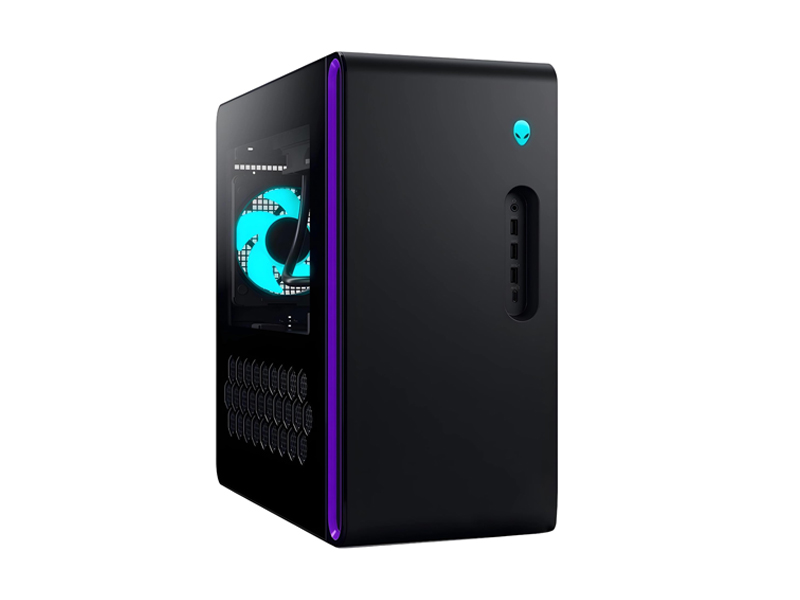
Image Source: Dell Official
Who Is It For?
The Alienware Aurora R16 is used by individuals who require the sustained performance of a desktop computer for gaming, content creation, or data processing. It fits the needs of stationary users who want a pre-built system with a smaller footprint than traditional full-tower PCs. It also serves as a workstation for students and professionals who run demanding software and benefit from the high-speed ports and dedicated graphics power. The redesigned chassis and simplified internal access make it a choice for those who prioritize a clean desk aesthetic and a system that is ready to use immediately after unboxing.
If this form factor or power doesn’t quite fit your daily work, exploring other lineup categories would be a better path.
1. Check Before You Buy
Proprietary Hardware and Future Upgrades
The Alienware Aurora R16 utilizes a proprietary motherboard and power supply design. Unlike standard desktop computers that use universal ATX or Micro-ATX parts, the motherboard in this system is a custom shape designed specifically for the 25.2L chassis. The power supply is also a custom-shaped unit. This means that if these components fail after the warranty period, they cannot be replaced with standard off-the-shelf parts. The motherboard features a 12-phase voltage regulation system to manage the electrical flow to the processor. The physical layout of the board is fixed, and it cannot be moved to a different computer case in the future.
Thermal Management and Cooling Options
The cooling system in the Aurora R16 is a departure from the previous “Legend 2.0” design. The chassis features a large hexagonal mesh on the side and front to allow air to enter the system. There are two primary cooling options for the CPU. The air-cooled version uses a vertical heatsink with a fan, while the liquid-cooled version uses a pump and a 240mm radiator mounted to the top of the case. The liquid cooling system includes two 120mm fans that exhaust warm air through the top vents. Under heavy processing loads, the fans increase their rotation speed, creating a consistent air-rushing sound. The internal thermal sensors monitor the temperature of each component and adjust the fan speeds independently.
Chassis Volume and Internal Space
The Aurora R16 features a 25.2-liter internal volume, which is approximately 40% smaller in total size compared to the previous Aurora R15. Despite the smaller external dimensions, the internal space is organized to accommodate full-sized graphics cards. The chassis stands approximately 41.8 cm tall and 19.7 cm wide. The interior is accessible through a side panel that can be removed with a single screw. Inside, the cables are routed behind the motherboard tray to keep the main airflow path clear. The system includes two M.2 NVMe SSD slots and one 3.5-inch SATA hard drive bay, providing a total of three internal storage locations.
Power Supply and Electrical Requirements
The 500W or 1000W power supply units are rated at 80 Plus Platinum efficiency. When the system is equipped with an RTX 4090 and a high-core-count Intel i9 processor, the electrical draw is significant. The 1000W power supply is necessary for these high-tier configurations to ensure stable power delivery during intensive tasks. The power supply is located at the bottom of the chassis in a dedicated compartment. Because the power supply is a proprietary shape, the wattage chosen at the time of purchase is a factor for future graphics card changes. A 500W unit will not support the electrical requirements of a high-end graphics card upgrade.
Memory Slots and Expansion Limits
The motherboard in the Aurora R16 features two slots for DDR5 memory. This is a reduction from the four slots often found on larger desktop motherboards. While the system supports up to 64GB or 128GB of total RAM, reaching these capacities requires using two high-capacity modules. If a system is purchased with two 8GB modules for a total of 16GB, both slots are occupied. Increasing the memory to 32GB would require removing both existing modules and replacing them with two 16GB modules. The memory speed is controlled by the system BIOS and is matched to the capabilities of the installed processor.
2. How It Fits a Real Desk Setup
Desk Footprint and Airflow Clearance
The Aurora R16 is designed to sit on a hard, flat surface. Placing the tower on a carpeted floor can block the lower air intakes and lead to dust accumulation inside the chassis. On a desk, the tower occupies a space of approximately 45.8 cm in depth. The rear of the machine requires at least 15 cm of clearance from a wall to allow the warm air to exhaust freely from the rear fan. The top vents must also remain unobstructed, especially in models equipped with a liquid cooling radiator. The side mesh panel should not be blocked by books or other peripherals to ensure the intake fans can draw in cool air.
Front and Rear Port Accessibility
The physical ports are distributed between the front and the rear of the tower. The front panel includes one USB 3.2 Gen 2 Type-C port, three USB 3.2 Gen 1 Type-A ports, and a headphone jack. These are positioned for temporary connections like external drives or headsets. The rear panel houses the permanent connections, including a USB 3.2 Gen 2×2 Type-C port, additional USB-A ports, the 2.5G Ethernet port, and the audio outputs. The 2.5G Ethernet port provides a high-speed wired connection for moving large files across a local network. Because the graphics card is a separate component, the monitors must be plugged into the horizontal ports on the card bracket rather than any vertical ports on the motherboard.
Internal Lighting and Visual Aesthetics
The system features integrated RGB lighting, known as AlienFX, which illuminates the front stadium loop, the internal fans, and the Alienware logo. This lighting is visible through the optional clear side panel. The colors and patterns are controlled through the Alienware Command Center software. The interior of the chassis is painted black, and the cable management is designed to hide most of the wiring. When the system is placed on the right side of a monitor, the clear side panel allows the user to see the internal components and the lighting effects. The lighting can be turned off entirely for a more subtle appearance in a professional environment.
Acoustic Profile and Fan Behavior
The sound produced by the Aurora R16 varies based on the task being performed. During document editing or web browsing, the fans spin at a low RPM, making the system quiet enough for a library or a shared office. When running 3D simulations or modern games, the graphics card and CPU fans increase in speed to dissipate heat. This creates a consistent mechanical hum. The liquid-cooled version has a different noise profile, as it involves the sound of a small water pump in addition to the fans. The chassis is constructed from steel and plastic, which helps dampen vibrations from the spinning hard drive and fans.
3. Performance by Use Case
The performance of the Alienware Aurora R16 is determined by the specific CPU and NVIDIA RTX graphics card configuration.
| Use Case | Software | Rating | Reason |
| 1440p/4K Gaming | Cyberpunk 2077, Warzone | Sufficient | Dedicated GPU and DLSS handle high settings well |
| 4K Video Editing | Premiere Pro, DaVinci | Sufficient | Multiple CPU cores and GPU acceleration speed up renders |
| 3D Rendering | Blender, V-Ray | Sufficient | RTX hardware acceleration is available for 3D tasks |
| Office Productivity | Excel, Chrome, Zoom | Sufficient | Hardware exceeds requirements, resulting in fast response |
| Competitive Gaming | Valorant, CS2, Apex | Sufficient | High frame rates possible for high-refresh monitors |
The ratings above reflect the capabilities of the hardware when connected to a power outlet. Performance in specific applications will depend on the complexity of the project files and the thermal profile selected in the Alienware Command Center.
4. Official Specs (with plain explanations)
| Category | Specification | Notes |
| CPU | Intel Core i5 / i7 / i9 (13th/14th Gen) | High-performance desktop processors, high power draw |
| Graphics | NVIDIA GeForce RTX 4060 to 4090 | Dedicated desktop video cards, multiple outputs |
| Memory | Up to 64GB / 128GB DDR5 (2x slots) | Two physical slots, user-replaceable modules |
| Storage | Up to 2x M.2 SSD + 1x 3.5″ HDD | Mixed internal drive bays for data expansion |
| Cooling | 240mm Liquid or Air Cooler | Internal thermal management system with liquid options |
| Power | 500W or 1000W (80+ Platinum) | Internal power conversion unit, varies by GPU |
| Case Size | 25.2L Chassis | Mid-sized desktop tower, redesigned airflow |
| Ports | USB-C, USB-A, Ethernet, Audio Jacks | Front and rear physical data connections |
This series is sold with different CPUs, memory, and storage depending on the release year and generation. Please match the specifications on your current seller page with the official information above.
Source: Dell Official Product Page
The technical specifications listed above represent the hardware foundation of the Alienware Aurora R16. These components determine how the machine handles professional software and how it physically fits into a stationary workspace. Understanding these individual parts helps in identifying which specific configuration appears on a retail listing.
5. Main Variations in This Series
The Alienware Aurora R16 series includes several hardware combinations that change the processing speed and graphical output. These variations are determined by the specific model chosen at the time of purchase.
- Processor options range from the Intel Core i5-13400F to the Intel Core i9-14900KF, which changes the number of processing cores and the total cache memory.
- Graphics configurations include the NVIDIA GeForce RTX 40-series, ranging from the RTX 4060 to the RTX 4090, with the higher models featuring more video memory.
- Cooling configurations include a standard air-cooled heatsink with fans or an optional liquid cooling loop with a 240mm radiator mounted at the top.
- Power supply units are available in 500W or 1000W versions, which dictates the maximum number of internal components the system can support.
- Memory configurations start with a single 16GB module but can occupy both slots to reach the 64GB or 128GB maximum capacity.
6. What to Check on the Sales Page
When viewing an Alienware Aurora R16 listing, the specific processor generation and the cooling type are the most important details to verify. Sellers often list different hardware configurations under the same series name.
- CPU Generation: Check whether you are getting the 13th Gen or 14th Gen Intel processors.
- Graphics Card Model: Verify the specific RTX model (e.g., 4060 vs 4080) as this is the primary factor for 3D performance.
- Cooling Type: Confirm if the system uses the “Air Cooler” or the “Liquid Cooler” based on your noise preferences.
- Power Supply Wattage: Check the PSU rating (e.g., 500W or 1000W) to understand future upgrade limits.
- Side Panel Type: Verify if the unit comes with a clear side panel or a solid side panel.
The specifications on a retail page can sometimes be generalized. Matching the manufacturer’s part number with the official datasheet is the most accurate way to confirm the internal hardware.
7. Disclaimer & Buying Advice
This buying guide for the Alienware Aurora R16 is based on official manufacturer specifications and recurring real-world user experiences. It is completely independent, not sponsored, and does not guarantee specific performance for every unit. Hardware configurations such as the processor, memory, and storage can differ by generation and region, so please double-check the exact specifications listed on your seller’s page before purchasing.
8. Beginner Guide
If you are new to choosing computer hardware and want to understand the basics of these components, you can [Start Here] to learn more about how to read specifications.