[Buyer’s Guide #6] Complete Guide to Monitor Cables: HDMI, DVI, DisplayPort, and USB-C Explained Simply

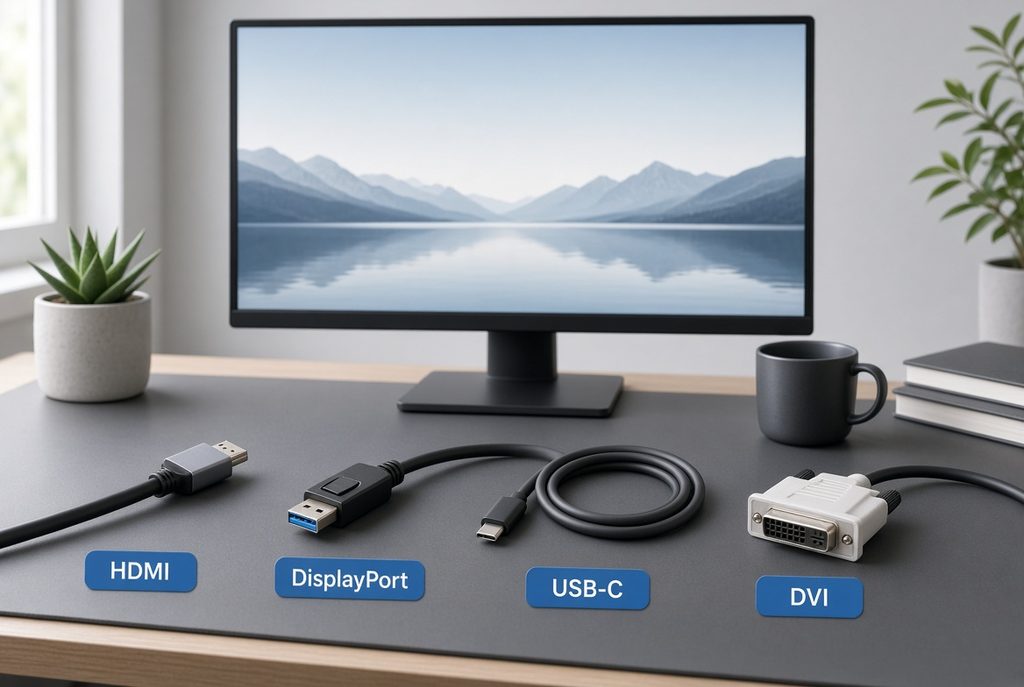
Even after you choose a solid monitor and a capable computer, the cable between them can limit what you see. The wrong lead can make motion look choppy, keep resolution below what the screen allows, or leave built-in speakers silent. This guide stays practical. It focuses on problems beginners actually meet, how to recognize ports by shape, and what to read on a cable listing before you buy—not on abstract engineering theory.
1. Four Common Monitor Connection Problems Beginners Face
“The picture stutters and colors look washed out.”
The monitor may support a high refresh rate or wide color, but an older or under-rated cable cannot carry that much signal. The system then falls back to a lower refresh rate or a reduced mode. Motion in games or fast scrolling looks uneven, and the image may look flatter than the panel’s real ability.
“I used a USB-C cable from my laptop, but the external screen stays black.”
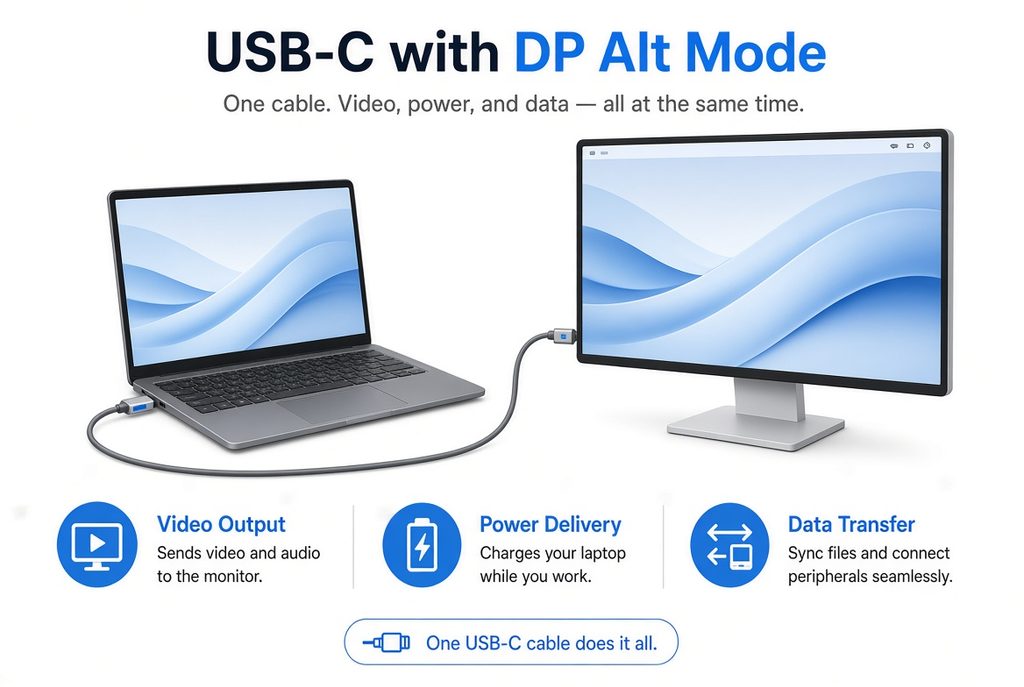
Not every USB-C cable carries video. Many are charge-only. Video needs a cable (and a laptop port) that supports DP Alt Mode—DisplayPort data over the USB-C connector. If the product text never mentions video, DisplayPort Alt Mode, or monitor output, treat it as power-only until proven otherwise.
“I connected with DVI, but the monitor speakers make no sound.”
DVI was built for video only. It does not carry audio. To use speakers built into the monitor through one cable, you need HDMI or DisplayPort (when the monitor accepts audio over that input). With DVI, sound must come from separate speakers, a headset, or another audio path.
“My PC is on a 4K TV, but the mouse feels slow and heavy.”
An older HDMI 1.4 path often tops out at 4K 30Hz. The desktop still works, but pointer movement and window dragging feel delayed. For 4K at 60Hz you typically need HDMI 2.0 (or better) or a suitable DisplayPort link—and a cable rated for that mode, not only a plug that fits.
These four cases share one idea: the narrowest part of the chain (port version, cable rating, or adapter) sets the ceiling.
2. How to Identify Monitor Ports by Shape
You do not need to memorize chipsets. Matching shape → name → typical use is enough for most setups.
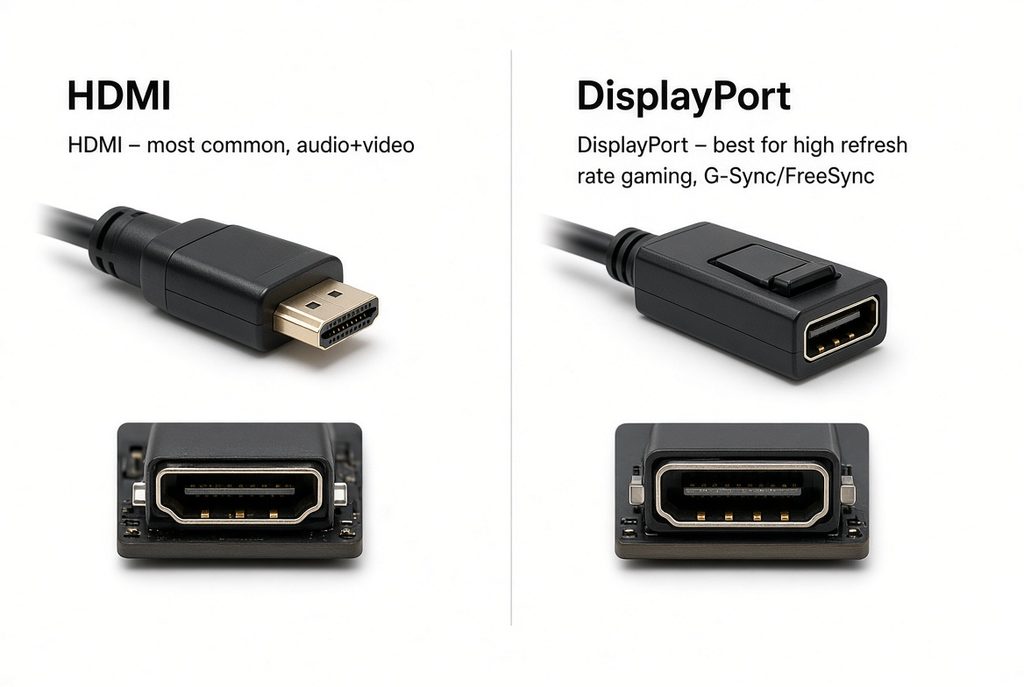
HDMI (trapezoid)
Wide top edge, both bottom corners angled. Common on TVs, consoles, office PCs, and many monitors. One cable can carry video and audio.
Rough capability by version (cable and both devices must support it):
- HDMI 1.4 — Full HD easily; 4K often limited to about 30Hz
- HDMI 2.0 — 4K at 60Hz in typical use; higher refresh on lower resolutions depending on the set
- HDMI 2.1 — Aimed at 4K high refresh (for example 120Hz class) and higher bandwidth modes when the TV/monitor and GPU both allow it
DisplayPort / DP (L-shaped plug)
Similar width to HDMI, but one corner is squared off so the plug only seats one way. Common on PC graphics cards and gaming monitors. Strong choice when you care about high refresh and adaptive sync (FreeSync / G-Sync Compatible class features), which DisplayPort has long handled well in PC setups.
USB-C (small oval)
On laptops, the same socket may charge, move files, or send video—or only some of those. Video out needs DP Alt Mode on the port and the cable. Some cables also support Power Delivery (PD) so one lead can show the desktop and charge the laptop when the monitor offers USB-C charging.
DVI (larger rectangular block with many pins)
Still appears on older PCs and some monitors. DVI-D is digital video. Single-link and dual-link differ in how much resolution and refresh they can sustain; dual-link is the stronger of the two for higher modes. Expect no audio over DVI.
If the shapes do not match, an adapter may work for basic picture, but adapters can also become the weak link for high refresh or 4K.
3. Recommended Cables by Setup
| Your setup | Cable to prefer | Why |
|---|---|---|
| Office PC + 60Hz monitor | HDMI | One cable for picture and sound on most office screens |
| Gaming PC + 144Hz (or higher) monitor | DisplayPort | Better fit for high refresh and adaptive sync on many PC monitors |
| 4K screen or TV at 60Hz+ | HDMI 2.0 / 2.1 or DP 1.4+ class | Needs enough bandwidth; version labels on both ends matter |
| Laptop + external monitor | USB-C with DP Alt Mode, or USB-C to DP/HDMI as required | Confirm video support; PD helps if you want charging in the same cable |
“Prefer” means the usual starting point, not a law. Always match the ports you actually have on the computer and the monitor.
4. Key Terms to Check on the Packaging or Product Page
4K 60Hz / 4K 120Hz (or similar)
States the resolution and refresh combination the cable is sold to support. Align this with your monitor’s mode. A cable that only guarantees 4K 30Hz will not fix a sluggish 4K desktop.
Bandwidth (for example 18 Gbps, 48 Gbps)
Higher rated bandwidth is the “wider pipe.” High resolution plus high refresh needs more capacity. If two HDMI cables look identical but only one lists the mode you need, trust the written rating over the plug shape alone.
DP Alt Mode / video output (USB-C)
Required wording when you expect an image over USB-C. Without it, assume charging only.
Power Delivery (PD) / pass-through
Relevant when you want the monitor or dock to charge the laptop while displaying. Check wattage on the monitor side if your laptop needs a high-power brick.
Certified DisplayPort
For DP leads, favor clearly rated, certified cables—especially for long runs or high modes. Some guides mention Pin 20 handling on DP connectors to reduce power-related quirks; buying a proper DP-certified cable is the practical takeaway for beginners.
5. Useful Connection and Buying Tips
Older PC, newer monitor
A DVI-to-HDMI cable or adapter can show an image when ports differ. Confirm direction (computer output → monitor input). Remember: DVI still will not carry sound, and high refresh may stay limited.
USB-C black screen checklist
- Laptop port supports display output. 2) Cable lists DP Alt Mode or video. 3) Monitor input is set to the correct USB-C or dedicated port. 4) Try a known video-capable cable before blaming the monitor.
Length
Passive cables beyond about 2–3 meters are more prone to flicker or dropouts at high rates. For long paths to a wall TV, plan for a higher-quality active or optical-style lead rather than the cheapest long HDMI.
Input source on the monitor
A firm plug is not enough if the OSD still sits on HDMI 1 while you use DisplayPort. Switch the input manually when the panel stays dark.
6. Frequently Asked Questions (FAQ)
Q. Everything is plugged in, but the screen is still black. What next?
A. Open the monitor menu and set Input to the exact port in use (HDMI 1, HDMI 2, DP, USB-C). Test another cable if possible. On laptops, confirm the OS has detected a second display and is not set to “laptop only.”
Q. Is a longer cable always better?
A. No. Extra length without the right rating often hurts stability. Keep desk runs short when you can. For long distances, choose a cable sold for that length and resolution, not a bargain lead meant for a short office hop.
Q. Can one cheap HDMI cable do 4K gaming at high refresh?
A. Only if it is explicitly rated for the mode you need and both the GPU and the display support that mode over HDMI. Many low-cost cables are fine for 1080p 60Hz and fail quietly on higher combinations.
Q. HDMI or DisplayPort for a PC monitor?
A. For a typical high-refresh PC monitor with DP in, DisplayPort is the usual first choice. HDMI is excellent for TVs and mixed devices. Use what both ends share at the version you need.
Closing
The cable is part of the display chain, not an afterthought. Match port shape, version or rating on the listing, and the resolution and refresh you actually use. When those three line up, most beginner connection problems disappear before they start.
If you want a plain-language path through screens and system basics before you buy more hardware, see [Start Here]. For refresh rate, response time, and panel types, use [Beginner’s Guide #10] Monitor Specs Made Simple: