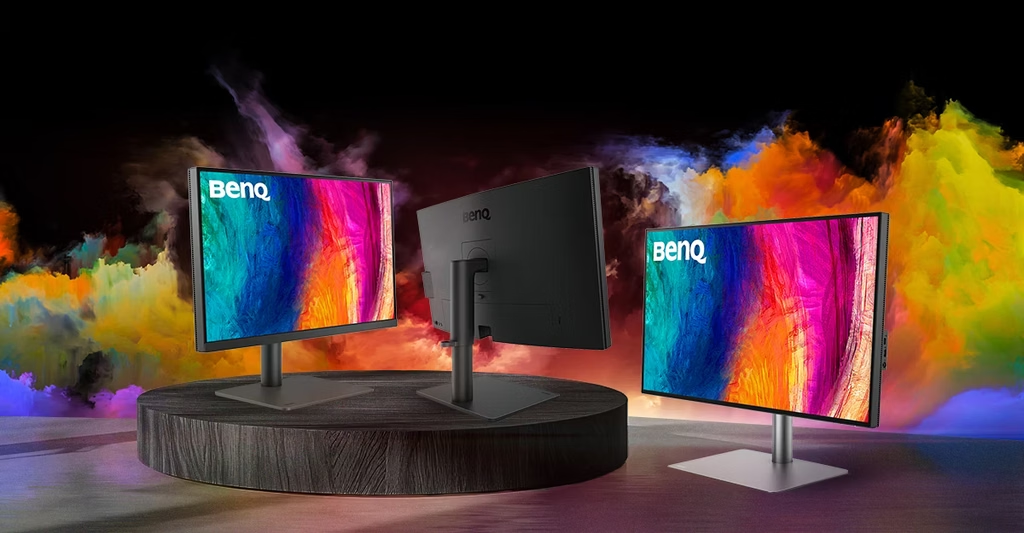
Image Source: BenQ Official
Who Is It For?
The BenQ SW and PD series fit users who prioritize color accuracy and consistent visual output over high-speed gaming performance. The SW (PhotoVue) series fits professional photographers and print specialists who require the Adobe RGB color space to ensure that the colors captured by a camera match the final printed product. The PD (DesignVue) series fits graphic designers, 3D animators, and video editors who work primarily in sRGB or Display P3 color spaces for digital web content and broadcast media.
However, these series do not fit users who require high refresh rates for competitive gaming. Both lines are physically limited to 60Hz, meaning the image updates 60 times per second, which is standard for office work but lacks the smoothness of 144Hz or 240Hz gaming monitors. They are also not for users on a strict budget who only perform basic administrative tasks, as the cost of the specialized color-calibration hardware inside these monitors is high. If this form factor or refresh rate doesn’t quite fit your daily work, exploring other lineup categories would be a better path.
1. How This Line Is Grouped
BenQ separates its professional monitors into two distinct tiers based on the specific type of color work being performed. While they may look similar from the outside, the internal processing and color gamut (the range of colors a monitor can display) differ significantly.
| Tier | Series Name | Primary Focus | Key Feature |
| Photography | SW (PhotoVue) | Print & Photography | Adobe RGB & Hardware Calibration |
| Design | PD (DesignVue) | Digital Design & Video | sRGB/P3 & Productivity Tools |
SW Series (PhotoVue)
The SW series is the flagship line for still-image professionals. These monitors are built to display the Adobe RGB color space, which includes a wider range of greens and cyans than the standard sRGB used on the web. This is a physical requirement for photographers who print their work, as professional printers can reproduce these extra colors. A defining characteristic of the SW line is hardware calibration. This allows the user to save color adjustment data directly into the monitor’s internal memory (the 14-bit or 16-bit Look-Up Table) rather than relying on the computer’s graphics card. This ensures that the color remains accurate regardless of which computer is connected to the screen.
PD Series (DesignVue)
The PD series is broader and focuses on digital workflows. These monitors typically cover 100% of the sRGB color space and, in higher-end models, the DCI-P3 space used in the film industry. Unlike the SW series, the PD series focuses on productivity features like the KVM switch (Keyboard, Video, Mouse), which allows a user to control two different computers using one set of peripherals. The PD series also includes specialized software modes like “CAD/CAM mode,” which increases the contrast of thin lines in technical drawings, and “Animation mode,” which brightens dark areas without overexposing the highlights.
2. Check Before You Buy
Hardware Calibration vs. Software Calibration
A major distinction between the SW and PD series is how they are calibrated. The SW series supports hardware calibration using BenQ’s “Palette Master Element” or “Palette Master Ultimate” software. This requires a separate physical device called a colorimeter (a sensor that sticks to the screen). Because the calibration data is stored in the monitor, the colors stay consistent even if you switch from a Mac to a PC. Most PD series monitors rely on software calibration, where the adjustments are made to the computer’s output signal. If you move a PD monitor to a different computer, the calibration may not carry over unless the new computer is also calibrated.
Refresh Rate and Response Time Limits
Both the SW and PD series are designed for static or slow-moving images. They feature a 60Hz refresh rate. In fast-paced video games or high-speed video editing, this can result in “motion blur,” where moving objects appear slightly fuzzy. The response time (how fast a pixel changes color) is typically around 5ms (GtG). While this is sufficient for video editing and general design, it is significantly slower than the 1ms or 0.03ms response times found on gaming-specific monitors.
Panel Coating and Reflections
BenQ uses different screen coatings across these lines. Some newer models, like the “Fine-Coated” versions, use a specialized matte finish designed to simulate the texture of paper and reduce reflections to near-zero levels. This is beneficial for color grading but can make the image appear slightly less “sharp” than a glossy screen. Standard PD models use a traditional anti-glare coating that is effective in bright offices but may show a slight “haze” when viewed from extreme side angles.
Uniformity Technology
Professional color work requires the brightness and color to be the same in the corners as they are in the center. BenQ includes “Uniformity Technology” in the SW and higher-end PD models. This is an internal processing step where the monitor is divided into hundreds of sub-regions, and each is adjusted to match the center. This feature often reduces the maximum peak brightness of the monitor to ensure consistency, which is why these monitors are rarely as bright as HDR (High Dynamic Range) gaming screens.
3. How It Fits a Real Desk Setup
Shading Hoods and Desk Width
The SW series monitors often come with a detachable shading hood. This is a three-sided plastic cover lined with black felt that blocks overhead and side lighting from hitting the screen. On a real desk, this hood adds approximately 10-15 cm (4-6 inches) to the total width of the setup. If you use a dual-monitor setup, the hoods may prevent the monitors from being placed flush against each other. The hood also requires the desk to have enough depth so that the user can sit far enough back to see the entire screen without the hood blocking their peripheral vision.
The Hotkey Puck G2
Many SW and PD models include a “Hotkey Puck G2,” which is a circular physical remote that sits on the desk and connects to the monitor via a cable. This puck allows the user to switch between color modes (like sRGB, Adobe RGB, and Black & White) or adjust brightness using a physical dial rather than reaching for buttons behind the screen. This requires a small dedicated space on the desk, usually near the keyboard or mousepad.
USB-C Power Delivery and Cable Management
Modern PD and SW models feature USB-C connectivity. This port handles video, data, and power through a single cable. However, the “Power Delivery” (PD) wattage varies. Some models provide 65W, which is sufficient for a 13-inch MacBook Pro or an Air, while others provide 85W or 90W, which is necessary to charge a 16-inch laptop under heavy load. If the monitor only provides 65W and you are rendering 4K video on a large laptop, the battery may still drain slowly even while plugged into the monitor.
Stand Ergonomics and VESA Mounting
The stands for both series are physically large and heavy to prevent the screen from wobbling. They offer height adjustment, tilt, and “pivot” (rotating the screen 90 degrees to a vertical position). The base is usually a flat rectangle, which allows you to place small items on it. If you prefer a monitor arm, these monitors use the standard VESA 100x100mm screw pattern. However, because professional monitors are often thicker and heavier than consumer models (due to internal shielding and cooling), you must ensure the monitor arm is rated for at least 7-10 kg (15-22 lbs).
4. Sizes and Models in This Line
The BenQ professional lines are primarily focused on 27-inch and 32-inch sizes, as these provide the best balance of screen space and pixel density (how many pixels are packed into an inch).
| Size | Common Resolution | Series | Notes |
| 24″ | 1920 x 1200 (WUXGA) | SW / PD | 16:10 aspect ratio for extra vertical space. |
| 27″ | 2560 x 1440 (QHD) | PD | Standard for graphic design; easier on the GPU. |
| 27″ | 3840 x 2160 (4K) | SW / PD | High sharpness; requires UI scaling in Windows/macOS. |
| 32″ | 3840 x 2160 (4K) | SW / PD | Large workspace; fits 4K video editing at 100% scale. |
The 24-inch models are often used as secondary screens or in small studios. They frequently use a 16:10 aspect ratio, which is slightly taller than a standard 16:9 widescreen. This extra height is useful for viewing toolbars in software like Photoshop or Premiere Pro.
The 27-inch 4K models are the most popular for high-end design. At this size, the pixels are so small that text looks like printed paper. However, because the screen is physically smaller than a 32-inch, most users must use “scaling” (making icons and text 150% or 200% larger) to read comfortably.
The 32-inch 4K models are the standard for video editing and 3D work. The physical size allows the user to see a 4K video preview while still having room for a timeline and tools on the same screen. These models are significantly heavier and require a desk with at least 70-80 cm (28-32 inches) of depth for a comfortable viewing distance.
5. Performance by Use Case
The performance of these monitors is measured by color accuracy, specifically “Delta E.” Delta E is a number that represents the difference between the “true” color and the color shown on the screen. A Delta E of less than 2 is considered invisible to the human eye.
| Use Case | Software / Task | Rating | Reason |
| Photo Printing | Lightroom, Capture One | Sufficient | SW series covers Adobe RGB for print matching. |
| Web Design | Figma, Adobe XD | Sufficient | PD series covers 100% sRGB with high accuracy. |
| Video Editing | Premiere, DaVinci Resolve | Sufficient | P3 color coverage and 4K resolution fit high-end timelines. |
| 3D Modeling | Blender, AutoCAD | Sufficient | CAD/CAM modes highlight wireframes and thin lines. |
| Competitive Gaming | Apex Legends, Valorant | Not enough | 60Hz refresh rate and 5ms response time cause motion blur. |
| General Office | Excel, Outlook | Sufficient | High resolution and flicker-free tech reduce eye strain. |
For video editing, the PD series is often preferred over the SW series because it focuses on the Rec.709 and DCI-P3 color standards used in digital video, whereas the SW series focuses on the Adobe RGB standard used in paper printing.
6. Official Specs (with plain explanations)
| Category | Specification | Notes |
| Panel Type | IPS (In-Plane Switching) | Known for wide viewing angles and color consistency. |
| Color Gamut | 99% Adobe RGB / 100% sRGB | The range of colors the monitor can physically show. |
| Bit Depth | 10-bit (8-bit + FRC) | Allows for 1.07 billion colors, reducing “banding” in gradients. |
| Brightness | 250 – 400 nits | Nits = unit of brightness; 350 is standard for indoor work. |
| Contrast Ratio | 1000:1 to 2000:1 (IPS Black) | The ratio between the darkest black and brightest white. |
| Connectivity | HDMI, DisplayPort, USB-C | Standard ports for connecting to PCs and Laptops. |
| Calibration | Factory Calibrated | Every unit is tested at the factory before shipping. |
This line is sold with different tier names, sizes, refresh rates, and panels depending on the exact model and region. Please match the specifications on your current seller page with the official information above.
Source: BenQ Official Product Page
The “IPS Black” technology found in newer PD models (like the PD2725U or PD3225U) doubles the contrast ratio from 1000:1 to 2000:1. This makes blacks look deeper and less “gray” in a dark room, though it is still not as dark as an OLED panel.
7. Main Variations in This Line
The PD series has several sub-variations that change the physical setup of the monitor. The “Ergo” models (e.g., PD2705UA) come with a C-clamp arm that attaches to the edge of the desk instead of a traditional base. This saves desk space and allows the monitor to be moved in any direction.
Another variation is the inclusion of Thunderbolt 3 or 4. While standard USB-C is common, Thunderbolt models allow for “daisy-chaining,” where you connect one monitor to the computer and then a second monitor to the first monitor using a single cable chain.
The SW series variations are mostly based on the generation of the panel. Newer “C” models (e.g., SW272U) feature improved anti-reflection coatings and upgraded USB-C power delivery compared to the older “U” or “PT” models.
8. What to Check on the Sales Page
- Line / Tier / Size: Check whether you are getting the SW (Photography) or PD (Design) model, as they serve different color spaces.
- USB-C Wattage: Verify if the Power Delivery is 65W, 85W, or 90W to ensure it can charge your specific laptop.
- Model Suffix: A “U” usually means 4K, while a “Q” means QHD (1440p). An “A” often denotes an included Ergo arm.
- Calibration Report: Ensure the listing mentions an “Individual Factory Calibration Report,” which proves the specific unit you are buying was tested for accuracy.
- Included Accessories: Check if the Shading Hood (for SW) or Hotkey Puck (for PD/SW) is included in the box, as some “Lite” versions may omit them.
9. Disclaimer & Buying Advice
This buying guide for the BenQ SW and PD Series is based on official manufacturer specifications and recurring real-world user experiences. It is completely independent, not sponsored, and does not guarantee specific performance for every unit. Tier name, screen size, refresh rate, panel type, and ports can differ by model and region, so please double-check the exact specifications listed on your seller’s page before purchasing.
10. Beginner Guide
If you are new to monitor terms like refresh rate, panel type, and color gamut, read the basics in our[Start Here]. Understanding the difference between sRGB and Adobe RGB is essential before choosing between the BenQ PD and SW series.