Image Source: ASUS Official
Who Is It For?
The Zenbook 14 OLED is used by office professionals and students who require a high-resolution screen for multitasking but need to carry their laptop between locations every day. It fits the needs of travelers who work in confined spaces like airplane trays or small cafe tables. It also serves as a primary computer for those who prioritize a lightweight device that does not cause physical strain during a commute. The color-accurate OLED screen makes it a choice for those who perform light photo editing or graphic design alongside their daily office tasks. The 180-degree hinge and NumberPad 2.0 provide additional utility for those who frequently present data or work with spreadsheets.
If this form factor or power doesn’t quite fit your daily work, exploring other lineup categories would be a better path.
1. Check Before You Buy
OLED Display Characteristics and Glossy Finish
The Zenbook 14 OLED features a 14-inch screen with a resolution of 2880 x 1800. This technology provides high contrast and deep black levels because each pixel can turn off completely. The 120Hz refresh rate results in smoother movement of the mouse cursor and window animations compared to standard 60Hz screens. However, the screen surface is glossy, which reflects overhead lights and windows more than a matte screen. In brightly lit environments, these reflections are visible on the display. The OLED panel also requires specific software features, such as “Pixel Refresh,” to manage the long-term state of the pixels. These features are managed through the MyASUS application.
Soldered Memory and Hardware Limitations
The LPDDR5X memory in the Zenbook 14 OLED is soldered directly to the motherboard. Soldered means the memory chips are permanently attached and cannot be removed or replaced. There are no empty slots for adding more RAM later. If a unit is purchased with 16GB, it will remain at 16GB for the life of the device. For those who run multiple professional applications or keep dozens of browser tabs open, the 32GB version is a fixed hardware choice that must be made at the time of purchase. The storage, however, is accessible through a single M.2 slot, allowing for the replacement of the SSD if more file space is required in the future.
Thermal Management and Fan Activity
The cooling system consists of a single fan and heat pipes that move thermal energy away from the processor. During basic tasks like document editing or web browsing, the fan often remains at a low speed that is difficult to hear in a standard room. When the system is under a heavy load, such as during a high-resolution video call or a system update, the fan speed increases. This results in a steady air-rushing sound from the vents located near the hinge. The heat is primarily exhausted through the rear, and the area above the keyboard will feel warm to the touch during these periods. The magnesium-aluminum alloy chassis also acts as a secondary heat sink, dissipating warmth across its surface.
Battery Life and Energy Consumption
The 75Wh battery is a high capacity for a laptop weighing 1.2kg. However, the power consumption is affected by the 3K resolution and the 120Hz refresh rate of the OLED screen. When the laptop is not connected to a wall outlet, the system may reduce the screen brightness and the refresh rate to extend the runtime. Using the laptop for basic office tasks results in different durations than using it for video playback or data-intensive processing. The device supports charging through the Thunderbolt 4 or USB-C ports, allowing for the use of compact power adapters. The total travel weight, including the adapter, remains low for daily commutes.
Physical Build and Structural Flexibility
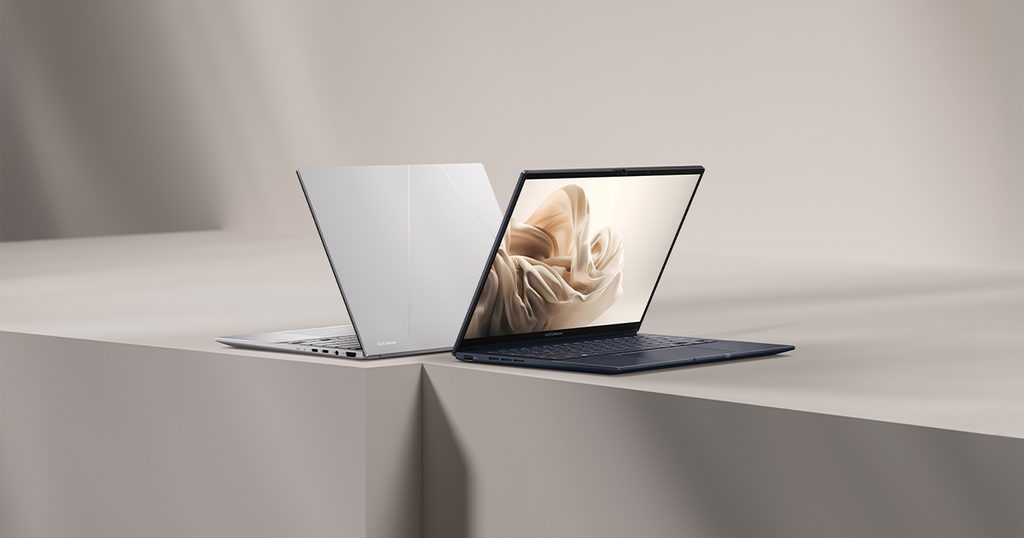
The chassis is constructed from a magnesium-aluminum alloy, which provides a metallic feel while keeping the weight low. This material is different from the heavy aluminum used in some other premium laptops. When the device is lifted with one hand, it feels lighter than its size suggests. There is a small degree of physical flexibility in the lid and the keyboard deck when pressure is applied. This is a characteristic of the lightweight alloy and does not indicate a mechanical failure. The surface has a matte coating that resists fingerprints, but the dark “Ponder Blue” version may show oils from palms more clearly than the lighter silver versions.
2. How It Fits a Real Desk Setup
The 180-Degree Hinge and Viewing Angles
The Zenbook 14 OLED features a hinge that allows the screen to open 180 degrees, letting the laptop lay completely flat on a desk surface. This physical flexibility is useful when using a laptop stand to raise the screen to eye level while using an external keyboard and mouse. It also allows for easier screen sharing during meetings when the device is placed in the center of a table. The OLED panel maintains consistent colors and brightness even when viewed from the side, which is a factor when multiple people are looking at the screen simultaneously. The hinge provides enough resistance to hold the screen steady at various angles.
NumberPad 2.0 and Touchpad Interaction
A specific feature of the Zenbook 14 OLED is the NumberPad 2.0, which integrates a numeric keypad into the touchpad. By pressing a sensor in the top-right corner of the touchpad, a grid of numbers and mathematical symbols appears as an illuminated overlay. This allows for data entry without the need for a separate physical numeric keypad. The touchpad continues to function as a cursor controller even when the NumberPad is active. This dual-functionality is a physical characteristic of the Zenbook series, intended to provide the utility of a larger laptop in a 14-inch format. The touchpad surface is glass, providing a smooth feel for multi-finger gestures.
Port Layout and Cable Management
The ports are distributed across both sides of the chassis. On Intel models, the two Thunderbolt 4 ports are located on the right side, along with the HDMI 2.1 port and the headphone jack. The left side typically houses a single USB-A port. This layout means that cables for power and external monitors will protrude from the right side. For right-handed users who use an external mouse close to the laptop, these cables can interfere with the mouse movement area. Using a Thunderbolt dock allows for a single-cable connection to manage power and multiple peripherals, keeping the desk surface clear of multiple wires.
Keyboard Experience and Typing Feel
The keyboard features a 1.4mm travel distance, providing a tactile response that is consistent across the layout. The keys are slightly dished to fit the shape of the fingertips, a design ASUS calls “ErgoSense.” The keyboard includes a backlight with adjustable brightness levels, which is useful for working in low-light environments. The power button is located in the top-right corner of the keyboard and often integrates a fingerprint sensor for signing into the operating system. The keys are designed to be quiet, which is a factor when working in shared spaces like libraries or offices.
Audio Performance and Speaker Placement
The speakers are tuned by Harman Kardon and are located on the bottom-front corners of the chassis, firing downwards and outwards. The sound quality is influenced by the surface the laptop is sitting on; a hard desk reflects the sound toward the user, while a soft surface like a lap or a bed will dampen the audio. The volume is sufficient for video calls and media playback in a standard room. The dual microphones use AI noise-canceling technology to filter out background sounds during video calls, which is managed through the MyASUS software. The webcam is located at the top of the screen and includes a physical privacy shutter on some models.
3. Performance by Use Case
The performance of the Zenbook 14 OLED is determined by the specific processor and the amount of RAM installed. The following ratings assume a configuration with 16GB of RAM.
| Use Case | Software | Rating | Reason |
| Office Productivity | Excel, Word, Outlook | Sufficient | Fast response times and high-resolution screen for documents |
| Web Browsing | Chrome, Edge (20+ tabs) | Sufficient | 16GB+ RAM handles many active tabs without lag |
| Photo Editing | Photoshop, Lightroom | Sufficient | OLED color accuracy and 3K resolution are beneficial |
| Video Editing | Premiere Pro (1080p) | Adequate | Possible for light edits, but thin chassis limits heat dissipation |
| 3D Gaming | AAA Games (Modern) | Not enough | Integrated graphics are not intended for heavy 3D games |
The ratings above reflect the capabilities of the hardware when connected to a power outlet. Performance in specific applications will depend on the complexity of the project files and the thermal mode selected in the MyASUS software.
4. Official Specs (with plain explanations)
| Category | Specification | Notes |
| CPU | Intel Core Ultra 5 / 7 or AMD Ryzen 7 / 9 | Efficiency-focused processors with integrated AI units |
| Graphics | Intel Arc Graphics or AMD Radeon | Integrated on the processor, shared system memory |
| Memory | 16GB / 32GB LPDDR5X | Soldered to the board, non-upgradable |
| Storage | 512GB / 1TB / 2TB NVMe SSD | Single replaceable internal M.2 storage slot |
| Display | 14-inch 3K (2880 x 1800) OLED | 120Hz refresh rate, glossy touchscreen option |
| Weight | Approx. 1.2 kg to 1.28 kg | Lightweight magnesium-aluminum alloy chassis |
| Battery | 75Wh Lithium-ion | High capacity for the 14-inch laptop category |
| Ports | Thunderbolt 4, USB-A, HDMI 2.1 | Mixed modern and standard physical connections |
This series is sold with different CPUs, memory, and storage depending on the release year and generation. Please match the specifications on your current seller page with the official information above.
Source: ASUS Official Product Page
The technical specifications of the Zenbook 14 OLED define its role as a portable, high-resolution machine for daily productivity. These components determine how the device handles software and how it physically behaves during transport. Understanding these individual parts is necessary to identify the capabilities of a specific unit found on a retail website.
5. Main Variations in This Series
The Zenbook 14 OLED series features several hardware combinations that change the processing power and visual experience. These variations are determined by the specific model chosen at the time of purchase.
- Processor options are divided between Intel Core Ultra (often labeled as UX3405) and AMD Ryzen (often labeled as UM3406) platforms.
- Memory is available in 16GB or 32GB capacities, but because it is permanently attached to the board, the choice made at purchase is final.
- The display is primarily a 3K OLED panel, but some models feature a touchscreen layer while others use a standard non-touch glass surface.
- Storage sizes range from 512GB to 2TB, utilizing the PCIe 4.0 standard for high-speed file access.
- Chassis colors vary by region, with “Ponder Blue” and “Foggy Silver” being common finishes applied to the metal surfaces.
6. What to Check on the Sales Page
When viewing a Zenbook 14 OLED listing, the specific processor generation and the memory capacity are the most important details to verify. Sellers often list different hardware configurations under the same series name.
- CPU Generation: Check whether you are getting the Core Ultra / Ryzen 8000 processors.
- Memory Capacity: Confirm if the unit has 16GB or 32GB, as this cannot be changed later.
- Storage Size: Check if the 512GB, 1TB, or 2TB SSD meets your file storage requirements.
- Screen Refresh Rate: Verify if the display is 60Hz, 90Hz, or 120Hz based on your motion clarity needs.
- Touchscreen Support: Confirm if the model includes a touchscreen if that is a requirement for your workflow.
The specifications on a retail page can sometimes be generalized. Matching the manufacturer’s part number with the official datasheet is the most accurate way to confirm the internal hardware.
7. Disclaimer & Buying Advice
This buying guide for the Zenbook 14 OLED is based on official manufacturer specifications and recurring real-world user experiences. It is completely independent, not sponsored, and does not guarantee specific performance for every unit. Hardware configurations such as the processor, memory, and storage can differ by generation and region, so please double-check the exact specifications listed on your seller’s page before purchasing.
8. Beginner Guide
If you are new to choosing computer hardware and want to understand the basics of these components, you can [Start Here] to learn more about how to read specifications.