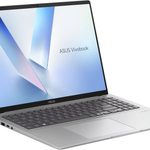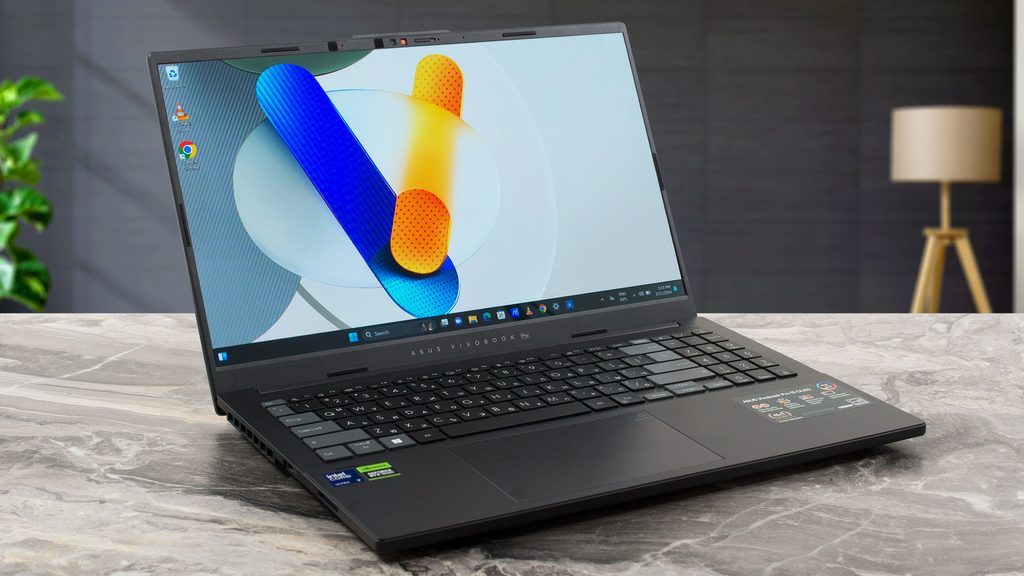
Image Source: Tech Reviewer / Hands-on Photo
Who Is It For?
The Vivobook Pro is used by students and professionals who perform visual tasks like photo editing, graphic design, or entry-level video production. It fits the needs of those who require a color-accurate OLED screen and a dedicated graphics card in a chassis that is lighter than a gaming laptop. It also serves as a primary computer for office workers who multitask with many applications and benefit from the high-resolution display. The inclusion of the SD card reader and the ASUS DialPad makes it a choice for those who frequently transfer and edit media from cameras.
If this form factor or power doesn’t quite fit your daily work, exploring other lineup categories would be a better path.
1. Check Before You Buy
OLED Display Characteristics and Maintenance
The Vivobook Pro series primarily uses OLED panels, which provide deep black levels because each pixel can turn off completely. This technology results in high color accuracy for photo and video work. However, the screen surface is glossy, which reflects overhead lights and windows more than a matte screen. OLED panels also require specific software features to prevent image retention, such as the “Pixel Refresh” function found in the ASUS Splendid settings. The screen brightness is sufficient for indoor use, but the reflections on the glossy surface can interfere with visibility in brightly lit environments.
Memory Expansion and Soldered RAM
The internal memory of the Vivobook Pro often uses a hybrid design. In many models, a portion of the RAM is soldered directly to the motherboard and cannot be removed. There is typically one additional slot that holds a removable memory stick. If a unit is purchased with 16GB, it may consist of 8GB soldered and 8GB in the slot. To increase the memory to 24GB, the 8GB stick must be replaced with a 16GB stick. Some 14-inch models have fully soldered memory with no expansion slots. Verifying the “soldered” versus “slotted” status on the sales page is a necessary step for those who plan to increase memory later.
Thermal Management and Fan Noise
The Vivobook Pro uses a dual-fan cooling system to manage the heat from the H-series processor and the dedicated NVIDIA graphics card. During basic tasks like document editing or web browsing, the fans often remain at a low, barely audible speed. When the system is under a heavy load, such as during video rendering or 3D modeling, the fans increase their speed to prevent the hardware from reducing its speed due to heat. This results in a consistent air-rushing sound. The heat is primarily exhausted through the rear and side vents, and the area above the keyboard will feel warm to the touch during these periods.
Battery Life and Power Consumption
The battery capacity varies by model size, with the 16-inch version often housing a 96Wh battery. While this is a high capacity, the dedicated graphics card and high-resolution OLED screen consume energy quickly. When the laptop is not connected to a wall outlet, the system automatically limits the power to the graphics card and reduces the screen brightness to save energy. Full performance for 3D tasks is only available when the power cable is connected. Using the laptop on battery for basic office tasks results in different runtimes depending on the screen refresh rate and the power mode selected in the MyASUS software.
Build Quality and Portability
The Vivobook Pro is designed to be more portable than a traditional gaming laptop but features more powerful components than a standard office ultrabook. The 14-inch model weighs approximately 1.4kg, making it suitable for daily transport in a backpack. The 16-inch model is heavier, reaching up to 2.0kg. The chassis is a mix of aluminum and plastic, which provides a metallic feel on the lid while keeping the total weight lower. The hinge is designed to open 180 degrees on some models, allowing the screen to lay flat on a desk surface.
2. How It Fits a Real Desk Setup
Port Layout and Peripheral Connectivity
The Vivobook Pro includes a variety of ports that are distributed across both sides of the chassis. It features a Thunderbolt 4 port (on Intel models) or a high-speed USB-C port, which supports video output and charging. The inclusion of a full-size HDMI port allows for connection to an external monitor without an adapter. A specific feature of this series is the full-size SD card reader, which allows for direct file transfers from cameras. Most ports are located on the right side, which means cables for power, monitors, and external drives will protrude from that side, potentially interfering with a mouse used by right-handed users.
Keyboard and Input Experience
The 15.6-inch and 16-inch models include a full numeric keypad on the right side, which shifts the main typing area slightly to the left of the center. The 14-inch model does not have a numeric keypad, allowing the keyboard and touchpad to be centered. The keys have a 1.4mm travel distance, providing a tactile response that is consistent across the layout. The touchpad is large and often includes the ASUS DialPad feature, which is a virtual rotary tool that appears on the surface. This tool is used to adjust brush sizes or timeline positions in creative software. The touchpad can be toggled between standard mode and DialPad mode with a swipe gesture.
External Monitor Integration
On a desk, the high-resolution OLED screen provides a sharp viewing area for single-window tasks. When connected to an external monitor via the HDMI or Thunderbolt 4 ports, the laptop can function as a secondary display. The OLED panel’s color accuracy makes it a choice for the primary workspace, while the external monitor can be used for communication apps or file management. The Thunderbolt 4 port allows for a single-cable connection to a compatible dock, which can manage power and multiple peripherals simultaneously, keeping the desk surface clear of multiple wires.
Audio and Video for Meetings
The speakers are tuned by Harman Kardon and are located on the bottom of the chassis, firing downwards. The sound quality is influenced by the surface the laptop is sitting on; a hard desk reflects the sound toward the user, while a soft surface like a lap will dampen the audio. The webcam is located at the top of the screen and includes a physical privacy shutter that can be slid across the lens. This provides a visual confirmation that the camera is covered. The dual microphones use AI noise-canceling technology to filter out background sounds during video calls, which is managed through the MyASUS software.
3. Performance by Use Case
The performance of the Vivobook Pro is determined by the specific CPU and GPU combination. The following ratings assume a mid-range configuration with an Intel Core i7 and an RTX 4050.
| Use Case | Software | Rating | Reason |
| Office Productivity | Excel, Word, Outlook | Sufficient | Fast response times and high-resolution screen |
| Photo Editing | Photoshop, Lightroom | Sufficient | OLED color accuracy and dedicated GPU are beneficial |
| Video Editing | Premiere Pro (1080p) | Sufficient | Dedicated GPU speeds up rendering and timeline playback |
| 3D Rendering | Blender, AutoCAD | Adequate | Possible for entry-level work, but fans will be loud |
| High-End Gaming | Cyberpunk 2077, Starfield | Adequate | Requires lower settings; not a dedicated gaming laptop |
The ratings above reflect the capabilities of the hardware when connected to a power outlet. Performance in specific applications will depend on the complexity of the project files and the cooling mode selected in the ProArt Creator Hub or MyASUS software.
4. Official Specs (with plain explanations)
| Category | Specification | Notes |
| CPU | Intel Core i5/i7/i9 or AMD Ryzen 5/7/9 | H-series processors, high power consumption |
| Graphics | NVIDIA GeForce RTX 3050 / 4050 / 4060 | Dedicated laptop GPUs, varies by model |
| Memory | 8GB / 16GB / 32GB DDR4 or DDR5 | Often partially soldered, one expansion slot |
| Storage | 512GB / 1TB / 2TB NVMe SSD | Replaceable internal M.2 storage drive |
| Display | 14″ / 15.6″ / 16″ OLED | Glossy touchscreen or non-touch, high contrast |
| Weight | 1.4 kg to 2.0 kg | Varies by screen size and battery |
| Battery | 63Wh to 96Wh Lithium-ion | High capacity for the slim category |
| Ports | Thunderbolt 4, USB-C, HDMI, SD Reader | Includes full-size SD card reader |
This series is sold with different CPUs, memory, and storage depending on the release year and generation. Please match the specifications on your current seller page with the official information above.
Source: ASUS Official Product Page
The technical specifications of the Vivobook Pro series define its role as a portable machine for visual tasks. These components determine how the device handles software and how it physically fits into a mobile or stationary setup. Understanding these individual parts is necessary to identify the capabilities of a specific unit found on a retail website.
5. Main Variations in This Series
The Vivobook Pro series features several hardware combinations that change the processing power and visual experience. These variations are often tied to the specific screen size and the generation of the graphics card.
- Screen sizes are available in 14-inch, 15.6-inch, and 16-inch formats, which changes the total weight and the presence of a numeric keypad.
- Graphics configurations range from the RTX 3050 to the RTX 4060, affecting the speed of 3D rendering and video exports.
- Display refresh rates vary between 60Hz, 90Hz, and 120Hz, which impacts the smoothness of motion on the screen.
- Some models include the ASUS DialPad, a virtual or physical rotary controller for creative software, while others use a standard touchpad.
- Chassis materials vary between all-aluminum designs and models with a plastic base and aluminum lid.
6. What to Check on the Sales Page
When viewing a Vivobook Pro listing, the specific memory configuration and the screen resolution are the most important details to verify. Sellers often list different hardware generations under the same series name.
- CPU Generation: Check whether you are getting the 12th, 13th, or 14th Gen Intel processors.
- Memory Configuration: Confirm if the RAM is listed as “soldered,” “slotted,” or a combination of both.
- GPU Model: Verify the specific RTX model (e.g., 3050 vs 4050) as this affects 3D performance.
- Screen Refresh Rate: Confirm if the display is 60Hz, 90Hz, or 120Hz for your motion clarity needs.
- Battery Capacity: Check if the unit includes the 63Wh, 70Wh, or 96Wh battery for your portability needs.
The specifications on a retail page can sometimes be generalized. Matching the manufacturer’s part number with the official datasheet is the most accurate way to confirm the internal hardware.
7. Disclaimer & Buying Advice
This buying guide for the Vivobook Pro is based on official manufacturer specifications and recurring real-world user experiences. It is completely independent, not sponsored, and does not guarantee specific performance for every unit. Hardware configurations such as the processor, memory, and storage can differ by generation and region, so please double-check the exact specifications listed on your seller’s page before purchasing.
8. Beginner Guide
If you are new to choosing computer hardware and want to understand the basics of these components, you can [Start Here] to learn more about how to read specifications.