Image Source: ASUS Official
Who Is It For?
The Zenbook DUO is used by professionals who require a dual-monitor setup but need to maintain portability. It fits the needs of data analysts and programmers who benefit from vertical screen real estate for viewing code or spreadsheets. It also serves as a mobile workstation for writers and researchers who need to reference materials on one screen while typing on the other. The detachable keyboard and kickstand make it a choice for those who frequently work in different environments, such as cafes, libraries, and home offices, and want a desktop-like experience in a 14-inch format.
If this form factor or power doesn’t quite fit your daily work, exploring other lineup categories would be a better path.
1. Check Before You Buy
Dual-Screen Mechanics and Software Management
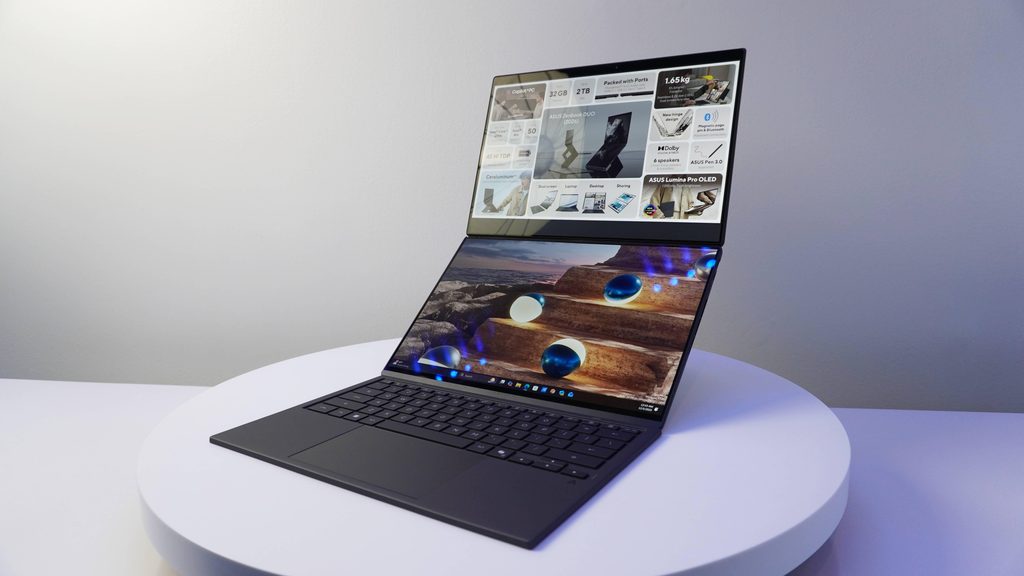
The Zenbook DUO features two identical 14-inch OLED touchscreens connected by a 180-degree hinge. This design allows the device to function as a traditional laptop or as a dual-screen workstation. Managing windows across two screens requires the use of the built-in ScreenXpert software. This software provides a taskbar and gestures to move applications between the top and bottom displays. Without this software active, the user must manually drag windows, which is a different interaction model than a standard single-screen laptop. The bottom screen can also display a virtual keyboard and touchpad if the physical keyboard is not attached.
Detachable Keyboard and Connection Modes
The physical keyboard is a detachable unit that sits on top of the bottom screen. It connects to the laptop using pogo pins (physical contact points) for charging and direct input. When removed, the keyboard connects via Bluetooth, allowing it to be used wirelessly while the laptop stands on its kickstand. The keyboard has its own internal battery and a small power switch on the side. Because the keyboard is thin to allow the laptop to close, the key travel is shallower than on thicker laptops. The touchpad on the keyboard is a standard mechanical type, but it can be replaced by the virtual touchpad on the bottom screen if the physical unit is set aside.
Battery Consumption with Dual OLED Panels
Running two 14-inch OLED screens at high resolution and 120Hz refresh rate consumes energy at a higher rate than a standard laptop. OLED technology is efficient when displaying dark content, but bright, white backgrounds across both screens will deplete the 75Wh battery faster. The system allows the user to disable the bottom screen to save power, effectively turning the device into a standard 14-inch Zenbook. The total runtime varies significantly based on whether one or both screens are active and the brightness levels set for each. The 120Hz refresh rate can also be reduced to 60Hz in the settings to extend the duration of use.
Thermal Management and Physical Heat
The cooling system must manage the heat from the processor while it is sandwiched between two display panels. The fans draw air from the sides and exhaust it through the rear vents. When the laptop is used in “Desktop Mode” (standing vertically), the airflow is different than in “Laptop Mode.” During intensive tasks like video rendering or multitasking with many active windows, the fans will increase their speed, resulting in a steady air-rushing sound. The area behind the bottom screen and near the hinge will feel warm to the touch during these periods. The magnesium-aluminum alloy chassis helps dissipate heat, but the internal temperatures are managed by the system software to prevent overheating.
Weight and Portability Factors
The Zenbook DUO weighs 1.35kg without the keyboard and 1.65kg with the keyboard attached. While 1.65kg is manageable for a 14-inch device, it is heavier than standard ultrabooks in the same size category. The thickness of the device also increases when the keyboard is sandwiched between the two screens for transport. Carrying the device requires a bag that can accommodate the extra thickness. The included sleeve is designed to fit both the laptop and the keyboard, providing protection for the OLED surfaces. The weight distribution changes depending on whether the kickstand is deployed or if the device is used on a lap.
2. How It Fits a Real Desk Setup
Kickstand Stability and Orientation
The Zenbook DUO includes a built-in adjustable kickstand on the bottom of the chassis. This kickstand allows the device to stand vertically in “Desktop Mode,” where the two screens are stacked on top of each other. It also supports “Sharing Mode,” where the hinge is opened 180 degrees and the screens lay flat on the desk. The kickstand is made of metal and provides a stable base on hard surfaces. However, on soft surfaces like a bed or a lap, the kickstand is less stable, and the device is primarily used in the traditional laptop configuration with the keyboard attached.
Vertical Workspace and Ergonomics
In the vertical “Desktop Mode,” the Zenbook DUO provides a screen area equivalent to a 19.8-inch display. This orientation is useful for reading long documents on the top screen while taking notes or managing emails on the bottom screen. Because the top screen is elevated, it sits closer to eye level than a standard laptop, which changes the neck angle during use. The detachable keyboard can be placed in front of the screens, allowing the user to sit further back from the device. This setup requires a desk depth of at least 50cm to accommodate the kickstand, the screens, and the keyboard comfortably.
Cable Management and Port Access
The ports are located on the sides of the bottom half of the chassis. This includes two Thunderbolt 4 ports, which are high-speed ports that support charging, data transfer, and external monitor output. The HDMI 2.1 port allows for a third screen to be connected. When the device is in vertical mode, the ports remain accessible on the sides. However, connecting multiple cables like power, a mouse, and an external drive will result in wires protruding from both sides of the base. Using a Thunderbolt dock allows for a single-cable connection to manage all peripherals, keeping the desk surface clear of multiple wires.
Detachable Keyboard Charging and Storage
The physical keyboard charges automatically when it is placed on top of the bottom screen and the pogo pins are aligned. It does not require a separate charging cable unless it is used away from the laptop for an extended period. When the laptop is closed, the keyboard is stored inside the device, protecting the bottom screen. If the user prefers to use the virtual keyboard, the physical keyboard must be stored separately in a bag or sleeve. The keyboard features a small LED indicator to show the Bluetooth pairing status and battery level.
Audio and Webcam Positioning
The speakers are tuned by Harman Kardon and are located on the sides of the bottom chassis. The sound quality is influenced by the orientation of the device; in vertical mode, the sound disperses sideways. The webcam is located at the top of the upper screen and includes an infrared sensor for Windows Hello facial recognition. This allows the user to sign in by looking at the camera. The webcam position remains at the top in both laptop and vertical modes, ensuring a consistent angle for video calls. The dual microphones use AI noise-canceling technology to filter out background sounds, which is managed through the MyASUS software.
3. Performance by Use Case
The performance of the Zenbook DUO is determined by the Intel Core Ultra processor and the amount of RAM chosen. The following ratings assume a configuration with 16GB of RAM.
| Use Case | Software | Rating | Reason |
| Office Productivity | Excel, Word, Outlook | Sufficient | Dual screens allow for extensive multitasking |
| Web Browsing | Chrome, Edge (20+ tabs) | Sufficient | 16GB+ RAM handles many active tabs across two screens |
| Photo Editing | Photoshop, Lightroom | Sufficient | OLED color accuracy and touch support are beneficial |
| Video Editing | Premiere Pro (1080p) | Adequate | Possible for light edits, but lacks a dedicated GPU |
| 3D Gaming | AAA Games (Modern) | Not enough | Integrated graphics are not intended for heavy 3D games |
The ratings above reflect the capabilities of the hardware when connected to a power outlet. Performance in specific applications will depend on the complexity of the project files and the thermal mode selected in the MyASUS software.
4. Official Specs (with plain explanations)
| Category | Specification | Notes |
| CPU | Intel Core Ultra 5 / 7 / 9 (Series 1) | Processors with integrated AI processing units |
| Graphics | Intel Arc Graphics | Integrated graphics sharing system memory |
| Memory | 16GB / 32GB LPDDR5x | Soldered to motherboard, non-upgradable |
| Storage | 512GB / 1TB / 2TB NVMe SSD | Single replaceable internal M.2 storage slot |
| Display | Dual 14-inch 3K (2880 x 1800) OLED | Two identical touchscreens, 120Hz refresh rate |
| Weight | 1.35 kg (tablet) / 1.65 kg (with keyboard) | Varies based on keyboard attachment |
| Battery | 75Wh Lithium-ion | High capacity for a 14-inch chassis |
| Ports | 2x Thunderbolt 4, 1x USB-A, 1x HDMI 2.1 | High-speed multi-purpose and standard connections |
This series is sold with different CPUs, memory, and storage depending on the release year and generation. Please match the specifications on your current seller page with the official information above.
Source: ASUS Official Product Page
The technical specifications of the Zenbook DUO define its role as a multi-screen portable computer. These components determine how the device manages two simultaneous displays and how it functions in different physical orientations. Understanding these individual parts is necessary to identify the capabilities of a specific unit found on a retail website.
5. Main Variations in This Series
The Zenbook DUO series features several hardware combinations that change the processing power and storage capacity. These variations are determined by the specific model chosen at the time of purchase.
- Processor options include the Intel Core Ultra 5, 7, and 9, which feature different core counts and clock speeds for data processing.
- Memory is available in 16GB or 32GB capacities, but because it is permanently attached to the board, the choice made at purchase is final.
- Storage sizes range from 512GB to 2TB, utilizing the PCIe 4.0 standard for high-speed file access.
- The display panels are consistent in resolution (3K) and technology (OLED) across the current generation, but older generations may feature different screen sizes or secondary screen formats.
- The detachable keyboard is included in the box and features a built-in battery for wireless use.
6. What to Check on the Sales Page
When viewing a Zenbook DUO listing, the specific processor generation and the memory capacity are the most important details to verify. Sellers often list different hardware configurations under the same series name.
- CPU Generation: Check whether you are getting the Intel Core Ultra processors (Series 1).
- Memory Capacity: Confirm if the unit has 16GB or 32GB, as this is permanently attached and cannot be changed.
- Storage Size: Check if the 512GB, 1TB, or 2TB SSD meets your file storage requirements.
- Keyboard Inclusion: Verify that the detachable Bluetooth keyboard is included in the package.
- Screen Resolution: Confirm the 3K (2880 x 1800) resolution for both OLED panels.
The specifications on a retail page can sometimes be generalized. Matching the manufacturer’s part number with the official datasheet is the most accurate way to confirm the internal hardware.
7. Disclaimer & Buying Advice
This buying guide for the Zenbook DUO is based on official manufacturer specifications and recurring real-world user experiences. It is completely independent, not sponsored, and does not guarantee specific performance for every unit. Hardware configurations such as the processor, memory, and storage can differ by generation and region, so please double-check the exact specifications listed on your seller’s page before purchasing.
8. Beginner Guide
If you are new to choosing computer hardware and want to understand the basics of these components, you can [Start Here] to learn more about how to read specifications.