Image Source: ASUS Official
Who Is It For?
The ROG NUC is used by individuals who require high-performance computing but have limited desk space. It fits the needs of gamers who want a system capable of running modern titles at 1080p or 1440p resolutions without the bulk of a traditional tower. It also serves as a workstation for creative professionals who work with video editing or 3D design and need a compact machine that can be easily moved between a home office and a studio. The inclusion of three M.2 slots makes it a choice for those who manage large libraries of data and require multiple internal storage drives in a small format.
If this form factor or power doesn’t quite fit your daily work, exploring other lineup categories would be a better path.
1. Check Before You Buy
Laptop Components in a Desktop Chassis
The ROG NUC utilizes “Laptop GPU” and “Mobile CPU” components. These parts are designed to operate within the thermal and electrical limits of a small 2.5-liter box. While the RTX 4070 Laptop GPU provides high performance in 3D applications, it does not produce the same results as a full-sized RTX 4070 found in a large tower desktop. The mobile architecture allows the system to remain small, but it also means the hardware is optimized for efficiency rather than the unlimited power draw of a traditional desktop. The result is a system that handles modern games and creative software while occupying a fraction of the space of a standard PC.
The External Power Supply Dimensions
A significant physical detail of the ROG NUC is the 330W external power adapter. Because the PC chassis is only 2.5 liters, the electrical conversion hardware is located in a separate “brick” outside the main unit. This power adapter is large and heavy, weighing approximately 1.2kg and measuring nearly half the size of the PC itself. When planning a workspace, space must be allocated for this adapter under the desk or behind a monitor. The cable connecting the adapter to the PC is thick and requires a specific clearance to avoid sharp bends.
Thermal Management and Fan Behavior
The cooling system in the ROG NUC consists of a vapor chamber and dual fans that draw air through the chassis. During basic tasks like web browsing or document editing, the fans operate at a low speed that is difficult to hear in a standard room. When the system is under a heavy load, such as during 3D rendering or high-resolution gaming, the fans increase their rotation speed to dissipate heat. This results in a steady air-rushing sound. The heat is exhausted through the rear and side vents. Placing the unit in a confined space, such as a closed cabinet, will cause the internal temperatures to rise and the fans to spin faster.
Internal Expansion and Tool-less Access
The ROG NUC is designed for internal access without the need for specialized tools. The top cover can be removed by sliding a latch, providing access to the memory slots and storage bays. There are two SO-DIMM slots for RAM and three M.2 slots for SSDs. This allows for a total of three separate storage drives to be installed simultaneously. For those purchasing the “Barebone” version, this physical access is necessary for the initial setup. For those with a “Full System,” it allows for future increases in storage or memory as software requirements change over time.
Performance Limits and Software Control
The system performance is managed through the ASUS Armoury Crate software. This allows the user to switch between different power profiles, such as “Quiet,” “Performance,” and “Turbo.” The “Turbo” mode allows the CPU and GPU to draw more power, which increases the speed of the hardware but also increases the fan noise and heat output. The “Quiet” mode limits the power draw to keep the fans at a lower speed. The hardware performance is tied to these software settings, and the maximum advertised speeds are typically reached only in the higher power modes while connected to the 330W adapter.
2. How It Fits a Real Desk Setup
Orientation and Stand Options
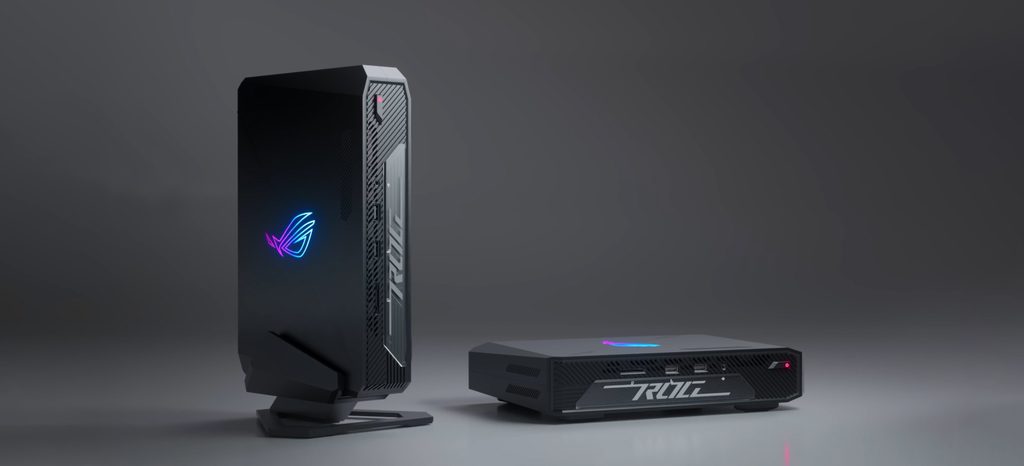
The ROG NUC includes a stand that allows the unit to be placed in either a horizontal or a vertical orientation. In the vertical position, the PC occupies a very small footprint of approximately 50mm in width, making it possible to place it behind a monitor or on the edge of a small desk. In the horizontal position, the unit can sit under a monitor stand. The vertical orientation is often preferred for cooling, as it allows for better airflow around the chassis surfaces. The stand is made of metal and provides a stable base that prevents the unit from tipping when cables are connected or disconnected.
Port Layout and Cable Management
The ports are distributed between the front and the rear of the chassis. The front panel includes two USB-A ports, an SD card reader, and a headphone jack, which are intended for temporary connections like thumb drives or headsets. The rear panel houses the primary connections, including the HDMI 2.1 port, two DisplayPorts, the Thunderbolt 4 port, and the 2.5G Ethernet jack. This rear-heavy layout allows for permanent cables to be routed away from the user, keeping the front of the desk clear. However, because the unit is light, the weight of multiple thick cables (like HDMI and Power) can pull on the chassis, making the use of the included stand necessary for stability.
Multi-Monitor and Peripheral Connectivity
The ROG NUC supports up to four simultaneous displays through its HDMI, DisplayPort, and Thunderbolt 4 connections. This makes it a choice for setups involving multiple high-resolution monitors. The Thunderbolt 4 port also allows for the connection of high-speed external storage or a docking station. The system includes six USB-A ports in total, providing enough physical connections for a keyboard, mouse, webcam, and other standard peripherals without the need for an external USB hub. The built-in Wi-Fi 6E or Wi-Fi 7 antennas are located inside the chassis, eliminating the need for external plastic antennas protruding from the rear.
RGB Lighting and Aesthetics
The front of the ROG NUC features an ROG logo that is illuminated by RGB LEDs. The color and pattern of this light can be synchronized with other ASUS peripherals through the Aura Sync software. If a professional environment is preferred, the lighting can be turned off entirely. The chassis is made of a combination of metal and high-strength plastic with a matte black finish. This finish resists fingerprints but can collect dust in the mesh areas over time. The internal logo plate can be replaced with a custom-designed plate, allowing for a personalized visual element on the front of the PC.
3. Performance by Use Case
The performance of the ROG NUC is determined by the specific CPU and GPU combination. The following ratings assume a configuration with the Core Ultra 9 and RTX 4070 Laptop GPU.
| Use Case | Software | Rating | Reason |
| 1440p Gaming | Cyberpunk 2077, Warzone | Sufficient | Dedicated GPU and DLSS handle high settings well |
| 4K Video Editing | Premiere Pro, DaVinci | Sufficient | Multiple CPU cores and GPU acceleration speed up renders |
| 3D Rendering | Blender, V-Ray | Sufficient | RTX hardware acceleration is available for 3D tasks |
| Office Productivity | Excel, Chrome, Zoom | Sufficient | Hardware exceeds requirements, resulting in fast response |
| Home Theater (HTPC) | Plex, 4K Blu-ray | Sufficient | Compact size and HDMI 2.1 support 4K 120Hz output |
The ratings above reflect the capabilities of the hardware when connected to the 330W power adapter. Performance in specific applications will depend on the complexity of the project files and the power profile selected in the Armoury Crate software.
4. Official Specs (with plain explanations)
| Category | Specification | Notes |
| CPU | Intel Core Ultra 7 155H / Ultra 9 185H | High-performance mobile processors, integrated AI NPU |
| Graphics | NVIDIA GeForce RTX 4060 / 4070 Laptop GPU | Dedicated laptop-grade graphics, supports DLSS 3.5 |
| Memory | Up to 64GB DDR5 5600MHz (SO-DIMM) | Two physical slots, uses laptop-sized memory modules |
| Storage | 3x M.2 2280 PCIe Gen4x4 SSD | Three internal slots for high-speed storage expansion |
| Connectivity | Wi-Fi 6E / 7, Bluetooth 5.3 / 5.4 | Modern wireless standards for data and peripherals |
| Ports | Thunderbolt 4, HDMI 2.1, 2x DP 1.4a, 2.5G LAN | Multiple high-speed display and networking connections |
| Power | 330W External Power Adapter | Large external unit for electrical supply |
| Dimensions | 270 x 180 x 50 mm (2.5 Liters) | Compact chassis, vertical or horizontal orientation |
This series is sold with different CPUs, memory, and storage depending on the release year and generation. Please match the specifications on your current seller page with the official information above.
Source: ASUS Official Product Page
The technical specifications of the ROG NUC define its role as a high-performance computing system in a small physical format. These components determine how the device handles complex software and how it fits into a workspace. Understanding these individual parts is necessary to identify the capabilities of a specific unit found on a retail website.
5. Main Variations in This Series
The ROG NUC series features several hardware combinations that change the processing speed and graphical output. These variations are determined by the specific model chosen at the time of purchase.
- Processor options include the Intel Core Ultra 7 and the Intel Core Ultra 9, which feature different core counts and clock speeds for data processing.
- Graphics configurations are split between the NVIDIA GeForce RTX 4060 and the RTX 4070, both of which are the “Laptop GPU” versions designed for compact spaces.
- The system is sold as a “Full System” with pre-installed RAM, SSD, and Windows, or as a “Barebone” kit which requires the user to provide their own memory, storage, and operating system.
- Memory capacity varies between 16GB and 32GB in pre-configured models, utilizing the DDR5 standard for faster data access.
- The chassis includes a customizable RGB backlit logo plate, allowing for visual changes to the front of the device.
6. What to Check on the Sales Page
When viewing an ROG NUC listing, the specific hardware configuration and the “Barebone” status are the most important details to verify. Sellers often list different versions under the same series name.
- CPU Model: Check whether you are getting the Intel Core Ultra 7 or the Core Ultra 9 processor.
- GPU Model: Verify if the unit includes the NVIDIA RTX 4060 or the RTX 4070 Laptop GPU.
- System Type: Confirm if the listing is for a “Full System” (includes RAM/SSD/OS) or a “Barebone” kit.
- Memory/Storage: If it is a Full System, check the specific amount of RAM (16GB/32GB) and SSD (512GB/1TB) included.
- CPU Generation: Check whether you are getting the Core Ultra (Series 1) processors.
The specifications on a retail page can sometimes be generalized. Matching the manufacturer’s part number with the official datasheet is the most accurate way to confirm the internal hardware.
7. Disclaimer & Buying Advice
This buying guide for the ROG NUC is based on official manufacturer specifications and recurring real-world user experiences. It is completely independent, not sponsored, and does not guarantee specific performance for every unit. Hardware configurations such as the processor, memory, and storage can differ by generation and region, so please double-check the exact specifications listed on your seller’s page before purchasing.
8. Beginner Guide
If you are new to choosing computer hardware and want to understand the basics of these components, you can [Start Here] to learn more about how to read specifications.