Image Source: Lenovo Official
Who Is It For?
The ThinkPad P16 is for professionals whose work involves heavy computational tasks that cannot be handled by a standard thin-and-light laptop. This includes mechanical engineers running stress simulations, architects working on large-scale 3D models, and data scientists processing local datasets. It is also a choice for video editors who need to render high-resolution footage while on location. The device is designed to be moved from one desk to another—such as from a home office to a job site—rather than being used on a lap or a small airplane tray table. If this form factor or power doesn’t quite fit your daily work, exploring other lineup categories would be a better path.
1. Check Before You Buy
The ThinkPad P16 is a specialized tool that prioritizes internal volume and cooling over portability. It is significantly thicker and heavier than the ThinkPad T or X series. The “HX” designation on the processor indicates that it uses the same silicon as a desktop CPU, which requires more electricity and generates more heat than the “U” or “P” series processors found in thinner laptops. This design choice affects every aspect of how the laptop is handled and used.
Internal Expansion and the Four-Slot Memory System
One of the most distinct features of the ThinkPad P16 is the presence of four memory slots. Most 16-inch laptops only provide two slots, which limits the total amount of RAM. In the P16, two slots are located under a dedicated service door on the bottom, and two are located under the keyboard. This allows the system to reach capacities of 128GB or 192GB. For users working with massive datasets, virtual machines, or complex architectural simulations, this expansion capability is a primary reason to choose this series. However, accessing the slots under the keyboard requires more technical steps than the bottom slots.
Thermal Management and Fan Noise
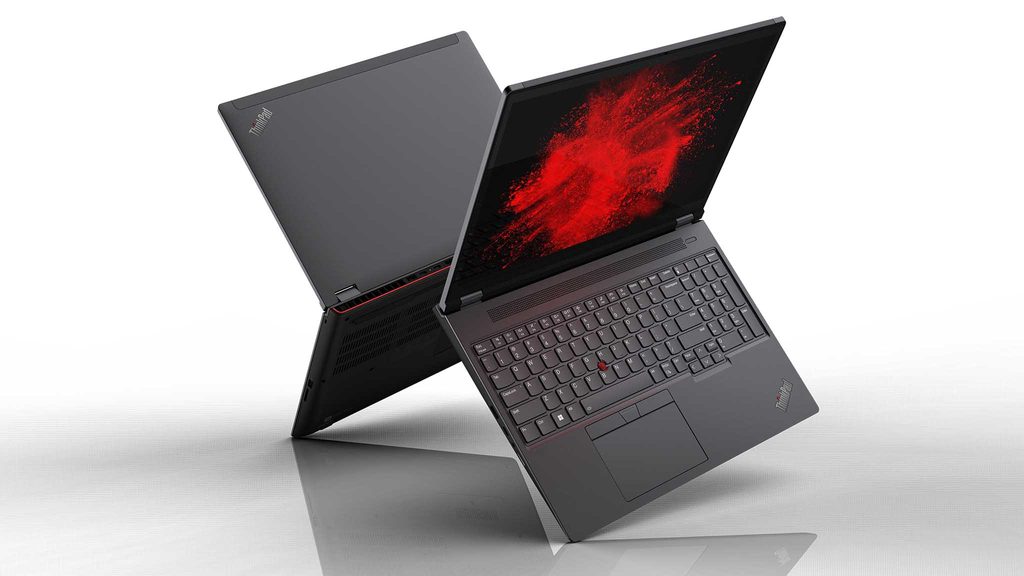
Because the CPU and GPU can draw a combined power of over 100 watts, the cooling system is substantial. It features dual fans and large heat pipes that exhaust air through the sides and the rear. During basic tasks like document editing or web browsing, the fans may remain silent or spin at a very low, barely audible frequency. When the system is engaged in 3D rendering or data processing, the fans increase to a high-pitched whir. The rear of the laptop features a distinct red accent line that marks the primary heat exhaust zone. Blocking these vents by placing the laptop on a soft surface like a bed will cause the system to slow down to prevent overheating.
Weight and the Power Adapter Reality
The starting weight of 2.95 kg only accounts for the laptop itself. Because the components require high wattage, the P16 ships with a 230W or 300W power adapter. This adapter is a large, heavy brick that adds approximately 0.8 kg to 1 kg to the total carrying weight. When the laptop is used on battery power, the system automatically reduces the speed of the CPU and GPU to preserve energy. To achieve the full performance listed in the specifications, the laptop must be connected to a wall outlet using this specific adapter. Carrying the laptop and its charger in a standard backpack for long periods will result in physical fatigue.
Professional Graphics vs. Gaming Graphics
The NVIDIA RTX GPUs in the P16 are “workstation” versions. They use different software drivers than the “GeForce” cards found in gaming laptops. These drivers are certified by software vendors (ISV certification) for stability in programs like AutoCAD, SolidWorks, and Adobe Premiere. While these GPUs can run video games, they are not optimized for that purpose. The focus is on precision and stability during long rendering sessions rather than maximum frame rates in games. For users who only intend to play games, the specialized hardware in the P16 will not be enough to justify the cost and weight.
2. How It Fits a Real Desk Setup
The ThinkPad P16 occupies a large amount of physical space on a desk. Its 16:10 aspect ratio screen makes the device taller than older 15-inch laptops, which provides more vertical space for software toolbars and timelines. The chassis is made of a combination of magnesium, aluminum, and high-quality plastics, giving it a very rigid feel. There is no flex in the keyboard deck or the lid, which is necessary to protect the complex internal circuitry during transport.
Keyboard Layout and Typing Experience
The keyboard includes a full numeric keypad on the right side. This is useful for data entry and engineering work, but it shifts the main typing area and the trackpad to the left of the laptop’s center line. A user transitioning from a laptop without a numpad will find that their hands are positioned off-center. The keys have 1.5mm of travel, providing a tactile response that is consistent with the ThinkPad reputation. The red TrackPoint nub remains in the center of the keyboard, allowing for mouse navigation without moving the hands away from the home row of keys.
Port Placement and Cable Management
Lenovo has placed many of the permanent connection ports on the rear of the P16. The power connector, HDMI port, and two Thunderbolt 4 ports are located at the back, between the large cooling vents. This allows for a cleaner desk setup because thick monitor and power cables run straight back rather than sticking out of the sides. The sides of the laptop are reserved for ports that are frequently plugged and unplugged, such as the USB-A ports, the headphone jack, and the full-sized SD card reader. The SD Express 7.0 reader is particularly useful for photographers and videographers, as it supports much higher transfer speeds than standard SD slots.
Display and Visual Environment
The 16-inch screen is the centerpiece of the workspace. If the unit is configured with the UHD+ (4K) OLED panel, the colors are highly saturated and the blacks are absolute. However, the OLED screen is glossy and can reflect overhead office lights or windows. The IPS panels are matte and do not have this reflection issue, making them more suitable for environments with uncontrolled lighting. Because the screen is large and bright, it consumes a significant portion of the battery life. In a typical office setup, the P16 is often used with one or two external 4K monitors, which the Thunderbolt 4 ports can support simultaneously without the need for a separate docking station.
3. Performance by Use Case
The following ratings are based on a mid-to-high range configuration (Intel Core i7/i9 and RTX 2000/3000 or higher). Performance on battery will be lower than these ratings.
| Use Case | Software | Rating | Reason |
| 3D Modeling | AutoCAD, SolidWorks | Sufficient | ISV drivers ensure stability and precision |
| Data Science | Python, SQL, Large Datasets | Sufficient | High RAM capacity allows for large in-memory tasks |
| Video Editing | Premiere Pro, DaVinci Resolve | Sufficient | Dedicated encoders and fast storage handle 4K/8K |
| Software Dev | Visual Studio, Docker, VMs | Sufficient | Multiple cores and high RAM support many containers |
| AAA Gaming | Cyberpunk 2077, Starfield | Adequate | Possible, but workstation drivers are not optimized |
| Ultra-Portable Use | Travel, Coffee Shops | Not enough | Weight and size make it difficult to use in tight spaces |
The ratings above assume the laptop is plugged into its original power adapter. Using a lower-wattage USB-C charger will result in “Not enough” performance for high-load tasks and may not charge the battery during use.
4. Official Specs (with plain explanations)
| Category | Specification | Notes |
| CPU | Intel Core i5 / i7 / i9 HX-Series | High-power desktop-class processors, 55W base power |
| Graphics | NVIDIA RTX A-Series / Ada Generation | Professional workstation GPUs, ISV certified |
| Memory | Up to 128GB or 192GB DDR5 | Four SODIMM slots, rare for 16-inch laptops |
| Storage | Up to 8TB (2x M.2 PCIe Gen4) | Two internal slots for high-speed storage drives |
| Display | 16-inch 16:10 (FHD+ to UHD+ OLED) | Taller screen ratio, optional factory color calibration |
| Weight | Starting at 2.95 kg (6.5 lbs) | Heavy chassis, excludes the large power adapter |
| Battery | 94Wh Internal Battery | Large capacity, limited by high-power components |
| Ports | 2x Thunderbolt 4, HDMI 2.1, SD Express | Includes specialized ports for professional data transfer |
This series is sold with different CPUs, memory, and storage depending on the release year and generation. Please match the specifications on your current seller page with the official information above.
Source: Lenovo Official Product Page
The specifications listed above define the ThinkPad P16 as a mobile workstation, which is a category of laptop designed to replace a desktop computer for professional technical tasks. Unlike standard office laptops, every component in this series is chosen for sustained high-performance workloads. The following sections explain how these technical parts behave in a physical environment and what a user will experience during daily operation.
5. Main Variations in This Series
- Processor Generations: The series includes Gen 1 and Gen 2 models. Gen 1 uses 12th Gen Intel HX processors, while Gen 2 uses 13th or 14th Gen Intel HX processors with more efficiency cores.
- Graphics Tiers: GPU options range from the entry-level RTX 1000/A1000 to the high-end RTX 5000/A5500. Higher-tier GPUs feature more dedicated video memory (VRAM) for large 3D models.
- Display Technology: Screen options include standard IPS panels with matte finishes and high-resolution OLED touchscreens with glossy finishes. Some panels offer 100% Adobe RGB or DCI-P3 color accuracy.
- Memory Configuration: While the system supports four slots, many retail configurations ship with only two slots filled (e.g., 2x16GB). This leaves two slots open for future expansion without removing the original memory.
6. What to Check on the Sales Page
When purchasing a ThinkPad P16, the specific internal components chosen at the factory will determine the machine’s lifespan and utility. Because there are so many variables, the sales page must be read carefully.
- CPU Generation: Check whether you are getting the Gen 1 (12th Gen) or Gen 2 (13th/14th Gen) processors.
- GPU Model and VRAM: Verify the exact NVIDIA model. An RTX 1000 has much less power and memory than an RTX 5000.
- RAM Configuration: Confirm if the 32GB or 64GB is provided in two sticks or four. This affects how many slots you have left for future upgrades.
- Screen Resolution and Brightness: Look for the “nits” rating (e.g., 300, 400, 500, or 600 nits). A 300-nit screen may be difficult to see in a very bright room.
- Warranty Status: Workstations are often sold with 3-year onsite warranties. Check if the listing includes this or only a standard 1-year depot warranty.
The specifications on the sales page are the final authority on what is inside the box. Always double-check the RAM and storage totals, as these are frequently customized by sellers.
7. Disclaimer & Buying Advice
This buying guide for the ThinkPad P16 Series is based on official manufacturer specifications and recurring real-world user experiences. It is completely independent, not sponsored, and does not guarantee specific performance for every unit. Hardware configurations such as the processor, memory, and storage can differ by generation and region, so please double-check the exact specifications listed on your seller’s page before purchasing.
8. Beginner Guide
If you are new to the world of professional workstations and want to understand how they differ from standard laptops, you can [Start Here] to learn the basics of computer hardware.