Image Source: Dell Official
Who Is It For?
The OptiPlex SFF is intended for users who need a reliable, long-term desktop for professional or educational work. It is a common choice for office environments, home workstations, and data entry tasks where the computer will be running for many hours a day. The ability to add low-profile expansion cards makes it suitable for users who need extra monitor outputs or specialized ports that are not found on laptops. It provides enough power for heavy multitasking, large database work, and high-definition video streaming. If this form factor or power doesn’t quite fit your daily work, exploring other lineup categories would be a better path.
1. Check Before You Buy
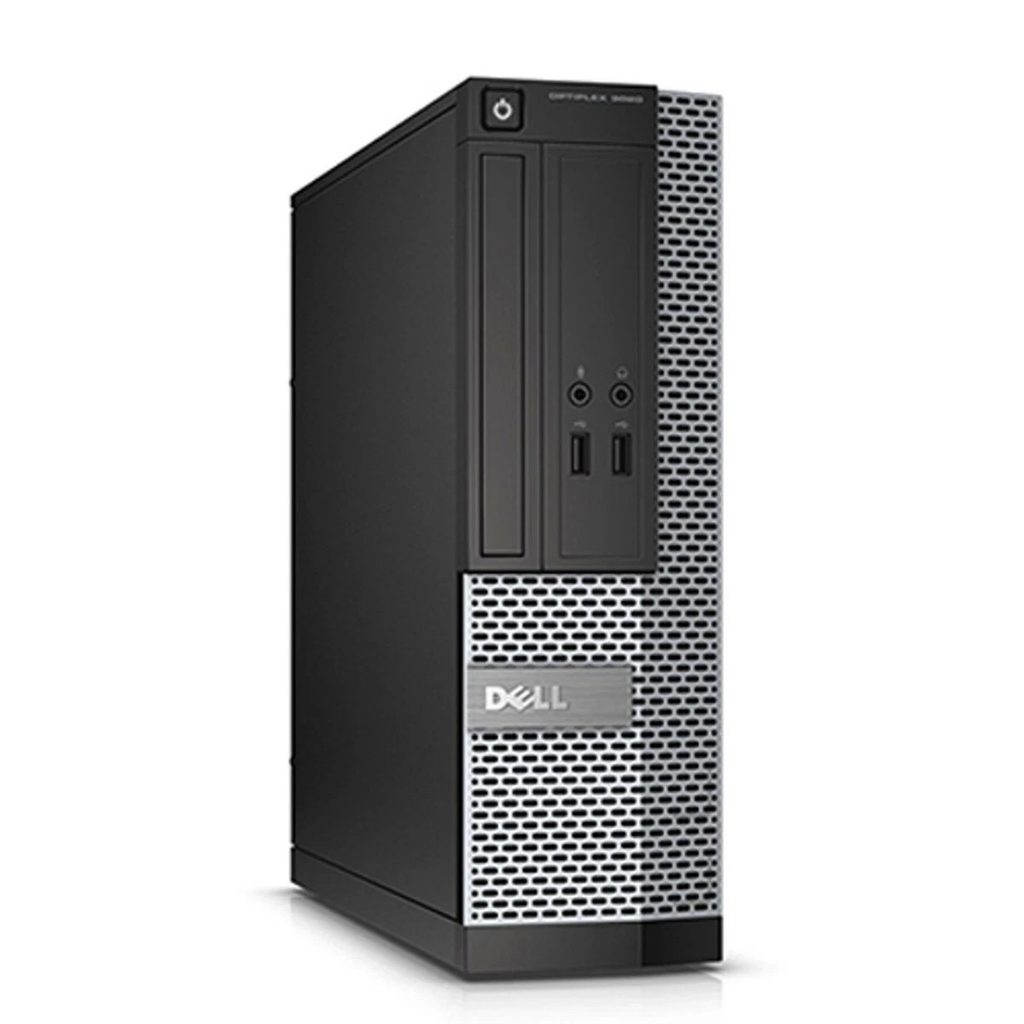
The Dell OptiPlex SFF is a desktop computer designed for environments where internal expandability is required but desk space is limited. Unlike the Micro series, which uses external power adapters and laptop-style components, the SFF uses an internal power supply and standard desktop-sized memory and storage. This design allows for more storage drives and additional plug-in cards, but it also introduces specific physical constraints that differ from a traditional large tower.
Internal Expansion and Proprietary Parts
The OptiPlex SFF chassis features a tool-less design, allowing the side panel to be removed by pulling a release latch. Inside, the layout is dense. While there are four slots for memory and multiple connectors for storage, the power supply and motherboard use proprietary shapes and connectors. This means that if the power supply fails or if a user wishes to upgrade to a much higher wattage, they must use a Dell-specific part rather than a standard off-the-shelf power supply. The internal space is also divided by a plastic shroud that directs airflow, which must be kept in place for the system to cool correctly.
Graphics Card Limitations
One of the most important constraints of the SFF form factor is the physical size of the expansion slots. The chassis is too narrow to fit a standard-sized graphics card. Any added card, such as a dedicated GPU or a specialized network card, must be a “low-profile” version. Furthermore, the proximity of the PCIe x16 slot to the power supply often limits the thickness of the graphics card. A card with a very large cooling fan may not fit because it would hit the power supply housing. The total power draw of an added card must also stay within the limits of the internal 180W to 300W power supply, as there are no extra power cables for high-end gaming cards.
Storage and Drive Bays
The SFF chassis provides more storage options than smaller mini-PCs. It typically includes one or two M.2 slots for high-speed NVMe drives and a dedicated bay for a 3.5-inch or 2.5-inch SATA hard drive. Some configurations also include a “slim” optical drive for CDs and DVDs. However, installing a 3.5-inch hard drive takes up a significant amount of internal space and can slightly increase the noise level due to the mechanical spinning of the drive. If the system is configured with only M.2 SSDs, the internal airflow is less obstructed, and the machine operates more quietly.
Thermal Performance and Noise
The cooling system in the OptiPlex SFF consists of a CPU heatsink with a dedicated fan and a secondary fan at the front or rear of the case. Because the fans are larger than those in the Micro series, they can move more air at lower speeds, which often results in a lower-pitched sound. However, if the system is placed in a confined space, such as a small cabinet or a desk drawer, the heat will build up quickly. The front mesh grille must remain unobstructed to allow cool air to enter. Under heavy processing loads, the fans will increase in speed, creating a steady hum that is audible in a quiet room.
2. How It Fits a Real Desk Setup
The OptiPlex SFF offers flexibility in how it is positioned on a workspace. It is designed to stand vertically like a small tower or lie horizontally. When placed horizontally, the chassis is strong enough to support the weight of a standard computer monitor placed directly on top of it. This “monitor stand” configuration was a traditional office setup and remains a space-saving option for modern desks. Rubber feet are present on both the bottom and one side of the chassis to prevent sliding and to protect the desk surface in either orientation.
Cable Management and Connectivity
Because the power supply is internal, there is no bulky power brick to hide under the desk. A single standard power cable runs from the back of the PC to the wall outlet. The rear of the machine features a variety of ports, including multiple DisplayPorts for multi-monitor setups. If a user requires HDMI or VGA, they must check if the specific unit has the optional “Flex IO” port installed, or they will need to use adapters. The front of the machine provides easy access to USB ports and a headphone jack, which is useful for daily tasks like connecting a headset for video calls or transferring files from a thumb drive.
Physical Presence and Vibration
The weight of the OptiPlex SFF makes it much more stable than smaller mini-PCs. It does not slide around when cables are plugged into the back. However, because it contains mechanical parts like a cooling fan and potentially a spinning hard drive, it can create slight vibrations. If the unit is placed on a thin or hollow desk, these vibrations can sometimes be amplified into a low-frequency hum. Placing the unit on a solid surface or using a vertical stand helps mitigate this. The internal speaker is sufficient for system notifications and basic audio, but it is not designed for high-quality music or media playback.
Maintenance and Longevity
The SFF form factor is easier to maintain over long periods compared to ultra-compact PCs. The internal components are accessible, and the larger surface area of the heatsinks means they do not clog with dust as quickly as smaller systems. Periodically removing the side panel to blow out dust with compressed air is a simple process that does not require tools. This accessibility also makes it easier to add more memory or replace a storage drive if the user’s needs change after a few years of use.
3. Performance by Use Case
The following ratings are based on a standard configuration featuring an Intel Core i5 or i7 processor and at least 16GB of RAM. Performance will vary if the system is equipped with an entry-level i3 processor or a lower amount of memory.
| Use Case | Software | Rating | Reason |
| Office Productivity | Excel, Outlook, Slack | Sufficient | Handles large files and many open apps simultaneously |
| Web Browsing | Chrome, Edge (50+ tabs) | Sufficient | High RAM capacity prevents slowdowns with many tabs |
| Photo Editing | Photoshop, Lightroom | Adequate | Fast enough for editing; rendering speed is standard |
| Video Editing | Premiere Pro (1080p) | Adequate | Sufficient for basic editing; 4K is limited by GPU |
| 3D Gaming | Modern AAA Games | Not enough | Integrated graphics and PSU limits prevent high-end gaming |
| Workstation Tasks | CAD, 3D Rendering | Not enough | Low-profile GPU limits and power constraints hinder 3D work |
The ratings above assume the use of the integrated graphics. Adding a low-profile dedicated graphics card can improve the “Adequate” ratings but will not change the “Not enough” status for high-end gaming or professional 3D rendering.
4. Official Specs (with plain explanations)
| Category | Specification | Notes |
| CPU | Intel Core i3 to i9 (12th to 14th Gen) | Desktop processors, performance depends on the specific generation |
| Graphics | Intel UHD Graphics / Optional Low Profile GPU | Integrated by default, supports small expansion cards only |
| Memory | Up to 128GB DDR4 or DDR5 | Four DIMM slots, allows for future capacity increases |
| Storage | M.2 NVMe SSD + 3.5″ or 2.5″ SATA | Supports multiple internal drives for high capacity |
| Display | 2x to 3x DisplayPort (Standard) | Supports multiple monitors without adding a graphics card |
| Weight | Starting at 4.87 kg (10.7 lbs) | Varies based on internal drive and optical drive |
| Power | 180W to 300W+ Internal PSU | Proprietary shape and connectors, no external power brick |
| Ports | USB-C, USB-A, DisplayPort, Optional IO | Front and rear access for peripheral connections |
This series is sold with different CPUs, memory, and storage depending on the release year and generation. Please match the specifications on your current seller page with the official information above.
Source: Dell Official Product Page
The specifications listed above define the Small Form Factor (SFF) version of the OptiPlex lineup. This chassis sits between the ultra-compact Micro and the full-sized Tower, offering a balance of internal expansion and desk space efficiency. The following sections describe how these physical specifications impact daily use and what to look for when selecting a specific configuration.
5. Main Variations in This Series
- Processor Generations: The series spans multiple years, with models featuring 12th, 13th, or 14th Generation Intel Core processors. Newer generations include more efficiency cores for background tasks.
- Memory Standards: Depending on the specific model year (such as the 7010 or 7020), the system uses either DDR4 or the newer, faster DDR5 memory. These two types are not interchangeable.
- Power Supply Wattage: Units are equipped with different internal power supplies, such as 180W, 260W, or 300W. The wattage determines whether the system can support an additional low-profile graphics card.
- Expansion Slot Layout: The motherboard typically includes one PCIe x16 slot and one PCIe x4 slot. Both slots require “low-profile” cards, which are shorter in height than standard desktop components.
6. What to Check on the Sales Page
When reviewing a listing for an OptiPlex SFF, the internal configuration is more important than the external appearance, as the same chassis is used for many different performance levels.
- CPU Generation: Check whether you are getting the 12th, 13th, or 14th Gen processors.
- Memory Type and Slots: Confirm if the system uses DDR4 or DDR5 and how many slots are currently filled. A system with 2x8GB is easier to upgrade than one with 4x4GB.
- Power Supply Rating: Look for the wattage of the internal PSU (e.g., 180W, 260W, or 300W). A higher wattage is necessary if you plan to add a dedicated graphics card later.
- Storage Configuration: Verify if the primary drive is an M.2 NVMe SSD. Some older or refurbished units might still use slower 3.5-inch mechanical hard drives as the main boot drive.
- Included Ports: Check the rear photo or port list for HDMI or VGA if your monitor requires them, as these are often optional add-ons in the OptiPlex series.
The specifications on the sales page are the final authority on what is inside the box. Always double-check the RAM and storage totals, as these are frequently customized by sellers.
7. Disclaimer & Buying Advice
This buying guide for the OptiPlex SFF Series is based on official manufacturer specifications and recurring real-world user experiences. It is completely independent, not sponsored, and does not guarantee specific performance for every unit. Hardware configurations such as the processor, memory, and storage can differ by generation and region, so please double-check the exact specifications listed on your seller’s page before purchasing.
8. Beginner Guide
If you are feeling overwhelmed by technical terms and want a simpler way to choose your next computer, you can [Start Here] to find a clear explanation of the different categories.