
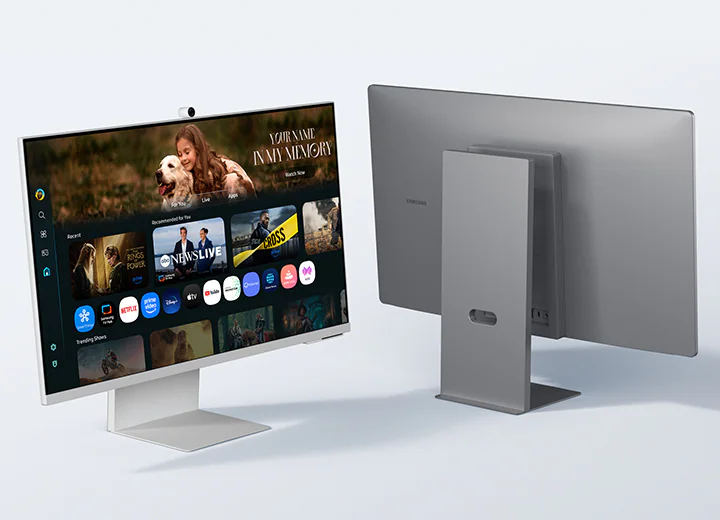
Image Source: Samsung Official
Who Is It For?
The Samsung Smart Monitor series fits users who require a single screen to function as both a computer display and a standalone entertainment system. This series suits students in dormitories or professionals in small studio apartments where there is no room for both a desk monitor and a separate television. Because these monitors include a built-in operating system (Tizen OS), they fit users who want to watch streaming services like Netflix or YouTube without turning on a PC. The M7 and M8 models also fit laptop users who want to charge their device and send video through a single USB-C cable.
However, this series does not fit competitive gamers who require high refresh rates—how many times the image updates each second—as the entire line is physically limited to 60Hz. It is not for professional photographers or colorists who need absolute color consistency, as the VA (Vertical Alignment) panels used in these monitors exhibit color shifts when viewed from the side. The series also does not fit users who want a “dumb” monitor that turns on instantly, as the smart interface can introduce a short delay when switching between inputs. If this form factor or the integrated smart features don’t quite fit your daily work, exploring other lineup categories would be a better path.
1. How This Line Is Grouped
Samsung organizes the Smart Monitor series into three primary tiers: the M5, the M7, and the M8. While they all share the same smart interface and remote control, they are physically distinguished by their resolution, brightness, and connectivity options.
| Tier | Model Name | Resolution | Key Characteristics |
| Entry | Smart Monitor M5 | 1920 x 1080 (FHD) | Basic stand, no USB-C charging, 250-nits brightness. |
| Mid-Range | Smart Monitor M7 | 3840 x 2160 (4K) | USB-C with 65W power delivery, 300-nits brightness. |
| Flagship | Smart Monitor M8 | 3840 x 2160 (4K) | SlimFit Camera, 400-nits brightness, height-adjustable stand. |
The M5 Series (Full HD)
The M5 is the baseline model. It uses a 1080p resolution, which is the standard for basic video and office work. Physically, the M5 is the thinnest in terms of features; it lacks the USB-C port found in higher tiers, meaning users must connect via HDMI. The stand is usually a simple tilt-only design, and the chassis is typically available in black or white. It is the only tier that offers a 27-inch and 32-inch option at a lower resolution, which makes text appear larger but less sharp than the 4K models.
The M7 Series (4K UHD)
The M7 moves the resolution up to 4K, providing four times the number of pixels as the M5. This allows for much sharper text and more room for multiple windows on the screen. The most significant physical addition to the M7 is the USB-C port with Power Delivery. This allows a compatible laptop to receive power (up to 65W) while sending a video signal to the monitor through one cable. The M7 is often available in 32-inch and 43-inch sizes, with the latter functioning almost exactly like a small 4K television.
The M8 Series (Flagship 4K)
The M8 is the premium version of the 32-inch 4K monitor. It features a different industrial design with a flat back and a height-adjustable stand (HAS) that is absent in the standard M5 and M7 models. The M8 includes a magnetic “SlimFit Camera” in the box for video calls. It also has a higher peak brightness of 400 nits, making it more visible in bright rooms. The M8 is known for its color variety, often sold in pastel shades like green, blue, and pink, in addition to white.
2. Check Before You Buy
The Impact of VA Panel Gamma Shift
All models in the Samsung Smart Monitor series use VA (Vertical Alignment) panels. VA panels are known for high contrast, meaning blacks look darker than on an IPS (In-Plane Switching) panel. However, VA panels have a physical limitation called “gamma shift.” If the user moves their head to the side, the colors and shadows at the edges of the screen will appear to wash out or change slightly. This is a physical characteristic of the panel and is most noticeable on the larger 32-inch and 43-inch models. Users who perform professional color grading or photo editing may find this shift interferes with their accuracy.
Managing the 60Hz Motion Limit
The refresh rate of this series is 60Hz, meaning the screen updates 60 times per second. While this is the standard for office work and movies, it is a physical bottleneck for gaming. In fast-paced games, a 60Hz screen can exhibit “motion blur,” where moving objects look fuzzy. Furthermore, the response time—the time it takes for a pixel to change from one color to another—is typically 4ms (GtG). On a VA panel, this can sometimes result in “dark smearing,” where dark objects leave a faint trail when moving across a lighter background.
Tizen OS and Input Switching Delays
Because these monitors are “Smart,” they run Tizen OS, the same software found on Samsung TVs. When the monitor is turned on, it may default to the Smart Hub home screen rather than the PC input. Switching between a connected computer and a streaming app like Netflix requires navigating a menu with the remote control. This process is slower than a traditional “dumb” monitor that simply displays whatever is plugged into the HDMI port. Users who frequently switch between multiple computers throughout the day may find this software layer adds several seconds to their workflow.
M8 VESA Mounting Constraints
The M8 model features a very thin chassis, which results in a non-standard back design. While the M5 and M7 models typically have standard VESA 100x100mm mounting holes (the standard screw pattern for a monitor arm), the M8 often requires a specific VESA adapter plate that may or may not be included in the box depending on the region and model year. Without this adapter, the M8 cannot be attached to a standard monitor arm. Users planning to use a third-party arm must verify the inclusion of this adapter on the sales page.
3. How It Fits a Real Desk Setup
The Physical Footprint of the Integrated Stand
The stands for the M5 and M7 series are relatively deep and use a rectangular base. On a desk with a depth of 60 cm (24 inches), the stand occupies a significant portion of the center area. The M8 stand is flatter and more space-efficient, allowing the user to place a keyboard or a small notebook directly on top of the base. However, because the M5 and M7 stands often lack height adjustment, the monitor may sit lower than eye level, requiring a separate monitor riser or a stack of books to achieve an ergonomic position.
Remote Control and Desk Clutter
Every Samsung Smart Monitor comes with a physical remote control. On a real desk, this is one extra item that must be managed. The remote is necessary for accessing the Smart Hub, adjusting volume, and changing settings, as the physical buttons on the monitor itself are usually limited to a single “jog” button under the logo. The remote for newer models (M7 and M8) is often solar-powered or rechargeable via USB-C, eliminating the need for disposable batteries.
Workspace Feature and PC-less Productivity
One of the unique desk scenarios for this series is “PC-less” work. The monitor can connect to Microsoft 365 (Office) directly through the built-in Wi-Fi. A user can plug a Bluetooth keyboard and mouse into the monitor and edit documents without a computer being present. This fits a “minimalist” desk setup where the user only wants a screen and peripherals. However, the processing power of the monitor is limited compared to a PC, so this feature is best suited for simple document editing rather than complex spreadsheets.
Cable Management and USB-C Hub
On the M7 and M8 models, the USB-C port acts as a hub. If a user plugs a mouse and keyboard into the USB-A ports on the back of the monitor, those peripherals will work on the laptop connected via USB-C. This reduces the number of cables running to the laptop. However, the ports are located on the back of the monitor, facing outwards or downwards. This makes it difficult to plug in temporary devices like thumb drives without turning the monitor around or reaching blindly behind the screen.
4. Sizes and Models in This Line
The Smart Monitor series is available in three main sizes, each offering a different balance of pixel density—how many pixels are packed into an inch of the screen.
| Size | Common Resolution | PPI | Notes |
| 27″ | 1920 x 1080 (FHD) | 81 | Available in M5; text may look slightly pixelated. |
| 27″ | 3840 x 2160 (4K) | 163 | Available in M7/M8; extremely sharp text. |
| 32″ | 1920 x 1080 (FHD) | 69 | Available in M5; large text, but low sharpness. |
| 32″ | 3840 x 2160 (4K) | 138 | The standard size for M7 and M8; very sharp. |
| 43″ | 3840 x 2160 (4K) | 102 | Available in M7; essentially a TV for a large desk. |
The 27-inch M5 is a common choice for small desks. However, because it is only 1080p, the pixels are large enough to be seen if the user sits closer than 60 cm (24 inches). The 27-inch 4K models (M7/M8) are much sharper, making them better for reading long documents.
The 32-inch size is the most popular for this series. At 4K resolution, it provides a large workspace without the text becoming too small to read. The 32-inch M5 (1080p) is often used by those who have difficulty seeing small text, as the lower resolution makes everything on the screen physically larger, though the image will appear “soft” or slightly blurry compared to the 4K models.
The 43-inch M7 is a massive display. It is 96 cm (38 inches) wide. On a standard desk, this monitor will fill the user’s entire field of vision. It is physically too large for a shallow desk and usually requires a desk depth of at least 80 cm (31 inches) to be used comfortably as a monitor. It is frequently used by traders or developers who need to see many windows at once without a bezel (the plastic border) in the middle.
5. Performance by Use Case
The performance of the Samsung Smart Monitor is defined by its hybrid nature. It is a “Jack of all trades” that performs differently depending on the task.
| Use Case | Software / Task | Rating | Reason |
| Streaming Media | Netflix, YouTube, Disney+ | Sufficient | Built-in apps and remote make it a perfect small TV. |
| General Office | Word, Excel, Web Browsing | Sufficient | 4K resolution (M7/M8) provides clear text and space. |
| Casual Gaming | Nintendo Switch, Indie PC | Sufficient | 60Hz is fine for non-competitive, colorful games. |
| Competitive Gaming | Valorant, CS2, Apex | Not enough | 60Hz refresh rate and VA smearing cause motion blur. |
| Photo/Video Editing | Photoshop, Premiere | Adequate | Good contrast, but VA color shift affects accuracy. |
| Video Conferencing | Zoom, Google Meet | Sufficient | M8 includes a camera; others require a USB webcam. |
The “Sufficient” rating for streaming media is due to the inclusion of HDR10 support. HDR (High Dynamic Range) allows the monitor to show more detail in the brightest and darkest parts of a movie. However, because these monitors lack “local dimming” (the ability to turn off specific parts of the backlight), the HDR effect is less dramatic than on a high-end OLED TV.
6. Official Specs (with plain explanations)
| Category | Specification | Notes |
| Panel Type | VA (Vertical Alignment) | High contrast (3000:1) but limited viewing angles. |
| Refresh Rate | 60Hz | The screen updates 60 times per second. |
| Response Time | 4ms (GtG) | Time for a pixel to change color; standard for office. |
| Brightness | 250 – 400 nits | Nits = unit of brightness; 400 is bright for indoors. |
| Connectivity | HDMI 2.0, USB-C, Wi-Fi, BT | USB-C is only on M7 and M8 models. |
| Power Delivery | Up to 65W (M7/M8) | Charges a laptop through the USB-C cable. |
| OS | Tizen Smart OS | Built-in apps and voice assistants (Bixby/Alexa). |
This line is sold with different tier names, sizes, refresh rates, and panels depending on the exact model and region. Please match the specifications on your current seller page with the official information above.
Source: Samsung Official Product Page
The “GtG” (Gray to Gray) response time of 4ms is a measure of how quickly the pixels can shift. While 4ms is fast, the VA panel technology can still cause “ghosting” (a faint trail) in very dark scenes, which is a physical limitation of the liquid crystals used in the screen.
7. Main Variations in This Line
The most significant variation is the model year, indicated by the letter at the end of the model number. For example, the M80B is the 2022 model, the M80C is the 2023 model, and the M80D is the 2024 model. Newer models often feature faster processors for the Tizen OS and improved integration with Samsung’s “SmartThings” home automation system.
Another variation is the “SlimFit Camera.” This camera is included with the M8 but is an optional purchase for the M5 and M7. It attaches magnetically to the back of the monitor and has a physical privacy shutter.
The 43-inch M7 is a unique variation that includes a more powerful speaker system than the 27-inch or 32-inch models. Because the chassis is larger, it can hold bigger speakers, providing a sound experience that is closer to a traditional television.
8. What to Check on the Sales Page
- Line / Tier / Size: Check whether you are getting the M5 (1080p) or the M7/M8 (4K), as the sharpness difference is significant.
- Model Year: Look for the letter (B, C, or D) to ensure you are getting the latest version of the smart software.
- USB-C Power Delivery: If you plan to charge a laptop, confirm the wattage (e.g., 65W). The M5 does not have this feature.
- Stand Type: Verify if the stand is “Tilt Only” or “Height Adjustable.” Most M5 and M7 models do not move up and down.
- VESA Compatibility: If you use a monitor arm, check if a VESA adapter is required, especially for the M8 model.
9. Disclaimer & Buying Advice
This buying guide for the Samsung Smart Monitor Series is based on official manufacturer specifications and recurring real-world user experiences. It is completely independent, not sponsored, and does not guarantee specific performance for every unit. Tier name, screen size, refresh rate, panel type, and ports can differ by model and region, so please double-check the exact specifications listed on your seller’s page before purchasing.
10. Beginner Guide
If you are new to monitor terms like refresh rate (Hz), panel type (VA), and resolution (FHD/4K), read the basics in our [Start Here]. Understanding how these technical specs interact with your computer or streaming habits will help you determine if the hybrid Samsung Smart Monitor series fits your specific needs.

[…] Samsung Smart Monitor M8 — Versatile smart display for work and streaming […]