Image Source: Dell Official
Who Is It For?
The Dell OptiPlex Tower is for individuals and organizations that require a stationary computer for professional work, data management, or administrative tasks. It fits the needs of office workers who manage large spreadsheets, IT departments that require remote management features, and users who need a machine that can support multiple internal storage drives. The inclusion of four memory slots in the Plus models makes it a tool for those who plan to keep their computer for several years and may need to increase its capabilities. It is not for those who require a portable solution or for those who want to build a custom gaming machine using standard retail parts.
“If this form factor or power doesn’t quite fit your daily work, exploring other lineup categories would be a better path.”
1. Check Before You Buy
The Dell OptiPlex Tower is a desktop computer designed for professional and enterprise environments where reliability and long-term stability are prioritized. This series uses a proprietary internal design that differs from standard consumer-grade computers. The motherboard, power supply, and cooling system are specifically engineered to fit the 18.7-liter chassis. This means that the internal components are not interchangeable with standard retail parts. If a component like the power supply fails outside of the warranty period, a standard ATX power supply from a retail store will not fit the screw holes or connect to the motherboard.
Proprietary Power and Motherboard Architecture
The power supply unit in the OptiPlex Tower uses a specific 8-pin or 12-pin connector to provide electricity to the motherboard, rather than the industry-standard 24-pin connector. The physical dimensions of the power supply are also unique to this chassis. The wattage of the power supply is fixed at the time of purchase, ranging from 180W to 500W. This wattage determines the limit for future hardware additions. For example, a tower equipped with a 180W power supply cannot support the addition of a dedicated graphics card that requires an external power cable. The motherboard is also shaped to align with the specific port cutouts on the rear of the case, making it a permanent part of the chassis.
Thermal Management and Internal Airflow
The cooling system in the OptiPlex Tower consists of a processor heatsink and a system fan. In many configurations, a plastic shroud is placed over the processor fan to direct air from the front intake mesh directly through the heatsink and out the rear of the case. This design prevents hot air from circulating inside the chassis. During heavy processing tasks, the fan speed increases to manage the internal temperature, which results in an audible whirring sound. The chassis features a mesh front panel that allows air to enter the system. If this mesh becomes blocked by dust or if the tower is placed in a confined cabinet, the internal temperature will rise, and the system will reduce its speed to protect the hardware.
Expansion Limits and Slot Availability
The OptiPlex Tower is available in “Plus” and “Standard” configurations, and the choice between them determines the future upgrade path. The Plus model features four memory slots, allowing for a maximum of 128GB of RAM, while the Standard model is limited to two slots and 64GB. Similarly, the Plus model provides more M.2 slots for high-speed solid-state drives. The physical space inside the case allows for full-height expansion cards, but the length of these cards is limited by the internal drive cages. If a dedicated graphics card is installed, it occupies the primary PCIe slot, and the total power draw must remain within the limits of the installed power supply.
2. How It Fits a Real Desk Setup
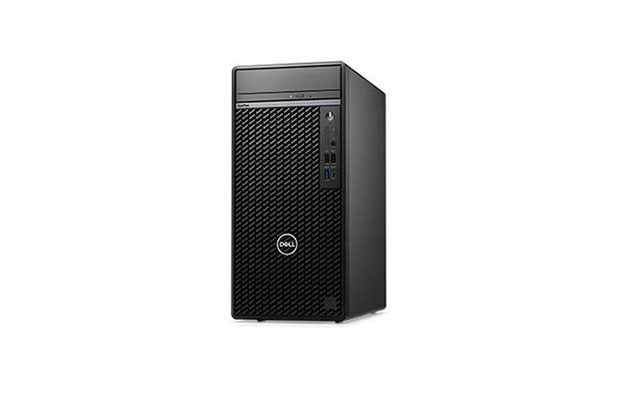
The Dell OptiPlex Tower is designed to sit vertically on a desk or on the floor in a permanent office setup. The chassis stands 36.7 centimeters tall and 16.9 centimeters wide. On a desk, it occupies a rectangular footprint that leaves room for a monitor and peripherals. The front panel features a professional aesthetic with a vertical arrangement of ports and a large mesh area for ventilation. The power button is located at the top of the front panel, making it easy to reach whether the tower is placed on the desk surface or underneath it.
Front-Panel Connectivity and Port Access
The front of the OptiPlex Tower is populated with ports for quick access, typically including multiple USB-A ports and a USB-C port. This allows for the connection of thumb drives, external hard drives, and mobile devices without reaching behind the computer. A 3.5mm universal audio jack is also located on the front for headsets. The spacing between the USB ports is sufficient for standard cables, but wide USB thumb drives may block adjacent ports. The power button includes an integrated LED that changes color or flashes to indicate the system status or hardware errors.
Acoustic Profile and Noise Levels
In a standard office environment, the OptiPlex Tower operates at a low noise level during basic tasks like web browsing or document editing. The internal fans spin at a minimum speed that is difficult to hear from a distance of one meter. When the processor is under a heavy load, such as during a large file encryption or a video export, the fan speed increases. The sound is a consistent hum of moving air. Because the tower has a larger internal volume than the “Small Form Factor” or “Micro” models, it can move air more efficiently, which often results in a lower-pitched fan sound during sustained work.
Rear Connectivity and Cable Management
The rear of the OptiPlex Tower includes the permanent connections for the system, such as the power cord, Ethernet, and monitor cables. The standard configuration includes multiple DisplayPort outputs, which allow for the connection of several monitors simultaneously. If the computer is configured with a dedicated graphics card, the monitor must be plugged into the horizontal ports on the card rather than the vertical ports on the motherboard. The rear also features a Kensington lock slot and a padlock loop to prevent unauthorized physical access to the internal components. When placing the tower against a wall, approximately 10 centimeters of clearance is required for the cables to prevent them from being bent.
Maintenance and Tool-Less Entry
The OptiPlex Tower features a tool-less entry design. A release latch on the side panel allows the user to remove the metal cover without using a screwdriver. Inside the case, the components are organized to allow for easy access. The memory slots and M.2 storage slots are located on the main motherboard, while the 3.5-inch and 2.5-inch drive bays are positioned toward the front of the chassis. The internal cables are routed through plastic clips to keep them away from the fans. This organization simplifies the process of adding more memory or replacing a storage drive, although the proprietary nature of the power supply and motherboard remains a factor.
3. Performance by Use Case
The following ratings are based on a middle-tier configuration featuring an Intel Core i5 or i7 processor and 16GB or 32GB of RAM.
| Use Case | Software | Rating | Reason |
| Office Productivity | Excel, Word, Outlook | Sufficient | High core count and 16GB+ RAM handle large datasets easily. |
| Web Browsing | Chrome, Edge (30+ tabs) | Sufficient | Multiple RAM slots allow for high memory capacity for many tabs. |
| Data Analysis | SQL, Power BI, Python | Sufficient | Fast NVMe storage and multi-core CPU support heavy processing. |
| Photo/Video Editing | Photoshop, Premiere | Adequate | Sufficient for editing, but limited by the specific GPU chosen. |
| 3D Modeling | AutoCAD, Blender | Adequate | Performance depends on whether a dedicated RTX GPU is installed. |
| AAA Gaming | Modern Heavy Titles | Adequate | Can run games if an RTX GPU is present, but not a gaming-first PC. |
The performance of the OptiPlex Tower is consistent due to its robust cooling and high-quality power delivery components. However, the integrated graphics models will experience limitations in 3D-heavy applications compared to models with a dedicated NVIDIA GPU.
4. Official Specs (with plain explanations)
| Category | Specification | Notes |
| CPU | Intel Core i3-13100 to i9-14900 | 13th and 14th Gen Intel processors |
| Graphics | Intel UHD or NVIDIA RTX 4060 | Integrated or dedicated GPU options |
| Memory | Up to 128GB DDR5 (4 slots) | Four physical slots, user-replaceable modules |
| Storage | Up to 3x M.2 SSD + 2x SATA HDD | Multiple internal drive mounting points |
| Dimensions | 367.0 mm x 169.0 mm x 300.8 mm | 18.7-liter mid-tower chassis volume |
| Weight | 5.93 kg to 9.63 kg | Varies based on internal hardware components |
| Power Supply | 180W to 500W (80 Plus) | Proprietary shape and internal connectors |
| Ports | USB-C, USB-A, DisplayPort, RJ45 | Front and rear physical connection points |
This series is sold with different CPUs, memory, and storage depending on the release year and generation. Please match the specifications on your current seller page with the official information above.
Source: Dell Official Product Page
The specifications listed above represent the hardware foundation of the OptiPlex Tower series, specifically the 7010 and 7020 models. These components determine the physical space the tower occupies, the speed of data processing, and the technical limits for future hardware changes.
5. Main Variations in This Series
- The “Plus” models feature four memory slots and three M.2 storage slots, while the standard models feature two memory slots and one M.2 slot.
- Processor options span from the 13th generation to the 14th generation Intel Core series, affecting the number of performance cores and the type of onboard security features.
- Graphics configurations range from integrated Intel chips for office work to dedicated NVIDIA RTX cards for 3D rendering or multi-monitor setups.
- Power supply units are available in different wattages, with the 500W version required for configurations that include a dedicated graphics card.
- The rear port selection can be customized at the factory to include optional VGA, HDMI, or Serial ports depending on the specific unit configuration.
6. What to Check on the Sales Page
When reviewing a listing for the OptiPlex Tower, the specific model generation and the internal components will determine the actual performance and expansion limits of the machine.
- CPU Generation: Check whether you are getting the 13th or 14th Gen Intel Core processors.
- Model Tier: Confirm if the unit is a “Plus” or “Standard” model to know the number of RAM and SSD slots.
- Memory Configuration: Verify the amount of RAM and if it is DDR5, as this affects data transfer speeds.
- Power Supply Wattage: Check if the PSU is 180W, 260W, or 500W, especially if you plan to add a GPU later.
- Included Ports: Confirm the presence of specific ports like HDMI or Serial if your work requires them.
- Storage Type: Ensure the primary drive is an “SSD” or “NVMe” for fast boot times and application loading.
7. Disclaimer & Buying Advice
This buying guide for the Dell OptiPlex Tower is based on official manufacturer specifications and recurring real-world user experiences. It is completely independent, not sponsored, and does not guarantee specific performance for every unit. Hardware configurations such as the processor, memory, and storage can differ by generation and region, so please double-check the exact specifications listed on your seller’s page before purchasing.
8. Beginner Guide
If you are setting up a professional workstation for the first time and want to understand how to connect multiple monitors and secure your data, you can [Start Here] to read our basic hardware and setup guides.