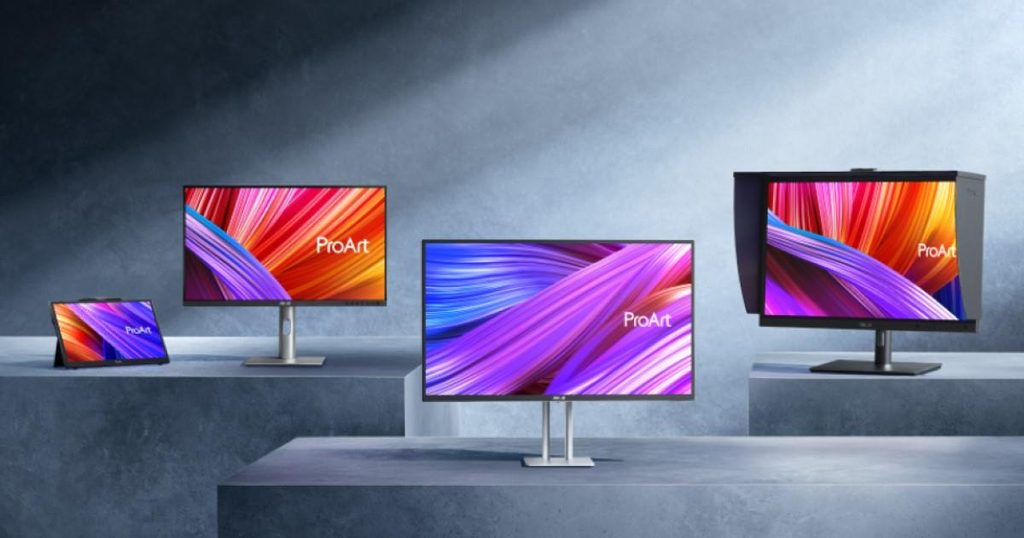
Image Source: ASUS Official
Who Is It For?
The ASUS ProArt series fits users who require high color precision for visual tasks such as photography, video editing, and graphic design. This series suits creative professionals who need to ensure that the colors they see on their screen match the final printed product or the digital standard used in the film industry.
Because many models include a single-cable USB-C connection that handles video and power, they fit laptop users who want to simplify their desk setup. The factory-calibrated panels fit those who do not want to spend time manually adjusting color settings immediately after purchase.
However, this series does not fit competitive gamers who require ultra-high refresh rates—how many times the image updates each second—as most ProArt models are physically limited to 60Hz or 75Hz. It is not for users on a strict budget who only perform basic office tasks, as the cost includes specialized color-processing hardware that is absent in standard office monitors.
The ProArt series also does not fit those seeking a “gaming” aesthetic with aggressive RGB lighting, as the chassis is built with a professional, minimalist appearance. If this form factor or the professional-grade color focus doesn’t quite fit your daily work, exploring other lineup categories would be a better path.
1. How This Line Is Grouped
ASUS organizes the ProArt line into several tiers based on the level of color accuracy, the type of backlight technology, and the specific color spaces supported. The model names typically start with “PA” followed by the screen size and a suffix that indicates the feature set.
| Tier | Typical Names | Rough Position |
| Standard Professional | PA248QV, PA278QV | Entry-level color work; sRGB focus; 1080p to 1440p. |
| Advanced Creative | PA279CV, PA329CV | 4K resolution; USB-C power delivery; Rec. 709 support. |
| Professional HDR | PA279CRV, PA329CRV | Wide color gamut (P3); slim design; high-wattage USB-C. |
| Flagship / Cinema | PA32UCX, PA32UCG | Mini-LED backlighting; high peak brightness; 120Hz+ available. |
| OLED Professional | PA27DCE, PA32DC | Self-emissive pixels; infinite contrast; for HDR mastering. |
The Standard Professional models are the baseline for the series. They focus on 100% sRGB color coverage, which is the standard color space for web content and standard digital photography. These models are physically flat and often use a 16:10 aspect ratio in the 24-inch size, providing extra vertical space for software toolbars.
The Advanced and Professional HDR models move the resolution up to 4K (3840 x 2160) and introduce wider color gamuts like DCI-P3, which is the standard used in the cinema industry. These models feature “Calman Verified” status, meaning they have been physically tested by an independent color authority to ensure a Delta E (color error measurement) of less than 2. A Delta E below 2 means the difference between the true color and the displayed color is invisible to the human eye.
The Flagship and OLED models represent the peak of the ProArt line. The “UC” and “UCX” models use Mini-LED technology, which consists of thousands of tiny lights behind the screen that can be dimmed in specific zones. This allows the monitor to show very bright highlights and very dark blacks at the same time. The OLED models (indicated by “DC”) use pixels that produce their own light, allowing for perfect blacks and a 0.1ms response time—the time it takes for a pixel to change color.
2. Check Before You Buy
- Hardware Calibration vs. Software Calibration: A major physical distinction in the ProArt line is how the monitor handles color adjustments. Standard models (like the PA278QV) use software calibration, where the color changes are made by the computer’s graphics card. Higher-end models (like the PA329C) support hardware calibration, saving color data directly into the monitor’s internal memory (Look-Up Table or LUT) so accuracy remains consistent across different devices.
- Refresh Rate and Motion Smoothness: Most ProArt monitors are limited to 60Hz or 75Hz, which is sufficient for photo editing and office work, but can feel choppy for users accustomed to 120Hz or 144Hz screens. Only specialized “UCG” models offer high refresh rates (up to 120Hz or 160Hz) for game developers needing smooth motion.
- USB-C Power Delivery Wattage: ProArt monitors with USB-C ports can charge a laptop while carrying the video signal, but wattage varies. Some models provide 65W for smaller laptops, while newer “CRV” models provide 96W to prevent heavy workstation batteries from draining during video rendering.
- Local Dimming and “Blooming”: On Mini-LED models (like the PA32UCX), local dimming zones achieve high contrast for HDR content. However, this can cause a physical phenomenon called “blooming” or “haloing,” where light from a bright object leaks into surrounding dark zones in pitch-black rooms.
3. How It Fits a Real Desk Setup
- The Square Base and Desk Depth: ProArt monitors typically use a flat, square-shaped base that occupies about 20 cm to 25 cm of depth on a 60 cm (24-inch) desk. Its flat top allows users to place small items like a smartphone or colorimeter on the stand, and the stand supports full height, tilt, swivel, and 90-degree pivot adjustments.
- Shading Hoods and Physical Width: Higher-end models often include a three-sided shading hood lined with black felt to block overhead office lights and glare. When attached, it adds approximately 5 cm to 10 cm to the total width and depth, which requires planning in tight corner setups.
- Built-in Motorized Colorimeter (PA32DC): The flagship OLED model (PA32DC) features a built-in sensor that automatically flips down from the top to check and adjust colors, eliminating the need for an external calibration device and ensuring continuous accuracy.
- VESA Mounting and Weight: While supporting the VESA 100×100 standard for monitor arms, weight varies widely from 5 kg for 24-inch units to over 14 kg for 32-inch Mini-LED models. A high-capacity, heavy-duty gas-spring arm is a physical requirement for larger flagship models to prevent sagging.
4. Sizes and Models in This Line
| Size | Common Resolution | Aspect Ratio | Notes |
| 24″ | 1920 x 1200 (WUXGA) | 16:10 | Extra vertical space; fits 1080p video with toolbars. |
| 27″ | 2560 x 1440 (QHD) | 16:9 | Standard professional size; balances space and cost. |
| 27″ | 3840 x 2160 (4K) | 16:9 | High sharpness; fits detailed photo editing. |
| 32″ | 3840 x 2160 (4K) | 16:9 | Large workspace; often features Mini-LED or OLED. |
| 34″ | 3440 x 1440 (UWQHD) | 21:9 | Ultrawide; fits long video timelines. |
The 24-inch models (like the PA248QV) provide 1200 vertical pixels instead of 1080, giving video editors extra room for software menus. The 27-inch 4K models (like the PA279CRV) offer a sharp 163 PPI pixel density, though most users will need operating system scaling (e.g., 150%) for comfortable reading. The 32-inch models are thick (5 cm to 10 cm) to accommodate advanced cooling systems for high-brightness backlights, providing massive screen real estate for complex projects.
5. Performance by Use Case
| Use Case | Software / Task | Rating | Reason |
| Photo Editing | Photoshop, Lightroom | Sufficient | 100% sRGB and 99% Adobe RGB coverage (on high-end). |
| Video Grading | DaVinci Resolve, Premiere | Sufficient | DCI-P3 coverage and HDR support for film standards. |
| Graphic Design | Illustrator, InDesign | Sufficient | Delta E < 2 ensures colors match brand guidelines. |
| Competitive Gaming | Valorant, CS2, Apex | Not enough | 60Hz refresh rate and 5ms response time cause motion blur. |
| Office Work | Excel, Word, Outlook | Sufficient | Sharp text and “Eye Care” flicker-free technology. |
| 3D Modeling | Blender, AutoCAD | Sufficient | High resolution and accurate perspective on flat panels. |
The “Sufficient” rating for creative work stems from “Calman Verified” factory calibration, guaranteeing out-of-the-box color accuracy for professionals without external calibration hardware.
6. Official Specs (with plain explanations)
| Category | Specification | Notes |
| Panel Type | IPS or OLED | IPS = wide angles; OLED = perfect blacks. |
| Resolution | WUXGA, QHD, 4K | Total number of pixels; higher = sharper image. |
| Refresh Rate | 60Hz to 165Hz | How many times the image updates each second. |
| Response Time | 0.1ms to 5ms (GtG) | Time for a pixel to change color; lower is better. |
| Brightness | 300 to 1600 nits | Nits = unit of brightness; 1000+ is for HDR. |
| Color Gamut | 100% sRGB / 99% P3 | The range of colors the monitor can physically show. |
| Connectivity | HDMI, DP, USB-C | USB-C handles video, data, and laptop charging. |
7. Main Variations in This Line
The primary variations lie in backlight technology—Standard IPS for durability and sRGB work, Mini-LED for high-brightness HDR work, and OLED for zero motion blur and perfect blacks.
Additionally, newer “CRV” suffixes feature a thinner chassis, compact stand, higher USB-C power delivery (96W vs 65W), and DisplayPort-out for daisy-chaining multiple monitors with a single cable. Professional models with “P” or “UC” suffixes support hardware calibration for long-term accuracy preservation.
8. What to Check on the Sales Page
- Line / Tier / Size: Confirm you are purchasing a ProArt “PA” model rather than a TUF “VG” or ROG “PG” alternative.
- Delta E Value: Verify that the listing explicitly states “Delta E < 2” as an official color accuracy guarantee.
- USB-C Power Delivery: Check the wattage rating (e.g., 96W) to ensure it satisfies your laptop charging requirements while working.
- Color Space Coverage: Match your workflow needs against 100% sRGB (web) or 99% DCI-P3 / Adobe RGB (print and film).
- Stand Adjustability: Confirm full ergonomic support (Height, Tilt, Swivel, Pivot) if desk flexibility is a priority.
9. Disclaimer & Buying Advice
This buying guide for the ASUS ProArt Series is based on official manufacturer specifications and recurring real-world user experiences. It is completely independent, not sponsored, and does not guarantee specific performance for every unit. Specifications like tier names, sizes, and ports differ by model and region, so please double-check seller details before purchasing.
10. Beginner Guide
If you are new to monitor terms like refresh rate (Hz), panel type (IPS/OLED), and resolution (QHD/4K), read the basics in our [Start Here]. Understanding how color gamuts and Delta E affect your creative work will help you determine if the professional-focused ASUS ProArt series fits your specific needs.