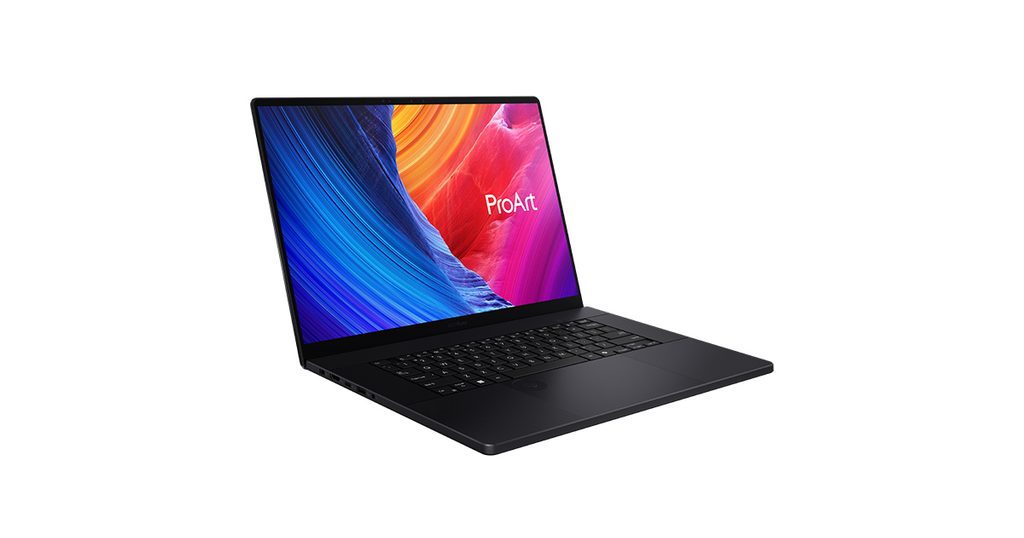
Image Source: ASUS Official
Who Is It For?
The ASUS ProArt P16 is for creative professionals who require the processing power of a dedicated NVIDIA GPU and a high-resolution OLED screen for color-accurate work. It fits the needs of a video editor who needs to work on 4K timelines while traveling or a 3D artist who needs to present models to clients. It also serves photographers who value the inclusion of a full-sized SD Express card reader and a large 16-inch display. The device is for those who prioritize a thin and light workstation frame over high-refresh-rate screens or upgradable memory.
If this form factor or power doesn’t quite fit your daily work, exploring other lineup categories would be a better path.
1. Check Before You Buy
Soldered memory and long-term planning
The ProArt P16 uses LPDDR5X memory that is soldered directly to the motherboard. This means the RAM is permanently attached and cannot be upgraded or replaced. If you purchase a model with 32GB of RAM, you will be limited to that amount for the entire lifespan of the device. For professional video editing, 3D rendering, or running multiple virtual machines, 32GB is often the baseline requirement. If your work involves extremely large 8K video timelines or complex architectural visualizations, the 64GB configuration is the only way to ensure the system does not slow down when the memory limit is reached. You must verify the RAM capacity on the sales page before finalizing the purchase, as this is a permanent hardware limitation.
Thermal management and fan noise
This laptop houses high-performance components, including a 12-core AMD processor and a dedicated NVIDIA RTX GPU, within a chassis that is 14.9mm thin. When these components are used for demanding tasks like video exporting or 3D modeling, they generate a significant amount of heat. The internal cooling system uses three fans to move this heat out of the chassis. In a quiet room, the fan noise is clearly audible when the system is under load. The area above the keyboard and the bottom of the laptop will feel hot to the touch during these periods. If you intend to use the laptop on your lap for intensive work, the heat may become uncomfortable. The cooling vents are located on the sides and rear, so they must remain unobstructed to maintain performance.
The 60Hz OLED display characteristics
The 16-inch OLED screen provides high color accuracy and deep black levels, which are useful for photo and video work. However, the refresh rate is fixed at 60Hz. This means the screen updates 60 times per second. Many modern laptops in this price range offer 120Hz or higher. While 60Hz is sufficient for static creative work, you will notice that mouse cursor movements and window scrolling are not as fluid as they are on high-refresh-rate screens. If you are transitioning from a 120Hz smartphone or monitor, the motion on the P16 screen may feel different. The glossy surface also reflects light from windows or overhead lamps, which is a factor to consider if you work in brightly lit environments.
Physical size and fingerprint-prone finish
The ProArt P16 features a “Nano Black” finish on its aluminum chassis. This coating is designed to be a deep, matte black, but it frequently shows oil and fingerprints from your hands. Maintaining a clean appearance requires regular wiping with a microfiber cloth. At 1.85 kg, the device is light for a 16-inch workstation, but its physical dimensions are still large. The 16-inch screen results in a wide frame that may not fit in standard 15-inch laptop bags. You should check the dimensions of your current bag or workspace to ensure the P16 fits comfortably. The chassis is built to military-grade durability standards, providing a rigid feel that does not flex when picked up by one corner.
2. How It Fits a Real Desk Setup
Touchpad and DialPad interaction
When you place the ProArt P16 on a desk, the most unique physical feature is the ASUS DialPad integrated into the touchpad. This is a virtual rotary controller that appears as a glowing circle in the corner of the tracking surface. It allows you to adjust brush sizes in Photoshop or scrub through timelines in video editing software by moving your finger in a circular motion. Because it is part of the touchpad, it does not take up extra physical space on the chassis. However, it does reduce the active area for standard mouse movements when the dial is active. Learning to use the DialPad requires a period of adjustment, as the tactile feedback is different from a physical knob. The touchpad itself is very large, providing ample space for finger gestures.
Port layout and external monitor support
The port selection on the P16 allows for connecting various devices without always needing an adapter. There are two USB4 ports that support high-speed data transfer and external monitor connections. The HDMI 2.1 port allows for a direct connection to a 4K or 8K monitor, which is helpful if you use the laptop as a primary computer at a desk with a larger screen. A full-sized SD Express 7.0 card reader is located on the side, providing a way for photographers to transfer files from a camera at high speeds. The ports are distributed on both sides of the machine, which helps with cable management. However, the dedicated DC-in port for the power adapter is required to reach the full performance levels of the RTX graphics card.
Daily workflow and mobility
The 1.85 kg weight and the slim profile make the P16 easier to move between a home office and a studio than traditional, thick workstations. The 90Wh battery provides a long duration for document editing and web browsing, but the dedicated RTX GPU will drain the battery much faster if you start a heavy rendering task while disconnected from a wall outlet. The power adapter is a separate brick that adds to the total travel weight. Because the screen is a touchscreen, you can interact with the interface directly, though the 16-inch size makes it less practical for handheld use compared to a tablet. The 16:10 aspect ratio of the screen provides more vertical space, which reduces the need to scroll frequently when working on long documents or timelines.
Audio and video conferencing
In a professional environment, the 1080p webcam and the microphone system are positioned at the top of the screen. The AMD Ryzen AI processor handles background noise cancellation and visual effects like background blur locally on the chip. This prevents the cooling fans from spinning at high speeds during a video call. The speakers are located on the chassis and provide clear audio for meetings, but the sound quality will change depending on the surface the laptop is sitting on. On a hard desk, the sound reflects clearly, whereas a soft surface may muffle the audio slightly. The webcam includes an infrared sensor for Windows Hello, allowing you to log in using facial recognition.
3. Performance by Use Case
The ratings below are based on the configuration with the AMD Ryzen AI 9 HX 370 and 32GB of RAM.
| Use Case | Software / Task | Rating | Reason |
| Graphic Design | Photoshop, Illustrator | Sufficient | 32GB RAM and 4K OLED handle high-res layers. |
| Video Editing | Premiere Pro, DaVinci | Sufficient | Dedicated RTX GPU accelerates rendering and effects. |
| 3D Modeling | Blender, Maya, CAD | Sufficient | The 12-core CPU and RTX GPU handle complex scenes. |
| AI Workloads | Local LLMs, Stable Diffusion | Sufficient | Dedicated NPU and GPU cores assist in AI tasks. |
| Gaming | Modern AAA Titles | Adequate | Handles games well, but limited by the 60Hz refresh rate. |
| Motion Graphics | After Effects (Heavy) | Adequate | Sufficient for most, but 32GB RAM is a fixed limit. |
The ratings above assume the laptop is connected to its dedicated power adapter. Performance may be reduced when running on battery power to extend usage time.
4. Official Specs (with plain explanations)
| Category | Specification | Notes |
| CPU | AMD Ryzen™ AI 9 HX 370 | 12-core architecture, integrated AI processing unit |
| Graphics | NVIDIA® GeForce RTX™ 4050 / 4060 / 4070 | Dedicated graphics hardware, varying power levels |
| Memory | 32GB / 64GB LPDDR5X | Soldered to the board, no expansion slots |
| Storage | Up to 4TB (2x M.2 NVMe PCIe 4.0) | Two internal slots, replaceable storage drives |
| Display | 16-inch 4K (3840 x 2400) OLED | Glossy touchscreen, 60Hz refresh, 16:10 ratio |
| Weight | 1.85 kg | Aluminum chassis, lightweight for 16-inch workstation |
| Battery | 90Wh | High capacity, supports fast charging |
| Ports | 2x USB4, 2x USB-A, HDMI 2.1, SD Express 7.0 | Includes dedicated DC-in and high-speed card reader |
| Durability | MIL-STD 810H | Military-grade testing for physical resilience |
This series is sold with different CPUs, memory, and storage depending on the release year and generation. Please match the specifications on your current seller page with the official information above.
Source: ASUS Official Product Page
The technical specifications listed above define the physical and internal boundaries of the machine. These components dictate how the laptop reacts when you open multiple browser tabs or use the stylus for drawing. Understanding these fixed parts helps in identifying if the machine matches your specific daily tasks.
5. Main Variations in This Series
The primary variation in the ASUS ProArt P16 lineup depends on memory capacity, with available models offering either 32GB or 64GB of RAM built directly into the mainboard. Because the memory is located directly on the mainboard, there are no slots available to add more memory after the laptop has been manufactured.
Storage capacity varies, often starting at 1TB and reaching up to 4TB in dual-drive configurations. Unlike the memory, the storage drives are separate components that can be replaced or added to using the two internal M.2 slots.
The display remains consistent across the series as a 16-inch 4K OLED panel. Every model in the P16 series features this specific screen, which includes touch support and a 16:10 aspect ratio. There are no options for a matte screen or a higher refresh rate within this specific series.
6. What to Check on the Sales Page
When viewing the ProArt P16 on a retailer’s website, you should verify the specific hardware details to ensure you are getting the intended configuration.
- CPU Generation: Ensure the processor is the AMD Ryzen™ AI 9 HX 370 (Strix Point architecture).
- Memory (RAM) Capacity: Confirm if it is 32GB or 64GB, as this cannot be changed after purchase.
- GPU Model: Confirm if the model has the RTX 4050, 4060, or 4070, as this affects rendering speed.
- Storage Capacity: Check if the internal SSD is 1TB, 2TB, or 4TB based on your file requirements.
- Keyboard Layout: Ensure the keyboard matches your local language and region.
Retailers may sometimes list the P16 alongside the smaller PX13 or the detachable PZ13. Always double-check the model number (H7606) to ensure you are looking at the 16-inch workstation version.
7. Disclaimer & Buying Advice
This buying guide for the ProArt P16 is based on official manufacturer specifications and recurring real-world user experiences. It is completely independent, not sponsored, and does not guarantee specific performance for every unit. Hardware configurations such as the processor, memory, and storage can differ by generation and region, so please double-check the exact specifications listed on your seller’s page before purchasing.
8. Beginner Guide
If you are new to choosing a laptop for creative work, you can [Start Here] to learn about the different components and what they do.