When using a computer, most people eventually encounter the message “Your storage is running low.” That’s usually the moment they start searching for “hard disk” and “SSD.”
Yet the explanations found online are often either too technical or too simplified, leaving first-time buyers unsure of how to choose the right storage type for their needs.
This article provides a neutral, practical guide to help beginners understand the fundamental differences between storage options without complex jargon or product endorsements.
1. The Two Main Types of Storage Devices
When you turn on your computer, launch programs, or open files, all of that data lives on a storage device. Modern computers primarily use two types of storage:
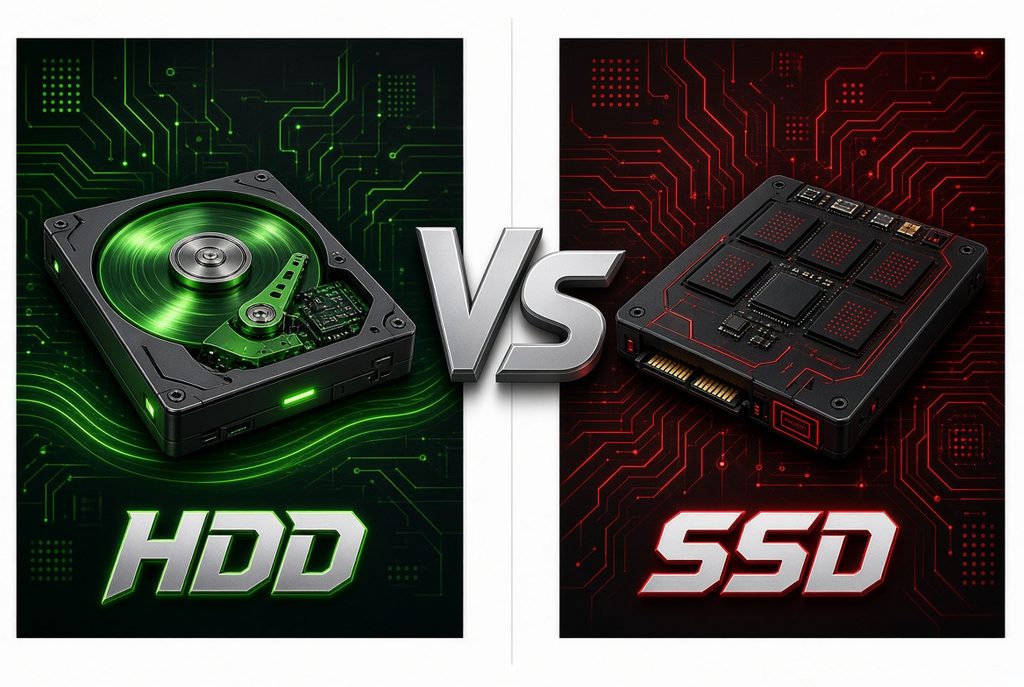
- Hard Disk Drive (HDD)
- Mechanism: Reads and writes data using spinning magnetic platters inside the drive.
- Characteristics: A long-established technology designed to hold large volumes of data. Because it relies on moving mechanical parts, it differs from SSDs in speed, noise level, and sensitivity to physical impacts.
- Solid-State Drive (SSD)
- Mechanism: Stores data electronically on semiconductor memory chips with no moving parts.
- Characteristics: Provides significantly faster read/write speeds, silent operation, and better resistance to physical shock. It has become the primary storage standard for most modern laptops and desktops.
2. HDD vs SSD Core Comparison
| Category | Hard Disk Drive (HDD) | Solid-State Drive (SSD) |
| How It Works | Spinning physical platters | Electronic memory chips |
| Speed Profile | Relative baseline speed | High-speed data transfer |
| Noise Level | Operational sound from mechanical parts | Virtually silent |
| Physical Durability | Sensitive to physical shock/movement | High resistance to shock |
| Capacity Handling | Suited for very large storage setups | Moderate capacity scaling per drive size |
| Primary Use Environment | Mass data archives, backups, cold storage | Operating systems, applications, high-demand games |
3. Understanding Connection Types: SATA vs NVMe
When evaluating SSDs, you will encounter two primary interface standards: SATA and NVMe.
- SATA Standard
- Uses traditional cable or 2.5-inch drive bay connections.
- Shares legacy compatibility with older systems and represents the baseline performance tier for SSDs.
- NVMe Standard
- Mounts directly onto the motherboard (M.2 slot) using modern data pathways.
- Designed specifically for high-speed data transfer, offering higher throughput than SATA drives.
| Category | SATA Interface | NVMe Interface |
| Physical Connection | Cable connection or 2.5-inch slot | Direct motherboard slot (M.2) |
| Performance Tier | Baseline SSD speed | Accelerated transfer rates |
| System Compatibility | Broad compatibility with older & newer PCs | Standard on modern motherboard platforms |
4. Practical Capacity & Data Allocation Strategy
Rather than viewing capacity strictly as “bigger is better,” a common approach is matching data types to the appropriate drive characteristic:
- Fast Storage (SSD): Best assigned to the operating system, frequently launched applications, active project files, and system-intensive games where load times matter.
- Bulk Storage (HDD): Practical for photos, video archives, documents, backup files, and infrequently accessed data where large capacity is the priority.
Final Checklist Before Choosing Storage
Single-drive or dual-drive configuration?: Systems can be configured using a fast SSD for core applications alongside a larger HDD or secondary SSD for general file storage.
What is your primary usage pattern?: Determine whether instant system responsiveness and application loading speeds are required, or if mass data archiving is the main goal.
Which connection interfaces does your motherboard support?: Check whether your system accepts SATA drives, NVMe M.2 slots, or both before selecting a drive form factor.
Where will the operating system reside?: Installing the operating system on an SSD provides a noticeably smoother overall system experience compared to an HDD.