[Beginner’s Guide #10] Monitor Specs Made Simple: Refresh Rate, Response Time, and Panels

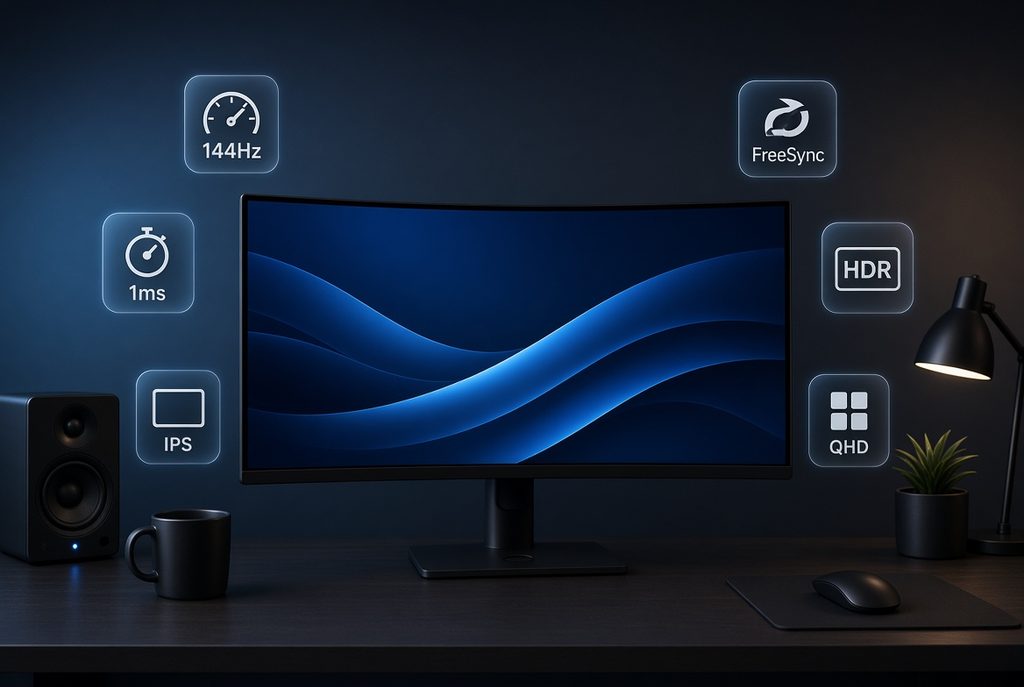
Shopping for a monitor can feel confusing. Product pages are full of terms like Hz, response time, IPS, and 4K, and it’s hard to know what actually matters.
This guide explains the most important monitor specs in simple language so you can choose the right screen without overpaying.
1. Refresh Rate (Hz): How Smooth the Screen Feels
What it means
Refresh rate shows how many times the screen updates the image every second.
- 60Hz = 60 updates per second
- 144Hz = 144 updates per second
Why it matters
Higher refresh rates make movement look smoother. The mouse feels more responsive, scrolling looks cleaner, and games feel less blurry during fast action.
Which level do you need?
- 60Hz – 75Hz: Enough for office work, web browsing, and videos.
- 100Hz – 120Hz: Noticeably smoother for everyday use. A good balance of comfort and price.
- 144Hz – 240Hz+: Best for competitive gaming. Fast movement looks much clearer.
2. Response Time (ms): Reducing Blur
What it means
Response time measures how quickly each pixel changes color (shown in milliseconds).
Why it matters
If it is too slow, moving objects leave a faint trail (ghosting).
What to look for
- 1ms: Ideal for fast-paced gaming.
- 4ms – 5ms: Perfectly fine for office work and normal use.
- Note: Some products show “1ms MPRT”. For real pixel speed, look for GtG.
3. Adaptive Sync (FreeSync / G-Sync)
What it means
This feature matches the monitor’s refresh rate with your graphics card.
Why it matters
It prevents screen tearing (the image looking split during fast movement).
Look for AMD FreeSync or NVIDIA G-Sync Compatible if you play action games.
4. Panel Types: Color and Contrast
The panel type decides how colors look and how deep the blacks appear.
- IPS
Best for: Office work, design, photo editing, general gaming
Strengths: Accurate colors and wide viewing angles
Weakness: Blacks can look a bit gray in a dark room - VA
Best for: Movies and dark-room gaming
Strengths: Deep blacks and high contrast
Weakness: Narrower viewing angles - OLED
Best for: High-end gaming and movies
Strengths: Perfect blacks, excellent contrast, very fast response
Weakness: Higher price
5. Brightness and HDR
- Brightness (nits):
250–300 nits is fine for most indoor rooms.
If your room gets strong sunlight, look for 350–400 nits or higher. - HDR:
Makes bright parts brighter and dark parts deeper.
HDR400 offers a small improvement. HDR600 or OLED gives a clearer difference for movies and console games.
6. Resolution and Screen Size
- FHD (1920×1080): Good for 24-inch screens. Easy on your computer and budget.
- QHD (2560×1440): Best balance for 27-inch screens. Sharp text and good space.
- 4K (3840×2160): Best for 32-inch or larger. Excellent detail, but needs a stronger computer for games.
7. Comfort Features Worth Checking
- Height adjustment and Pivot → better posture and vertical mode
- VESA mount → lets you use a monitor arm and free up desk space
- Ports:
- HDMI 2.1 → best for modern consoles
- DisplayPort → best for high-refresh PC gaming
- USB-C with Power Delivery → one cable for display + laptop charging
Quick Recommendations by Use
- Office & Everyday Use: 24–27″ | QHD | IPS | 75–100Hz | Height-adjustable stand
- Competitive Gaming: 27″ | QHD | IPS or OLED | 144–240Hz | 1ms | FreeSync / G-Sync
- Console Gaming & Movies: 32″ or larger | 4K | VA or OLED | 350+ nits / HDR | HDMI 2.1
Now that the main specs are clear, you can explore specific product guides in our Monitors section to find the right display for your needs.
Next Article: Read the next part of the series: [Beginner’s Guide #11] Computer Care for Beginners: Errors, Checks, and Cleaning
Previous Article: [Beginner’s Guide #9] Custom PC Builds by Use Case: Minimum vs Optimal Specs