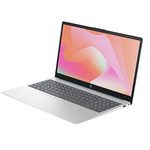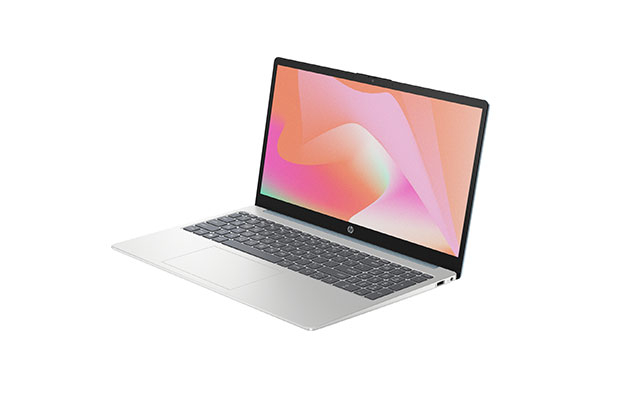
Image Source: HP Official
Who Is It For?
The HP Pavilion Laptop 14 is for individuals who need a portable laptop for daily productivity but find 13-inch screens too small and 15-inch laptops too heavy. It fits the needs of students who carry their computer to classes and office workers who manage documents, emails, and web-based applications. The centered keyboard and 14-inch display make it a tool for those who spend several hours a day typing and reading. It is not for those who require a high-brightness screen for outdoor work or for professional gamers who require high-refresh-rate screens and high-wattage graphics cards.
“If this form factor or power doesn’t quite fit your daily work, exploring other lineup categories would be a better path.”
1. Check Before You Buy
The HP Pavilion Laptop 14 is a 14-inch laptop designed for daily tasks in home, school, and office environments. The construction of this series uses a mix of materials, featuring an aluminum top cover (the lid) and a plastic base and keyboard deck. This combination provides a rigid feel when the laptop is closed, but the plastic interior allows for some physical flex when pressing firmly on the keyboard or the palm rest. This material choice is a permanent characteristic of the series and influences how the device responds to pressure when carried in a backpack or used on an uneven surface.
Display Technology and Brightness Limits
A critical technical detail to verify on the sales page is the brightness rating of the display panel. Many models in the Pavilion 14 series use a 250-nit brightness panel. In a standard indoor room with controlled lighting, this level of brightness is sufficient for reading and writing. However, if the laptop is used in a very bright environment, such as next to a large window with direct sunlight, the screen appears dim and difficult to see. The matte finish on the screen helps to diffuse reflections from overhead lights, but it does not increase the actual brightness of the panel. Users who frequently work in high-light environments will find the 250-nit panels have limitations.
Memory Architecture and Upgradeability
The internal architecture of the Pavilion 14 includes two physical SO-DIMM slots for memory. This is a different design from many modern slim laptops that solder the memory directly to the motherboard. Because the slots are accessible, the memory can be increased after the initial purchase by removing the bottom cover. This allows the laptop to adapt if future software requires more than the initial 8GB or 16GB of RAM. However, the storage is limited to a single M.2 slot, meaning that adding a second internal drive for extra space is not possible; the existing drive must be replaced to increase internal capacity.
Thermal Design and Hinge Mechanism
The Pavilion 14 utilizes a “lift hinge” design. When the screen is opened past a certain angle, the back of the keyboard deck rises slightly off the desk surface. This creates a small gap that allows the internal fan to pull in air from the bottom more effectively. During basic tasks like typing or web browsing, the fan remains at a low speed. When the processor is under a heavy load, such as during a system update or when many browser tabs are open, the fan speed increases and warm air is exhausted through the hinge area. This results in the plastic area near the bottom of the screen becoming warm to the touch during sustained use. The sound of the fan is audible in a quiet room when the system is processing heavy data.
Battery Capacity and Charging
The 43Wh battery is a standard size for a 14-inch laptop, but its duration depends on the screen brightness and the type of software being used. Continuous video conferencing or high-brightness video playback will deplete the battery faster than document editing. The laptop supports fast charging, which allows the battery to reach approximately 50% capacity in 45 minutes when the system is turned off. The power adapter is a standard brick with a barrel-style connector, but the USB-C port also supports Power Delivery, allowing the laptop to be charged with a compatible USB-C phone or tablet charger.
2. How It Fits a Real Desk Setup
The HP Pavilion Laptop 14 occupies a footprint of approximately 32.5 cm by 21.6 cm on a desk. This size is roughly equivalent to a standard sheet of paper, making it suitable for small workspaces, coffee shop tables, or airplane trays. The 14-inch screen size is often considered a balance between portability and screen real estate. The keyboard does not include a dedicated numeric keypad, which allows the main typing area and the touchpad to be centered on the chassis. This centered layout provides a symmetrical typing experience where the hands and body are aligned with the middle of the screen.
Typing and Input Experience
The keyboard features a 1.3mm to 1.5mm key travel, which provides a tactile response when the keys are pressed. The plastic keycaps have a smooth finish, and the keyboard deck is color-matched to the exterior of the laptop. Because the chassis uses plastic for the interior, pressing firmly on the center of the keyboard results in a visible dip in the surface. On a desk, the lift hinge provides a slight tilt to the keyboard, which changes the angle of the wrists during typing. The power button is located within the top row of the keyboard, which requires a deliberate press to avoid accidental activation while reaching for the “Delete” or “Backspace” keys.
Audio and Visual Communication
The speakers are tuned by B&O and are located on the bottom edges of the laptop, firing downward toward the desk surface. This design relies on the hard surface of a desk to reflect the sound toward the user. If the laptop is used on a soft surface like a bed or a lap, the audio becomes muffled and the volume decreases. The webcam is typically a 720p sensor located in the top bezel of the screen. In a well-lit room, the image is sufficient for video calls, but in low-light environments, the video appears grainy. A small LED light next to the camera indicates when the sensor is active, but there is no physical privacy shutter on most standard models.
Cable Management and Port Layout
The ports are distributed on both sides of the chassis. The power input, one USB-A port, and the HDMI port are typically on one side, while the USB-C port and another USB-A port are on the other. This layout means that cables will protrude from both the left and right sides of the laptop. The USB-C port supports Power Delivery and DisplayPort, meaning the laptop can be charged using a compatible USB-C adapter and can also connect to an external monitor through the same port. The MicroSD card reader is a small slot that allows for the insertion of memory cards from phones or cameras, though it requires an adapter for full-size SD cards.
Portability and Daily Travel
At a weight of approximately 1.41 kg, the Pavilion 14 is light enough to be carried in a standard backpack or a large tote bag for a full day. It is designed for users who move between a home office, a classroom, and a library. The aluminum lid provides a rigid feel that protects the screen from pressure when the laptop is inside a bag, but the plastic base is more susceptible to scratches if placed on rough surfaces. The 45W or 65W power adapter is a standard brick with a long cable, adding to the total weight in a backpack. The 14-inch screen size means the laptop fits in most bags designed for portable computers.
3. Performance by Use Case
The following ratings are based on a middle-tier configuration featuring an Intel Core i5 or Ryzen 5 processor and 16GB of RAM.
| Use Case | Software | Rating | Reason |
| Office Work | Excel, Word, Outlook | Sufficient | 16GB RAM and modern CPUs handle multitasking and large files. |
| Web Browsing | Chrome, Edge (20+ tabs) | Sufficient | Modern processors allow for smooth switching between many open tabs. |
| Video Calls | Zoom, Microsoft Teams | Sufficient | 720p webcam and integrated microphone are sufficient for calls. |
| Photo Editing | Photoshop, Lightroom | Adequate | Sufficient for basic edits, but 250 nits brightness is a limit. |
| Video Editing | 1080p Simple Cuts | Adequate | Can handle basic video tasks, but slow for 4K or complex effects. |
| AAA Gaming | Modern Heavy Titles | Not enough | Integrated graphics cannot run modern heavy games at high settings. |
The performance of the Pavilion 14 is consistent for daily productivity. However, because it is a slim laptop with a single fan, it is not intended for sustained high-load tasks like 24/7 video rendering, which may lead to the fan running at maximum speed and the processor slowing down to manage heat.
4. Official Specs (with plain explanations)
| Category | Specification | Notes |
| CPU | Intel Core i3/i5/i7 or AMD Ryzen 5/7 | 12th/13th Gen Intel or 5000/7000 AMD |
| Graphics | Intel UHD/Iris Xe or AMD Radeon | Integrated graphics, shares system memory |
| Memory | 8GB to 16GB DDR4 (3200MHz) | Two physical slots, user-replaceable modules |
| Storage | 256GB to 1TB PCIe NVMe SSD | Single internal replaceable drive slot |
| Display | 14-inch FHD (1920×1080) | IPS panel, 250 to 300 nits brightness |
| Weight | ~1.41 kg (3.11 lbs) | Aluminum top cover with plastic base |
| Battery | 43Wh | Integrated 3-cell battery, supports fast charge |
| Ports | USB-C, USB-A, HDMI 2.1, MicroSD | Standard physical connection array |
This series is sold with different CPUs, memory, and storage depending on the release year and generation. Please match the specifications on your current seller page with the official information above.
Source: HP Official Product Page
The specifications listed above represent the hardware components that define the physical size and technical limits of the Pavilion Laptop 14. These parts determine how much information the screen can show at once, how heavy the device feels in a bag, and how the system handles multiple open applications.
5. Main Variations in This Series
- The processor architecture is divided between Intel Core (dv-series) and AMD Ryzen (ec-series) models, which changes the internal graphics system and the type of wireless connectivity available.
- Display panels vary between 250 nits and 300 nits of brightness, which affects visibility in different lighting environments.
- Memory configurations typically start at 8GB, but the presence of two physical slots allows for a maximum of 16GB or 32GB through manual upgrades after purchase.
- The chassis color is available in several options, including Natural Silver, Tranquil Pink, and Sky Blue, which changes the visual appearance of the aluminum lid and the plastic keyboard deck.
- Storage options range from 256GB for basic document storage to 1TB for those who keep large video files or many high-resolution photographs.
6. What to Check on the Sales Page
When reviewing a listing for the Pavilion Laptop 14, the specific model number and the internal components will determine the actual performance and longevity of the machine.
- CPU Generation: Check whether you are getting the Intel 12th/13th Gen or AMD 5000/7000 series processors.
- Memory Configuration: Confirm if the unit has 8GB or 16GB of RAM and if both slots are occupied.
- Screen Brightness: Verify if the panel is rated at 250 nits or 300 nits, especially if you plan to work in bright rooms.
- USB-C Functionality: Check if the USB-C port supports “DisplayPort” and “Power Delivery” for charging and video.
- Storage Size: Confirm the SSD capacity (256GB, 512GB, or 1TB) based on your file storage needs.
The sales page may also list the specific version of Windows included, which is typically Windows 11 Home or Pro.
7. Disclaimer & Buying Advice
This buying guide for the HP Pavilion Laptop 14 is based on official manufacturer specifications and recurring real-world user experiences. It is completely independent, not sponsored, and does not guarantee specific performance for every unit. Hardware configurations such as the processor, memory, and storage can differ by generation and region, so please double-check the exact specifications listed on your seller’s page before purchasing.
8. Beginner Guide
If you are setting up a new laptop for the first time and want to understand how to manage your battery and screen settings, you can [Start Here] to read our basic hardware and setup guides.