Image Source: Dell Official
Who Is It For?
The OptiPlex Micro is designed for users who need a full desktop experience without the physical bulk of a tower. It fits well in environments like home offices, reception desks, or as a dedicated media station where space is limited. The hardware is capable of handling multiple browser tabs, large spreadsheets, and video conferencing simultaneously. It is also frequently used in “home lab” setups or for digital signage because it can be easily hidden from view. If this form factor or power doesn’t quite fit your daily work, exploring other lineup categories would be a better path.
1. Check Before You Buy
The OptiPlex Micro is a desktop computer designed to occupy a very small physical footprint while using standard desktop-class processors. Unlike a laptop, it does not have an internal battery or a screen, meaning it requires a constant connection to an external power source and a monitor. The series focuses on modularity within a confined space, which introduces specific considerations regarding heat, noise, and power delivery that differ from larger tower computers.
Internal Expansion and Memory Slots
The internal layout of the OptiPlex Micro is accessed by removing a single thumb screw on the rear and sliding the top cover off. Inside, there are two slots for memory, known as SODIMMs, which are the same type used in laptops. This allows for future changes to the memory capacity if the initial amount is no longer sufficient. Most configurations also feature at least one M.2 slot for high-speed storage. In some specific configurations, a secondary slot for a 2.5-inch hard drive or SSD is available, but this often depends on the size of the internal cooling fan and the wattage of the processor. If the unit uses a high-wattage processor, the larger heatsink may occupy the space where a second drive would otherwise sit.
Thermal Management and Fan Behavior
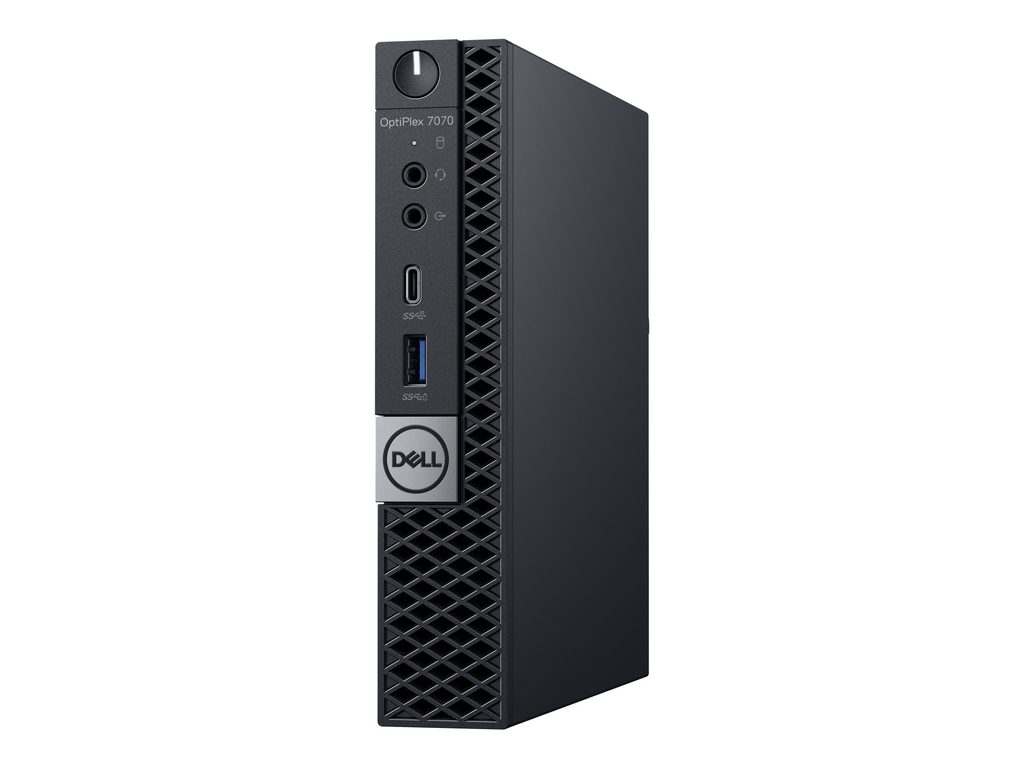
Because the components are packed into a chassis that is roughly the size of a thick hardcover book, the cooling system must work harder than in a full-sized desktop. The internal fan draws air through the front grille and exhausts it out the back. During basic tasks like document editing or web browsing, the fan remains at a low speed. However, when the processor is under a heavy load, such as during video rendering or large data calculations, the fan speed increases significantly. This results in a noticeable whirring sound. The 65W processor models reach these higher fan speeds more frequently than the 35W models due to the increased heat generation.
Power Supply and External Adapter
The OptiPlex Micro does not have an internal power supply unit. Instead, it relies on an external power adapter, similar to a laptop “brick.” The size and weight of this adapter vary based on the processor inside the machine. A unit with an Intel Core i7 or i9 processor often requires a 130W or 180W adapter, which is physically large and can take up considerable space on the floor or behind a desk. This adapter is a permanent requirement for the machine to function, and it must be factored into the total space the computer occupies.
Performance Limits and Graphics
The integrated graphics system uses a portion of the system memory to function. This configuration is sufficient for standard office applications, 4K video playback, and multi-monitor setups. However, the lack of a dedicated graphics card means the device cannot handle high-end 3D gaming or professional-grade 3D modeling. Attempting to run such software results in low frame rates and high system temperatures. For users requiring heavy graphical processing, the internal space of the Micro series will not be enough.
2. How It Fits a Real Desk Setup
Integrating an OptiPlex Micro into a workspace changes the traditional desktop layout. The small size allows the unit to sit directly under a monitor stand or even be mounted to the back of a compatible display using a VESA mount. This clears the desk surface of a large tower, but it requires careful cable management. Since all the cables—power, monitor, keyboard, and mouse—plug into the back of a very light device, the weight of the cables can sometimes cause the unit to slide or tilt if not secured.
Front and Rear Accessibility
The front of the device provides quick access to a power button, a headphone jack, and at least two USB ports. This is convenient for connecting temporary devices like thumb drives or charging cables without reaching behind the machine. However, if the unit is mounted behind a monitor, reaching the power button and front ports becomes more difficult. Some Dell monitors feature a power button sync technology that allows the monitor to turn on the PC, but this requires specific compatible hardware. The rear of the machine is crowded with ports, and using thick cables for multiple monitors can make it difficult to position the unit flush against a wall.
Acoustic and Thermal Environment
In a quiet room, the sound profile of the OptiPlex Micro is distinct. Because the fan is small, the pitch of the noise is higher than the low hum of a large desktop. If the unit is placed on the desk surface near the user, this sound is more audible. Placing the unit further away or mounting it behind the monitor can help dampen the noise. The heat exhaust at the rear of the chassis can become quite warm during operation, so leaving at least a few inches of open space behind the unit is necessary to prevent heat from building up against a wall or other equipment.
Managing the External Components
The external power brick also requires a home. In a clean desk setup, users often find they need to strap the power brick to the underside of the desk or hide it in a cable management tray. Because the cord from the brick to the PC is of a fixed length, the placement of the PC on the desk is somewhat dictated by where the power brick can be safely stored. Despite these cable considerations, the OptiPlex Micro allows for a much more open workspace compared to a traditional tower, provided the user accounts for the external components.
3. Performance by Use Case
The following ratings are based on the standard configurations of the OptiPlex Micro using mid-range to high-end Intel Core processors. Performance results depend heavily on the amount of memory (RAM) installed and the specific generation of the processor.
| Use Case | Software | Rating | Reason |
| Office Work | Microsoft Office, Zoom, Chrome | Sufficient | Handles multitasking and multiple displays easily |
| Education | Web-based learning, Research | Sufficient | Small footprint fits well on student desks |
| Photo Editing | Adobe Photoshop, Lightroom | Adequate | Sufficient for editing, but rendering takes time |
| Video Editing | 1080p editing, basic cuts | Adequate | Possible for short clips; 4K rendering is slow |
| 3D Gaming | AAA Titles, Cyberpunk 2077 | Not enough | Integrated graphics cannot maintain playable speeds |
| Professional 3D | AutoCAD, Blender Rendering | Not enough | Lack of dedicated GPU limits viewport performance |
The ratings above assume the device is connected to a stable power source and has at least 16GB of memory. Using the device for tasks rated as “Not enough” will lead to high temperatures and potential software instability.
4. Official Specs (with plain explanations)
| Category | Specification | Notes |
| CPU | Intel Core i3 to i9 (T or standard) | Desktop-class processors, power varies by model |
| Graphics | Intel UHD Graphics | Integrated on CPU, no dedicated card |
| Memory | Up to 64GB DDR4 or DDR5 | Two SODIMM slots, user-replaceable |
| Storage | M.2 NVMe SSD + optional 2.5-inch SATA | Dual drive support in specific chassis |
| Display | Supports up to 4 external monitors | Depends on port configuration and CPU |
| Weight | Starting at 0.94 kg (2.06 lbs) | Chassis only, excludes power adapter |
| Power | 65W, 90W, 130W, or 180W adapter | External brick, wattage depends on CPU |
| Ports | USB-C, DisplayPort, HDMI, Optional Port | Customizable rear “Flex IO” slot |
This series is sold with different CPUs, memory, and storage depending on the release year and generation. Please match the specifications on your current seller page with the official information above.
Source: Dell Official Product Page
The specifications listed above represent the physical boundaries of the OptiPlex Micro chassis. Because this is a small form factor desktop, the internal space dictates which components can be installed and how they perform during daily operations. The following sections explain how these technical details translate into the physical experience of using the device on a desk.
5. Main Variations in This Series
- Processor Power Levels: Models are available with 35W “T” series processors or standard 65W processors. The 35W versions prioritize lower heat output, while 65W versions provide higher clock speeds for demanding tasks.
- Chassis Generations: Newer models utilize DDR5 memory and PCIe Gen 4 storage, while older versions in the same series use DDR4 and PCIe Gen 3. The physical dimensions remain consistent across generations.
- Rear Port Customization: The “Flex IO” slot allows the factory to install an optional port such as HDMI, VGA, Serial, or an additional USB-C port. The specific ports available depend on the individual unit configuration.
- Storage Configurations: Some units include a bracket for a 2.5-inch SATA drive, while others utilize that internal space for a larger heatsink or different internal components.
6. What to Check on the Sales Page
When looking at a specific listing for an OptiPlex Micro, the details can vary significantly between sellers. Small differences in the model number or the included accessories can change the overall value and usability of the machine.
- CPU Generation: Check whether you are getting the 12th, 13th, or 14th Gen Intel processors.
- Power Adapter Wattage: Verify that the included power brick matches the requirements of the CPU. A 65W CPU paired with a 65W adapter may limit performance compared to a 90W or 130W adapter.
- Wi-Fi and Bluetooth: Some enterprise-focused units are sold without internal Wi-Fi cards. Ensure the listing explicitly mentions wireless connectivity if you do not plan to use a wired Ethernet cable.
- Included Mounts: Check if the sale includes a VESA mount or a vertical stand. These are often sold as separate accessories and are not always in the box.
- Operating System: Confirm if Windows 11 Pro or Home is pre-installed. Many OptiPlex units come with the Pro version, which includes additional remote desktop and security features.
The numbers on the sales page represent the hardware as it leaves the warehouse. Always verify the specific RAM and SSD capacity, as these are the most common components changed by third-party resellers.
7. Disclaimer & Buying Advice
This buying guide for the OptiPlex Micro Series is based on official manufacturer specifications and recurring real-world user experiences. It is completely independent, not sponsored, and does not guarantee specific performance for every unit. Hardware configurations such as the processor, memory, and storage can differ by generation and region, so please double-check the exact specifications listed on your seller’s page before purchasing.
8. Beginner Guide
If you are new to choosing computer hardware and want to understand the basics of different series, you can [Start Here] to find the right path for your needs.