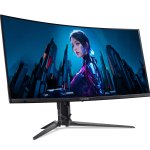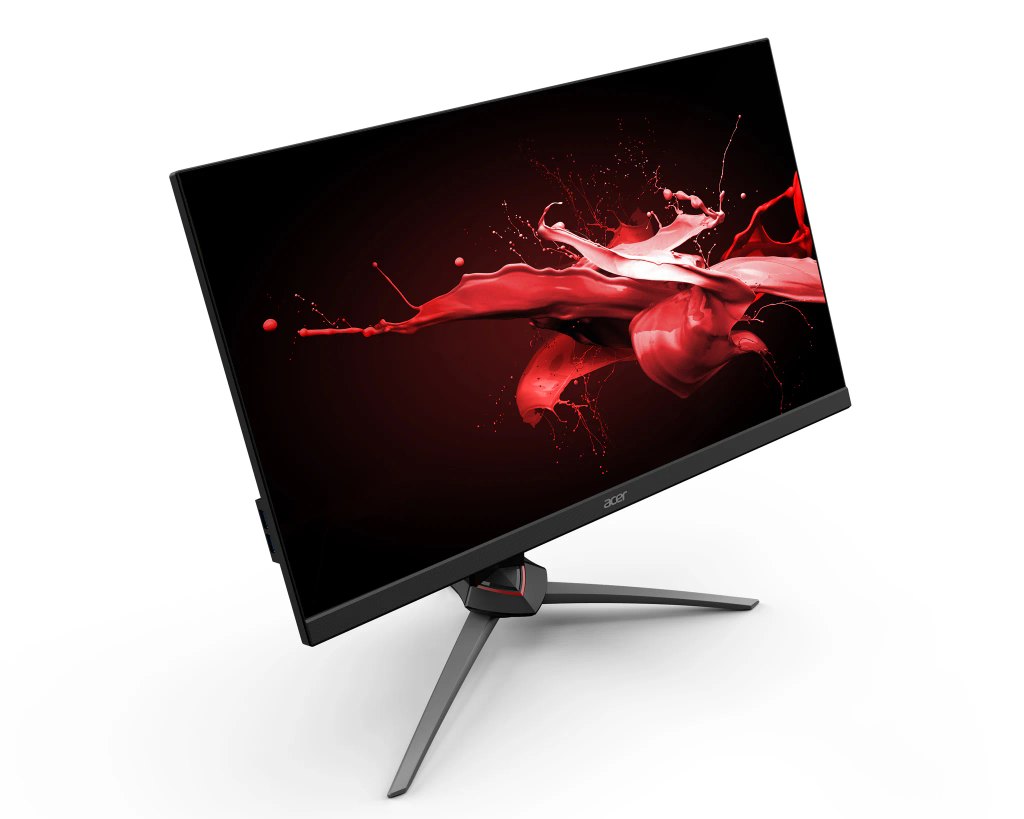
Image Source: Acer Official
Who Is It For?
The Acer Nitro series is a category of monitors where high refresh rates—how many times the image updates each second—and low response times—how quickly a pixel changes color—are the central technical focus. These displays are identified by prefixes such as VG, XV, or ED in their model names. A core feature of this line is the use of “Fast IPS” or VA panels to provide fluid motion in fast-paced visual tasks without the higher cost associated with the Predator series. Many model names use the VG prefix followed by numbers indicating the screen size and resolution.
These monitors fit on standard desks where a balance between gaming performance and daily office work is required. They are less suitable for professional color grading environments that require high-end factory calibration or for setups where a heavy, premium metal stand is a physical requirement. If this form factor or screen size doesn’t quite fit your daily work, exploring other lineup categories would be a better path.
1. How This Line Is Grouped
The Nitro lineup is categorized as the mainstream gaming series within the Acer brand. It is organized into several sub-series that define the physical build and the type of screen used. While the Predator line is positioned for the highest technical specifications like G-SYNC processors, the Nitro line focuses on software-based synchronization like FreeSync.
| Tier | Typical names | Rough position |
| Nitro VG Series | VG240Y, VG271U, VG272 | Flat IPS panels with a fixed, tilt-only tripod stand. |
| Nitro XV Series | XV240Y, XV272U, XV322 | Flat IPS panels with a fully adjustable ergonomic stand. |
| Nitro ED Series | ED240Q, ED270R, ED320Q | Curved VA panels with high contrast and various refresh rates. |
| Nitro XZ Series | XZ270U, XZ320Q, XZ342 | Curved VA panels with higher refresh rates and adjustable stands. |
Nitro VG Series
This group is characterized by a flat screen and a minimalist tripod stand. These monitors typically use IPS (In-Plane Switching) panels, which provide wide viewing angles and consistent colors. The stand on the VG series is often limited to tilt adjustment, meaning the screen can be angled up or down but cannot be raised or lowered. These models are used in environments where the monitor will be placed on a riser or a separate monitor arm to achieve the correct eye level.
Nitro XV Series
The XV series uses the same high-speed IPS panels as the VG series but includes a more versatile stand. This stand allows for height adjustment, swivel (turning left and right), and pivot (rotating the screen to a vertical position). This makes the XV series a common choice for desks where the user needs to adjust the monitor frequently for different tasks. The internal hardware often supports slightly higher brightness levels compared to the base VG models.
Nitro ED and XZ Series
These groups focus on curved screens using VA (Vertical Alignment) panels. VA panels offer a higher contrast ratio—the difference between the darkest black and the brightest white—than IPS panels. The ED series is the more basic version with limited stand adjustments, while the XZ series often includes more robust stands and higher refresh rates. The curvature (e.g., 1500R) is intended to keep the edges of the screen at a similar distance from the eyes as the center, which can reduce eye strain on larger displays.
2. Check Before You Buy
Stand Adjustability and Desk Ergonomics
A recurring physical constraint in the Nitro VG and ED series is the limited stand adjustability. Many of these models only allow the screen to tilt forward and backward. If the desk height and chair height do not align perfectly with the monitor’s fixed height, the user may experience neck strain. Checking whether a specific model belongs to the XV or XZ series is a necessary step if height adjustment is required for the workspace.
Panel Type and Visual Trade-offs
The Nitro line uses both IPS and VA panels, and the choice affects the visual result. IPS panels are known for color consistency but can suffer from “IPS glow,” where the corners of the screen appear lighter in a dark room. VA panels, found in the curved ED and XZ models, provide deep blacks but can exhibit “smearing,” where dark objects leave a faint trail during fast motion. Selecting the panel type based on the room’s lighting and the type of visual content is a necessary part of the decision process.
HDR 400 and Brightness Reality
Many Nitro monitors are labeled with “VESA DisplayHDR 400.” This indicates that the monitor can reach a peak brightness of 400 nits—a unit of screen brightness. While this allows the monitor to accept an HDR signal, it does not provide the high-contrast experience found on expensive televisions with local dimming. In most Nitro models, the entire backlight brightens or dims at once, which means dark areas may appear grey when HDR is active.
VRR Range and Flickering
These monitors use Variable Refresh Rate (VRR) technology, such as FreeSync, to prevent screen tearing. However, the range in which this works varies. Some models have a range of 48Hz to 144Hz, while others go lower. If the frame rate of a game falls below the minimum range, the synchronization may stop working, or the screen may exhibit slight flickering. Verifying the “FreeSync Premium” or “G-SYNC Compatible” status on the sales page can help identify models with better synchronization stability.
3. How It Fits a Real Desk Setup
Base Footprint and Mouse Space
The Nitro series uses two main base designs: a three-legged tripod and a circular or rectangular flat base. The tripod stand, common on the VG series, has two long legs that extend forward. On a shallow desk with a depth of 60cm (24 inches), these legs can interfere with the placement of a large mousepad. The circular or rectangular bases found on some XV models take up less diagonal space, allowing the keyboard and mouse to be placed closer to the monitor.
VESA Mounting and Rear Access
Most Nitro monitors are compatible with the VESA 100x100mm standard, which is the standard screw pattern for mounting the screen to an arm. The mounting holes are often located behind the stand attachment point. Using a monitor arm is a frequent solution for the VG series to overcome the lack of height adjustment. The ports are usually downward-facing, which keeps the cables from sticking out toward the wall but can make them difficult to reach without tilting the monitor.
Cable Routing and Connectivity
The stands in the Nitro line often include a basic plastic clip or a hole in the neck for cable management. Because these monitors support high refresh rates, the quality of the cable is important. Using an older HDMI cable instead of the one provided in the box may limit the refresh rate to 60Hz or 120Hz instead of the advertised 144Hz or 165Hz. Most models include at least one DisplayPort and two HDMI ports, allowing for multiple devices to be connected simultaneously.
Bezel Width and Multi-Monitor Alignment
The Nitro series often features a “ZeroFrame” design, where the plastic borders on the top and sides are very thin. This makes them a common choice for dual-monitor setups. However, there is still a small black border on the panel itself (the inner bezel). When two monitors are placed side-by-side, the total gap between the images is typically around 1cm. The bottom bezel is always thicker as it houses the electronics and the Acer or Nitro logo.
4. Sizes and Models in This Line
The Nitro series covers the most common desktop sizes, each with different implications for pixel density—how many pixels are packed into an inch (PPI). A higher PPI results in sharper text and more detailed images.
23.8-inch Models
These are the standard for 1080p (1920×1080) resolution. At 23.8 inches, the pixel density is approximately 92 PPI, which provides a clear image for a standard sitting distance. These models, such as the VG240Y, fit easily on small desks and are often used in competitive gaming where high frame rates are more important than screen size. They are also a common choice for secondary monitors in a multi-screen setup.
27-inch Models
This is the most common size in the Nitro line. At 27 inches, you can choose between 1080p and 1440p (2560×1440) resolutions. A 27-inch 1080p monitor has a lower pixel density (81 PPI), which can make text look slightly blurry if the user sits close to the screen. A 27-inch 1440p monitor (often labeled as WQHD) has a much higher pixel density (109 PPI), providing a sharper image that is better for reading and detailed work.
31.5-inch to 32-inch Models
At 31.5 inches, the Nitro line typically uses 1440p or 4K (3840×2160) resolutions. A 31.5-inch 1440p monitor has the same pixel density as a 23.8-inch 1080p monitor (92 PPI). These models are physically large (about 71cm wide), meaning the user must sit further back to avoid neck strain. They are often curved (ED or XZ series) to help the user see the edges of the screen more easily.
34-inch Ultrawide Models
The 34-inch models, such as the XZ342CK, use a 21:9 aspect ratio. This is equivalent to a 27-inch monitor that has been stretched horizontally. These are almost always curved and provide more horizontal space for spreadsheets or immersive gaming. They require a desk at least 120cm wide and a graphics card that can handle the extra pixels compared to a standard 16:9 screen.
| Size | Common resolution | Aspect ratio | Notes |
| 23.8″ | 1920 x 1080 | 16:9 | Standard for 1080p high-speed gaming. |
| 27″ | 1920 x 1080 | 16:9 | Large screen for 1080p; lower pixel density. |
| 27″ | 2560 x 1440 | 16:9 | Balanced sharpness and size for most users. |
| 31.5″ | 2560 x 1440 | 16:9 | Large screen, often curved with VA panels. |
| 34″ | 3440 x 1440 | 21:9 | Ultrawide for extra horizontal workspace. |
5. Performance by Use Case
The following ratings are based on a standard high-refresh-rate Nitro model (e.g., 144Hz+ IPS). Performance may vary if choosing a VA-panel model for dark-room use.
| Use Case | Software / Task | Rating | Reason |
| Competitive Gaming | Valorant, CS2, Overwatch 2 | Sufficient | High refresh rates and low input lag. |
| Cinematic Gaming | Cyberpunk 2077, Elden Ring | Sufficient | Good color gamuts and 1440p/4K options. |
| Office / Productivity | Excel, Word, Slack | Sufficient | Sharp text on 1440p models and ergonomic stands. |
| Professional Video | Premiere Pro, DaVinci Resolve | Adequate | Good color coverage, but lacks pro calibration. |
| Professional Photo | Photoshop, Lightroom | Adequate | IPS models are consistent, but lack factory calibration. |
| General Media | Netflix, YouTube, Movies | Sufficient | Large sizes and VA options for better contrast. |
The “Sufficient” rating for gaming and office work is due to the line’s focus on motion clarity and resolution. For professional color work, the rating is “Adequate” because these monitors are not factory-calibrated to the same level as professional-grade displays.
6. Official Specs (with plain explanations)
| Category | Specification | Notes |
| Refresh Rate | 75Hz to 390Hz | How many times the image updates per second. |
| Response Time | 0.5ms to 4ms (GtG) | How fast pixels change color to reduce blur. |
| Panel Type | IPS or VA | Determines color, viewing angles, and blacks. |
| Sync Tech | FreeSync / G-SYNC Compatible | Matches monitor Hz to GPU frames to stop tearing. |
| Brightness | 250 to 400 nits | Peak light output; 400 is used for basic HDR. |
| VESA Mount | 100 x 100 mm | Standard screw pattern for monitor arms. |
| Connectivity | HDMI 2.0, DisplayPort 1.2/1.4 | The types of cables and versions supported. |
This line is sold with different tier names, sizes, refresh rates, and panels depending on the exact model and region. Please match the specifications on your current seller page with the official information above.
Source: Acer Official Product Page
7. Main Variations in This Line
Refresh Rate Overclocking
Many Nitro monitors have a “native” refresh rate and an “overclocked” refresh rate. For example, a monitor may be 144Hz natively but can be set to 165Hz in the menu. While this provides slightly smoother motion, it can sometimes lead to minor visual artifacts or increased heat. The advertised refresh rate on the box often refers to the overclocked speed.
Stand Types (Fixed vs. Adjustable)
As mentioned in the grouping section, the stand is a major variation. The VG and ED series usually have fixed stands, while the XV and XZ series have adjustable stands. This variation is often reflected in the price. Choosing an XV model is a common way to avoid the cost of buying a separate monitor arm later.
Panel Technology (IPS vs. VA)
The choice between IPS and VA is the most significant variation. IPS offers better viewing angles and more consistent colors, making it a common choice for general use. VA offers much deeper blacks (3000:1 contrast vs. 1000:1 on IPS), which makes it a common choice for watching movies or playing games in a dark room. However, VA panels are more likely to show smearing in fast-moving scenes.
8. What to Check on the Sales Page
When looking at a sales listing, the model name can be confusingly similar to other Acer lines. Verifying the specific technical details is necessary to ensure the monitor matches your hardware.
- Line / Tier / Size: Check whether you are getting the Nitro VG271 model, not a different tier, size, or panel under the same brand name.
- Panel Type: Confirm if the listing says “IPS” or “VA,” as this fundamentally changes the contrast and viewing angles.
- Refresh Rate: Ensure the Hz number matches your expectations (e.g., 144Hz vs 165Hz), as some models look identical but have different internal speeds.
- Stand Adjustments: Look at the photos and description to see if the stand supports height adjustment or only tilt.
- Resolution: Ensure the resolution matches your expectations (e.g., 1920×1080 vs. 2560×1440), as some models look identical but have different pixel counts.
9. Disclaimer & Buying Advice
This buying guide for the Acer Nitro Series is based on official manufacturer specifications and recurring real-world user experiences. It is completely independent, not sponsored, and does not guarantee specific performance for every unit. Tier name, screen size, refresh rate, panel type, and ports can differ by model and region, so please double-check the exact specifications listed on your seller’s page before purchasing.
10. Beginner Guide
If you are new to monitor terms like refresh rate, panel type, and resolution, read the basics in our [Start Here].