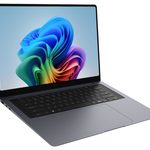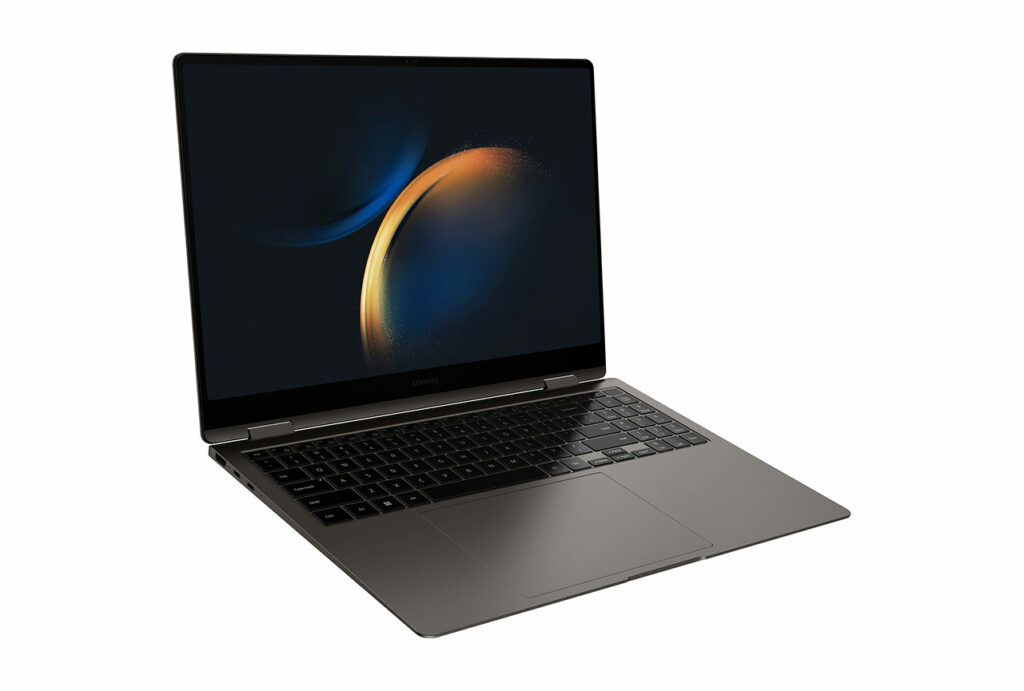
Image Source: Samsung Official
A thin, cool aluminum shell housing a glass screen that turns completely black in dark rooms creates the first physical impression. This contrast defines the daily experience of using the Samsung Galaxy Book Pro series. These machines are built around keeping the chassis as thin as a standard notebook while providing a very vivid display.
The series splits into distinct physical experiences based on size and hinge design. The 14-inch models fit into the daily routine of someone who constantly moves between meeting rooms and coffee shops, prioritizing a bag that stays light. The 16-inch models fit a workflow that requires keeping two documents open side-by-side on the screen, trading travel comfort for a wider workspace. Meanwhile, the Pro 360 versions swap the standard hinge for a fully rotating screen, matching users who need to draw diagrams or take handwritten notes flat on a desk, though this adds a slight amount of physical density to the machine.
Does the weight stay light after carrying it all day?
The standard 14-inch Pro model weighs roughly 1.1 to 1.2 kg depending on the exact generation. When dropped into a backpack alongside a water bottle and a charger, it barely registers on the shoulders. Moving from a morning commute to a late-afternoon meeting leaves almost no physical strain.
The 16-inch version sits closer to 1.5 or 1.6 kg. While still light for its size, the extra mass becomes noticeable by the end of the day. If you carry it in a single-strap tote bag or messenger bag, the uneven weight distribution will press into your shoulder after a long walk.
The Pro 360 models add a touch screen and a more complex rotating hinge. This glass layer and reinforced joint make the 360 versions slightly heavier and marginally thicker than their standard clamshell counterparts. A 16-inch Pro 360 carried all day will clearly remind you that you are carrying a large piece of electronics.
What happens on a small café table once the lid opens?
Opening the laptop on a small, round coffee shop table reveals another strict boundary.
The 14-inch model occupies a footprint small enough to leave room for a coffee cup, a smartphone, and a physical notepad next to it. Pushing the screen back does not bump into the person sitting across from you.
The 16-inch model commands the entire depth of a small table. Once the lid is open, there is rarely room left for a physical notebook or a separate mouse. The wide base means your palms rest comfortably on the metal, but you will likely have to move your drink to another table or keep it precariously close to the edge. The Pro 360, when folded completely backward into tablet mode, lies flat like a thick magazine, which saves vertical space but still requires the full width of the table.
How does the screen behave near windows or under bright office lights?
The screens use a panel technology that turns individual pixels off to create black colors, making late-night reading in a dark room extremely comfortable and reducing eye fatigue. Movie scenes and photos look incredibly rich because the contrast is stark.
However, the glass covering the screen is highly reflective. If you sit directly under a bright fluorescent office tube, you will see the distinct shape of the light bulb mirrored on your screen, forcing you to tilt the lid back and forth to find a clear viewing angle. Sitting next to a sunny window in a café will cause the glass to reflect your own silhouette. You can raise the brightness to cut through the glare, but the glossy surface will always require more physical repositioning than a matte, anti-glare screen. Touching the Pro 360 screen with your fingers will also leave visible smudges that catch the light, requiring frequent wiping with a microfiber cloth.
When does the chassis warm up and the fan become noticeable?
During regular typing, reading emails, and keeping a few browser tabs open, the laptop remains entirely silent. The bottom aluminum panel stays cool, making it comfortable to rest on your bare legs if you are wearing shorts on a couch.
The physical limit of the incredibly thin body appears when you demand continuous work from the internal chip. If you start exporting a long video, running a massive data spreadsheet, or participating in a video call with background blur turned on for more than twenty minutes, the metal bottom will become uncomfortably warm against your lap. You will hear a rushing air sound as the fans spin up. Because the chassis is so thin, there is very little empty space inside for heat to escape. To protect itself from overheating, the machine will subtly slow down its processing speed, meaning long, heavy tasks take more time to finish compared to thicker, heavier laptops.
How long does the battery last during back-to-back tasks?
If your day consists of reading text, writing documents, and occasional web searching with the screen brightness at a medium level, the battery will easily stretch from a morning commute to an evening return without needing a wall outlet.
However, battery drain accelerates rapidly depending on what is displayed. Continuous video calls, which keep the camera, microphone, Wi-Fi, and screen active simultaneously, will drain the battery much faster. If you hold three hours of video meetings while sitting in a bright room that forces you to turn the screen brightness to maximum, you will likely need to plug in the charger by early afternoon.
Can a mouse, monitor, and charger be plugged in at the same time?
The thin edges of the laptop dictate what you can connect. Most standard Pro models provide two small, oval-shaped USB-C ports, one traditional rectangular USB-A port, a headphone jack, and an HDMI slot for a monitor.
If you use a wireless mouse that requires a rectangular USB receiver, that single USB-A port is immediately occupied. If you plug the charger into one USB-C port and a monitor into the HDMI port, your desk is now full of cables sticking out from the sides. If you rely on multiple older devices, wired internet, or full-sized camera memory cards, you will be forced to carry a separate adapter hub in your bag every day, adding clutter to an otherwise minimal setup.
What happens when you run out of memory or storage a year later?
The internal memory (RAM) is permanently soldered directly onto the main board inside the laptop. If you buy a model with a lower memory capacity and realize two years later that your daily routine now involves keeping thirty browser tabs and heavy design programs open at the same time, the computer will begin to stutter and lag.
There is no physical way to open the laptop and plug in more memory. Your initial choice at the checkout screen dictates the machine’s multitasking limit for its entire lifespan. The internal storage drive can technically be swapped out for a larger one on many configurations, but doing so requires specialized screwdrivers, carefully opening the delicate bottom panel, and reinstalling the operating system. Most people simply resort to carrying an external hard drive when they run out of space.
How do the keys feel during long writing sessions?
To keep the laptop so thin, the keys cannot travel very far down when pressed. Typing feels crisp and immediate, but the physical stopping distance is very short. If you type heavily, your fingers will hit the firm metal bottom quickly with each keystroke. Over a continuous three-hour writing session, this shallow impact can leave your fingertips feeling slightly fatigued compared to using a thicker desktop keyboard with deep, springy keys. The glass touchpad is wide and smooth, allowing fingers to glide easily without catching friction.
Comparing the Lineup in Daily Use
| Feature | 14-inch Pro | 16-inch Pro | Pro 360 (16-inch) |
| Daily Carry Feel | Barely noticeable in a bag; leaves shoulder relaxed. | Noticeable mass; causes slight shoulder strain over time. | Heaviest option; noticeable thickness and density. |
| Desk Space | Leaves room for a coffee cup and notepad. | Dominates small tables; pushes other items away. | Dominates space; can fold flat for drawing. |
| Screen Surface | Glossy; reflects overhead lights easily. | Glossy; reflects overhead lights easily. | Glossy touch screen; attracts visible finger smudges. |
| Hinge Motion | Opens like a standard clamshell notebook. | Opens like a standard clamshell notebook. | Rotates 360 degrees for flat or tent positions. |
| Memory Limit | Soldered permanently; cannot be changed later. | Soldered permanently; cannot be changed later. | Soldered permanently; cannot be changed later. |
Carrying the 14-inch model preserves your physical energy during long commutes, whereas the 16-inch models demand a slight compromise in shoulder comfort to provide a larger visual workspace. The Pro 360 models change the physical interaction entirely by introducing touch and stylus inputs, but this added mechanical complexity brings extra weight and requires constant wiping of fingerprints. Across all versions, the shallow keyboard and permanent, unchangeable memory remain consistent daily constraints.
Exact processor generations, available memory capacities, and specific port layouts can shift depending on the region and the year of release, so verifying the technical sheet on the seller’s exact listing is the only way to be certain of what is in the box. This overview relies entirely on the physical limitations built into the manufacturer’s chassis design and the consistent behavioral patterns reported by long-term professional reviews, completely independent of any sales incentives. To understand how these physical limits shape different types of computer work, read the foundational concepts at Start Here.