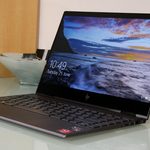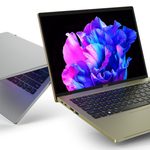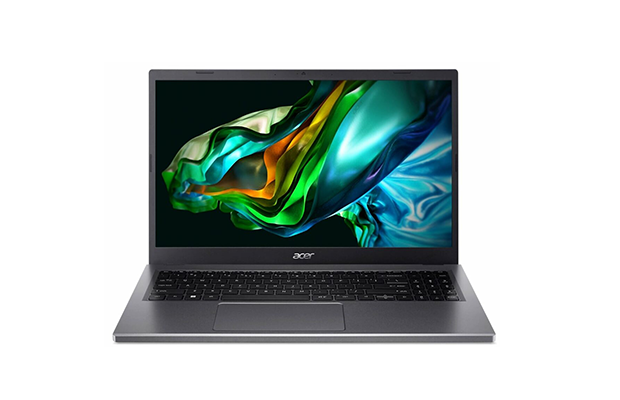
Image Source: Acer Official
Who Is It For?
The Acer Aspire 5 is used by office professionals and students who require a reliable machine for document editing, web research, and video conferencing. It fits the needs of home users who want a large display for media streaming and light photo editing. It also serves as a primary computer for those who prioritize a variety of built-in ports and the ability to upgrade RAM and storage over time. The inclusion of the RJ45 port and the numeric keypad makes it a choice for those who work in traditional office environments or perform data-heavy tasks.
If this form factor or power doesn’t quite fit your daily work, exploring other lineup categories would be a better path.
1. Check Before You Buy
Chassis Materials and the Lift Hinge Design
The Acer Aspire 5 is constructed using a combination of materials. The top cover is typically made of aluminum, which provides a metallic feel and resists fingerprints. The bottom and the keyboard deck are made of high-strength plastic. A physical characteristic of this series is the “Lift Hinge” design. When the screen is opened beyond a certain angle, the rear of the laptop base is lifted slightly off the desk. This creates a small incline for the keyboard and allows more air to reach the intake vents on the bottom. This physical movement changes the typing angle and the thermal behavior of the machine during use.
Internal Upgradability and Memory Slots
The internal layout of the Aspire 5 is designed to allow for hardware changes after purchase. Unlike many slim laptops that solder all components to the motherboard, this series often features one or two physical RAM slots. In many configurations, 4GB or 8GB of memory is soldered (permanently attached), while one slot remains open for a replaceable stick. This allows the total memory to be increased as software requirements grow. The storage is also replaceable, as the system uses a standard M.2 SSD slot. Some older or larger versions of the Aspire 5 also include space for a secondary 2.5-inch hard drive, though this is becoming less common in the newest generations.
Display Brightness and Panel Quality
The display panels used in the Aspire 5 series are primarily IPS (In-Plane Switching) screens, which provide consistent colors when viewed from the side. However, the brightness level is often rated at 250 nits. This level of brightness is intended for indoor environments with standard lighting. When the laptop is used near a large window or under direct overhead lights, the screen can appear dim. The matte anti-glare coating helps reduce reflections, but it does not eliminate them entirely in very bright rooms. The color accuracy is standard for the category, meaning it is sufficient for document work and web browsing but does not cover the full range required for professional color grading.
Thermal Management and Fan Activity
The cooling system consists of a single or dual fan setup depending on whether a dedicated graphics card is included. During basic tasks like typing or browsing, the fans often remain at a low speed that is difficult to hear. When the processor is under a heavy load, such as during a system update or a video call with many participants, the fan speed increases. This results in a steady air-rushing sound from the vents located near the hinge. The heat is exhausted toward the bottom of the screen, and the area above the keyboard will feel warm to the touch during these periods. The plastic bottom panel does not dissipate heat as quickly as metal, so the internal temperatures are managed by the system software.
Battery Life and Power Consumption
The battery capacity of 48Wh to 53Wh provides the energy required for the processor and the screen. When the laptop is not connected to a wall outlet, the system automatically limits the power to the processor and reduces the screen brightness to save energy. Using the laptop for basic office tasks results in different durations than using it for video playback or data-intensive processing. The dedicated NVIDIA RTX 2050 graphics card, if present, consumes energy at a much higher rate than the integrated graphics. The device is charged using a standard barrel-style DC-in port, though some newer models also support charging through the USB-C port.
2. How It Fits a Real Desk Setup
Physical Footprint and Port Layout
The Aspire 5 occupies a desk space determined by its screen size. The 15.6-inch model requires an area of approximately 36 cm by 24 cm. The port distribution is spread across both sides of the chassis. The left side typically houses the power input, the RJ45 Ethernet port, the HDMI port, and two USB ports. The right side usually contains a single USB port and the headphone jack. This layout means that cables for power, wired internet, and external monitors will primarily protrude from the left side. For right-handed users who use an external mouse close to the laptop, the right side remains clear of thick cables.
Keyboard Layout and Numeric Keypad
The 15.6-inch and 17.3-inch models include a full numeric keypad on the right side of the keyboard. This shifts the main QWERTY keys and the touchpad slightly to the left of the center of the chassis. For those who perform heavy data entry or financial calculations, the numeric keypad is a physical tool built into the device. The 14-inch model does not have this keypad, allowing the keyboard and touchpad to be centered. The keys have a standard travel distance, providing a tactile response that is consistent across the layout. The touchpad is large and supports multi-finger gestures for navigating the operating system.
Wired Connectivity and Networking
A specific feature of the Aspire 5 is the inclusion of a physical RJ45 Ethernet port. Many modern slim laptops have removed this port to reduce thickness, but the Aspire 5 retains it using a “drop-jaw” design. This allows for a stable wired internet connection, which is useful in environments with weak Wi-Fi signals or for tasks that require consistent data speeds. The HDMI port allows for connection to an external monitor or projector without an adapter. The USB-C port on newer Intel models often supports Thunderbolt 4, allowing for high-speed data transfer and the connection of multiple peripherals through a single cable.
Audio and Video for Meetings
The webcam is located at the top of the screen and often features “Acer PurifiedView” software, which uses AI to handle background blur and eye contact correction. The dual microphones use “Acer PurifiedVoice” technology to filter out background noise during video calls. The speakers are located on the bottom of the chassis and fire downwards. The sound quality is influenced by the surface the laptop is sitting on; a hard desk reflects the sound toward the user, while a soft surface like a lap will dampen the audio. The volume is sufficient for calls and media playback in a standard room, but external speakers or headphones are often used for music.
Daily Carry and Portability
The weight of the Aspire 5 makes it manageable for carrying between a home office and a workplace. The 14-inch model is the most portable at approximately 1.5kg, while the 17.3-inch model is intended primarily for stationary use at 2.1kg. The aluminum lid provides a degree of protection for the screen when the laptop is inside a bag. However, the physical flex of the plastic base means that heavy objects should not be placed on top of the laptop during transport. The power adapter is a separate unit that must be carried, and its size varies based on whether the laptop has a dedicated graphics card.
3. Performance by Use Case
The performance of the Acer Aspire 5 is determined by the specific processor and the amount of RAM installed. The following ratings assume a configuration with 16GB of RAM.
| Use Case | Software | Rating | Reason |
| Office Productivity | Excel, Word, Outlook | Sufficient | Fast response times and numeric keypad for data entry |
| Web Browsing | Chrome, Edge (15+ tabs) | Sufficient | 16GB RAM handles many active tabs without lag |
| Video Meetings | Zoom, Teams, Google Meet | Sufficient | AI noise reduction and integrated graphics handle calls well |
| Photo Editing | Photoshop, Lightroom | Adequate | Possible for basic edits, but screen brightness is standard |
| 3D Gaming | AAA Games (Modern) | Not enough | Integrated graphics are not intended for heavy 3D games |
The ratings above reflect the capabilities of the hardware when connected to a power outlet. Performance in specific applications will depend on the complexity of the project files and the thermal mode selected in the system software.
4. Official Specs (with plain explanations)
| Category | Specification | Notes |
| CPU | Intel Core i3/i5/i7 or AMD Ryzen 3/5/7 | Standard mobile processors for daily productivity |
| Graphics | Integrated Graphics or NVIDIA RTX 2050 | Shared system memory or entry-level dedicated GPU |
| Memory | 8GB / 16GB / 32GB DDR4 or DDR5 | Often features one or two replaceable slots |
| Storage | 256GB / 512GB / 1TB NVMe SSD | Internal M.2 slot for high-speed data storage |
| Display | 14″, 15.6″, or 17.3″ FHD / WUXGA | IPS technology with matte anti-glare coating |
| Weight | 1.5 kg to 2.1 kg (3.3 lbs to 4.6 lbs) | Varies based on the chosen screen size |
| Battery | 48Wh to 53Wh Lithium-ion | Standard capacity for the home and office category |
| Ports | USB-C, USB-A, HDMI, RJ45 Ethernet | Includes a physical wired internet connection port |
This series is sold with different CPUs, memory, and storage depending on the release year and generation. Please match the specifications on your current seller page with the official information above.
Source: Acer Official Product Page
The technical specifications of the Acer Aspire 5 define its role as a versatile computer for general tasks. These components determine how the device handles software and how it physically fits into a mobile or stationary setup. Understanding these individual parts is necessary to identify the capabilities of a specific unit found on a retail website.
5. Main Variations in This Series
The Aspire 5 series includes several hardware combinations that change the processing speed and physical footprint. These variations are often tied to the specific model number and the year of release.
- Screen sizes are available in 14-inch, 15.6-inch, and 17.3-inch formats, which changes the total weight and the presence of a numeric keypad.
- Processor options are divided between Intel Core and AMD Ryzen platforms, affecting how the system manages power and heat.
- Graphics configurations range from integrated chips that share system memory to the dedicated NVIDIA GeForce RTX 2050 for light 3D tasks.
- Memory standards vary by generation, with older models using DDR4 and newer versions utilizing the faster DDR5 standard.
- Display resolutions include standard Full HD (1920 x 1080) and the taller WUXGA (1920 x 1200) format in recent models.
6. What to Check on the Sales Page
When viewing an Acer Aspire 5 listing, the specific processor generation and the memory configuration are the most important details to verify. Sellers often list different hardware versions under the same series name.
- CPU Generation: Check whether you are getting the {Intel 13th/14th Gen} or AMD Ryzen 7000/8000 processors.
- Memory Configuration: Confirm if the RAM is 8GB or 16GB and if there is an open slot for future upgrades.
- Screen Size: Verify if the model is 14″, 15.6″, or 17.3″ based on your portability needs.
- Graphics Type: Check if the unit uses “Integrated Graphics” or the “NVIDIA RTX 2050” dedicated card.
- Port Features: Verify if the USB-C port supports “Power Delivery” or “Thunderbolt 4” for your docking needs.
The specifications on a retail page can sometimes be generalized. Matching the manufacturer’s part number with the official datasheet is the most accurate way to confirm the internal hardware.
7. Disclaimer & Buying Advice
This buying guide for the Acer Aspire 5 is based on official manufacturer specifications and recurring real-world user experiences. It is completely independent, not sponsored, and does not guarantee specific performance for every unit. Hardware configurations such as the processor, memory, and storage can differ by generation and region, so please double-check the exact specifications listed on your seller’s page before purchasing.
8. Beginner Guide
If you are new to choosing computer hardware and want to understand the basics of these components, you can [Start Here] to learn more about how to read specifications.