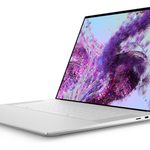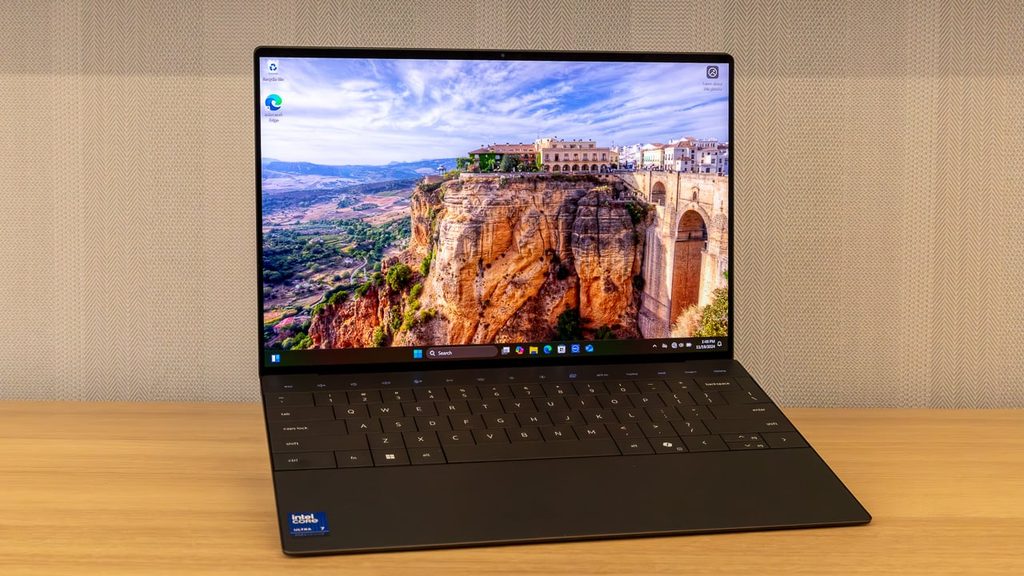
Image Source: Tech Reviewer / Hands-on Photo
Who Is It For?
The Dell XPS 13 is for individuals who prioritize portability and a modern, minimalist design over internal expandability or a wide variety of ports. It fits the needs of students, writers, and business travelers who spend a significant amount of time working in different locations and need a lightweight machine that fits into small spaces. The high-quality display and premium materials make it a choice for those who value the visual and tactile experience of their hardware. It is not for those who need to connect multiple wired devices simultaneously without adapters, nor is it for those who require a large screen for complex video editing or 3D design.
“If this form factor or power doesn’t quite fit your daily work, exploring other lineup categories would be a better path.”
1. Check Before You Buy
The Dell XPS 13 is the smallest entry in the XPS lineup, designed for maximum portability. However, this small size results in several design choices that differ from traditional laptops. The most significant change is the input area. The keyboard, known as the “zero-lattice” design, features keycaps with no physical gaps between them. This creates a larger surface area for each key but changes the tactile feel for those accustomed to standard spacing. Above the keyboard, the traditional row of physical function keys is replaced by a capacitive touch row. These are flat, illuminated icons that toggle between media controls and function keys. They do not move when pressed and provide no physical feedback.
The Invisible Haptic Touchpad
The palm rest of the XPS 13 is a single, continuous sheet of Gorilla Glass. There are no visible lines or physical indentations to indicate where the touchpad begins or ends. The touchpad is located in the center third of the glass area and uses haptic motors to simulate the sensation of a click. Because there is no visual border, moving a finger too far to the left or right results in the cursor stopping, as the finger has left the active touch zone. This design requires the user to develop a sense of spatial awareness for the center of the palm rest without relying on sight or physical edges.
Port Limitations and Audio Connectivity
The physical connectivity on the XPS 13 is limited to two USB-C ports, one on each side. There are no USB-A ports, no HDMI outputs, and no built-in 3.5mm headphone jack. Connecting a wired mouse, a standard thumb drive, or wired headphones requires the use of external adapters or a USB-C hub. While Dell often includes a USB-C to 3.5mm adapter in the box, this occupies one of the two available ports. If the laptop is being charged, only one port remains for all other external devices. This setup necessitates a reliance on wireless peripherals or a dedicated docking station for desk-based work.
Memory and Thermal Management
The internal memory is soldered directly to the motherboard to maintain the thin profile of the chassis. This means the RAM cannot be upgraded after the laptop is purchased. If the 16GB configuration is chosen and the user later finds they need 32GB for more complex software, the only solution is to replace the entire machine. Additionally, the small internal volume of the 13-inch chassis limits the size of the cooling fans. Under heavy processing loads, the fans will spin at high speeds, and the aluminum bottom of the laptop will become warm to the touch as it dissipates heat from the internal components.
2. How It Fits a Real Desk Setup
The Dell XPS 13 occupies a very small footprint on a desk, roughly the size of a standard sheet of paper. This makes it suitable for small workspaces, coffee shop tables, or airplane trays. The “InfinityEdge” display features extremely thin borders on all four sides, which allows a 13.4-inch screen to fit into a body that is smaller than many 12-inch laptops from previous years. On a desk, the laptop sits flat, and the rubber strips on the bottom prevent it from sliding. The screen can be opened with one hand, but the hinge is stiff enough to prevent the display from wobbling during typing.
Managing Cables and Peripherals
Because there are only two ports, a desk setup usually involves a single cable solution. A USB-C monitor or a Thunderbolt dock can provide power to the laptop while also connecting a keyboard, mouse, and external storage. Without such a dock, the desk can quickly become cluttered with various dongles and adapters protruding from both sides of the machine. The lack of a headphone jack means that users who prefer wired audio must keep an adapter permanently attached to their headphone cable or switch to Bluetooth-based audio devices.
Display and Audio Experience
The 16:10 aspect ratio of the screen provides more vertical space than a standard 16:9 widescreen. This allows for more lines of text to be visible in a web browser or a word processor. If the OLED version is selected, the screen has a glossy finish that produces vibrant colors but also reflects overhead lights and windows. The speakers are hidden beneath the keyboard and fire upward, providing a clear sound that is not muffled by the desk surface. However, the small size of the speakers means that the bass response is limited compared to larger 15-inch or 16-inch laptops.
Portability and Daily Carry
At approximately 1.2 kg, the XPS 13 is light enough to be carried in a small bag or even a large sleeve. The aluminum construction feels dense and rigid, providing a sense of durability when the laptop is moved frequently. The power adapter is a compact 60W or 65W USB-C brick that is easy to pack. The webcam is located in the top bezel and supports Windows Hello facial recognition, allowing the user to log in by simply looking at the screen. There is also a fingerprint reader integrated into the power button at the top right of the keyboard for an alternative secure login method.
3. Performance by Use Case
The following ratings are based on a standard configuration with 16GB of RAM and an Intel Core Ultra 5 or 7 processor.
| Use Case | Software | Rating | Reason |
| Web & Office | Chrome, Word, Zoom | Sufficient | Fast CPU and SSD handle daily productivity tasks with ease. |
| Travel Work | Email, Documents | Sufficient | Small footprint and light weight are ideal for mobile use. |
| Photo Editing | Lightroom, Photoshop | Adequate | Screen is color-accurate, but small size limits workspace. |
| Video Editing | 1080p or light 4K | Adequate | Integrated graphics can handle light edits but slow down on exports. |
| Gaming | Casual or Indie titles | Adequate | Integrated GPU is not designed for high-end AAA gaming. |
| Future Upgrades | Adding RAM | Not enough | Soldered memory prevents any internal RAM increases. |
The performance of the XPS 13 is consistent for short bursts of activity, but the small cooling system will cause the processor to slow down during tasks that take more than 30 minutes of continuous high-load processing.
4. Official Specs (with plain explanations)
| Category | Specification | Notes |
| CPU | Intel Core Ultra (Series 1) or Snapdragon X | Architecture varies by the specific model chosen |
| Graphics | Intel Arc or Qualcomm Adreno | Integrated graphics only, no dedicated card option |
| Memory | 16GB to 64GB LPDDR5x | Soldered to the board, no expansion slots |
| Storage | 512GB to 4TB PCIe 4.0 SSD | Single replaceable M.2 internal drive slot |
| Display | 13.4-inch FHD+, QHD+, or 3K+ OLED | 16:10 aspect ratio, InfinityEdge thin bezels |
| Weight | 1.17 kg to 1.22 kg | Aluminum chassis with glass palm rest |
| Battery | 55Wh | Integrated battery, supports USB-C power delivery |
| Ports | 2x Thunderbolt 4 or 2x USB4 | Only two ports total, no headphone jack |
This series is sold with different CPUs, memory, and storage depending on the release year and generation. Please match the specifications on your current seller page with the official information above.
Source: Dell Official Product Page
The specifications listed above define the physical and technical boundaries of the XPS 13. These components dictate how the device handles daily software, how much data it can hold, and the physical weight that must be carried during travel.
5. Main Variations in This Series
- The processor architecture is a primary choice, with Intel Core Ultra models offering traditional software compatibility and Snapdragon X models focusing on different power efficiency standards.
- Display options include a standard non-touch FHD+ panel with a matte finish, a higher resolution QHD+ touch screen, or a 3K+ OLED touch panel with high color contrast.
- Memory configurations are fixed at the time of purchase, ranging from 16GB for standard tasks to 64GB for heavy multitasking, with no possibility for later hardware changes.
- The chassis is available in two colors, Platinum and Graphite, which changes the visual tone of the aluminum exterior and the matching glass interior.
- Wireless connectivity varies between models, with some supporting Wi-Fi 7 standards while others are limited to Wi-Fi 6E depending on the internal wireless module.
6. What to Check on the Sales Page
When looking at a sales listing for the XPS 13, the specific model generation and the internal components are the most important factors to verify.
- CPU Generation: Check whether you are getting the Intel Core Ultra (9340) or the Snapdragon X (9345) processors.
- Memory Capacity: Confirm if the RAM is 16GB, 32GB, or 64GB, as this cannot be changed later.
- Display Resolution: Verify if the screen is “FHD+ (1920×1200)” or the higher resolution “QHD+” or “OLED” panels.
- Storage Size: Check the SSD capacity (512GB, 1TB, etc.) to ensure it meets your data storage needs.
- Included Adapters: Check if the seller includes the USB-C to USB-A or 3.5mm adapters in the box.
The sales page may also list different battery life estimates, but these vary greatly depending on the screen brightness and the type of software being used.
7. Disclaimer & Buying Advice
This buying guide for the Dell XPS 13 is based on official manufacturer specifications and recurring real-world user experiences. It is completely independent, not sponsored, and does not guarantee specific performance for every unit. Hardware configurations such as the processor, memory, and storage can differ by generation and region, so please double-check the exact specifications listed on your seller’s page before purchasing.
8. Beginner Guide
If you are new to choosing a laptop and want to understand how these technical terms apply to your daily life, you can [Start Here] to read our introductory hardware guides.