Image Source: Tech Reviewer / Hands-on Photo
Who Is It For?
The Mac mini is for individuals who already own a high-quality monitor and peripherals and want a stationary computer that takes up minimal space. It fits the needs of home office workers, students, and creative professionals who require a stable desktop environment but do not need the portability of a laptop. The M4 Pro version is specifically suited for those performing sustained technical tasks like software development or high-resolution video editing. It is not for those who need a portable “all-in-one” solution or for those who plan to perform internal hardware upgrades over time.
“If this form factor or power doesn’t quite fit your daily work, exploring other lineup categories would be a better path.”
1. Check Before You Buy
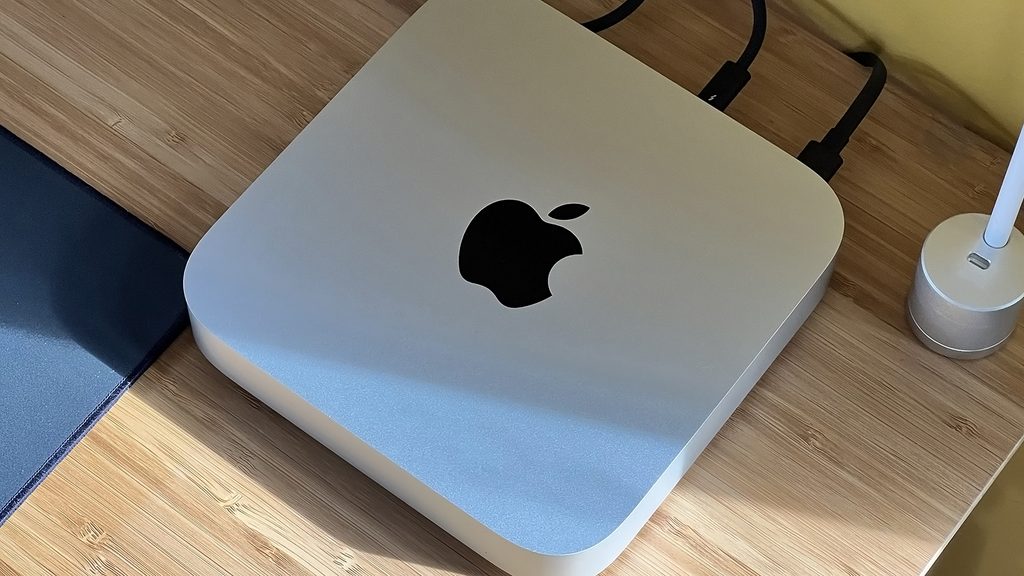
The Apple Mac mini is a compact desktop computer that requires the user to provide their own external display, keyboard, and mouse. Unlike a laptop, it has no built-in screen or battery, meaning it must remain connected to a wall outlet during operation. The current generation features a significant reduction in physical size compared to previous models, moving from a 19.7 cm square to a 12.7 cm square. This change affects how the device handles heat and where the physical buttons and ports are located.
Memory and Storage Constraints
The internal architecture of the Mac mini uses a unified memory system. This means the RAM is integrated directly into the processor package rather than sitting in separate slots. This design allows the CPU and GPU to access the same data pool quickly, but it also means that the memory is soldered and cannot be upgraded. If a user finds that 16GB is not enough for their specific software two years after purchase, there is no way to add more. Similarly, the solid-state drive (SSD) is soldered to the main logic board. While external drives can be connected via Thunderbolt or USB-C for extra file storage, the internal drive speed and capacity are fixed permanently.
The Physical Redesign and Power Button
The reduction in size to a 5-inch square footprint has led to a change in the placement of the power button. On the current model, the power button is located on the bottom surface of the chassis, near one of the rear corners. To press the button, the user must reach under the device or slightly tilt the unit upward. While the macOS operating system is designed to stay in a low-power “Sleep” mode rather than being shut down daily, this physical placement is a factor for those who prefer to turn their hardware off completely. The device also features front-facing ports for the first time, providing two USB-C connections and a headphone jack on the front edge.
Thermal Management and Airflow
The Mac mini uses an active cooling system with an internal fan. Air is drawn in through the base of the unit and exhausted through the rear. Because the device is very small, the fan must work harder when the processor is under a heavy load, such as during video rendering or 3D exporting. In a quiet room, the sound of the fan becomes audible during these high-intensity tasks. If the unit is placed in a confined space or covered by other objects, the internal temperature will rise, leading the system to reduce its processing speed to protect the hardware from heat damage.
2. How It Fits a Real Desk Setup
The Mac mini occupies a very small area on a desk, roughly the size of a large coaster. This small footprint allows it to sit under a monitor stand or in a corner, leaving the majority of the desk surface free for other items. The internal power supply means there is no large plastic “brick” on the floor or the desk; only a standard power cable runs from the back of the unit to the wall. This simplifies cable management, although the rear of the device can become crowded if multiple Thunderbolt cables, an HDMI cable, and an Ethernet cable are all connected simultaneously.
Peripheral Requirements and Compatibility
Because the Mac mini does not include a monitor, the user must ensure their existing screen is compatible with HDMI or Thunderbolt (USB-C) inputs. The standard M4 model supports up to three displays, but the specific resolutions and refresh rates depend on which ports are used. For input devices, the Mac mini works with both Apple-branded peripherals and standard third-party USB or Bluetooth keyboards and mice. However, some third-party keyboards may have different layouts for the “Command” and “Option” keys, which requires a period of adjustment for those moving from a different operating system.
Acoustic Profile and Daily Noise
During standard office work, such as web browsing, document editing, or video calls, the Mac mini operates almost silently. The fan spins at a low speed that is typically below the ambient noise level of a home or office. When the workload increases, the fan speed ramps up gradually. The sound is a consistent air-moving noise rather than a high-pitched whine. Because the speakers are small and integrated into the chassis, they are sufficient for system sounds and basic audio, but they do not provide the depth or volume required for high-quality music or movie audio. Most users connect external speakers or headphones for these purposes.
Port Accessibility and Cable Routing
The addition of front-facing ports changes how the device is used on a daily basis. Users can plug in thumb drives, charging cables, or headphones without reaching around to the back of the machine. The rear ports are reserved for permanent connections like monitors and external backup drives. The Thunderbolt 5 ports on the M4 Pro model use the same physical connector as USB-C but allow for much higher data speeds with compatible external hardware. If the device is placed too far back on a desk, accessing the rear ports may require moving the entire unit forward, which can pull on other connected cables.
3. Performance by Use Case
The following ratings are based on the standard M4 model with 16GB of Unified Memory.
| Use Case | Software | Rating | Reason |
| Office Work | Word, Excel, Zoom | Sufficient | 16GB base memory handles multitasking and large documents. |
| Web Browsing | Chrome, Safari (50+ tabs) | Sufficient | Unified memory architecture manages many open tabs efficiently. |
| Photo Editing | Adobe Lightroom, Photoshop | Sufficient | M4 chip processes high-resolution RAW files quickly. |
| Video Editing | Final Cut Pro, 4K Timelines | Adequate | Sufficient for editing, but M4 Pro is faster for long exports. |
| 3D Design | Blender, SketchUp | Adequate | Integrated GPU handles modeling, but rendering takes time. |
| Future Upgrades | Adding RAM or SSD | Not enough | All internal components are soldered and non-upgradable. |
The performance of the Mac mini is consistent across long periods of use due to its active cooling system. Unlike fanless devices, it can maintain its maximum speed for longer durations before heat becomes a limiting factor.
4. Official Specs (with plain explanations)
| Category | Specification | Notes |
| CPU | Apple M4 or M4 Pro chip | Integrated processor with 10 to 14 cores |
| Graphics | 10-core to 20-core GPU | Integrated into the main chip, shared memory |
| Memory | 16GB to 64GB Unified Memory | Soldered to the chip, no expansion slots |
| Storage | 256GB to 8TB SSD | Soldered to the board, non-replaceable |
| Dimensions | 12.7 cm x 12.7 cm x 5.0 cm | Small square footprint, internal power supply |
| Weight | 0.67 kg (M4) / 0.73 kg (M4 Pro) | Lightweight desktop unit without external brick |
| Ports (Front) | 2x USB-C, Headphone Jack | Front-facing connections for quick access |
| Ports (Rear) | 3x Thunderbolt, HDMI, Ethernet | Thunderbolt 4 or 5 depending on model |
This series is sold with different CPUs, memory, and storage depending on the release year and generation. Please match the specifications on your current seller page with the official information above.
Source: Apple Official Product Page
The specifications listed above represent the current hardware standards for the redesigned small-form-factor desktop. These components determine the physical space the device occupies on a desk and the technical limits for memory and storage capacity over the life of the machine.
5. Main Variations in This Series
- The processor comes in two main tiers: the standard M4 for general tasks and the M4 Pro for tasks requiring more simultaneous calculations and higher memory bandwidth.
- Memory configurations now start at 16GB as the minimum standard, with options to increase to 24GB, 32GB, 48GB, or 64GB at the time of purchase.
- Rear connectivity differs between models, with the M4 Pro version featuring Thunderbolt 5 ports for faster data transfer compared to the Thunderbolt 4 ports on the standard M4.
- Storage capacity begins at 256GB and can be scaled up to 8TB, though this must be decided before the unit is manufactured.
- Networking options include a standard Gigabit Ethernet port or an optional 10Gb Ethernet port for environments with high-speed wired infrastructure.
6. What to Check on the Sales Page
When purchasing a Mac mini, the configuration chosen at the start is permanent. It is important to verify the specific numbers on the seller’s page before finalizing the order.
- CPU Model: Check whether the unit has the “M4” or the “M4 Pro” chip.
- Memory (RAM): Confirm if the unit has 16GB, 24GB, or more, as this cannot be changed later.
- Storage Capacity: Verify the SSD size (256GB, 512GB, 1TB, etc.) based on your local file needs.
- Ethernet Speed: Check if the port is standard “Gigabit” or the upgraded “10Gb Ethernet.”
- Thunderbolt Version: Ensure the model has the Thunderbolt version (4 or 5) required for your external drives.
The sales page may also list the generation (e.g., “2024 model” or “M4 model”) to distinguish it from the older, larger M2 versions.
7. Disclaimer & Buying Advice
This buying guide for the Apple Mac mini is based on official manufacturer specifications and recurring real-world user experiences. It is completely independent, not sponsored, and does not guarantee specific performance for every unit. Hardware configurations such as the processor, memory, and storage can differ by generation and region, so please double-check the exact specifications listed on your seller’s page before purchasing.
8. Beginner Guide
If you are transitioning to a desktop computer for the first time and want to understand how to set up your workspace, you can [Start Here] to learn about the necessary peripherals and connections.