
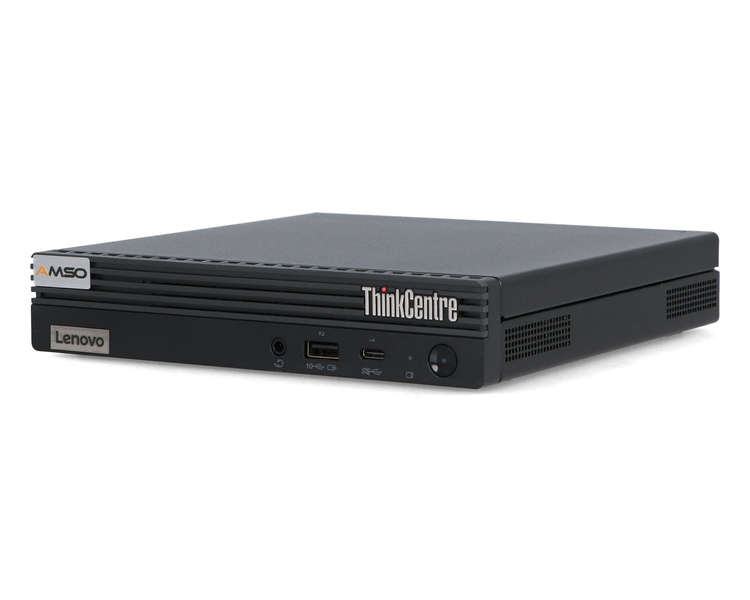
Image Source: Lenovo Official
Who Is It For?
The Lenovo ThinkCentre M70q Tiny is for individuals who need a full desktop experience without the bulk of a traditional tower. It fits the needs of home office workers, students, and administrative staff who primarily use web-based applications, office suites, and communication tools. The small size and mounting options make it a tool for those who want a clean, minimalist workspace. It is not for those who require a dedicated graphics card for high-end gaming or professional 3D rendering, nor is it for those who need more than two internal storage drives.
“If this form factor or power doesn’t quite fit your daily work, exploring other lineup categories would be a better path.”
1. Check Before You Buy
The Lenovo ThinkCentre M70q Tiny is a 1-liter desktop computer designed for environments where desk space is limited. Because of its small size, the internal components are packed closely together, and the system relies on a single internal fan to move air across the processor and out of the rear vents. This physical design dictates several hardware constraints that differ from larger tower computers. The most significant factor is the reliance on an external power adapter, which is a separate brick that must be placed on the floor or the desk.
Processor Power and Thermal Limits
The M70q Tiny is available with two types of Intel processors: the 35W “T” series and the 65W standard series. The 35W models generate less heat and are intended for quiet operation in small spaces. The 65W models provide higher processing speeds but require more airflow and a larger 135W power adapter. During heavy processing tasks, the internal fan in the 65W models will spin at higher speeds, creating an audible whirring sound. If the system is placed in a confined area with poor ventilation, the processor will reduce its speed to prevent overheating, which results in slower performance during long tasks.
Memory and Storage Expansion
Unlike many small laptops, the M70q Tiny features two physical SO-DIMM slots for memory. This means the RAM is not soldered to the motherboard and can be replaced or increased after purchase. However, the system has only two slots, so reaching the 64GB maximum requires removing any existing memory sticks. For storage, the chassis contains one M.2 slot for a fast NVMe drive and one 2.5-inch bay for a traditional hard drive or a SATA SSD. If the 2.5-inch bay is used, it occupies a significant portion of the internal space and may slightly increase the internal temperature compared to an M.2-only configuration.
The Flex IO Port System
One of the specific features of the Tiny series is the “Flex IO” port located at the rear. This is a punch-out area that can be configured with different types of connections at the factory. A single M70q Tiny might have an extra VGA port for an older monitor, while another might have a Serial port for industrial equipment or an extra USB-C port. This means that two units with the same model name can have different physical connections. It is necessary to verify the specific port list on the seller’s page to ensure the required monitor or peripheral connections are present.
Power Adapter Wattage
The power adapter included with the M70q Tiny is not the same for every configuration. Units with an i3 or i5 processor often come with a 65W or 90W adapter, while i7 or i9 models require a 135W adapter. The 135W adapter is physically larger and heavier than the 65W version. If a user upgrades the processor later, the existing power adapter may not provide enough electricity, leading to system instability or reduced performance. The power jack is a proprietary rectangular yellow connector, which is standard across Lenovo’s business desktop and laptop lines.
2. How It Fits a Real Desk Setup
The ThinkCentre M70q Tiny occupies a footprint roughly the size of a thick hardcover book. It can be placed horizontally on a desk or vertically using an optional plastic stand. Because the air intake is located at the front and the exhaust is at the rear, the sides of the unit can be placed close to other objects without affecting the cooling. The chassis is made of painted steel, which provides a rigid structure that can support the weight of a small monitor if the unit is placed horizontally, though this is not the intended use for all configurations.
VESA Mounting and Hidden Placement
A common way to use the M70q Tiny is to mount it to the back of a monitor using a VESA mount bracket. This removes the computer from the desk surface entirely. When mounted this way, the power button is located on the front edge, which may be difficult to reach depending on the monitor’s design. Lenovo includes a feature called “Smart Power On,” which allows the user to turn on the computer by pressing “Alt+P” on a wired keyboard. This eliminates the need to reach for the physical power button if the unit is hidden behind a screen or under a desk.
Front-Panel Accessibility and Ports
The front panel of the M70q Tiny includes a USB-C port, a USB-A port, and a 3.5mm headphone/microphone jack. This allows for the quick connection of headsets or portable drives. The power button is also located on the front and features a small green LED indicator. Because the unit is so light, plugging in a tight USB cable can cause the entire computer to slide backward on the desk. Using one hand to hold the chassis while plugging in devices prevents this movement. The rear ports are reserved for permanent connections like the monitor, keyboard, and mouse.
Acoustic Profile and Fan Behavior
In a standard office environment, the M70q Tiny is nearly silent during web browsing or document editing. The internal fan spins at a low speed that is difficult to hear from a distance of one meter. When the system is used for video conferencing or data-heavy spreadsheets, the fan speed increases. The sound is a consistent air-moving noise. Because the fan is small, the pitch of the sound is higher than that of a large desktop tower. If the unit is mounted behind a monitor, the screen acts as a physical barrier that further reduces the audible noise for the user.
External Power Brick Management
While the computer itself is small, the external power brick requires its own space. The cable from the brick to the computer is approximately 1.5 meters long, and the power cord from the wall to the brick is of similar length. This means the brick can be tucked away in a cable management tray or placed on the floor. The brick generates a small amount of heat during operation and should not be covered by papers or fabric. The use of an external adapter keeps the heat generated by the power conversion process outside of the small computer chassis.
3. Performance by Use Case
The following ratings are based on a middle-tier configuration featuring an Intel Core i5 processor and 16GB of RAM.
| Use Case | Software | Rating | Reason |
| Office Work | Excel, Word, Outlook | Sufficient | Multi-core Intel CPUs handle large spreadsheets and many tabs. |
| Web Browsing | Chrome, Edge (30+ tabs) | Sufficient | 16GB of RAM allows for smooth switching between many open tabs. |
| Video Calls | Zoom, Microsoft Teams | Sufficient | Integrated graphics and CPU handle 1080p video streams easily. |
| Photo Editing | Photoshop, Lightroom | Adequate | Sufficient for basic edits, but limited by integrated graphics. |
| 4K Video Editing | Premiere Pro, Resolve | Not enough | Lack of a dedicated GPU results in slow rendering and playback. |
| AAA Gaming | Cyberpunk 2077, Starfield | Not enough | Integrated Intel UHD graphics cannot run modern heavy games. |
The performance of the M70q Tiny is consistent for productivity tasks. However, because it is a 1-liter machine, it is not intended for sustained high-load tasks like 24/7 video rendering, which may lead to thermal throttling and reduced speeds over time.
4. Official Specs (with plain explanations)
| Category | Specification | Notes |
| CPU | Intel Core i3 to i9 (12th to 14th Gen) | T-series (35W) or standard (65W) processors |
| Graphics | Intel UHD Graphics | Integrated into the processor, shared memory |
| Memory | Up to 64GB DDR4 or DDR5 | Two SO-DIMM slots, user-upgradable |
| Storage | M.2 NVMe SSD + 2.5-inch SATA HDD/SSD | Dual storage slots, internal expansion possible |
| Dimensions | 179 x 36.5 x 182.9 mm | 1-liter volume, compact square chassis |
| Weight | Starting at 1.25 kg (2.76 lbs) | Varies by internal storage and cooling |
| Power | 65W, 90W, or 135W Adapter | External power brick, wattage depends on CPU |
| Ports | USB-C, USB-A, HDMI, DisplayPort | Front and rear physical connection points |
This series is sold with different CPUs, memory, and storage depending on the release year and generation. Please match the specifications on your current seller page with the official information above.
Source: Lenovo Official Product Page
The specifications listed above represent the hardware foundation of the ThinkCentre M70q Tiny series. These components determine the physical space the device occupies on a desk, the speed at which it processes data, and the limits for future internal hardware changes.
The M70q Tiny is a modular system that allows for various configurations of processors and ports. The internal layout is designed to fit within a 1-liter chassis, which influences how the system manages heat and how many physical drives can be installed simultaneously.
5. Main Variations in This Series
- The processor generation varies between Gen 3 (12th Gen Intel), Gen 4 (13th Gen Intel), and Gen 5 (14th Gen Intel), which changes the number of processing cores and the memory speed.
- CPU power levels are divided into 35W “T” models for lower heat and 65W standard models for higher sustained processing speeds.
- Memory types differ by generation, with older models using DDR4 and newer models utilizing DDR5, which are not physically compatible with each other.
- The “Flex IO” port allows for an optional third video output, such as an extra HDMI, DisplayPort, VGA, or Serial port, depending on the specific unit configuration.
- Storage can be configured with a single M.2 NVMe drive or a combination of an M.2 drive and a 2.5-inch SATA drive for higher total capacity.
6. What to Check on the Sales Page
When reviewing a listing for the ThinkCentre M70q Tiny, the specific generation and the included internal components will determine the actual performance and longevity of the machine.
- CPU Generation: Check whether you are getting the Gen 3 (12th Gen), Gen 4 (13th Gen), or Gen 5 (14th Gen) processors.
- CPU Model: Verify if the processor is a “T” model (35W) or a standard model (65W) based on your noise and speed needs.
- Memory Type: Confirm if the RAM is DDR4 or DDR5, as this affects future upgrade compatibility.
- Flex IO Ports: Check the rear port list for optional additions like VGA, HDMI, or Serial ports.
- Power Adapter: Confirm the wattage of the included power brick (65W, 90W, or 135W).
The sales page may also mention “Tiny-in-One” compatibility, which refers to the ability to slide the computer into a specific Lenovo monitor to create an all-in-one system.
7. Disclaimer & Buying Advice
This buying guide for the Lenovo ThinkCentre M70q Tiny is based on official manufacturer specifications and recurring real-world user experiences. It is completely independent, not sponsored, and does not guarantee specific performance for every unit. Hardware configurations such as the processor, memory, and storage can differ by generation and region, so please double-check the exact specifications listed on your seller’s page before purchasing.
8. Beginner Guide
If you are setting up a desktop for the first time and want to understand how to connect your monitor and peripherals, you can [Start Here] to read our basic hardware and setup guides.

[…] Lenovo ThinkCentre M70q Tiny — Business line available in mini and tower form factors […]