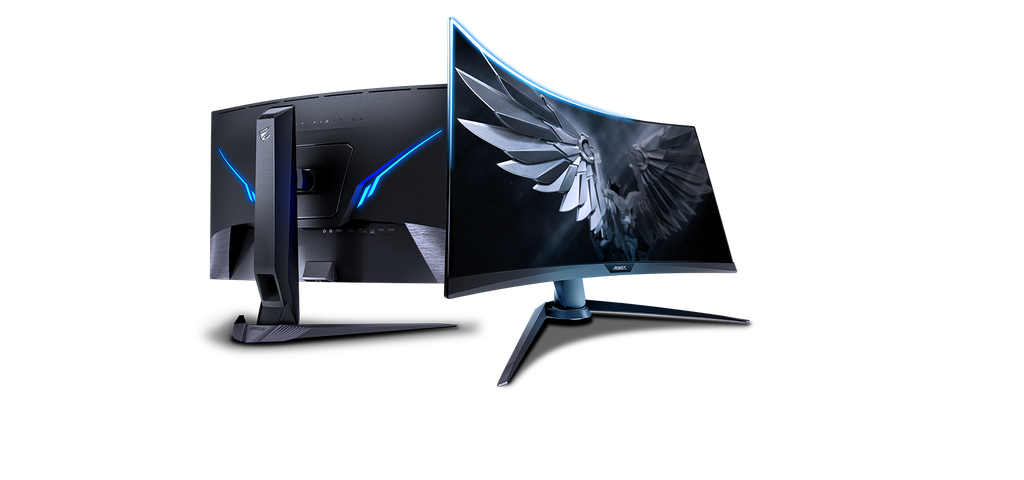
Image Source: Gigabyte Official
Who Is It For?
The AORUS series is a category of monitors where high refresh rates—how many times the image updates each second—and integrated “tactical” features are the primary technical focus. These displays are identified by prefixes such as FI, KD, or FO in their model names and often include built-in hardware for audio processing and multi-device control. A core feature of this line is the KVM switch, which allows a user to control two different computers using a single set of a keyboard and mouse. Many model names use the FI or FO prefix followed by numbers indicating the screen size.
These monitors fit on desks where high-performance gaming and multi-device productivity, such as switching between a desktop PC and a laptop, are the main activities. They are less suitable for shallow workspaces due to the large, V-shaped metal stands that require significant depth. If this form factor or screen size doesn’t quite fit your daily work, exploring other lineup categories would be a better path.
1. How This Line Is Grouped
The AORUS lineup is categorized as the premium gaming brand from Gigabyte. It is organized by panel technology and resolution, with specific prefixes indicating the physical form and the type of screen used. While Gigabyte’s standard “G” or “M” series monitors focus on value and essential features, the AORUS line introduces advanced audio hardware, customizable lighting, and higher-tier panel specifications.
| Tier | Typical names | Rough position |
| Tactical IPS | FI25F, FI27Q, FI32Q | 1080p or 1440p IPS panels with 165Hz to 390Hz. |
| OLED Series | FO27Q3, FO32U2, FO48U | 1440p or 4K OLED panels with near-instant response. |
| Large Format VA | FV43U | 43-inch 4K VA panels with high peak brightness. |
| Advanced KD/AD | AD27QD, KD25F | Specialized e-sports models with high-speed TN or IPS. |
Tactical IPS Tier
This group focuses on the 1440p (2560×1440) resolution, which is a common choice for balancing image detail and motion speed. These monitors use “Super Speed IPS” panels, a version of In-Plane Switching technology designed to change colors faster than standard IPS screens. This reduces the “ghosting” or trailing effect seen behind moving objects. These models are used in environments where wide viewing angles and color consistency are required alongside high refresh rates.
OLED Series Tier
The OLED (Organic Light Emitting Diode) models in the AORUS line do not use a traditional backlight. Instead, each pixel emits its own light, allowing for an infinite contrast ratio—the difference between the darkest black and the brightest white. These models, such as the FO32U2, offer the fastest response times in the line, often 0.03ms. They are used in dark rooms to emphasize the depth of the image and are frequently chosen for cinematic gaming.
Large Format VA Tier
This tier consists of massive displays, such as the 43-inch FV43U. These monitors use VA (Vertical Alignment) panels, which provide higher contrast than IPS panels but can have slower response times in dark scenes. These are essentially small televisions optimized for computer use, featuring DisplayPort inputs and high refresh rates. They are used in scenes where the user wants a single large screen for both a PC and a gaming console.
Advanced KD and AD Tier
These models are often specialized for competitive e-sports. They may use TN (Twisted Nematic) panels for the absolute lowest input lag—the delay between a mouse click and the action on screen—or high-speed IPS panels. These models often feature the first generation of AORUS tactical features, such as Active Noise Cancelling (ANC) for microphones plugged directly into the monitor.
2. Check Before You Buy
KVM Switch Setup Requirements
A recurring feature in the AORUS line is the KVM switch. To use this, the monitor must be connected to one computer via a USB-B to USB-A cable and to a second computer (usually a laptop) via a USB-C cable. The USB-C cable must support “DisplayPort Alternate Mode” to carry both video and data. If the cables are not connected correctly, the keyboard and mouse plugged into the monitor will not switch between the two devices.
The V-Shaped Stand Depth
AORUS monitors typically use a heavy, V-shaped metal stand. The two front legs spread wide and extend forward, while the center column requires space at the back. On a desk with a depth of 60cm (24 inches) or less, these legs can take up the space where a large mousepad would normally sit. This stand design also prevents the monitor from being pushed flush against a wall, often leaving a gap of 10cm to 15cm.
Built-in Audio DAC and ANC
Many AORUS monitors include an ESS SABRE DAC (Digital-to-Analog Converter). This is a high-quality audio chip that improves the sound quality of headphones plugged directly into the monitor’s 3.5mm jack. Additionally, the Active Noise Cancelling (ANC) feature requires the user to plug their microphone into the monitor and connect the USB “upstream” cable to the PC. Understanding that these features require specific cable connections is a necessary step for new users.
OLED Care and Maintenance
For the FO series (OLED), users must be aware of “OLED Care” features. Because OLED pixels can wear out over time if they display the same static image for too long—a phenomenon known as burn-in—the monitor will periodically perform maintenance tasks. This includes “Pixel Shift,” where the image moves slightly, and “Static Control,” which dims the screen if no movement is detected. These features are necessary to protect the panel but can be noticed during standard office work.
3. How It Fits a Real Desk Setup
RGB Fusion 2.0 and Bias Lighting
The back of most AORUS monitors features customizable RGB lighting. This lighting can be controlled via the “RGB Fusion 2.0” software. In a setup where the back of the monitor faces a light-colored wall, this lighting can act as “bias lighting,” which provides a soft glow behind the screen. This reduces eye strain by decreasing the contrast between the bright screen and the dark wall in a dimly lit room.
OSD Sidekick and Software Control
AORUS monitors allow users to adjust all screen settings—such as brightness, contrast, and crosshairs—using a mouse and keyboard through the “OSD Sidekick” software. This requires the USB upstream cable to be connected to the PC. This is a functional benefit for users who find it difficult to reach the physical joystick at the bottom of the monitor or who want to save different profiles for different games.
VESA Mounting and Recessed Holes
Most AORUS monitors are compatible with the VESA 100x100mm standard, which is the standard screw pattern for mounting the screen to an arm. However, the mounting area on the back is often recessed (sunken) into the chassis. This means that some standard monitor arm plates may not fit without using spacers—small plastic tubes that sit between the monitor and the plate. These spacers are usually included in the box.
Cable Management and Port Access
The stands include a hole in the center column for routing cables. Because AORUS monitors often feature many ports—including HDMI, DisplayPort, USB-C, and multiple USB-A ports—the number of cables can become large. The ports are typically downward-facing, which keeps the cables from sticking out toward the wall but can make them difficult to reach without tilting the monitor or using a mirror.
4. Sizes and Models in This Line
The AORUS series covers the most common high-performance sizes. The choice of size affects the pixel density—how many pixels are packed into an inch (PPI). A higher PPI results in sharper text and more detailed images.
24.5-inch to 25-inch Models
These are the standard for competitive e-sports. At a resolution of 1920×1080 (Full HD), the pixel density is about 90 PPI. This is sufficient for gaming, and the smaller screen size allows the user to see the entire display without moving their head. These models, such as the FI25F, focus on extreme refresh rates (up to 390Hz) rather than high resolution. They fit easily on small desks.
27-inch Models
This is the most common size in the AORUS line. At 27 inches, the standard resolution is 2560×1440 (QHD). This provides a pixel density of 109 PPI, which is a noticeable improvement in sharpness over 1080p. The 27-inch OLED models (FO27Q3) provide even higher motion clarity. This size requires a desk width of at least 80cm to 100cm to fit comfortably.
32-inch Models
At 32 inches, the AORUS line typically moves to 4K (3840×2160) resolution. This results in a very high pixel density of about 138 PPI, making text look extremely crisp. However, a 32-inch screen is physically large (about 71cm wide), meaning the user must sit further back to avoid neck strain. These models, such as the FO32U2, are often used for a mix of high-resolution media and productivity.
43-inch to 48-inch Models
These are the large-format displays. A 48-inch OLED AORUS (FO48U) is essentially the size of a large television. These require a very deep desk or a wall mount, as sitting too close to a 48-inch screen can cause significant neck strain. They are used in environments where the monitor serves as the primary screen for both a PC and a gaming console in a large studio.
| Size | Common resolution | Aspect ratio | Notes |
| 24.5″ | 1920 x 1080 | 16:9 | High refresh rates for competitive play. |
| 27″ | 2560 x 1440 | 16:9 | Balanced sharpness and size for most users. |
| 32″ | 3840 x 2160 | 16:9 | High-clarity 4K for deep desks. |
| 43″ | 3840 x 2160 | 16:9 | Large VA panel for console and PC use. |
| 48″ | 3840 x 2160 | 16:9 | Large OLED for cinematic entertainment. |
5. Performance by Use Case
The following ratings are based on a standard high-refresh-rate AORUS IPS or OLED model. Performance may vary depending on the specific panel technology and refresh rate of the chosen model.
| Use Case | Software / Task | Rating | Reason |
| Competitive Gaming | Valorant, CS2, Overwatch 2 | Sufficient | High refresh rates and low input lag. |
| Cinematic Gaming | Cyberpunk 2077, Elden Ring | Sufficient | Good color gamuts and OLED contrast options. |
| Office / Productivity | Excel, Word, Slack | Sufficient | KVM switch and sharp text on 1440p/4K models. |
| Professional Video | Premiere Pro, DaVinci Resolve | Adequate | Good color coverage, but lacks pro calibration. |
| Professional Photo | Photoshop, Lightroom | Adequate | IPS models are consistent; OLED has ABL. |
| General Media | Netflix, YouTube, Movies | Sufficient | Large sizes and high contrast on OLED models. |
The “Sufficient” rating for gaming and office work is due to the line’s focus on motion clarity and multi-device connectivity. For professional color work, the rating is “Adequate” because these monitors are not factory-calibrated to the same level as professional-grade displays.
6. Official Specs (with plain explanations)
LCD Models (IPS/VA)
| Category | Specification | Notes |
| Refresh Rate | 144Hz to 390Hz | How many times the image updates per second. |
| Response Time | 1ms (GtG) | How quickly a pixel changes from one grey to another. |
| Panel Type | IPS or VA | Determines color, viewing angles, and blacks. |
| Brightness | 350 to 1000 nits | Screen brightness unit; higher is used for HDR. |
OLED Models (FO Series)
| Category | Specification | Notes |
| Refresh Rate | 120Hz to 360Hz | How many times the image updates per second. |
| Response Time | 0.03ms (GtG) | Near-instant pixel color changes. |
| Contrast Ratio | 1,500,000:1 | The difference between the darkest and brightest pixels. |
| OLED Care | Burn-in Protection | Software features to protect the OLED panel. |
This line is sold with different tier names, sizes, refresh rates, and panels depending on the exact model and region. Please match the specifications on your current seller page with the official information above.
Source: Gigabyte Official Product Page
7. Main Variations in This Line
KVM vs. Non-KVM Models
While the KVM switch is a signature feature of the AORUS line, not every model includes it. Some entry-level or older AORUS monitors may lack the USB-C port required for the KVM function. If you plan to use the monitor to switch between a laptop and a desktop, verifying the presence of the “KVM” feature in the specifications is a necessary step.
Flat vs. Curved Screens
Most AORUS monitors are flat, especially in the 24.5-inch and 27-inch sizes. However, some ultrawide or large-format models may be curved. The curvature is measured in “R” (e.g., 1500R), which means the screen curves as if it were part of a circle with a 1.5-meter radius. A curved screen helps reduce eye strain on very wide displays by keeping the edges at a similar distance from the eyes as the center.
Tactical Features (ANC 2.0)
The “Tactical” designation refers to a suite of features including Active Noise Cancelling (ANC). ANC 2.0 is the newer version that provides better background noise reduction for microphones. This is a significant variation for users who play in noisy environments and want to ensure their voice remains clear to teammates without using a separate USB sound card.
8. What to Check on the Sales Page
When looking at a sales listing, the model name can be confusingly similar to other Gigabyte lines. Verifying the specific technical details is necessary to ensure the monitor matches your hardware.
- Line / Tier / Size: Check whether you are getting the AORUS FI27 model, not a different tier like the Gigabyte M27 or G27 under the same brand name.
- Panel Technology: Confirm if the listing says “OLED,” “Super Speed IPS,” or “VA,” as this fundamentally changes the contrast and viewing experience.
- Refresh Rate: Ensure the Hz number matches your expectations (e.g., 165Hz vs 240Hz), as some models look identical but have different internal speeds.
- HDMI Version: If you are a console gamer, verify the presence of “HDMI 2.1” to ensure support for 120Hz gaming at 4K.
- KVM Support: Specifically look for “KVM” in the feature list if you plan to use two computers with one set of peripherals.
9. Disclaimer & Buying Advice
This buying guide for the AORUS Series is based on official manufacturer specifications and recurring real-world user experiences. It is completely independent, not sponsored, and does not guarantee specific performance for every unit. Tier name, screen size, refresh rate, panel type, and ports can differ by model and region, so please double-check the exact specifications listed on your seller’s page before purchasing.
10. Beginner Guide
If you are new to monitor terms like refresh rate, panel type, and resolution, read the basics in our [Start Here].