Image Source: ASUS Official
Who Is It For?
The ASUS TUF Gaming series fits users who require a durable, high-refresh-rate display for competitive gaming without the price premium of the ROG flagship lines. This series suits players of fast-paced titles like first-person shooters or racing games who prioritize motion clarity and low input lag—the delay between a mouse movement and the screen’s reaction. Because the lineup includes many flat IPS (In-Plane Switching) models, it fits users who need consistent colors and wide viewing angles for a mix of gaming and general school or office work.
However, this series does not fit professional colorists or high-end HDR (High Dynamic Range) content creators, as the peak brightness and color depth are physically limited compared to professional-grade displays. It is not for users seeking a “luxury” aesthetic, as the chassis is made of rugged, industrial-style plastics with a focus on durability over slimness. The TUF Gaming series also does not fit those who require advanced connectivity like Thunderbolt 4 or high-wattage USB-C charging for laptops, as the ports are strictly focused on standard gaming inputs. If this form factor or the mid-range feature set doesn’t quite fit your daily work, exploring other lineup categories would be a better path.
1. How This Line Is Grouped
ASUS organizes the TUF Gaming monitor line under the “VG” prefix. It is positioned as the mainstream gaming tier, sitting below the ROG Swift and ROG Strix series but offering significantly higher performance than the standard ASUS “VA” or “VZ” office monitors.
| Tier | Typical Names | Rough Position |
| Entry Speed | VG249Q, VG259QR | 24-25 inch, 1080p, high refresh (144Hz-165Hz). |
| Mainstream QHD | VG27AQ, VG27AQL1A | 27 inch, 1440p, balanced speed and resolution. |
| High-Refresh Pro | VG259QM, VG279QM | 1080p or 1440p, ultra-high refresh (240Hz-280Hz). |
| Large & Curved | VG32VQ, VG34VQL1B | 32-34 inch, curved VA panels, immersive gaming. |
Entry Speed Group
The 24-inch and 25-inch models are the foundation of the TUF line. These monitors use 1080p (Full HD) resolution. At this size, the pixel density—how many pixels are packed into an inch—is high enough that text and images look sharp. These models are physically compact and fit smaller desks, focusing on providing 144Hz or 165Hz refresh rates at an accessible price.
Mainstream QHD Group
The 27-inch QHD models (2560 x 1440) are the most popular in the series. This resolution provides 77% more screen space than 1080p, allowing for more windows to be open simultaneously. These models often feature “IPS” panels, which are a physical requirement for users who want the colors to remain accurate even when looking at the screen from an angle.
High-Refresh Pro Group
Models ending in “QM” are the speed specialists of the TUF line. They utilize “Fast IPS” technology, which uses thinner liquid crystal layers to achieve faster response times—the time it takes for a pixel to change color. These monitors can be “overclocked” via the monitor’s menu to reach 280Hz, providing extremely smooth motion for competitive eSports.
Large & Curved Group
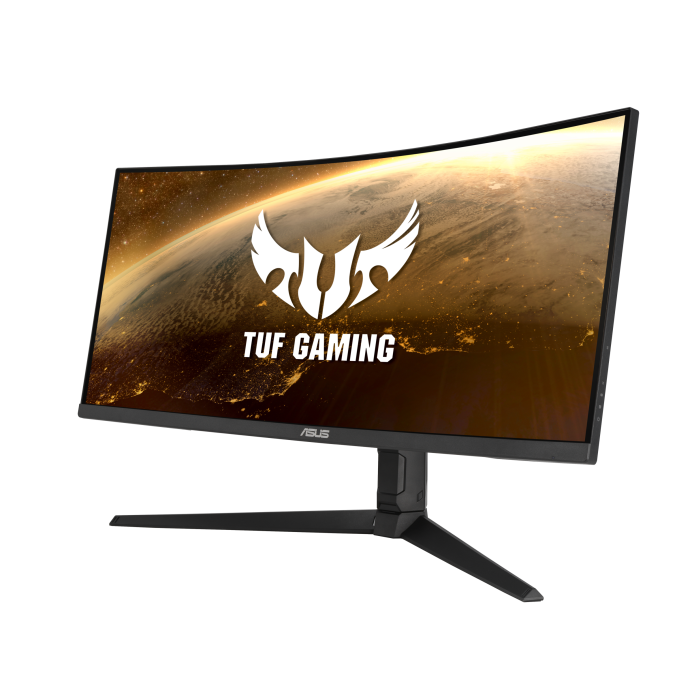
The 32-inch and 34-inch models typically move away from flat IPS panels to curved VA (Vertical Alignment) panels. VA panels are physically capable of blocking more light, resulting in a 3000:1 contrast ratio—three times higher than standard IPS. This makes blacks look darker in a dark room. The curvature (usually 1500R) is a physical arc that keeps the edges of the large screen at a consistent distance from the user’s eyes.
2. Check Before You Buy
ELMB and the Brightness Trade-off
A defining feature of the TUF series is ELMB (Extreme Low Motion Blur). This technology strobes the backlight—turning it on and off very rapidly—to reduce the “ghosting” or blur seen behind fast-moving objects. However, because the backlight is physically off for part of the time, the overall screen brightness drops significantly when ELMB is active. On many TUF models, you cannot use ELMB and Variable Refresh Rate (FreeSync/G-Sync) at the same time, though newer “ELMB Sync” models allow both but still suffer from the brightness reduction.
VA Panel Dark Smearing
The curved models in the TUF series (like the VG32VQ) use VA panels. While these offer excellent contrast, they have a physical limitation called “dark smearing.” VA pixels are slower at changing from black to dark gray than they are at changing between bright colors. In a game with dark environments, a moving black object may leave a faint, blurry “trail” behind it. This is a physical characteristic of the panel technology and is most noticeable in high-contrast, fast-moving scenes.
Stand Adjustability Variations
Not all TUF Gaming monitors come with the same stand. Budget-focused models (often with a “BA” or “VAB” suffix) may only feature a “tilt-only” stand, meaning the screen cannot be raised or lowered. Higher-tier models include a “full-function” stand that allows for height adjustment, swivel (turning left and right), and pivot (rotating 90 degrees to a vertical position). A buyer must check the “Stand Adjustability” section of the sales page to ensure the monitor can be physically positioned at their eye level.
Shadow Boost and Image Accuracy
TUF monitors include a feature called “Shadow Boost.” This is a software-side adjustment that brightens dark areas of a game to help the player see enemies hiding in shadows. While this provides a competitive advantage, it physically “crushes” the intended contrast of the image, making the game look washed out or gray. Users who prioritize a cinematic, realistic look will find themselves turning this feature off to maintain the original visual intent of the game.
3. How It Fits a Real Desk Setup
Stand Footprint and Surface Area
The TUF Gaming series typically uses a solid, rectangular or square base rather than the wide-spreading “tripod” legs found on ROG monitors. On a desk with a depth of 60 cm (24 inches), this flat base occupies a predictable area in the center. This design allows the user to place small items, like a smartphone or a set of keys, directly on the monitor base, reclaiming some usable desk space. The base is physically heavy to ensure the monitor does not wobble during intense typing or gaming.
Cable Management and Routing
ASUS includes a simple plastic clip or a hole in the stand riser for cable management. The ports on TUF monitors face downwards, which is a physical fit for wall-mounting as the cables do not stick out toward the wall. However, because the ports are tucked under a plastic lip on the back, plugging in a new HDMI or DisplayPort cable often requires the user to tilt the monitor significantly or look at the ports from underneath with a flashlight.
VESA Mounting and the Rear Chassis
For users who prefer a monitor arm, the TUF series supports the VESA 100×100 standard—the standard screw pattern for a monitor arm. The mounting holes are often hidden behind small rubber caps that must be pried off. Because the rear of the monitor is relatively flat compared to the aggressive “bulges” of some gaming brands, it is a physical fit for most standard monitor arm plates without needing extra-long spacer screws.
Bezel Design and Multi-Monitor Alignment
Most TUF monitors feature a “three-sided frameless” design. This means the top and side borders are very thin (about 1-2 mm of plastic), though there is still a small “inner black border” on the panel itself. This physical design fits “side-by-side” dual-monitor setups, as the gap between the two screens is minimized. The bottom bezel is thicker and houses the internal electronics and the power indicator light, which glows amber in standby mode and white when active.
4. Sizes and Models in This Line
The TUF Gaming line covers the most common desktop sizes, with resolutions ranging from 1080p to 4K.
| Size | Common Resolution | Aspect Ratio | Notes |
| 24″ / 25″ | 1920 x 1080 (FHD) | 16:9 | High pixel density; fits small desks and eSports. |
| 27″ | 1920 x 1080 (FHD) | 16:9 | Large text; pixels may be visible if sitting close. |
| 27″ | 2560 x 1440 (QHD) | 16:9 | The “sweet spot” for 27-inch sharpness. |
| 28″ | 3840 x 2160 (4K) | 16:9 | VG28UQL1A; high detail for 4K gaming. |
| 32″ | 2560 x 1440 (QHD) | 16:9 | Large screen; usually curved VA panels. |
| 34″ | 3440 x 1440 (UWQHD) | 21:9 | Ultrawide; provides extra horizontal vision. |
The 24-inch 1080p models (like the VG249Q) are the standard for competitive play. At this size, the screen fits entirely within the user’s peripheral vision, which is a physical requirement for games where the player must react to movement at the very edges of the display.
The 27-inch 1440p models (like the VG27AQ) are the most versatile. 1440p provides a sharp image where individual pixels are difficult to see at a normal viewing distance of 60 cm. This size requires a mid-to-high-end graphics card to maintain high frame rates in modern games.
The 34-inch “Ultrawide” (VG34VQL1B) is 81 cm (32 inches) wide. On a standard desk, this monitor provides the same horizontal space as two smaller monitors but without the plastic border in the middle. It is a physical fit for racing games and flight simulators, as well as video editing where a long horizontal timeline is beneficial.
5. Performance by Use Case
The performance of an ASUS TUF monitor is determined by its panel type (IPS vs. VA) and its refresh rate.
| Use Case | Software / Task | Rating | Reason |
| Competitive FPS | Valorant, CS2, Apex | Sufficient | High refresh rates and ELMB provide clear motion. |
| Cinematic RPGs | Cyberpunk 2077, Elden Ring | Sufficient | IPS colors or VA contrast enhance the atmosphere. |
| Console Gaming | PS5, Xbox Series X | Sufficient | HDMI 2.1 models (VG28UQL1A) support 4K 120Hz. |
| Office Work | Excel, Word, Outlook | Sufficient | Sharp text on 1440p/4K models and flicker-free tech. |
| Video Editing | Premiere Pro, Resolve | Adequate | Good color gamut, but lacks professional calibration. |
| Photo Editing | Photoshop, Lightroom | Adequate | Wide color coverage, but IPS glow can affect dark areas. |
The “Sufficient” rating for competitive gaming is due to the low “input lag.” TUF monitors are physically designed to process the video signal as quickly as possible, often keeping the delay under 4 milliseconds, which is a requirement for high-level play.
6. Official Specs (with plain explanations)
| Category | Specification | Notes |
| Refresh Rate | 144Hz to 280Hz | How many times the image updates each second. |
| Response Time | 1ms (MPRT) / 1ms (GtG) | Time for a pixel to change color; lower is better. |
| Brightness | 250 to 450 nits | Nits = unit of brightness; 350 is standard for indoors. |
| Panel Types | IPS or VA | IPS = speed/colors; VA = contrast/blacks. |
| Color Gamut | 99% sRGB / 90% DCI-P3 | The range of colors the monitor can physically show. |
| Connectivity | HDMI 2.0/2.1, DisplayPort 1.2/1.4 | HDMI 2.1 is required for 4K 120Hz on consoles. |
| Sync Tech | FreeSync / G-Sync Compatible | Prevents “tearing” (split images) during gaming. |
This line is sold with different tier names, sizes, refresh rates, and panels depending on the exact model and region. Please match the specifications on your current seller page with the official information above.
Source: ASUS Official Product Page
The “MPRT” (Moving Picture Response Time) of 1ms is achieved using the ELMB backlight strobing. The “GtG” (Gray to Gray) response time is a measure of the actual liquid crystal speed. A 1ms GtG rating on a Fast IPS panel means that fast-moving objects will have very little “ghosting” even without ELMB active.
7. Main Variations in This Line
The most common variation in the TUF line is the panel technology. “IPS” models are the standard for speed and color consistency. “VA” models are the choice for users who play in dark rooms and want deeper blacks.
Another variation is the “L1A” suffix (e.g., VG27AQL1A). These models typically feature a redesigned chassis with a more “wing-like” stand and slightly higher peak brightness or color gamut compared to the original “AQ” models. They also often include a built-in USB hub, allowing the user to plug a mouse and keyboard directly into the monitor.
The “UQL1A” models (like the VG28UQL1A) are the 4K flagships of the TUF line. These are the only models in the series that feature HDMI 2.1 ports, which are a physical requirement for the PlayStation 5 and Xbox Series X to run at 4K resolution and 120Hz simultaneously.
8. What to Check on the Sales Page
- Line / Tier / Size: Check whether you are getting the TUF Gaming “VG” model, not a standard ASUS “VA” or “VZ” model, as the gaming features like ELMB are absent in office models.
- Stand Adjustability: Confirm if the stand is “Height Adjustable” or “Tilt Only” if you are not using a monitor arm.
- HDMI Version: For 4K 120Hz gaming on consoles, ensure the model has HDMI 2.1.
- Panel Type: Verify if the screen is “IPS” (for speed/angles) or “VA” (for contrast), as this changes the viewing experience significantly.
- Refresh Rate: Ensure the Hz (e.g., 144Hz, 165Hz, 240Hz) matches your computer’s performance capabilities.
9. Disclaimer & Buying Advice
This buying guide for the ASUS TUF Gaming Series is based on official manufacturer specifications and recurring real-world user experiences. It is completely independent, not sponsored, and does not guarantee specific performance for every unit. Tier name, screen size, refresh rate, panel type, and ports can differ by model and region, so please double-check the exact specifications listed on your seller’s page before purchasing.
10. Beginner Guide
If you are new to monitor terms like refresh rate (Hz), panel type (IPS/VA), and resolution (1080p/1440p/4K), read the basics in our [Start Here]. Understanding how these technical specs interact with your gaming hardware will help you determine if the performance-focused ASUS TUF Gaming series fits your specific needs.